


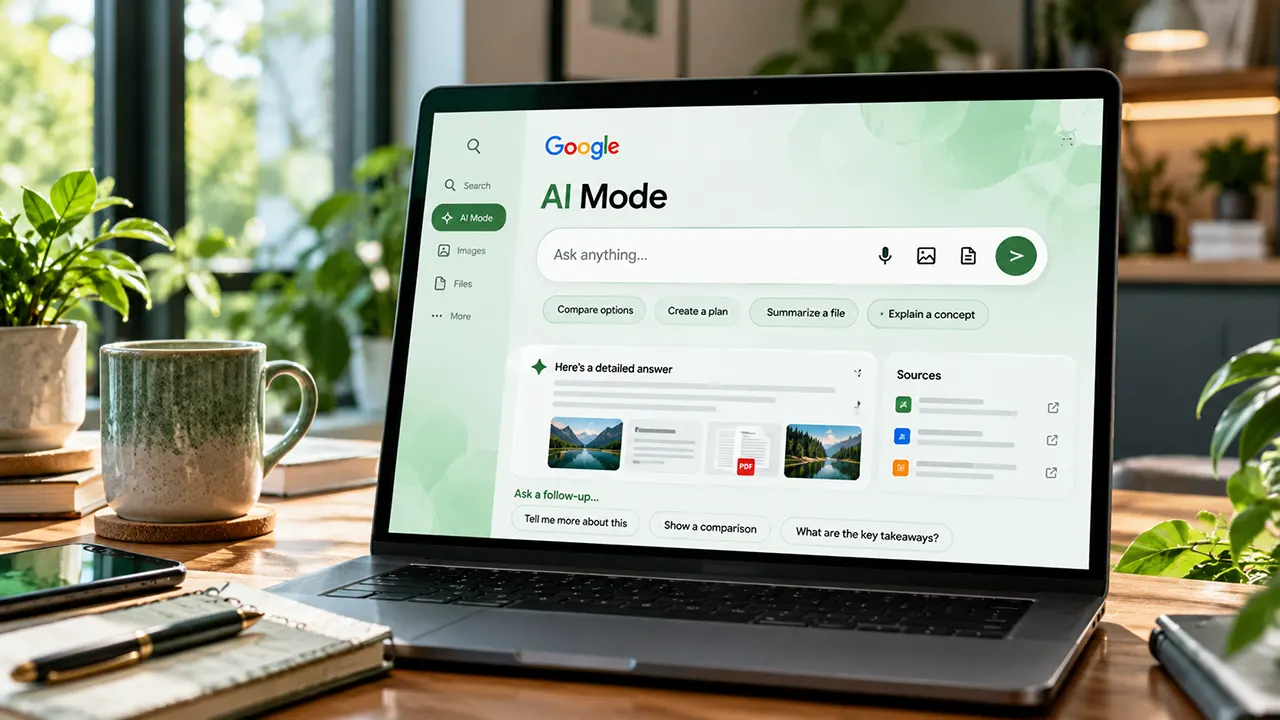
How to Use Google AI Mode in Minutes
Google AI Mode turns a normal Google Search into a more conversational research experience. Instead of running several separate searches, you can ask a complex question, explore the answer with follow-up questions, and use text, voice, images, files, or webpages as context. In the US, AI Mode is available through Google Search and the Google app.
If you are searching for how to use AI Mode Google Search, the basic process is simple: open AI Mode, ask a question, review the answer and its sources, then continue with follow-up questions. The real advantage comes from learning how to structure those questions and knowing when AI Mode is more useful than classic Google Search.
What You Need to Use Google AI Mode
You do not need a separate AI application to start using Google AI Mode. In the US, you can access it through Google Search or the Google app, although features and interface elements can vary as Google continues to update Search.
For the standard AI Mode experience, you should have:
- A Google Search browser or the Google app
- A Google Account when required by the particular feature
- A supported location and language
- An internet connection
- A question you want to investigate
Google currently lists the United States among the countries where AI Mode is available. Google also notes that some experimental features have additional age, account, language, or subscription requirements.
You do not need to activate Search Labs simply to use the standard AI Mode experience. Search Labs is used for experimental AI Mode capabilities.
How to Open AI Mode in Google Search
There are several ways to open Google AI Mode.
Method 1: Go directly to AI Mode
Open your browser and go to google.com/ai.
This is one of the fastest ways to get directly into the AI Mode interface. Once it opens, you can enter your question in the Ask anything field.
Method 2: Start from Google Search
Go to Google Search and enter a question in the search box. Depending on the current interface, select AI Mode from the available Search options.
Google’s interface can change as new Search features roll out, so the exact position or appearance of the control may differ from what you see in another tutorial.
Method 3: Use the Google app
Open the Google app on your phone and select AI Mode from the Search interface when it is available.
Google currently supports AI Mode on both desktop and mobile, but individual features can have different availability requirements.
How to Ask Your First Question
Once AI Mode is open, start with a question that clearly describes what you want to know or accomplish.
For example, instead of searching:
best laptop for college
try:
I need a Windows laptop for college under $1,000. Battery life matters more to me than gaming performance. Compare the best options and explain the main trade-offs.
The second query gives AI Mode more useful context. It tells the system your goal, budget, priority, and desired result.
Google says AI Mode can handle questions that previously might have required multiple searches and can break complex questions into subtopics before bringing information together.
A useful rule is:
Tell AI Mode what you want to accomplish, not just the topic you want to search.
After receiving an answer, inspect the links provided by AI Mode. Google specifically recommends checking important information in more than one place because AI responses can contain mistakes.
How to Ask Follow-Up Questions
Follow-up questions are one of the most useful parts of AI Mode.
You do not have to restart your search every time you want to narrow the answer. Continue the conversation and tell AI Mode what you want to change, clarify, compare, or investigate.
For example:
- Start: “What are the best national parks to visit in Utah?”
- Narrow: “Which ones are best for a first-time visitor?”
- Add a constraint: “I only have four days.”
- Refine: “Build a realistic itinerary with minimal driving.”
- Investigate: “Which parts of this plan should I book in advance?”
This creates a search progression rather than a collection of disconnected searches.
Google supports follow-up questions in AI Mode and lets users continue exploring a topic from the existing conversation.
The key is to make each follow-up add something new. Instead of saying “tell me more,” ask for a specific comparison, limitation, example, source, or decision.
How to Search With Images
AI Mode can use images as part of your question. On supported interfaces, you can upload an image or use the camera or Lens-related controls on mobile. You can then ask what you want to understand about the image.
For example, you could upload:
- A photo of a plant and ask what it might be
- A screenshot and ask what a setting means
- A product photo and ask what type of item it is
- A chart and ask for help understanding the trend
- A room photo and ask for layout ideas
The important step is to combine the image with a clear question.
Instead of:
What is this?
try:
What type of connector is shown in this image, and what devices is it commonly used with?
That gives AI Mode a specific task rather than leaving the interpretation completely open.
How to Search With Files
AI Mode can also work with uploaded files, including PDFs and files stored locally or in Google Drive, where the feature is supported. You can upload a document and ask questions about its contents.
This can be useful when you need to understand a document without manually searching through every page.
For example:
Summarize this PDF in plain English and identify the five most important points.
Then continue:
Which section supports point three?
Or:
Turn those points into a study checklist.
The best workflow is to start with a broad document question and then use follow-ups to investigate specific sections.
For important legal, financial, medical, academic, or business information, do not treat an AI-generated summary as the final authority. Open the original document and verify the relevant passage.
How to Use AI Mode for Complex Research
AI Mode is particularly useful when your question has several connected parts.
Google says AI Mode uses a technique called query fan-out, where it breaks a question into related subtopics and searches for information across multiple sources before bringing the results together.
That makes it useful for questions such as:
I’m planning a three-day trip to Boston in October. I like history, walking, and seafood. Create a practical itinerary and explain which attractions are close enough to combine.
You can then investigate individual parts:
Which attractions need advance tickets?
Which day has the most walking?
Replace the longest walking section with public transportation.
For serious research, use AI Mode as a starting point rather than the final authority. Open the cited sources, compare important claims, and search independently when the decision has significant consequences.
Google itself recommends checking important information in more than one place and using the linked sources to evaluate the answer.
How to Use AI Mode for Studying
AI Mode can turn a broad study question into an interactive learning session.
Instead of asking:
Explain photosynthesis.
try:
Explain photosynthesis to a high school student using a simple example.
Then continue:
Now explain the light-dependent reactions.
Then:
Give me five questions to test whether I understand them.
You can also use a file or PDF as study material when supported:
Read this study document and identify the concepts I need to understand before my exam.
The important advantage is the ability to change the level of explanation as you learn. If an answer is too difficult, ask for a simpler explanation. If it is too basic, ask for more technical detail.
How to Use AI Mode for Shopping
AI Mode can help when a shopping decision involves several requirements rather than one simple product lookup.
For example:
I need a laptop under $1,200 for college. I want long battery life, a good screen, and enough performance for photo editing. Compare the strongest options and explain the trade-offs.
You can then narrow the results:
Remove gaming laptops.
Prioritize battery life.
Which option has the best display?
What should I check before buying?
Google also supports AI Mode experiences for researching current availability, pricing, inventory, and other shopping-related information in supported markets and situations.
Prices, stock, promotions, and product specifications can change. For an expensive purchase, verify the final details on the retailer or manufacturer’s website before buying.
How to Get Better Answers From AI Mode
The quality of your question has a major effect on how useful the answer becomes.
A simple framework is:
Goal + Context + Constraints + Output + Follow-up
1. State your goal
Tell AI Mode what you are trying to accomplish.
Weak:
laptops
Better:
Help me choose a laptop for college.
2. Add context
Explain the situation that affects the answer.
I am a college student studying business and will carry the laptop to class every day.
3. Add constraints
Give important limits.
My budget is $1,000, and I need Windows.
4. Specify the output
Tell AI Mode how you want the information organized.
Compare the best options in a table and explain the biggest trade-off for each.
5. Use follow-ups
Do not try to put every possible question into your first prompt. Start with the main goal, inspect the answer, and then investigate the parts that matter.
One of the most effective habits is to ask AI Mode to compare, explain, challenge, simplify, or verify an answer instead of simply asking it to “tell me more.”
Also remember that AI Mode can make mistakes. Google recommends checking important information against multiple sources and reviewing the web links associated with the response.
When You Should Use Classic Google Search Instead
AI Mode is not automatically the best choice for every search.
Use classic Google Search when you already know exactly what you need and want to reach a specific result quickly.
Use AI Mode when the question requires exploration, comparison, multiple steps, or follow-up questions.
| If you need… | Start with… |
|---|---|
| A specific website | Classic Google Search |
| A quick known fact | Classic Google Search |
| A specific official document | Classic Google Search |
| Several related questions | AI Mode |
| A complex comparison | AI Mode |
| Research across multiple sources | AI Mode |
| Follow-up exploration | AI Mode |
| Questions about an image or file | AI Mode |
Think of it this way: classic Search is often better for finding something specific; AI Mode is often better for exploring something complicated.
You can also move between the experiences. Google provides ways to return to regular Search results from AI Mode on supported interfaces.
Google AI Mode FAQs
Is Google AI Mode free?
The standard AI Mode experience is available through Google Search, although some advanced or experimental capabilities may have additional eligibility or subscription requirements. Google currently documents separate availability requirements for features such as Gemini 3 Pro and certain Search Labs experiments.
Where can I find Google AI Mode?
The quickest direct route is google.com/ai. You can also access AI Mode from Google Search or the Google app when the feature is available in your interface.
Can I use Google AI Mode on my phone?
Yes. Google supports AI Mode through the Google app and mobile Search. Image, file, voice, and other capabilities can depend on the device, account, language, and current feature availability.
Can Google AI Mode analyze PDFs?
Yes. Google documents support for uploading PDFs and other files to AI Mode, including local files and supported Google Drive files. You can then ask questions and continue with follow-ups.
Can I use images in Google AI Mode?
Yes. AI Mode supports image-based questions. Depending on the device, you can upload an image or use the available camera or Lens controls, then ask a question about what you provided.
Why can’t I see Google AI Mode?
Feature availability can vary by country, language, account, device, age, and the specific AI Mode capability you are trying to use. Google is also continuing to update the Search interface. If you are looking for an experimental feature, check Search Labs because some capabilities are offered there first.
The Best Way to Start Using Google AI Mode
You do not need to master complicated prompting to get value from Google AI Mode. Start with a real question, give it enough context to understand your goal, and then use follow-up questions to refine the result.
For simple lookups, classic Google Search may still be faster. For complex research, comparisons, document questions, visual searches, and multi-step exploration, AI Mode can reduce the need to run many separate searches.
Most importantly, keep your judgment in the loop. AI Mode can help you explore information quickly, but Google itself warns that AI responses can contain mistakes. For anything important, open the sources, compare evidence, and verify the final answer before acting on it.

Belayet Hossain is a Senior Tech Expert and Certified AI Marketing Strategist. Holding an MSc in CSE (Russia) and over a decade of experience since 2011, he combines traditional systems engineering with modern AI insights. Specializing in Vibe Coding and Intelligent Marketing, Belayet provides forward-thinking analysis on software, digital trends, and SEO, helping readers navigate the rapidly evolving digital landscape. Connect with Belayet Hossain on Facebook, Twitter, Linkedin or read my complete biography.