


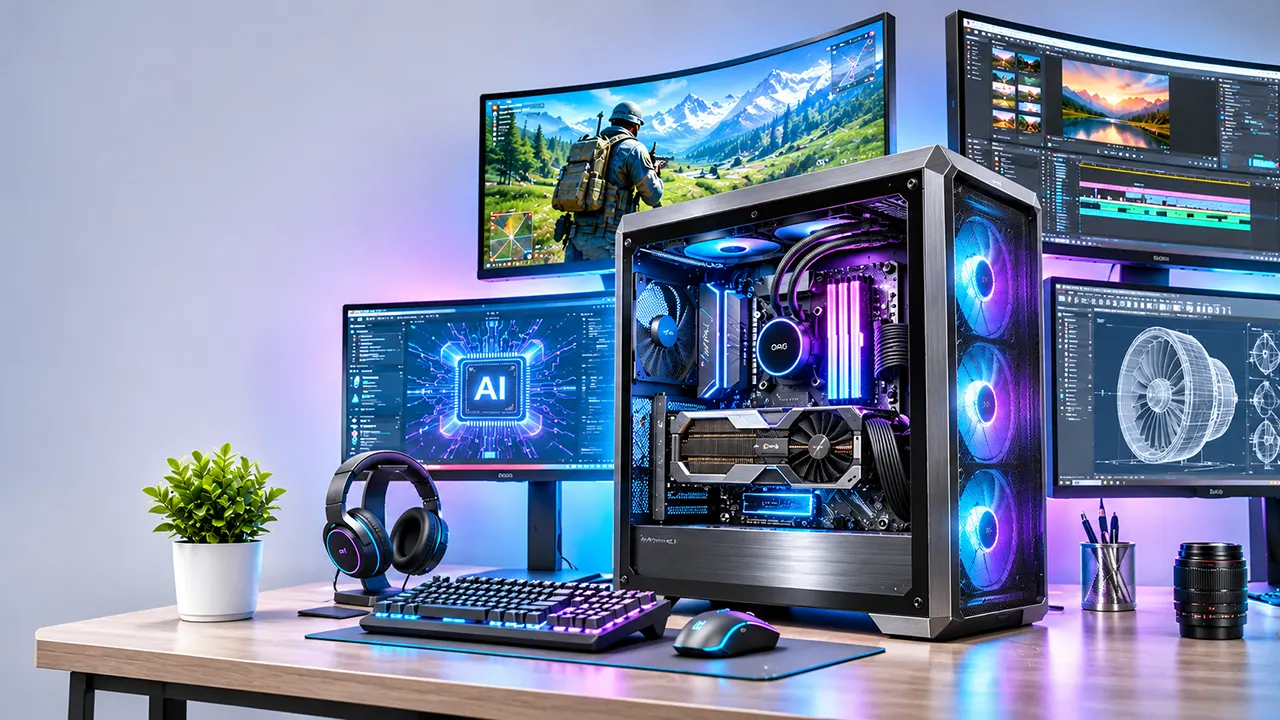
Building a powerful PC is not about buying the most expensive processor or graphics card. It is about choosing the right combination of components for the work you want to do.
A gaming PC needs a strong graphics card and a processor that can deliver high frame rates. A video editing workstation needs a balanced CPU, GPU, sufficient RAM and fast storage. An AI workstation may need a graphics card with substantial VRAM, even if its processor is not the most expensive model available.
The problem is that these configurations are not interchangeable. Spending $2,000 on the wrong combination can give you less performance than a carefully balanced $1,500 build.
This guide explores the best PC configurations for seven different purposes, from gaming and video editing to programming, AI development and professional rendering. You will learn which components matter most, what specifications to look for, and how to choose hardware without wasting your budget.
Hardware recommendations are based on available manufacturer specifications and published industry research as of November 2026. Component prices and availability can change significantly.
Quick Comparison: Best PC Configurations by Purpose
Here is a quick overview of the hardware specifications worth targeting.
| PC purpose | Processor | Graphics | RAM | Storage |
|---|---|---|---|---|
| Gaming | Ryzen 7 9800X3D / 9850X3D | RTX 5070 Ti / 5080 | 32GB DDR5 | 2TB NVMe |
| Video editing | Ryzen 9 9950X / 9950X3D | RTX 5070 Ti / 5080 | 64GB DDR5 | 2TB + project SSD |
| Programming | Ryzen 9 9950X / Intel Ultra 7 | Integrated or discrete GPU | 32-64GB | 2TB NVMe |
| AI development | Ryzen 9 9950X | RTX 5090 or suitable high-VRAM GPU | 64-128GB | 2-4TB NVMe |
| 3D rendering | Ryzen 9 9950X / 9950X3D | RTX 5080 / 5090 | 64GB+ | 2TB NVMe |
| Office productivity | Ryzen 7 9700X / equivalent | Integrated graphics | 32GB | 1TB NVMe |
| Gaming and streaming | Ryzen 9 9950X3D / Ryzen 7 X3D | RTX 5080 | 32-64GB | 2TB NVMe |
These are starting configurations, not universal requirements. Your software, resolution, project size and budget can change the ideal component selection.
How to Choose the Best PC Configuration
Before selecting components, identify what you expect your computer to accomplish. A PC designed for competitive gaming has different requirements from one used for machine learning or video production.
There are five major decisions to make.
1. Identify your primary workload
Start by identifying your most demanding application.
- Gaming: Prioritize GPU performance, gaming CPU performance and sufficient RAM.
- Video editing: Balance CPU, GPU, memory and storage.
- Programming: Prioritize CPU performance, memory capacity and multitasking.
- AI development: Focus on GPU architecture, VRAM and system memory.
- 3D rendering: Consider whether your software relies more on CPU or GPU rendering.
- Office work: Choose efficient hardware that handles multitasking without unnecessary expense.
If you perform several demanding tasks, build around the most resource-intensive one.
2. Choose the right processor
The CPU influences application responsiveness, compilation, simulation, rendering and gaming performance.
Important specifications include:
- Core and thread count.
- Single-core performance.
- Multi-core performance.
- Boost frequency.
- Cache capacity.
- Power consumption.
- Socket and motherboard compatibility.
For example, AMD’s Ryzen 7 9800X3D has eight cores, 16 threads and 96MB of L3 cache. It is designed around gaming performance, making it a strong option for a gaming-focused configuration. AMD
For workloads that benefit from additional cores, the Ryzen 9 9950X3D offers 16 cores and 32 threads. AMD
You can also compare Intel’s newer desktop Core Ultra processors. Check the exact processor generation, socket and supported memory before purchasing. Intel+1
For more information, read our guide on how to know processor speed.
3. Select a suitable graphics card
The GPU is especially important for gaming, GPU rendering, video effects and AI applications.
Consider:
- GPU architecture.
- Graphics memory capacity.
- Memory bandwidth.
- Ray tracing performance.
- AI acceleration.
- Video encoding support.
- Power consumption.
- Software compatibility.
The NVIDIA GeForce RTX 50 Series includes the RTX 5090, RTX 5080, RTX 5070 Ti, RTX 5070 and RTX 5060 models. Their memory configurations and capabilities differ considerably. NVIDIA
AMD’s Radeon RX 9000 Series provides another option, including the RX 9070 XT with 16GB of graphics memory. AMD
Do not select a GPU simply because it has a higher model number. Check independent benchmarks for your applications.
4. Determine how much RAM you need
RAM capacity affects how many applications, browser tabs, virtual machines and large projects your computer can handle comfortably.
Here are useful planning targets:
| Workload | Recommended starting capacity |
|---|---|
| Everyday productivity | 16GB |
| Gaming | 32GB |
| Programming | 32GB |
| 4K video editing | 32-64GB |
| 3D rendering | 64GB |
| Local AI development | 64-128GB |
Choose a compatible DDR5 memory kit with two matched modules when appropriate. Check motherboard support, memory capacity, speed and stability before enabling XMP or EXPO.
A 64GB memory configuration is not automatically faster than 32GB. It provides more capacity, which matters when your applications need it.
You can learn how to identify your existing memory specifications in our guide to how to know RAM speed.
5. Choose fast and sufficient storage
A modern PC should use an NVMe SSD for its operating system, applications and frequently accessed projects.
A practical arrangement is:
- 1TB NVMe SSD for an entry-level system.
- 2TB NVMe SSD for gaming and professional work.
- 4TB or more for large video, rendering and AI datasets.
PCIe 4.0 NVMe SSDs offer excellent performance for many users. PCIe 5.0 models can deliver higher sequential transfer speeds, but their additional cost and heat output may not be worthwhile for every workload.
For video editing, consider separating the operating system, media cache and project files across different drives when your workload justifies it.
Best Gaming PC Configuration
A gaming PC needs a strong GPU, a processor that can keep up with it and sufficient memory to prevent unnecessary slowdowns.
However, the best configuration depends on your gaming resolution.
- 1080p competitive gaming places considerable importance on CPU performance.
- 1440p gaming needs a stronger GPU while maintaining good CPU performance.
- 4K gaming places much greater demand on the graphics card.
Best budget gaming configuration
A balanced entry-level gaming build should focus on value rather than flagship hardware.
| Component | Recommended specification |
|---|---|
| CPU | AMD Ryzen 5 9600X or equivalent |
| GPU | Radeon RX 9060 XT 16GB or suitable alternative |
| Motherboard | Compatible B850 motherboard |
| RAM | 32GB DDR5 |
| Storage | 1TB NVMe SSD |
| PSU | Quality 650W unit, subject to GPU requirements |
| Cooling | Quality air cooler |
| Case | Airflow-focused mid-tower |
Best for: 1080p gaming, esports, everyday computing and occasional content creation.
The RX 9060 XT 16GB is worth investigating when its price and availability make sense. Its 16GB memory capacity can also provide more flexibility than an 8GB alternative in memory-intensive games.
Trade-off: This configuration is not intended for maximum-quality 4K gaming or demanding ray tracing workloads.
Best mid-range gaming configuration
| Component | Recommended specification |
|---|---|
| CPU | AMD Ryzen 7 9800X3D |
| GPU | NVIDIA GeForce RTX 5070 Ti |
| Motherboard | Quality B850 motherboard |
| RAM | 32GB DDR5 |
| Storage | 2TB PCIe 4.0 NVMe |
| PSU | Quality 850W ATX 3.1 |
| Cooling | High-performance air cooler or 240mm AIO |
| Case | Airflow-focused mid-tower |
Best for: 1440p gaming, high refresh-rate gaming and demanding modern games.
The Ryzen 7 9800X3D is a particularly interesting processor for this build because its 3D V-Cache architecture targets gaming performance. The RTX 5070 Ti provides a capable graphics platform with 16GB GDDR7 memory according to NVIDIA’s specifications. AMD+1
Why this configuration works: The processor and graphics card target a similar performance class. You do not need an extremely expensive flagship CPU to get strong gaming performance.
Best high-end gaming configuration
| Component | Recommended specification |
|---|---|
| CPU | AMD Ryzen 7 9850X3D or 9800X3D |
| GPU | NVIDIA GeForce RTX 5080 |
| Motherboard | Quality X870 or B850 |
| RAM | 32GB-64GB DDR5 |
| Storage | 2TB PCIe 4.0 or 5.0 NVMe |
| PSU | Quality 1000W ATX 3.1 |
| Cooling | Premium air cooler or 280mm/360mm AIO |
| Case | High-airflow premium case |
Best for: High-refresh 1440p gaming, demanding 4K gaming and enthusiast systems.
The RTX 5080 comes with 16GB GDDR7 memory. The Ryzen X3D processor provides a strong gaming-focused CPU foundation. NVIDIA+1
If you mainly play competitive games at 1080p, this configuration may be excessive. A less expensive system could deliver the frame rates you need.
My recommendation: For a dedicated gaming PC, prioritize a suitable GPU and a gaming-focused processor before spending extra on decorative components or an unnecessarily expensive motherboard.
Best PC Configuration for Video Editing
Video editing places different demands on a computer depending on the footage, codecs, effects and editing software.
For example, editing compressed 1080p footage is much easier than working with multiple streams of high-resolution RAW footage and complex effects.
Adobe’s September 29, 2026 Premiere requirements recommend at least 32GB of RAM for 4K and higher-resolution workflows, 8GB of GPU memory and a fast internal SSD for applications and cache. Premiere
Recommended video editing configuration
| Component | Recommended specification |
|---|---|
| CPU | AMD Ryzen 9 9950X |
| GPU | NVIDIA GeForce RTX 5080 |
| Motherboard | Quality X870E or X870 |
| RAM | 64GB DDR5 |
| Storage 1 | 2TB NVMe SSD for OS and applications |
| Storage 2 | 2TB-4TB SSD for media and projects |
| PSU | Quality 1000W ATX 3.1 |
| Cooling | 360mm AIO or equivalent cooling |
| Case | High-airflow workstation case |
Best for:
- 4K video editing.
- Complex editing timelines.
- GPU-accelerated effects.
- Video encoding and exporting.
- Content production and professional media work.
The Ryzen 9 9950X provides 16 cores and 32 threads. This makes it a strong candidate for multi-threaded workloads, although actual editing performance also depends on software optimization and media codecs. AMD
The RTX 5080 is a suitable high-performance GPU candidate. However, if your projects use particularly large effects, textures or GPU-heavy workflows, compare its 16GB VRAM against higher-memory alternatives.
What if you edit 4K videos professionally?
Consider upgrading to 96GB or 128GB of RAM if your editing software, After Effects compositions or project sizes regularly consume more than 64GB.
You should also consider a separate media drive and cache drive. This can improve workflow organization and reduce storage contention.
Do not assume that a faster SSD alone will make every editing operation faster. CPU decoding, GPU effects, memory and the source codec all influence performance.
Best PC Configuration for Programming and Software Development
A programming computer does not always need an expensive graphics card. Most conventional software development tasks depend more on CPU performance, memory capacity and storage responsiveness.
However, development environments can become demanding when you run multiple virtual machines, Docker containers, databases, emulators and large projects simultaneously.
Recommended programming configuration
| Component | Recommended specification |
|---|---|
| CPU | AMD Ryzen 9 9950X |
| GPU | Integrated graphics or discrete GPU if needed |
| Motherboard | Quality B850 or X870 |
| RAM | 64GB DDR5 |
| Storage | 2TB NVMe SSD |
| PSU | Quality 650W-750W |
| Cooling | High-quality air cooler or AIO |
| Case | Quiet airflow-focused case |
Best for:
- Web development.
- Software compilation.
- Backend development.
- Docker and container workloads.
- Database development.
- Virtual machines.
- Multiple IDEs and development tools.
For ordinary programming, a Ryzen 7 9700X with 32GB RAM can be a more economical option.
For larger projects, a 16-core Ryzen 9 processor provides more headroom for parallel workloads.
Do programmers need a dedicated GPU?
Not necessarily.
A developer working with web applications, Python, PHP, JavaScript, databases and conventional backend systems may not benefit significantly from a high-end gaming GPU.
However, a discrete GPU becomes more important when working with:
- CUDA development.
- Machine learning.
- GPU computing.
- Game development.
- 3D graphics.
- Local AI inference.
Choose your GPU based on your development workload, not simply because expensive PCs usually have one.
Best AI and Machine Learning PC Configuration
AI development requires special attention to graphics memory.
A common mistake is choosing a powerful CPU and then purchasing a GPU with insufficient VRAM for the intended AI models.
For local large language models, image generation and machine learning, GPU memory can become a limiting factor before CPU performance does.
Recommended high-performance AI PC
| Component | Recommended specification |
|---|---|
| CPU | AMD Ryzen 9 9950X |
| GPU | NVIDIA GeForce RTX 5090 |
| Motherboard | Quality X870E motherboard |
| RAM | 128GB DDR5 |
| Storage 1 | 2TB NVMe SSD |
| Storage 2 | 4TB NVMe SSD |
| PSU | High-quality 1200W-1600W, depending on complete system requirements |
| Cooling | High-capacity CPU cooling |
| Case | Large workstation case with excellent airflow |
Best for:
- Local LLM experimentation.
- AI image generation.
- Machine learning development.
- CUDA-based development.
- Large datasets.
- GPU-accelerated applications.
The RTX 5090 has 32GB of GDDR7 memory according to NVIDIA’s official specifications. That makes it an interesting option for local AI workloads that need substantial GPU memory. NVIDIA
However, 32GB VRAM does not mean every large AI model will fit or run efficiently. Model quantization, context length, batch size and framework requirements also matter.
Can you build an AI PC without an RTX 5090?
Absolutely.
If your projects are relatively small, consider a less expensive GPU with adequate VRAM.
For example, an RTX 5070 Ti or RTX 5080 may be suitable for smaller local AI projects, depending on the model and workload.
If you plan to run larger models, prioritize VRAM capacity before spending extra on CPU features that your AI software may not use.
Important: Multiple GPUs do not automatically combine their memory into one large pool. Your framework and model-parallel strategy must support distributing workloads across the cards.
How much system RAM does an AI PC need?
Use these as planning targets:
- 32GB: Small experiments and lighter AI development.
- 64GB: A practical starting point for a more capable workstation.
- 128GB: Larger datasets, development environments and heavier multitasking.
- 192GB or more: Specialized workloads requiring substantial system memory, subject to platform support.
The correct amount depends on the model, dataset, operating system and software stack.
Best PC Configuration for 3D Rendering and Engineering
3D rendering and engineering workloads require careful component selection because different applications use hardware differently.
Blender GPU rendering, for example, can use supported GPU backends such as CUDA and OptiX on NVIDIA hardware. Other applications may rely more heavily on CPU rendering or specialized GPU acceleration.
Recommended 3D rendering configuration
| Component | Recommended specification |
|---|---|
| CPU | AMD Ryzen 9 9950X |
| GPU | NVIDIA GeForce RTX 5080 |
| Motherboard | Quality X870E |
| RAM | 64GB DDR5 |
| Storage | 2TB NVMe + secondary project SSD |
| PSU | Quality 1000W ATX 3.1 |
| Cooling | 360mm AIO or strong air cooling |
| Case | Large airflow-focused workstation case |
Best for:
- Blender rendering.
- 3D modeling.
- Animation.
- Product visualization.
- CAD applications.
- Engineering workloads.
Should you choose CPU or GPU rendering?
It depends on your software and workflow.
GPU rendering can provide excellent performance in applications designed to use GPU acceleration. CPU rendering may be preferable for workloads that require particular CPU features, large memory capacity or software compatibility.
For Blender, NVIDIA GPUs are worth considering because of the supported CUDA and OptiX rendering pathways. Check the current official documentation for supported hardware and backend requirements.
Do not buy a GPU based on gaming benchmarks alone. Rendering performance, VRAM and application compatibility are more important.
When should you upgrade to an RTX 5090?
Choose the RTX 5090 if your projects need its additional memory capacity or GPU performance and your budget supports it.
For smaller scenes, modeling and moderate rendering, an RTX 5080 may provide a better balance.
If you regularly work with very large scenes, complex textures or heavy GPU rendering, the additional VRAM of the RTX 5090 may be valuable.
Best PC Configuration for Office Work and Productivity
You do not need a flagship processor or expensive graphics card to build a fast office computer.
A well-balanced PC with a modern processor, sufficient RAM and a responsive SSD can handle office applications, research, spreadsheets, video meetings and multitasking comfortably.
Recommended office PC configuration
| Component | Recommended specification |
|---|---|
| CPU | AMD Ryzen 7 9700X |
| GPU | Integrated graphics |
| Motherboard | Compatible B850 motherboard |
| RAM | 32GB DDR5 |
| Storage | 1TB-2TB NVMe SSD |
| PSU | Quality 550W-650W |
| Cooling | Quality air cooler |
| Case | Compact airflow-focused case |
Best for:
- Microsoft Office.
- Web browsing.
- Online meetings.
- Business applications.
- Research and writing.
- Multiple browser tabs.
- Everyday multitasking.
The Ryzen 7 9700X is a reasonable processor candidate for this category. Its integrated graphics can handle basic display requirements, so a dedicated graphics card is unnecessary for many office users.
However, check the number and type of display outputs supported by your motherboard before connecting multiple monitors.
Should you buy a more powerful office PC?
Consider 64GB RAM and a stronger CPU if you regularly work with:
- Very large spreadsheets.
- Multiple virtual machines.
- Large databases.
- Complex analytical applications.
- Professional design software.
Otherwise, spend the additional money on a good monitor, keyboard, backup storage or a UPS.
Best PC for Gaming and Streaming
Gaming and streaming simultaneously place additional demands on your system.
Your PC must render the game while also encoding video, managing streaming software, handling browser sources and processing audio.
A dedicated streaming computer is not necessary for most modern gaming setups. A suitable GPU with hardware encoding can handle much of the streaming workload.
Recommended gaming and streaming configuration
| Component | Recommended specification |
|---|---|
| CPU | AMD Ryzen 9 9950X3D |
| GPU | NVIDIA GeForce RTX 5080 |
| Motherboard | Quality X870 |
| RAM | 64GB DDR5 |
| Storage | 2TB NVMe SSD |
| PSU | Quality 1000W ATX 3.1 |
| Cooling | 280mm or 360mm AIO |
| Case | High-airflow mid-tower |
Best for:
- High-resolution gaming.
- Twitch and YouTube streaming.
- Gameplay recording.
- Video production.
- Multitasking during live broadcasts.
The RTX 50 Series includes NVIDIA’s ninth-generation NVENC encoding hardware, with multiple encoders on selected models. This is useful for supported video encoding workflows. NVIDIA
For a more affordable streaming PC, a Ryzen 7 X3D processor, 32GB RAM and a suitable RTX GPU can also work well.
Best PC Builds by Budget
Not everyone needs an expensive workstation. Your budget should determine the performance level, but the intended workload should determine how the money is distributed.
The following are planning categories for a US-market build. They are not fixed shopping prices.
1. Entry-level PC: $600-$900
Budget focused
- CPU: Ryzen 5 9600X or suitable lower-cost alternative.
- GPU: Radeon RX 9060 XT or equivalent.
- RAM: 16GB-32GB DDR5.
- Storage: 1TB NVMe SSD.
- PSU: Quality 650W unit.
Best for everyday use, entry-level gaming and light productivity.
2. Mid-range PC: $1,000-$1,500
- CPU: Ryzen 7 9700X or equivalent.
- GPU: Suitable Radeon RX 9000 or GeForce RTX 50-series model.
- RAM: 32GB DDR5.
- Storage: 1TB-2TB NVMe SSD.
- PSU: Quality 750W-850W unit.
Best for gaming, programming, productivity and moderate creative work.
3. High-performance PC: $1,700-$2,500
- CPU: Ryzen 7 9800X3D or Ryzen 9 9950X.
- GPU: RTX 5070 Ti, RTX 5080 or suitable Radeon alternative.
- RAM: 32GB-64GB DDR5.
- Storage: 2TB NVMe SSD.
- PSU: Quality 850W-1000W unit.
Best for serious gaming, 4K editing and professional applications.
4. Enthusiast workstation: $3,000+
- CPU: Ryzen 9 9950X or 9950X3D.
- GPU: RTX 5080 or RTX 5090, depending on workload.
- RAM: 64GB-128GB DDR5.
- Storage: 2TB-4TB NVMe plus additional storage.
- PSU: High-capacity unit selected for the complete system.
Best for demanding rendering, AI development, professional content creation and enthusiast gaming.
A note about 2026 pricing: Hardware prices are unusually important when selecting these configurations. Tom’s Hardware reported on October 14, 2026, that rising RAM, GPU and storage prices had pushed its entry-level gaming build to approximately $900. It also reported that its high-end build had moved above $7,000 when configured with the fastest available components. Tom’s Hardware
This is why I would avoid promising that a particular build will always cost $1,000 or $1,500. Check current component prices and availability before publishing a shopping list.
How to Avoid PC Performance Bottlenecks
A powerful component cannot always compensate for a poorly balanced system.
For example, pairing an expensive GPU with an inadequate processor may limit performance in CPU-intensive games. Similarly, an AI workstation with a powerful GPU but insufficient VRAM may struggle with models that exceed its available graphics memory.
1. Avoid CPU bottlenecks
A CPU bottleneck occurs when the processor cannot prepare or process work quickly enough to keep other components fully utilized.
It can become noticeable in:
- High-refresh-rate gaming.
- CPU-intensive simulations.
- Software compilation.
- Large rendering projects.
- Complex multitasking.
Choose a CPU that matches the GPU and workload rather than automatically buying the highest-tier processor.
2. Avoid GPU bottlenecks
A weak GPU can limit gaming, rendering and GPU-accelerated applications.
If you want 4K gaming, investing more in the GPU is generally more useful than buying a flagship CPU and an entry-level graphics card.
3. Avoid insufficient RAM
If your system runs out of physical memory, it may rely more heavily on storage-backed virtual memory.
This can make applications less responsive.
Check actual memory consumption before deciding whether to upgrade from 32GB to 64GB.
4. Prevent thermal throttling
High temperatures can reduce sustained CPU and GPU performance.
Use:
- Suitable CPU cooling.
- Proper case airflow.
- Correct fan placement.
- Clean dust filters.
- Appropriate thermal paste.
- A case with sufficient component clearance.
A larger cooler is not automatically better. Select one that can handle the processor’s actual power and thermal requirements.
5. Choose the right power supply
Never select a PSU based only on its advertised wattage.
Consider the combined power requirements of the CPU, GPU, motherboard, storage and cooling system.
Also verify:
- Native GPU power connectors.
- ATX 3.1 compatibility where relevant.
- Transient power handling.
- Efficiency and electrical protections.
- Manufacturer warranty and independent reviews.
For a flagship GPU, check the graphics card manufacturer’s PSU recommendation before finalizing the build.
How to Check PC Component Compatibility
This is one of the most important steps before buying any computer component.
A list of powerful components does not automatically make a working PC. Every major part must be physically and electrically compatible.
CPU and motherboard compatibility
Check the processor socket and motherboard chipset.
For example, AMD Ryzen 9000 desktop processors use the AM5 platform. However, an older motherboard may need a BIOS update before it can recognize a newer processor.
Intel Core Ultra 200S desktop processors use the LGA1851 socket and compatible Intel 800-series motherboards. They are not compatible with older LGA1700 motherboards. AMD+1
RAM and motherboard compatibility
Check:
- DDR4 or DDR5 support.
- Maximum supported memory capacity.
- Memory speed.
- Number of memory slots.
- Supported module configurations.
- Memory QVL.
- XMP or EXPO support.
Never assume DDR5 memory will fit a DDR4 motherboard. They use different physical key positions.
GPU and power supply compatibility
Before purchasing a GPU, verify:
- PSU wattage.
- Required power connectors.
- GPU length and thickness.
- Available PCIe slots.
- Case clearance.
- Cooling requirements.
A powerful GPU that physically does not fit your case is not a useful purchase.
Storage compatibility
Check the motherboard’s M.2 slots, supported PCIe generations and available bandwidth.
Some motherboards share PCIe lanes between M.2 slots, expansion slots and SATA ports. Installing a particular SSD may disable or reduce the bandwidth available to another connection.
Read the motherboard manual before assembling the system.
Use a PC compatibility checker
Use it to organize components, compare estimated prices and identify many common compatibility problems.
However, do not treat an automated compatibility warning as a complete technical inspection. BIOS support, cooler clearance, PSU connectors and motherboard lane-sharing details may still require manual verification.
How to Upgrade Your PC for Better Performance
You do not always need to replace your entire computer when your workload becomes more demanding.
A planned upgrade can extend the useful life of your system.
| Current limitation | Possible upgrade |
|---|---|
| Low gaming FPS | Upgrade GPU or CPU, depending on the bottleneck |
| Insufficient memory | Add a compatible matched RAM kit |
| Slow project loading | Upgrade to a faster NVMe SSD |
| Heavy video editing | Increase RAM and improve CPU/GPU capability |
| Local AI model limitations | Upgrade to a GPU with more VRAM |
| High temperatures | Improve cooling and case airflow |
| Insufficient storage | Add a secondary SSD |
| Unstable power | Replace an inadequate or poor-quality PSU |
Before upgrading, identify the actual limitation using performance monitoring tools.
For example, consistently high GPU utilization during gaming may indicate that your graphics card is the limiting factor. High CPU utilization in a particular game or application may point toward a processor limitation.
Do not upgrade components simply because newer models exist.
Frequently Asked Questions
1. What is the best PC configuration overall?
There is no single best configuration for everyone. For high-end gaming, a Ryzen 7 X3D processor with an RTX 5080 is a strong combination. For professional workloads, a Ryzen 9 9950X with a suitable GPU, 64GB RAM and fast NVMe storage is a more balanced starting point.
2. What is the best PC configuration for gaming?
A Ryzen 7 9800X3D or 9850X3D, RTX 5070 Ti or RTX 5080, 32GB DDR5 RAM and a 2TB NVMe SSD make a strong gaming configuration. Choose the GPU according to your target resolution and budget.
3. How much RAM do I need for a high-performance PC?
32GB is a practical starting point for gaming and general productivity. Choose 64GB for demanding video editing, development and rendering. AI workloads may benefit from 128GB or more, depending on the model and dataset.
4. Is AMD or Intel better for a high-performance PC?
Both manufacturers offer capable processors. AMD Ryzen X3D processors are particularly attractive for gaming, while Ryzen 9 and Intel Core Ultra processors offer alternatives for professional workloads. Compare application-specific benchmarks rather than choosing by brand.
5. How important is the GPU when building a fast PC?
The GPU is extremely important for gaming, AI development, GPU rendering and many creative applications. However, CPU-intensive workloads such as compilation and certain simulations can benefit more from a powerful processor.
6. What is the best CPU and GPU combination?
For gaming, consider a Ryzen 7 X3D processor with an RTX 5070 Ti or RTX 5080. For video editing, consider a Ryzen 9 processor with an RTX 5080. For AI, prioritize GPU VRAM and software compatibility.
7. Is DDR5 better than DDR4 for a new PC?
DDR5 is the preferred memory generation for new platforms that support it. However, you must choose memory compatible with your motherboard and processor. DDR5 is not physically interchangeable with DDR4.
8. How much should I spend on a high-performance PC?
Your budget depends on your workload. A balanced gaming or productivity system may cost considerably less than an AI workstation or professional rendering system. Set a budget after identifying your performance requirements.
9. What is the best PC configuration for AI?
A Ryzen 9 processor, NVIDIA RTX GPU with substantial VRAM, 64GB-128GB system RAM and 2TB-4TB NVMe storage provide a strong starting point for many local AI workloads. More demanding models may require professional GPU hardware or multiple accelerators.
10. Is it cheaper to build a PC or buy a prebuilt PC?
Building your own PC often gives you more control over component selection and upgrade options. A prebuilt computer can save time and may offer competitive pricing during promotions. Compare the complete specifications, warranty, cooling and total cost before deciding.
Final Recommendation
The best PC configuration is the one that delivers the performance you actually need without wasting money on components your applications cannot use.
For most buyers, I would start with three decisions:
- Choose your primary workload: gaming, editing, programming, AI or productivity.
- Allocate the largest part of your budget to the components that influence that workload.
- Verify compatibility before purchasing anything.
A powerful graphics card cannot compensate for insufficient memory in a demanding AI project. Similarly, an expensive processor will not automatically improve gaming performance if the graphics card is the limiting component.
Think about the applications you will use over the next few years, not just the specifications that look impressive today.
That is how you build a fast, balanced and upgradeable PC.
References and further reading
The following official and industry resources support the hardware selection guidance in this article.
- AMD Ryzen Desktop Processor Specifications
- Intel Core Ultra Desktop Processor Compatibility
- NVIDIA GeForce RTX 50 Series Specifications
- AMD Radeon RX Graphics Specifications
- Adobe Premiere Pro Hardware Requirements
- Tom’s Hardware – Best PC Builds for Gaming 2026

Belayet Hossain is a Senior Tech Expert and Certified AI Marketing Strategist. Holding an MSc in CSE (Russia) and over a decade of experience since 2011, he combines traditional systems engineering with modern AI insights. Specializing in Vibe Coding and Intelligent Marketing, Belayet provides forward-thinking analysis on software, digital trends, and SEO, helping readers navigate the rapidly evolving digital landscape. Connect with Belayet Hossain on Facebook, Twitter, Linkedin or read my complete biography.