


Most people should choose a laptop with 16GB of RAM in 2026. It provides enough memory for everyday computing, office work, studying, browsing, and moderate multitasking. Choose 32GB for demanding programming, professional creative work, virtual machines, or heavier multitasking. An 8GB laptop is best reserved for basic tasks and tight budgets.
You may be finding the answer to the question – how much RAM does a laptop need? Buying a laptop can be confusing when manufacturers offer several memory configurations. One model may come with 8GB RAM, while another costs more because it includes 16GB or 32GB. But is the extra memory worth paying for?
The answer depends on how you use your computer. A student who works with documents and browser tabs has different needs from a software developer running virtual machines or a video editor working with 4K footage.
In this guide, we will explain how much RAM a laptop needs in 2026, compare 8GB, 16GB, and 32GB configurations, and examine memory requirements for different workloads. You will also learn how RAM differs from SSD storage and why checking upgradeability before purchasing a laptop can save money later.
What Does RAM Actually Do in a Laptop?
RAM (Random Access Memory) is the short-term working memory your laptop uses to keep active applications and data ready for the processor. When you open a browser, edit a document, or join a video meeting, your laptop loads the information it needs into RAM.
Think of RAM as your desk. A larger desk lets you keep more books, documents, and tools within reach. A small desk forces you to put things away before starting another task.
Your laptop works in a similar way. More RAM allows it to handle more active applications and larger workloads without constantly moving data between memory and storage.
How RAM Works When You Open Applications
Every application uses some system memory while running. However, the amount depends on the software, its current activity, and the files you open.
For example, imagine you are working with these applications:
- Google Chrome with several open tabs.
- Microsoft Word for writing.
- Microsoft Excel for spreadsheets.
- Zoom for a video meeting.
- Spotify for background music.
Each application needs memory for its active processes. Windows also uses RAM for background services, security features, and other system tasks.
As you open more applications, memory demand increases. This explains why a laptop with 8GB RAM may feel restrictive during multitasking, even if it handles individual applications reasonably well.
What Happens When Your Laptop Runs Out of RAM?
When active applications need more memory than the available physical RAM can comfortably provide, Windows can move less-active memory pages to a storage-backed paging file.
This process is called paging.
An SSD is much slower than RAM for this type of active memory access. Therefore, excessive paging can cause:
- Slow application switching.
- Delayed response when opening programs.
- Stuttering during multitasking.
- Longer loading times when returning to inactive applications.
- Reduced responsiveness during demanding tasks.
An SSD helps reduce the impact compared with an older mechanical hard drive, but it cannot provide the same performance as physical RAM.
Why More RAM Does Not Always Make a Laptop Faster
Adding RAM does not automatically improve every computer.
Suppose your laptop normally uses only 7GB of its available 16GB while performing your regular tasks. Increasing it to 32GB may provide little noticeable improvement.
However, if your applications regularly compete for memory and cause excessive paging, additional RAM can improve responsiveness.
The important distinction is between having more memory and actually needing more memory.
8GB vs. 16GB vs. 32GB vs. 64GB RAM: What’s the Difference?
The four common laptop memory configurations serve different users. The right choice depends on application requirements, multitasking habits, and the complexity of your work.
| RAM capacity | Best suited for | Main limitation |
|---|---|---|
| 8GB | Basic browsing, email, documents, streaming | Limited multitasking headroom |
| 16GB | Office work, education, general productivity, mainstream gaming | Can struggle with demanding concurrent workloads |
| 32GB | Programming, creative applications, advanced multitasking, professional workloads | Unnecessary for many everyday users |
| 64GB or more | Large virtual machines, professional production, specialized AI and technical workloads | Higher cost and limited benefit for ordinary tasks |
8GB RAM: Who Can Still Use It?
An 8GB laptop can handle basic computing, including:
- Web browsing with a modest number of tabs.
- Email and simple documents.
- Online classes and streaming.
- Basic office applications.
- Light everyday computing.
It can be a reasonable choice for someone who primarily uses one or two applications at a time.
However, modern browsers, background services, security software, and video conferencing can consume a considerable share of available memory. Running several applications together may leave little room for additional tasks.
There is another consideration: integrated graphics may share system memory. This can further reduce the amount available for applications.
My recommendation: Choose 8GB only when your workload is genuinely light, the laptop is significantly cheaper, and you understand its upgrade limitations. For a new Windows laptop intended to last several years, 16GB is a safer purchase.
16GB RAM: The Best Starting Point for Most Users
Best general-purpose choice
For most laptop buyers, 16GB RAM provides a sensible balance between price, multitasking, and everyday performance.
It is suitable for:
- Office applications and spreadsheets.
- Research with multiple browser tabs.
- Video meetings and remote work.
- College assignments and online learning.
- Light photo editing.
- Programming and smaller development projects.
- Most mainstream gaming workloads.
For example, an office worker can run Excel, Word, Outlook, a browser, and a video meeting application together without immediately running into the limitations of an 8GB configuration.
Adobe’s September 2026 Photoshop 27.x requirements recommend 16GB RAM or more, although the application can install with 8GB. This is a useful example of the difference between minimum and recommended memory. Photoshop
My recommendation: If you are buying a general-purpose Windows laptop and do not have a specialized workload, start with 16GB.
32GB RAM: When Extra Memory Makes a Difference
A 32GB configuration makes sense when your work regularly involves several demanding applications or large projects.
Consider it for:
- Professional software development.
- Running Docker containers and virtual machines.
- Large Photoshop projects.
- 4K video editing.
- Complex graphic design.
- Advanced gaming with background applications.
- Large datasets and technical workloads.
For instance, a developer may run Visual Studio, multiple browser windows, Docker containers, a database, and local testing environments simultaneously.
A 16GB configuration might work for smaller projects, but 32GB offers more room as development environments become more demanding.
Adobe recommends 32GB or more for 4K and higher-resolution video editing in Premiere Pro. Its documentation also recommends 16GB for HD media. Premiere
My recommendation: Choose 32GB when you can identify a specific workload that benefits from the additional capacity. It is also a reasonable choice when you plan to keep a non-upgradeable laptop for many years and expect your applications to become more demanding.
64GB RAM or More: Who Actually Needs It?
Most everyday laptop users do not need 64GB RAM.
However, specialized professionals can benefit from this capacity.
Examples include:
- Developers running several large virtual machines.
- Engineers working with complex CAD assemblies.
- Professional video editors handling demanding production projects.
- 3D artists working with large scenes.
- Data scientists processing large datasets.
- AI developers running memory-intensive local workloads.
Microsoft’s Visual Studio 2026 requirements provide an interesting example. Microsoft recommends 16GB for typical professional solutions but says the software works best with 64GB RAM. That is a recommendation for demanding development environments, not a requirement for every programmer. Microsoft Learn
Before paying extra for 64GB, check the actual memory requirements of your applications and projects. More capacity is useful only when your workload can benefit from it.
How Much RAM Does a Laptop Need for Different Workloads?
The best way to choose laptop memory is to start with your daily activities rather than a specification sheet.
The following recommendations are practical buying guidelines, not guaranteed minimum requirements for every application.
Browsing, Email, Streaming, and Everyday Computing
Recommended RAM: 8GB minimum for light use; 16GB preferred.
If you mainly browse websites, check email, watch YouTube, and edit simple documents, 8GB may be sufficient.
However, browser-heavy users should consider 16GB. Modern websites can contain videos, scripts, interactive elements, and background processes that consume memory.
Someone who keeps dozens of tabs open while running other applications will benefit from the additional headroom.
Students and College Work
Recommended RAM: 16GB.
Students often use several applications throughout the day:
- Microsoft Word or Google Docs.
- PowerPoint.
- PDF readers.
- Research websites.
- Online learning platforms.
- Video conferencing applications.
A student working on an assignment may keep research tabs, lecture notes, and documents open simultaneously.
Eight gigabytes can handle basic assignments, but 16GB provides more flexibility for multitasking and future software requirements.
For students studying computer science, engineering, architecture, or multimedia, 32GB may be more appropriate depending on the software used.
Office Work, Remote Work, and Multitasking
Recommended RAM: 16GB; consider 32GB for demanding workloads.
A typical remote worker may run Microsoft Teams, Outlook, Excel, Word, Chrome, and cloud-based applications throughout the day.
Sixteen gigabytes is a good starting point for this combination.
However, consider 32GB if your work includes large spreadsheets, complex financial models, multiple development tools, large datasets, or several simultaneous virtual workspaces.
The key is not the number of applications alone. Their memory requirements and the size of your active projects matter more.
Programming and Software Development
Recommended RAM: 16GB for general development; 32GB for more demanding environments.
Programming does not always require a powerful laptop. A person writing HTML, CSS, JavaScript, or Python can work comfortably with 16GB for many projects.
However, professional development environments can become more demanding.
Consider this example:
A developer is running Visual Studio Code, Chrome, a local web server, Docker, a database, and a testing environment. Each component consumes memory.
A developer using Visual Studio, Android emulators, several containers, or multiple virtual machines may benefit considerably from 32GB.
For particularly demanding development environments, 64GB can be justified.
Microsoft’s Visual Studio 2026 documentation recommends 16GB for typical professional solutions and identifies 64GB as the configuration on which it works best. Microsoft Learn
Gaming and Streaming
Recommended RAM: 16GB for mainstream gaming; 32GB for demanding games and multitasking.
Gaming performance depends on more than RAM capacity. Your graphics card, processor, cooling system, and game settings also matter.
A 16GB gaming laptop can handle many mainstream games, but 32GB provides additional room for demanding titles, background applications, streaming software, and browser activity.
Consider two situations:
- You play games without running many other applications. Sixteen gigabytes may be sufficient.
- You play demanding games while recording gameplay, streaming, and keeping other applications open. Thirty-two gigabytes provides more flexibility.
Do not assume that doubling system RAM will double gaming performance. Once a game has sufficient memory, the GPU and CPU often become more important performance limitations.
Photo Editing, Graphic Design, and Creative Work
Recommended RAM: 16GB for moderate work; 32GB for larger professional projects.
Photo editing software, graphic design applications, and creative tools can use significant memory when handling large files.
For example, Photoshop projects containing multiple high-resolution layers require more memory than simple image adjustments.
Adobe recommends 16GB or more for Photoshop 27.x. Photoshop
If your work includes large layered documents, several open projects, and other creative applications, 32GB is a sensible choice.
For exceptionally large projects, 64GB may be worthwhile.
Video Editing and 4K Production
Recommended RAM: 16GB for HD editing; 32GB or more for 4K and higher-resolution workflows.
Video editing places demands on several hardware components, including the CPU, GPU, RAM, and storage system.
Adobe’s Premiere Pro documentation provides clear recommendations:
| Editing workload | Recommended system RAM |
|---|---|
| HD video editing | 16GB |
| 4K and higher-resolution editing | 32GB or more |
Premiere
Remember that RAM is only one part of the editing system. High-resolution footage, effects, codecs, GPU memory, and project complexity also influence performance.
For professional video production, check the requirements of your editing software before purchasing.
Engineering, CAD, and 3D Applications
Recommended RAM: 32GB for many demanding professional workloads; 64GB for larger projects.
Engineering and 3D applications can consume substantial memory when processing complex designs and models.
Examples include:
- Large CAD assemblies.
- Architectural visualization.
- 3D modeling and rendering.
- Engineering simulations.
- Complex product design.
A smaller project may run comfortably with 16GB, but large models and simultaneous applications can require more.
For these workloads, check the official hardware recommendations of the specific application. CAD software requirements vary considerably.
Local AI, LLMs, and On-Device AI
Recommended RAM: 16GB for general AI-PC use; 32GB or more for more demanding local AI experimentation.
AI workloads deserve special attention in 2026 because not every AI application works in the same way.
There are three different situations:
1. Cloud-based AI tools
Using ChatGPT, Gemini, or other AI services through a browser generally does not require a large local language model to be loaded into your laptop’s memory. Your laptop mainly runs the browser and related applications.
2. Built-in on-device AI features
Microsoft’s Copilot+ PC specification requires at least 16GB DDR5 or LPDDR5 memory, along with a compatible NPU and other hardware requirements. Microsoft Windows
This is a hardware qualification for Copilot+ PCs, not a universal requirement for every AI application.
3. Running local AI models
Running a local large language model, image-generation system, or AI development environment can require considerably more memory.
The actual requirement depends on:
- Model size and quantization.
- Context length.
- GPU VRAM.
- System RAM available to the model.
- Other applications running simultaneously.
- The AI software and inference engine.
A 32GB laptop can be a useful starting point for some local AI experimentation, but it does not guarantee that every model will run successfully. Larger models may need 64GB or more system memory, substantial GPU VRAM, or both.
Important: Do not confuse system RAM with GPU VRAM. They serve different roles, and having 32GB system RAM does not mean your laptop can run any large AI model.
8GB vs. 16GB vs. 32GB RAM: Which Laptop Should You Buy?
Now that you understand the workload requirements, it is time to make a purchasing decision.
The cheapest laptop is not always the best value. A laptop with 8GB RAM may cost less today, but limited upgrade options can make it a poor long-term purchase.
When 8GB Is a Reasonable Budget Choice
Choose 8GB if:
- Your work is limited to basic browsing and documents.
- You rarely run several applications simultaneously.
- You have a strict budget.
- You understand the limitations of the configuration.
- The laptop has a suitable upgrade path, if additional memory becomes necessary.
Avoid buying an 8GB laptop with soldered memory if you already expect to use demanding applications.
When 16GB Is the Smarter Purchase
Choose 16GB if you want a laptop for:
- College and university work.
- General office productivity.
- Remote work.
- Everyday multitasking.
- Programming and light development.
- Moderate creative work.
- Mainstream gaming.
For most general-purpose buyers, this is the configuration I would prioritize.
When Paying More for 32GB Is Worth It
Pay extra for 32GB when your current or expected workload needs more memory.
A few situations justify the additional expense:
- You regularly run multiple professional applications.
- Your development environment uses containers or virtual machines.
- You edit high-resolution images or 4K video.
- You use demanding engineering software.
- You want more memory headroom for a long ownership period.
- Your laptop cannot be upgraded later.
Compare the actual price difference between equivalent laptop configurations. If the 32GB version costs only a reasonable amount more and you have a demanding workload, it may be the better long-term purchase.
However, spending extra on RAM while buying a significantly weaker processor or GPU may be a poor trade-off.
When 64GB Is Unnecessary
For everyday browsing, office applications, studying, and ordinary entertainment, 64GB is generally unnecessary.
Even many users who occasionally edit photos or play games will not benefit enough to justify the additional cost.
Choose 64GB when you can identify a specific professional workload that needs it, rather than buying it simply because a higher number sounds better.
RAM vs. SSD: What’s the Difference and Which Matters More?
RAM and SSD storage are two different components. Both affect your laptop’s performance, but they perform different jobs.
| Feature | RAM | SSD |
|---|---|---|
| Full name | Random Access Memory | Solid-State Drive |
| Main purpose | Holds active data and applications | Stores files, programs, and operating system |
| Data retention | Volatile; loses contents when power is removed | Non-volatile; retains stored data |
| Speed | Very fast working memory | Slower than RAM |
| Typical capacity | 8GB, 16GB, 32GB, 64GB | 256GB, 512GB, 1TB, 2TB or more |
| Main benefit | Better multitasking and memory capacity | Faster storage access and more file space |
RAM Handles Active Applications
When you open a program, your operating system loads the data needed for active work into memory.
RAM allows the processor to access that information quickly.
If you regularly work with multiple applications, sufficient RAM helps keep your active workload in memory.
SSD Stores Your Files and Applications
An SSD stores your operating system, installed applications, documents, photographs, videos, and other files.
It is non-volatile storage, meaning your files remain saved even after shutting down the laptop.
An NVMe SSD can also improve startup times, application loading, and file transfers compared with older storage technologies.
Can an SSD Replace RAM?
No. An SSD cannot replace physical RAM.
Windows uses a storage-backed paging file when memory becomes constrained. However, an SSD is not a direct substitute for RAM.
For example, upgrading a laptop from a hard drive to an SSD can improve general responsiveness. But if the laptop regularly runs out of available memory, the SSD upgrade alone will not solve the underlying problem.
Why an SSD Cannot Fully Compensate for Insufficient RAM
Imagine opening a large spreadsheet while running a browser, email application, and video meeting software.
If your laptop has insufficient RAM, Windows may move less-active memory pages to the paging file.
An SSD can make this process less painful than a mechanical hard drive, but accessing data from storage still introduces a performance penalty.
The practical buying rule: Prioritize enough RAM for your workload, then choose sufficient SSD capacity for your files and applications. A laptop needs both.
Can You Upgrade Laptop RAM Later?
Not every laptop allows memory upgrades. This is one of the most important details to check before buying a new computer.
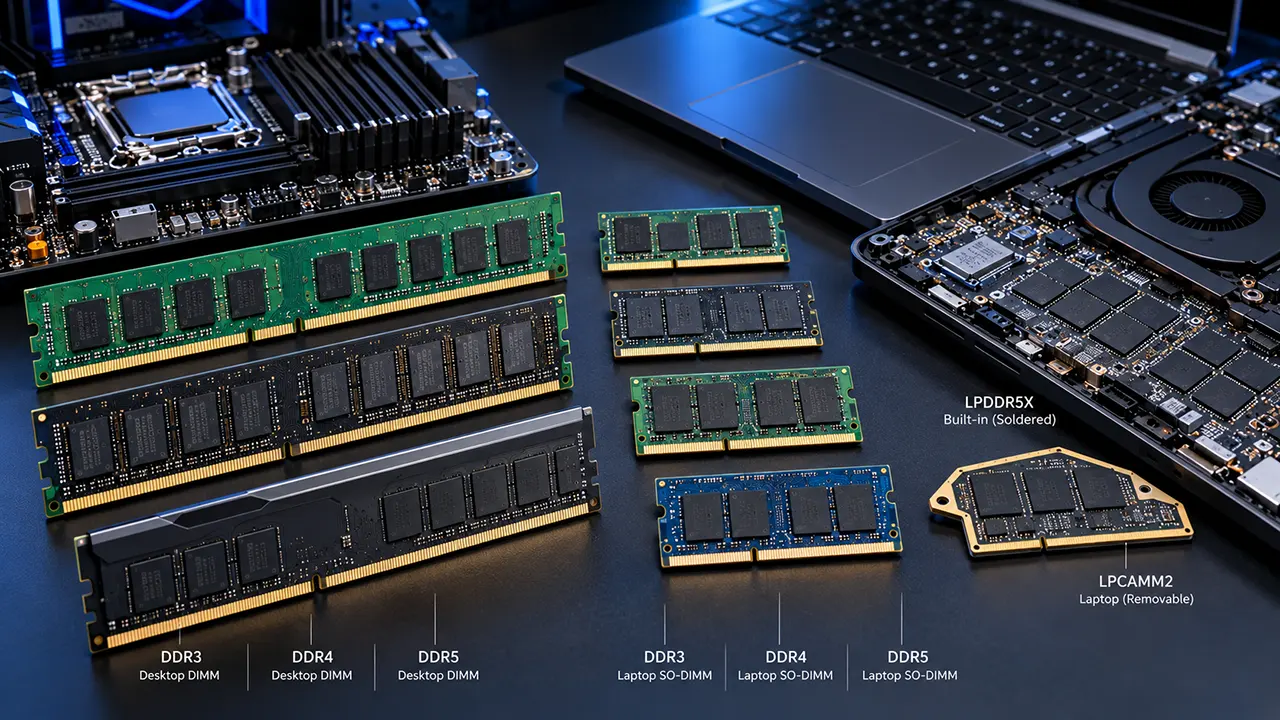
Some laptops have removable memory modules, while others use soldered memory chips attached directly to the motherboard.
Upgradeable SO-DIMM RAM vs. Soldered RAM
Upgradeable SO-DIMM memory
SO-DIMM is a compact memory module format commonly used in laptops.
If your laptop has accessible SO-DIMM slots, you may be able to replace existing modules or add more memory, depending on the motherboard design.
Advantages include:
- Easier memory replacement.
- Potential for future upgrades.
- More flexibility when purchasing a lower-capacity configuration.
However, not every laptop with SO-DIMM slots has two available slots. Some configurations have one slot and partially soldered memory.
Soldered memory
Soldered RAM is attached directly to the motherboard.
Advantages include compact designs and support for thin laptop architectures. However, the memory generally cannot be upgraded by ordinary users.
If you purchase a laptop with 8GB soldered RAM, you may be stuck with that capacity for the entire ownership period.
Apple silicon MacBooks use unified memory integrated into the system architecture. It should not be treated as conventional removable SO-DIMM memory.
DDR4 vs. DDR5 vs. LPDDR5
Laptop memory comes in different generations and physical configurations.
| Memory type | Typical use | Buying consideration |
|---|---|---|
| DDR4 | Older and some budget laptops | Check supported generation and speed |
| DDR5 | Modern laptops with compatible memory slots | Check motherboard and CPU support |
| LPDDR5 | Thin and power-efficient laptops | Commonly soldered |
| LPDDR5X | Newer efficient laptop platforms | Usually integrated into the motherboard |
You cannot simply install DDR5 memory in a laptop designed for DDR4. Physical compatibility, memory controller support, and motherboard specifications matter.
Memory speed and configuration can also influence performance. Two laptops with the same 16GB capacity may not perform identically if their memory architecture differs.
How to Check Your Laptop’s Maximum RAM Capacity
Before purchasing additional memory, follow these steps:
- Identify your laptop’s exact model number.
- Visit the manufacturer’s official support website.
- Find the technical specifications or service manual.
- Check whether the RAM is soldered or removable.
- Verify the number of available memory slots.
- Confirm the maximum supported capacity.
- Check supported DDR generation and memory speed.
- Purchase a compatible memory module if an upgrade is supported.
Do not rely only on the laptop’s product name. Different configurations within the same model family may have different memory arrangements.
How to Check Current RAM Usage in Windows 11
You can check your laptop’s installed memory and current usage without installing additional software.
Follow these steps:
- Press
Ctrl + Shift + Esc. - Open Performance in Task Manager.
- Select Memory.
- Check the total installed RAM.
- Review the amount currently in use and available.
- Check the memory speed and slots used, if reported.
You can also open the Processes tab to identify applications consuming the most memory.
If your laptop regularly experiences slowdowns while running your usual workload, investigate which applications are using memory before deciding to upgrade.
A high memory usage percentage alone is not proof that your laptop needs more RAM. Look for sustained memory pressure, performance problems, and paging activity.
7 Mistakes to Avoid When Choosing Laptop RAM
Choosing the wrong memory configuration can affect your laptop’s usability for years. Watch out for these common purchasing mistakes.
1. Buying based only on minimum requirements: Minimum requirements indicate whether software can run, not whether it will run comfortably alongside other applications.
2. Ignoring soldered memory: An inexpensive 8GB laptop may become a poor investment if its RAM cannot be upgraded.
3. Confusing RAM with SSD storage: A 1TB SSD does not compensate for insufficient physical memory.
4. Ignoring integrated graphics: Integrated GPUs share system memory, leaving less available for other applications.
5. Paying for 32GB without a reason: More memory is not automatically better if your workload never needs it.
6. Ignoring professional software requirements: Check the official requirements of applications you actually use, especially for video editing, CAD, and development.
7. Choosing RAM without considering the processor and GPU: A laptop with 32GB RAM can still perform poorly if its processor, graphics hardware, or cooling system is inadequate for your workload.
How to Choose the Right Laptop RAM for Your Needs
If you are still unsure, use this simple decision framework before purchasing a laptop.
| Your primary use | My recommendation |
|---|---|
| Basic browsing and email | 8GB minimum, 16GB preferred |
| School and college work | 16GB |
| Office and remote work | 16GB |
| Heavy multitasking | 16GB to 32GB |
| General programming | 16GB |
| Professional development | 32GB |
| Mainstream gaming | 16GB to 32GB |
| Photoshop and graphic design | 16GB to 32GB |
| 4K video editing | 32GB or more |
| CAD and complex 3D work | 32GB to 64GB |
| Local AI experimentation | 32GB or more, depending on the model |
| Large virtual machines | 32GB to 64GB or more |
These are starting points. Always check application-specific requirements and the laptop’s memory architecture.
Before placing an order, consider these questions:
- Will I use the laptop for basic tasks or demanding professional work?
- Do I regularly keep several applications open?
- Will I use video editing, programming, CAD, or local AI software?
- Is the RAM upgradeable?
- How many years do I expect to keep this laptop?
- Does the processor and GPU match my workload?
- Is the additional cost of 32GB justified?
One final buying tip: If you are choosing between 16GB soldered RAM and 32GB upgradeable RAM at similar prices, consider your expected workload and future upgrade options rather than looking at capacity alone.
FAQs: How Much RAM Does a Laptop Need
1. Is 16GB RAM enough for work in 2026?
Yes. Sixteen gigabytes is sufficient for most general office and remote work, including documents, spreadsheets, email, browser-based applications, and video meetings. However, developers running several virtual machines, professionals handling large datasets, and creative workers using demanding applications may benefit from 32GB or more.
2. Is 8GB RAM enough for Windows 11?
Yes. Microsoft lists 4GB as the minimum RAM requirement for Windows 11 installation, so 8GB meets that requirement. However, installation compatibility does not guarantee comfortable multitasking. For a new Windows 11 laptop, 16GB is a better starting point for general-purpose use. Microsoft Support
3. Is 32GB RAM overkill for everyday use?
For basic browsing, email, document editing, and streaming, 32GB is generally more than necessary. Most users will not notice a significant improvement over 16GB unless their applications or multitasking habits regularly demand additional memory. The money may be better spent on a stronger processor, better display, or larger SSD.
4. Does 32GB RAM improve gaming performance?
It can improve gaming experiences when a game or background applications need more than 16GB of available memory. It may also provide additional room for streaming, recording, and multitasking. However, doubling RAM does not automatically double frame rates. The graphics card, processor, and game optimization remain important performance factors.
5. How much RAM should a college student have?
Sixteen gigabytes is a good choice for most college students. It supports research, documents, presentations, online classes, and everyday multitasking. Students using engineering, architecture, programming, or creative applications should check their software requirements and consider 32GB when necessary.
6. Does a laptop need more RAM for AI?
It depends on how you use AI. Cloud-based tools such as ChatGPT generally do not require you to load a large AI model into local memory. Running language models or image-generation software locally can require considerably more RAM and GPU memory. For local AI development, 32GB can be a useful starting point, but larger workloads may need 64GB or more.
7. Is 64GB RAM worth buying?
Sixty-four gigabytes is worthwhile for specialized workloads such as large virtual machines, professional 3D production, demanding simulations, and memory-intensive local AI development. It is unnecessary for most general-purpose laptop users. Check the actual memory requirements of your applications before paying for this capacity.
8. How do I know if my laptop needs more RAM?
Look for repeated slowdowns during your normal workload, frequent application delays, and sustained memory pressure. Open Task Manager in Windows and inspect the Memory section. Also check which applications consume the most memory. High memory usage alone does not prove that an upgrade is necessary.
Make Your Laptop RAM Decision With Confidence
Choosing the right laptop RAM is not about buying the largest number available. It is about matching memory capacity to your daily workload.
For most people purchasing a new laptop in 2026, 16GB is the practical starting point. Choose 32GB when your professional applications, creative projects, development tools, or multitasking habits justify the additional capacity.
If you are buying a laptop with soldered memory, pay particular attention to this decision before placing your order. You may not get another opportunity to upgrade it later.
For more information about changing memory costs and their impact on computer purchases, read our related guide: RAM Shortage 2026: Why DDR5 Prices and Laptop Prices Are Rising.
The best laptop is not necessarily the one with the most RAM. It is the one with enough memory to handle your work comfortably, without making you pay for capacity you will never use.

Belayet Hossain is a Senior Tech Expert and Certified AI Marketing Strategist. Holding an MSc in CSE (Russia) and over a decade of experience since 2011, he combines traditional systems engineering with modern AI insights. Specializing in Vibe Coding and Intelligent Marketing, Belayet provides forward-thinking analysis on software, digital trends, and SEO, helping readers navigate the rapidly evolving digital landscape. Connect with Belayet Hossain on Facebook, Twitter, Linkedin or read my complete biography.