


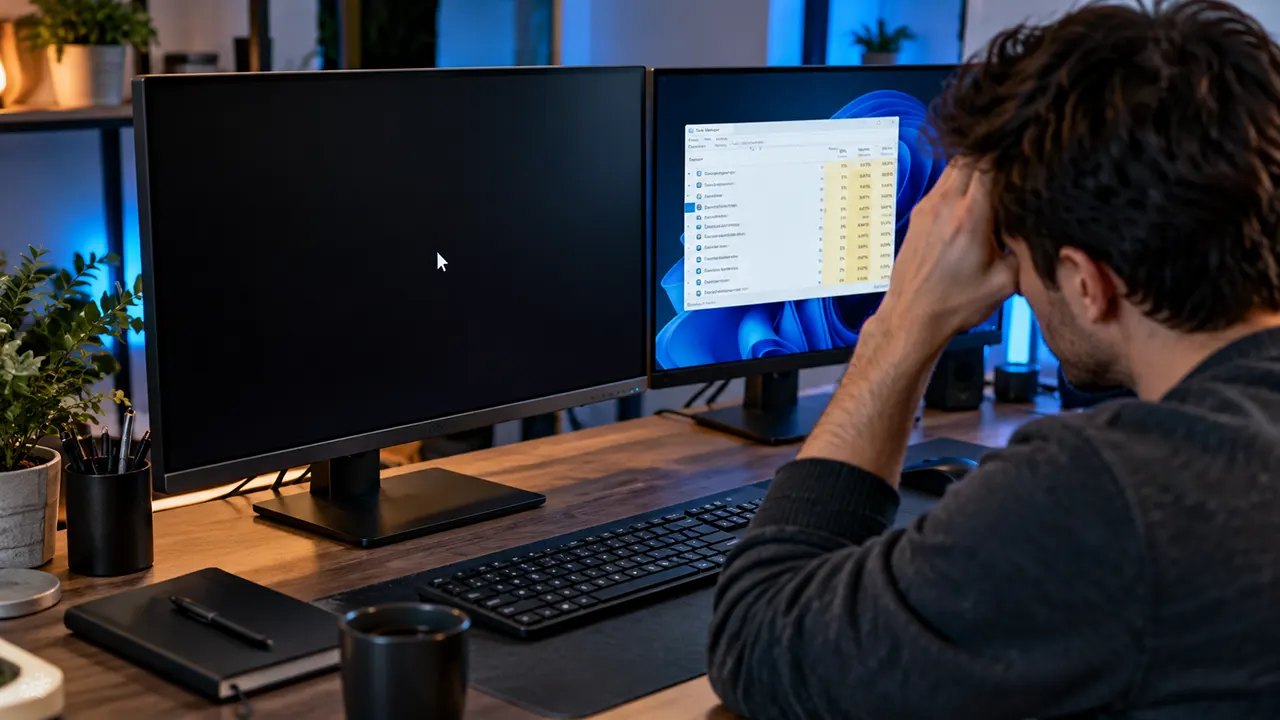
If your Windows 11 black screen after update, start with the least disruptive fix. Press Ctrl + Shift + Esc to open Task Manager. If it opens, select Run new task, enter explorer.exe, and press Enter. If the desktop returns, Windows Explorer may have failed to start. If the screen remains black, identify your symptoms before trying more advanced recovery steps.
A black screen does not always mean Windows has crashed. Your computer might be running while the desktop, graphics driver, display output, or sign-in process fails to work correctly. The right fix depends on what you can see and whether you can still interact with Windows.
Identify which Windows 11 black-screen problem you have
Before changing settings, look for the last thing that worked. The cursor, taskbar, sign-in screen, and monitor message can help you narrow down the cause.
| What you see | Possible cause | Best next step |
|---|---|---|
| Black screen with a mouse cursor | Desktop shell or graphics problem | Open Task Manager |
| Black screen after sign-in, with no desktop | Windows Explorer or profile-loading issue | Run explorer.exe |
| Black wallpaper, but icons and taskbar work | Desktop background settings problem | Check Personalization settings |
| Black screen before sign-in | Display driver, startup, or hardware issue | Reset the graphics driver and check the display |
| Monitor says “No signal” | Display output, cable, port, or hardware issue | Check the monitor connection |
These are diagnostic clues, not definitive diagnoses. More than one problem can produce similar symptoms.
Black screen with a visible cursor
If you can move the mouse pointer, Windows may still be running even though the desktop is missing. Press Ctrl + Shift + Esc to open Task Manager. If it appears, try the Explorer recovery steps below before making changes to Windows.
Black screen after signing in, with no desktop
If you enter your password but never see the taskbar or desktop icons, the Windows desktop shell may not have loaded. This is the symptom associated with Microsoft’s documented KB5120996 and KB5120998 desktop-loading incident, although the documented incident has been observed primarily in Azure Virtual Desktop environments using FSLogix.
Black wallpaper but working desktop icons
If your icons and taskbar remain visible, but the wallpaper has turned solid black, you may have a background-settings issue rather than a completely failed desktop. Go to Settings > Personalization > Background once you can access the desktop, and check the selected background mode.
Black display before sign-in or no monitor signal
If you cannot see the sign-in screen, the Explorer fix may not apply. Check whether the monitor is powered on, the correct input is selected, and the cable is firmly connected. If the monitor reports no signal, focus on the display connection and hardware before trying to repair the Windows desktop shell.
Try these 7 Windows 11 black-screen fixes in order
Start with the simplest action that matches your symptoms. You do not need to perform every fix if an earlier step restores the desktop.
Fix 1. Reset the graphics driver with a keyboard shortcut
Press Win + Ctrl + Shift + B together. On supported Windows systems, this shortcut attempts to reset the graphics driver. You may hear a beep or see the screen flicker.
Wait a few seconds to see whether the display returns. If nothing changes, move to the next appropriate step. This shortcut cannot fix every graphics problem, and it will not necessarily help if Windows has failed to load the desktop shell.
Fix 2. Open Task Manager
Press Ctrl + Shift + Esc. If Task Manager opens, select Run new task. Depending on your Windows version, you may need to select More details first.
If Task Manager does not appear, try Ctrl + Alt + Delete. If the security screen appears, select Task Manager from there.
Task Manager is useful because it lets you launch a Windows process without relying on desktop icons or the Start menu. If neither shortcut works, the problem may extend beyond Explorer.
Fix 3. Run Windows Explorer manually
When Windows Explorer fails to start, launching it manually may restore the taskbar, desktop icons, and File Explorer.
- Open Task Manager using
Ctrl + Shift + Esc. - Select Run new task.
- Enter
explorer.exe. - Press Enter or select OK.
- Wait briefly for the desktop to load.
If the desktop returns, save your work and restart Windows normally when practical. If the problem keeps returning, investigate the installed update, user profile, and startup software rather than repeatedly launching Explorer.
Microsoft documents this workaround for the affected AVD/FSLogix desktop-loading incident in its KB5120996 release notes.
Fix 4. Check your display output and connections
If the screen remains black, check whether Windows is sending an image to the correct display.
- Confirm that the monitor is switched on and set to the correct input.
- Reseat the HDMI or DisplayPort cable.
- If you use multiple monitors, disconnect unnecessary displays and test one monitor.
- If available, try a different cable or display port.
- On a laptop, disconnect external displays and accessories temporarily.
Avoid buying a new monitor or graphics card until you have isolated the cause. A black screen alone does not prove that a hardware component has failed.
Fix 5. Restart Windows safely
If Windows responds to keyboard shortcuts but the screen remains black, try a normal restart through the security screen or another available Windows power menu.
If the display is completely unresponsive, a forced shutdown may be necessary as a last resort. Hold the physical power button until the computer switches off, then turn it on again. Be aware that unsaved work may be lost, and avoid repeatedly interrupting Windows during an update.
After restarting, check whether the sign-in screen and desktop load normally. If the problem returns immediately after sign-in, record the symptom and continue with update identification.
Fix 6. Check Windows Update history and your OS version
Identifying the installed update helps you distinguish a general Windows problem from a documented update regression.
If you can access Windows Settings, open Settings > Windows Update > Update history. Review the recent quality updates and note their KB numbers and installation dates.
To identify your Windows version, press Win + R, enter winver, and press Enter if the Run dialog is available.
If the desktop is unavailable, you may need to use another working device to review Microsoft’s documentation. Match the KB number and Windows version to the official release-health page rather than assuming the most recent update caused the issue.
Fix 7. Use Safe Mode to investigate drivers and startup software
Safe Mode starts Windows with a limited set of drivers and services. If Windows works in Safe Mode but fails during a normal startup, a driver or startup component may be involved.
If you can reach the Windows sign-in screen, hold Shift while selecting Power > Restart. From Windows Recovery Environment, navigate to Troubleshoot > Advanced options > Startup Settings > Restart. After the restart, select the Safe Mode option shown on screen.
If you cannot reach the sign-in screen, WinRE may be accessible through Windows recovery options or installation media. Access methods vary by device, so follow Microsoft’s recovery instructions for your situation.
In Safe Mode, you can investigate recently updated display drivers and startup applications. Avoid uninstalling drivers or changing several settings at once, because doing so makes the cause harder to identify.
Microsoft’s blank-screen troubleshooting guide provides additional guidance for display and startup problems.
Recommended read: Windows modules installer worker – High CPU usage – Win 8.1/ 10/ 11
How to identify the Windows update causing the black screen
A recent update is a possible cause, but timing alone does not prove that it is responsible. Compare the installation date, Windows version, and symptoms with Microsoft’s published incident details.
Find the installed KB number
Open Update history and look under Quality Updates for the most recent cumulative update. Record its KB identifier and installation date.
Then check the appropriate Microsoft Release Health page:
These pages identify affected updates, reported symptoms, workarounds, and mitigation or resolution status. Use the page that matches your installed version.
KB5120996 black screen: What affected users need to know
Microsoft documented a desktop-loading issue associated with the August 27, 2026 preview update KB5120996 and subsequent updates. The issue has been observed primarily on Azure Virtual Desktop (AVD) hosts using FSLogix, particularly with some existing user profiles. Affected users may see a black screen after signing in, and application event logs may show Windows Explorer crashes.
This is not evidence that every Windows 11 PC is affected. The documented environment is narrower than the general search term “Windows 11 black screen after update.”
What is the documented workaround?
Microsoft lists two mitigation approaches:
- Manually launch Explorer: Open Task Manager, select Run new task, enter
explorer.exe, and select OK. - Use Known Issue Rollback (KIR): IT administrators can deploy Microsoft’s version-specific policy on managed devices.
For enterprise administrators, the KB5120996 release notes provide the relevant workaround and policy details. KIR requires the correct policy for the affected Windows version and a restart to apply it. It is an enterprise mitigation, not a registry tweak that ordinary users should attempt to reproduce.
What is the current mitigation status?
As of October 12, 2026, Microsoft’s release-health information lists the sign-in desktop-loading issue as mitigated as of September 29, 2026. The KB5120996 release notes still describe a future update resolution as forthcoming.
The distinction matters: mitigation means Microsoft has provided a way to reduce or address the issue; it does not mean every underlying scenario has been permanently resolved. Check the live release-health page before taking action because the status can change.
Related article: How to get help with File Explorer in windows 10
KB5120996 vs. KB5120998: Which Windows 11 Issue Affects You?
KB5120996 and KB5120998 are August 27, 2026, Windows 11 preview updates associated with a documented black-screen and desktop-loading problem after sign-in. KB5120996 applies to Windows 11 version 26H1, while KB5120998 applies to versions 24H2 and 25H2. KB5120998 was also linked to a separate issue that caused desktop backgrounds to turn solid black. Microsoft lists that background issue as resolved by KB5124008 and later updates.
KB5120996 vs. KB5120998: Key Differences
| Detail | KB5120996 | KB5120998 |
|---|---|---|
| Windows version | Windows 11 26H1 | Windows 11 24H2 and 25H2 |
| Original preview build | 28000.2804 | 26100.9278 (24H2) and 26200.9278 (25H2) |
| Sign-in black-screen issue | Documented | Documented |
| Desktop fails to load | Documented | Documented |
| Primary reported environment | Azure Virtual Desktop (AVD) hosts using FSLogix | Azure Virtual Desktop (AVD) hosts using FSLogix |
| Separate solid-black-background issue | Not listed as the corresponding issue in these update notes | Documented |
| Sign-in issue status | Mitigated as of September 29, 2026 | Mitigated as of September 29, 2026 |
| Black-background issue status | Not the relevant update for this specific issue | Resolved by KB5124008 and later updates |
Sources: Microsoft’s KB5120996 release notes, KB5120998 release notes, and Windows 11 release health.
How to tell which black-screen problem you have
Check what remains visible when the screen turns black.
- Black screen after sign-in with no taskbar or desktop icons: This matches the documented desktop-loading issue. Open Task Manager with
Ctrl + Shift + Esc, select Run new task, enterexplorer.exe, and press Enter. This is a temporary workaround, not proof that the underlying issue is fixed. - Desktop icons and taskbar work, but the wallpaper is solid black: This may match the separate desktop-background settings issue associated with KB5120998. Microsoft lists this issue as resolved by updates released on or after September 8, 2026, including KB5124008.
- Black screen before sign-in or a monitor reporting no signal: Do not assume either KB is responsible. Check the display connection, graphics output, and other startup symptoms.
What should you do next?
First, check your Windows version and installed update history. Press Win + R, enter winver, and press Enter if Windows is accessible. Then open Settings > Windows Update > Update history to identify the installed KB number.
If you use a work-managed virtual desktop, contact your IT administrator about the appropriate Known Issue Rollback (KIR) policy. Microsoft identifies KB5124006 for Windows 11 26H1 and KB5124010 for Windows 11 24H2 and 25H2 environments in its release-health guidance. These policies are intended for managed environments and must match the affected Windows version.
The sign-in issue’s mitigated status does not mean every affected configuration has received a permanent fix. Check Microsoft’s current release-health records before uninstalling an update or making advanced system changes.
KB5120998 black background versus a missing desktop
KB5120998 is a separate August 27, 2026 preview update for Windows 11 versions 24H2 and 25H2. Microsoft documented both a desktop-loading incident and a different problem in which desktop backgrounds could turn solid black.
The background issue can also affect other desktop personalization settings, such as slideshow or contrast-theme settings. If your taskbar and icons still work, do not assume you need to repair Windows Explorer.
Microsoft states that the black-background settings issue was resolved in updates released on or after September 8, 2026, including KB5124008. Install the latest supported Windows updates available for your device, provided you can do so safely.
The separate desktop-loading incident associated with KB5120998 is listed as mitigated as of September 29, 2026. See Microsoft’s Windows 11 24H2 release-health page for current status.
When to use Windows Recovery Environment or uninstall an update
Use recovery tools when the simpler fixes fail and the evidence points to a Windows startup or update problem. Before making substantial changes, consider whether important files are backed up and whether you can access your device’s recovery key if encryption is enabled.
Enter Windows Recovery Environment
Windows Recovery Environment (WinRE) provides recovery tools when Windows cannot start normally. Depending on your situation, you can reach it through Advanced startup in Settings, the Shift + Restart option, or Windows installation or recovery media.
From WinRE, you may have access to Startup Repair, System Restore, Startup Settings, and Uninstall Updates. Available options depend on the device and its recovery configuration.
When should you uninstall a recent update?
Consider uninstalling a recent quality update if the black screen began immediately after installation, simpler fixes have failed, and the symptoms fit an update-related problem. In WinRE, look for Troubleshoot > Advanced options > Uninstall Updates, then choose the appropriate available option.
Update removal is not a universal fix. The option may be unavailable, and removing updates can affect security and stability. Avoid removing updates simply because they were installed recently if the symptoms point to a disconnected monitor or a failed graphics component.
If System Restore is available and a suitable restore point exists, it may provide another recovery route. Review the consequences of the chosen option before proceeding.
When should you seek technical help?
Stop experimenting and contact your IT administrator or a qualified repair professional if:
- A work-managed PC repeatedly fails to load its desktop.
- Recovery tools cannot start or report errors.
- The computer shows signs of hardware failure.
- You cannot access important data and have no verified backup.
- You are unsure which recovery or update-removal option is appropriate.
For a company-managed AVD or FSLogix device, contact the administrator rather than applying consumer troubleshooting steps to enterprise policies.
Prevent another black screen after a Windows update
You cannot prevent every Windows regression, but you can reduce the risk of losing access to important work.
- Keep a reliable backup. Back up important files before major troubleshooting or recovery operations.
- Install supported updates. Keep Windows and device drivers current, but check known-issue notices when a specific update is associated with your symptoms.
- Avoid unnecessary system tweaks. Do not install unknown driver-updater utilities or apply registry changes from unverified tutorials.
- Record the last working state. Note the update date, KB number, Windows version, and whether the problem appears before or after sign-in.
- Use managed-device procedures. If your organization manages Windows updates, let its IT team handle enterprise mitigations such as KIR.
If the same issue returns after every restart, treat it as an unresolved problem rather than repeatedly applying the same temporary workaround.
Frequently asked questions
1. Can a Windows 11 update cause a black screen?
Yes. Microsoft has documented update-related desktop-loading and background-settings problems in Windows 11. However, a black screen can also result from display connections, graphics drivers, startup failures, or other software and hardware issues. Check your symptoms and installed KB number before deciding that an update is responsible.
2. Why does my screen go black but my computer stays on?
Your computer may still be running even if it cannot display the desktop. A graphics-driver problem, incorrect display output, or Windows Explorer failure can leave you with a black screen. Check whether keyboard shortcuts work, whether the monitor reports a signal, and whether Task Manager opens. Those clues help determine the next step.
3. Can I fix a Windows 11 black screen without reinstalling Windows?
Often, yes. Restarting the graphics driver, launching explorer.exe, checking display connections, or using Safe Mode may resolve the problem. If those steps fail, Windows Recovery Environment offers additional repair options. Reinstalling Windows should not be your first response to a black screen, particularly if important files are not backed up.
4. Should I keep using the PC if the desktop returns after running Explorer?
You can generally continue cautiously if Windows becomes responsive and there are no other warning signs. Save your work, back up important files, and check whether the issue returns after a normal restart. If the desktop repeatedly fails to load, investigate the cause rather than relying indefinitely on manually launching Explorer.
5. When should I stop troubleshooting and seek professional help?
Seek help if recovery tools fail, the display shows signs of hardware failure, important files are at risk, or you cannot confidently identify the correct recovery option. On a work-managed device, contact IT support before changing update policies or attempting advanced system repairs.
Windows 11 black-screen update status
The following distinctions are important when reviewing the documented August and September 2026 incidents:
| Issue | Status in Microsoft’s published information |
|---|---|
| KB5120996 desktop-loading issue | Mitigated as of September 29, 2026; future update resolution described as forthcoming in the release notes |
| KB5120998 desktop-loading issue | Mitigated as of September 29, 2026 |
| KB5120998 black-background settings issue | Resolved in updates released on or after September 8, 2026, including KB5124008 |
For changes after this date, consult Microsoft’s live Windows 11 26H1, 24H2, and 25H2 release-health pages. Do not assume an incident remains open or resolved based solely on an older article.
Choose the next safe step
If Windows has signed in but the desktop is missing, start with Task Manager and explorer.exe. If the display is not receiving a signal, investigate the monitor and graphics path instead. If the problem began after a particular update, verify the KB number and the current Microsoft guidance before attempting recovery.
The goal is to restore a working desktop without making unnecessary changes or risking your data.

Belayet Hossain is a Senior Tech Expert and Certified AI Marketing Strategist. Holding an MSc in CSE (Russia) and over a decade of experience since 2011, he combines traditional systems engineering with modern AI insights. Specializing in Vibe Coding and Intelligent Marketing, Belayet provides forward-thinking analysis on software, digital trends, and SEO, helping readers navigate the rapidly evolving digital landscape. Connect with Belayet Hossain on Facebook, Twitter, Linkedin or read my complete biography.