


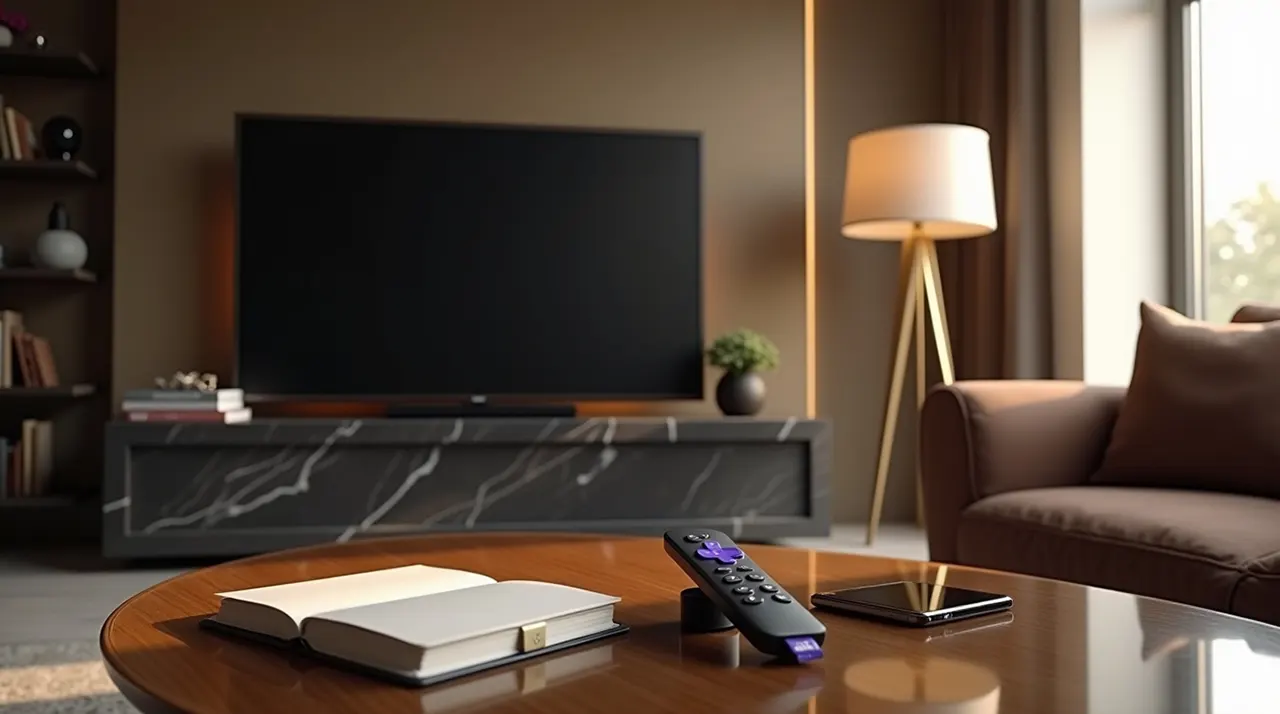
This guide provides a simple, step-by-step solution for anyone asking “how do I pair a Roku remote.” We cover all Roku remote types, from basic infrared to advanced voice remotes, ensuring a frustration-free setup experience.
Getting your Roku remote connected is the first step to unlocking a world of entertainment. Many users find themselves wondering, “how do I pair a Roku remote?” when setting up a new device or after a battery change. It’s a common hiccup, but thankfully, the process is usually quite straightforward. This guide is designed to demystify the pairing process, offering clear instructions for every type of Roku remote. We’ll walk you through each step, ensuring you’re back to streaming your favorite shows in no time.
Why Isn’t My Roku Remote Working? Common Issues
When your Roku remote suddenly stops responding, it can be a real buzzkill for your streaming session. The most frequent culprits behind a non-working remote are dead batteries, a pairing issue, or sometimes, interference. Before diving into pairing, it’s always wise to rule out the simplest solutions.
Ensuring your Roku device itself is powered on and not in a deep sleep mode is also crucial. A quick check of these basics can save you a lot of time and potential frustration before you even start to worry about pairing.
Understanding Your Roku Remote Type
Roku offers several types of remotes, and knowing which one you have is key to understanding how to pair it.
There are generally two main categories: infrared (IR) remotes and voice remotes (often called Roku Voice Remotes or Enhanced Remotes). IR remotes require a direct line of sight, similar to an old TV remote, and are typically found with older or more basic Roku devices. Voice remotes use a different technology, often Wi-Fi Direct, allowing them to work without direct line of sight and offering voice search capabilities.
Infrared (IR) Roku Remotes
These are the simplest remotes and don’t require any pairing process in the traditional sense.
For an IR remote to work, it simply needs fresh batteries and for you to point it directly at the infrared sensor on your Roku device. There’s no button to press or sequence to follow; if the batteries are good and the path is clear, it should work.
Roku Voice Remotes (Enhanced Remotes)
These remotes utilize a more advanced connection and do require a pairing step.
Voice remotes connect to your Roku device using Wi-Fi Direct. This means they need to be “paired” or linked to your specific Roku player or TV. This pairing process is what allows for features like voice commands and the ability to control your device without aiming directly at it.
How Do I Pair a Roku Remote: The Basic Steps
So, how do I pair a Roku remote? The process is designed to be user-friendly, even if you’re not a tech expert.
For most voice remotes, the initial pairing happens automatically when you first insert batteries and turn on your Roku device. If it doesn’t, or if you need to re-pair it, a manual process is available.
Step 1: Power On Your Roku Device
Ensure your Roku streaming player or Roku TV is plugged in and powered on. You should see the Roku home screen or a setup screen.
This is the fundamental first step; the Roku device needs to be active and ready to establish a connection with the remote. Without power, no pairing can occur.
Step 2: Insert Fresh Batteries
Open the battery compartment on your Roku remote and insert two new AA or AAA batteries (check your remote model for the correct type). Make sure they are inserted with the correct polarity.
Dead batteries are the most common reason a remote stops working. Using fresh, high-quality batteries is essential for a reliable connection and proper pairing. If your remote has a battery indicator, it might show low power.
Step 3: Bring the Remote Close to Your Roku Device
Hold the remote within a few feet of your Roku device. This proximity is important for the initial handshake during the pairing process.
For voice remotes, this close distance ensures a strong signal for the Wi-Fi Direct connection. It helps the Roku device discover and recognize the remote more easily.
Step 4: Press and Hold the Pairing Button (If Necessary)
On many Roku Voice Remotes, there’s a small pairing button inside the battery compartment. You may need to press and hold this button for about 5-10 seconds until a light on the remote flashes.
This button initiates the pairing sequence. The flashing light usually indicates that the remote is actively searching for your Roku device to connect with. Consult your Roku device’s manual if you can’t find this button.
Step 5: Follow On-Screen Prompts
Your Roku device should detect the remote and may display a message asking if you want to pair it. Follow the instructions on your TV screen to complete the pairing.
This on-screen guidance is designed to be straightforward. It confirms that the connection is being made and finalizes the pairing process between the remote and your streaming player.
Troubleshooting Roku Remote Pairing Issues
Sometimes, even with the best intentions, pairing a Roku remote can hit a snag. Don’t worry, there are several common troubleshooting steps you can take.
When you encounter pairing problems, systematically working through potential causes often reveals the solution. Patience and a methodical approach are your best allies here.
Remote Not Detected by Roku Device
If your Roku device isn’t seeing the remote, try restarting both devices. Unplug your Roku device from power for 30 seconds, then plug it back in. Also, try a fresh set of batteries in the remote.
Sometimes, a simple power cycle can clear temporary glitches. Ensuring the remote is within close range and the pairing button (if applicable) is correctly pressed are also vital. You can check out Roku’s official support page for more in-depth troubleshooting.
Pairing Button Not Responding
If the pairing button inside the battery compartment doesn’t seem to do anything, double-check that the batteries are correctly inserted and have sufficient charge. Sometimes, the button mechanism itself can be faulty.
If you suspect a faulty button, you might need to contact Roku support for a replacement. Ensure you are pressing and holding the button for the recommended duration, as a quick press might not initiate the pairing mode.
Remote Pairs But Doesn’t Control Roku
If your Roku device indicates the remote has paired successfully, but it still doesn’t control playback or navigation, there might be a software or signal issue. Try re-pairing the remote.
A re-pairing process can often resolve communication hiccups. Also, ensure there isn’t significant wireless interference from other devices, such as microwaves or other Wi-Fi routers, which can disrupt the signal.
Pairing Specific Roku Remote Models
While the general process is similar, some Roku remote models might have slight variations in their pairing procedure.
Understanding the nuances of your specific remote can save you time and prevent unnecessary frustration during the setup. It’s always best to refer to the manual that came with your Roku device or remote.
Roku Voice Remote (Standard)
For most standard Roku Voice Remotes, the pairing is automatic upon inserting batteries into a new device. If it needs re-pairing, look for the pairing button inside the battery compartment and press/hold it while the Roku device is on.
These remotes are designed for a seamless experience, with pairing usually being a one-time event. If it disconnects, a quick re-press of the pairing button is often all that’s needed.
Roku Voice Remote Pro Edition
The Roku Voice Remote Pro often features a rechargeable battery and dedicated voice control buttons. Pairing typically follows the same principle: insert batteries (or ensure it’s charged) and press the pairing button inside the battery compartment if needed.
This premium remote might offer additional features, but the core pairing mechanism remains consistent with other voice remotes. Check for any specific charging indicators.
Roku Simple Remote (IR)
As mentioned, these remotes do not require pairing. They use infrared signals, so as long as the batteries are fresh and there’s a clear line of sight to the Roku device, they should work immediately.
If your simple remote isn’t working, the primary troubleshooting steps involve checking and replacing the batteries. Ensure nothing is obstructing the path between the remote and the Roku’s IR sensor.
Resetting Your Roku Remote
If you’re experiencing persistent issues, resetting your Roku remote can sometimes resolve the problem before you consider replacing it.
A reset can clear out any corrupted data or settings that might be causing connectivity problems. It’s a useful step to try when standard troubleshooting doesn’t yield results.
How to Reset a Roku Remote
The reset process varies slightly by model. For many Roku Voice Remotes, you’ll need to remove the batteries, press and hold the Home button for about 20-30 seconds, then reinsert the batteries.
This action forces the remote to clear its memory and re-establish a connection. After the reset, you will likely need to re-pair the remote with your Roku device following the standard steps outlined earlier. This is a good way to ensure a clean slate.
When to Consider a Replacement Roku Remote
If you’ve tried all the troubleshooting steps, including resetting and re-pairing, and your remote still isn’t functioning, it might be time for a replacement.
Physical damage, extensive wear and tear, or internal component failure can render a remote unusable. Fortunately, replacement Roku remotes are widely available.
Signs Your Remote Needs Replacing
Look for physical damage like cracks or broken buttons. If the remote consistently fails to connect, drains batteries rapidly, or has erratic behavior even after troubleshooting, it’s likely on its last legs.
You can purchase official Roku remotes or compatible third-party options from major online retailers. Always ensure the replacement remote is compatible with your specific Roku device model to avoid further issues.
Pairing a Roku Remote with a New Roku Device
Setting up a new Roku device is exciting, and pairing its remote is usually part of the initial setup wizard.
For most new Roku devices, especially those with voice remotes, the remote comes pre-paired or initiates pairing automatically upon first power-up. This ensures you can navigate the setup process without any hassle.
Initial Setup and Automatic Pairing
When you power on a new Roku device for the first time, it’s programmed to look for its accompanying remote. Simply insert fresh batteries into the remote, and it should connect automatically as your Roku boots up.
You’ll typically see a confirmation on screen indicating that the remote has been found and is ready for use. This streamlined process is designed to get you streaming as quickly as possible.
Manual Pairing During New Device Setup
If automatic pairing fails, follow the on-screen prompts during the new device setup. You may be asked to press and hold a button on the remote, often inside the battery compartment.
This manual step ensures that the remote establishes a secure connection with your new Roku device, allowing you to proceed with selecting your language, connecting to Wi-Fi, and logging into your Roku account. The Roku setup guide offers more details on this initial process.
Advanced Tips: Using the Roku Mobile App as a Remote
What if your physical remote is lost, broken, or simply not pairing? Don’t fret; your smartphone can become your Roku remote!
The official Roku mobile app offers a fully functional remote control experience, complete with voice search and keyboard input, which is incredibly convenient when your primary remote is out of commission.
How to Use the Roku Mobile App
Download the free Roku app from your smartphone’s app store (iOS or Android). Ensure your phone and your Roku device are connected to the same Wi-Fi network. Open the app, and it should automatically detect your Roku device.
Tap on your Roku device within the app to connect. You’ll then see a virtual remote interface on your phone’s screen, allowing you to navigate menus, launch apps, and control playback. This is a lifesaver and a testament to how smart technology enhances our daily lives.
Benefits of the Mobile App Remote
The app offers several advantages, including a virtual keyboard for easier text entry (perfect for searching for content or entering passwords) and voice search functionality directly from your phone. It’s also a great backup in case of remote malfunctions or when batteries die unexpectedly.
It provides a consistent streaming experience even when your physical remote isn’t cooperating. This flexibility is a key benefit of the modern smart entertainment ecosystem.
Frequently Asked Questions (FAQ)
How do I pair a Roku remote if it’s not automatically connecting?
Ensure your Roku device is powered on and the remote has fresh batteries. For voice remotes, open the battery compartment, press and hold the pairing button inside for 5-10 seconds until the light flashes, and keep the remote close to your Roku device. Follow any on-screen prompts.
My Roku remote is not working at all. What should I do?
First, replace the batteries with a fresh pair. If it’s an IR remote, ensure there’s a clear line of sight to the Roku device. For voice remotes, try re-pairing it. If problems persist, consider resetting the remote or using the Roku mobile app as a temporary solution.
Can I use any Roku remote with any Roku device?
Not necessarily. While many Roku remotes are interchangeable, it’s best to check compatibility. Simple IR remotes work with most Roku devices, but enhanced voice remotes are often specific to certain Roku player models or Roku TV generations. Always refer to your device’s manual or Roku’s support site.
How do I know if my Roku remote is a voice remote or an IR remote?
Voice remotes typically have a microphone button for voice search and often don’t require a direct line of sight to the Roku device. IR remotes look like traditional TV remotes and need to be aimed directly at the Roku device’s sensor. Voice remotes also generally have more buttons than basic IR remotes.
What does the pairing button on a Roku remote look like?
The pairing button is usually a small, discreet button located inside the battery compartment. It often requires a paperclip or a similar pointed object to press and hold. The button’s color and exact placement can vary slightly between different Roku remote models.
How often do I need to pair my Roku remote?
Typically, you only need to pair a Roku voice remote once. It should remain paired unless the remote loses power for an extended period, the Roku device is reset, or you manually unpair it. If it disconnects, re-pairing is usually a quick process.
Conclusion: Effortless Roku Remote Pairing
Mastering how to pair a Roku remote is an essential skill for any Roku user, ensuring uninterrupted access to your favorite entertainment. Whether you have a basic infrared model or an advanced voice remote, the process is designed for simplicity. By following these steps, you can quickly resolve connection issues and get back to enjoying your streaming experience.
Remember to always start with the simplest solutions like fresh batteries and proper alignment, and then move on to re-pairing or resetting if necessary. If all else fails, the Roku mobile app is an excellent alternative. With this guide, you should feel confident in your ability to pair any Roku remote effortlessly.

Belayet Hossain is a Senior Tech Expert and Certified AI Marketing Strategist. Holding an MSc in CSE (Russia) and over a decade of experience since 2011, he combines traditional systems engineering with modern AI insights. Specializing in Vibe Coding and Intelligent Marketing, Belayet provides forward-thinking analysis on software, digital trends, and SEO, helping readers navigate the rapidly evolving digital landscape. Connect with Belayet Hossain on Facebook, Twitter, Linkedin or read my complete biography.