


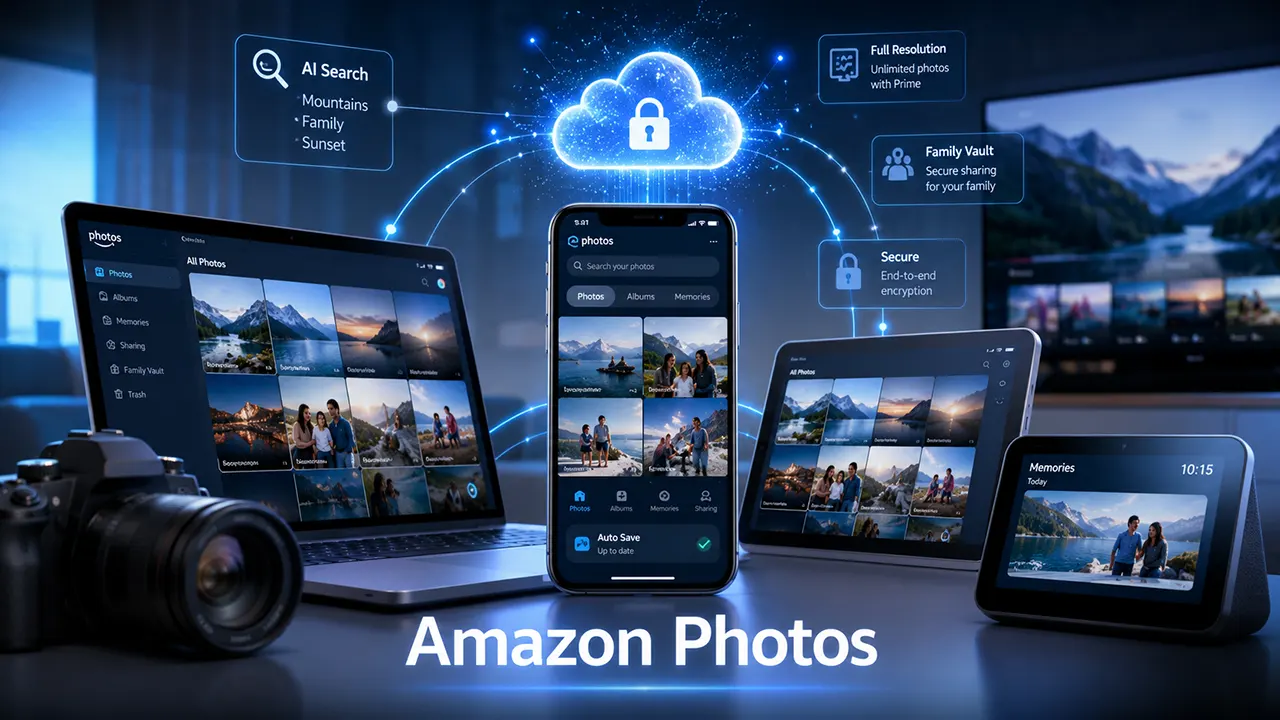
Amazon Photos is a cloud storage service that lets you securely back up, organize, and access your photos and videos across multiple devices. Amazon customers receive 5 GB of free storage, while Amazon Prime members get unlimited full-resolution photo storage plus 5 GB of video storage. It also includes automatic backups, AI-powered search, Family Vault sharing, and integration with Echo Show and Fire TV.
Losing years of photos because of a damaged phone, failed hard drive, or accidental deletion is something most people want to avoid. Cloud photo storage solves that problem by keeping your memories safely backed up and accessible from almost anywhere.
Among the many options available today, Amazon Photos stands out for one reason: Amazon Prime members receive unlimited full-resolution photo storage without reducing image quality. Beyond simple backups, it helps organize your library, share albums with family, revisit memories, and display photos on compatible Amazon devices.
This guide explains everything you need to know about Amazon Photos. You’ll learn how it works, its pricing and storage limits, how to use it across different devices, how it compares with competing services, and how to solve common issues such as syncing problems and duplicate photos. By the end, you’ll know whether Amazon Photos is the right cloud storage solution for your needs.
What Is Amazon Photos?
Amazon Photos is Amazon’s cloud-based photo and video storage service that automatically backs up, organizes, and syncs your media across supported devices. It combines secure cloud storage with smart organization features, making it easy to protect and access your photo library from almost anywhere.
Instead of relying only on your phone or computer, Amazon Photos stores your images in the cloud. If your device is lost, damaged, or replaced, you can sign in to your Amazon account and recover your backed-up photos.
Unlike many cloud storage services, Amazon Photos focuses on preserving full-resolution images, making it particularly attractive for people who care about image quality.

Some of its most useful capabilities include:
- Automatic photo and video backup
- Full-resolution image storage
- Smart search using people, places, and objects
- Albums and custom collections
- Family Vault for shared photo libraries
- Secure cloud storage
- Access from mobile, desktop, and web browsers
- Integration with Echo Show and Fire TV
One of the biggest advantages is that the service works quietly in the background. Once automatic backup is enabled, new photos can be uploaded without requiring manual transfers.
Golden Nugget: Think of Amazon Photos as a digital photo vault rather than just another cloud drive. Its strongest value is protecting your original-quality memories while making them easy to find years later.
Who Should Use Amazon Photos?
Amazon Photos works well for a wide range of users, but it offers the greatest value to certain groups.
| User Type | Why Amazon Photos Fits |
|---|---|
| Amazon Prime members | Unlimited full-resolution photo storage is included with Prime. |
| Families | Family Vault makes it easier to share selected photos privately. |
| Smartphone users | Automatic backup protects photos without extra effort. |
| Photography enthusiasts | Supports original-quality image uploads, including many RAW file formats. |
| Amazon device owners | Displays photos seamlessly on Echo Show and Fire TV devices. |
It may be a less suitable choice for users who primarily need large amounts of cloud storage for videos, documents, or collaborative work, as other cloud platforms are designed with those priorities in mind.
How Amazon Photos Works
Amazon Photos follows a straightforward workflow:
- Install the Amazon Photos app or desktop software.
- Sign in using your Amazon account.
- Turn on Auto Save if you want automatic backups.
- Photos upload securely to your cloud library.
- Access your library from any supported device.
- Organize, search, share, or download your files whenever needed.
The service stores your originals in the cloud while allowing you to browse your library from multiple devices connected to the same account.
Amazon Photos Features
Amazon Photos offers much more than online storage. Its combination of automatic backups, intelligent organization, private sharing, and Amazon ecosystem integration helps users manage growing photo libraries with less effort.
Below are the features that provide the most value in everyday use.
Secure Automatic Backup
Automatic backup is one of the most important features.
Once Auto Save is enabled, newly captured photos can upload automatically whenever your device meets the required conditions, such as having an internet connection. This reduces the risk of losing photos because of accidental deletion, hardware failure, or a lost device.
For many users, this is the primary reason to use cloud photo storage.
Full-Resolution Photo Storage
Unlike some cloud services that may optimize images under certain settings or plans, Amazon Photos is designed to preserve the original quality of your uploaded photos.
This is especially valuable if you plan to:
- Print large photos
- Edit images later
- Archive family memories
- Preserve photography projects
Keeping the original resolution means your images remain suitable for future editing and printing.
Smart Search and Organization
As photo libraries grow into thousands of images, finding a specific picture becomes increasingly difficult.
Amazon Photos helps by organizing images using information such as:
- People
- Places
- Dates
- Objects
- Events
You can also create custom albums to group vacations, birthdays, holidays, work projects, or other collections.
Golden Nugget: Spending a few minutes organizing albums today can save hours of searching years from now, especially if your library contains tens of thousands of photos.
Family Vault
Family Vault allows eligible users to privately share selected photos with family members.
Instead of sending duplicates through messaging apps, everyone can access shared memories from one secure location while still maintaining their own personal photo libraries.
This feature works particularly well for:
- Parents
- Grandparents
- Couples
- Family trips
- Holiday photo collections
Memories and “This Day”
Amazon Photos automatically surfaces older images through its This Day feature, helping you revisit moments from previous years.
Rather than searching manually, the app highlights memorable events based on the calendar date.
It’s a small feature that encourages users to rediscover photos they may have forgotten.
Multi-Device Access
Your photo library is available from:
- Android phones
- iPhones and iPads
- Windows PCs
- Mac computers
- Web browsers
- Echo Show devices
- Fire TV devices
This flexibility makes it easy to start editing on one device and continue viewing or sharing on another.
Amazon Photos Pricing Explained
Amazon Photos offers a simple pricing structure. Every Amazon customer receives free cloud storage, while Amazon Prime members unlock unlimited full-resolution photo storage. Users with larger storage needs can purchase additional cloud storage plans.
Understanding the differences between these options helps you choose the most cost-effective plan.
Free Plan
If you have an Amazon account but do not subscribe to Prime, you receive:
- 5 GB of combined photo and video storage
- Access through mobile, desktop, and web apps
- Basic sharing and organization features
This option is suitable for casual users with relatively small photo libraries.
Amazon Prime Benefits
Prime members receive significant additional value:
- Unlimited full-resolution photo storage
- 5 GB of video storage
- Family Vault sharing
- Full access to Amazon Photos features
For users already paying for Prime, Amazon Photos effectively becomes a built-in cloud photo backup service without an additional photo storage fee.
Paid Storage Plans
If you need more space for videos or exceed the free allowance, Amazon offers optional paid storage plans starting at 100 GB, with larger capacities available for users with extensive media libraries.
When deciding whether to upgrade, consider not only your current library size but also how quickly your collection is growing. A family that regularly records high-resolution videos may outgrow a smaller plan much faster than someone who primarily stores still photos.
How to Use Amazon Photos
Amazon Photos is easy to set up and use. After installing the app or desktop software, sign in with your Amazon account, enable automatic backups if you want hands-free protection, and organize your photos into albums for quick access across all supported devices.
Whether you’re switching from another cloud service or backing up your photos for the first time, the setup process usually takes only a few minutes.
Step 1: Install Amazon Photos
Amazon Photos is available on:
- Android
- iPhone and iPad
- Windows
- macOS
- Any modern web browser
Choose the version that matches your primary device. If you use multiple devices, install the app on each one to keep your photo library accessible everywhere.
Step 2: Sign In
Open the app and log in using your Amazon account credentials.
If you already have an Amazon Prime membership, your additional photo storage benefits become available automatically after signing in.
Step 3: Enable Auto Save
Turn on Auto Save in the settings if you want new photos to upload automatically.
This is one of the most valuable features because it protects your photos without requiring manual uploads.
If you prefer more control, leave Auto Save disabled and upload selected folders manually.
Golden Nugget: Automatic backup only protects photos after it’s enabled. Photos stored only on your phone remain vulnerable until they’re uploaded to the cloud.
Step 4: Organize Your Library
Once your photos are uploaded, improve organization by:
- Creating albums
- Adding favorites
- Removing unwanted images
- Grouping vacation photos
- Organizing family events
- Archiving old screenshots
A well-organized library becomes much easier to search as it grows.
Step 5: Share Photos
Amazon Photos lets you:
- Share albums
- Invite family members
- Create private groups
- Use Family Vault
- Generate shareable links when appropriate
Unlike public social media platforms, these sharing options are designed for private collections.
Step 6: Access Photos Anywhere
You can open your library from:
- Your phone
- Tablet
- Laptop
- Desktop computer
- Web browser
- Echo Show
- Fire TV
Changes made on one device appear in your cloud library, making your collection available wherever you sign in.
Amazon Photos Desktop App Guide
The Amazon Photos desktop app makes it easier to back up large photo collections, organize folders, and upload images from your computer. It is especially useful for users who manage DSLR, mirrorless, or external drive photo libraries.
Although many people rely on mobile apps, the desktop version offers greater flexibility for large collections.
Installing the Desktop App
Download the desktop application for:
- Windows
- macOS
After installation:
- Sign in.
- Select folders to monitor.
- Choose upload preferences.
- Start syncing.
The application can automatically monitor selected folders and upload new photos when changes are detected.
Managing Folder Backups
Instead of uploading individual files, you can back up entire folders such as:
- Pictures
- Family Photos
- Travel
- Weddings
- Camera Imports
This reduces manual work and helps maintain a consistent backup routine.
Uploading from External Drives
Many photographers store images on:
- External SSDs
- Portable hard drives
- NAS devices
The desktop app allows uploads from these locations as long as they remain connected during the backup process.
This makes Amazon Photos useful as an additional cloud backup rather than your only storage location.
Desktop Best Practices
For the best experience:
- Use a stable internet connection.
- Leave the computer powered on during large uploads.
- Organize folders before uploading.
- Remove unnecessary duplicates.
- Verify backups periodically.
Golden Nugget: Cloud storage should complement—not replace—your local backups. Following the 3-2-1 backup rule (three copies of your data, on two different media, with one off-site) offers much stronger protection against data loss.
Amazon Photos for Photographers
Amazon Photos is one of the more attractive cloud storage options for photographers because it preserves original photo quality and supports many RAW file formats. However, it is best viewed as a backup and archive solution rather than a complete digital asset management system.
Professional and enthusiast photographers have different requirements than casual smartphone users, so it’s important to understand where Amazon Photos excels—and where it has limitations.
RAW File Support
Many digital cameras produce RAW images that retain significantly more editing information than JPEG files.
Amazon Photos supports many common RAW formats, allowing photographers to upload original files without converting them first.
This makes it suitable for:
- Landscape photography
- Wildlife photography
- Wedding photography
- Studio work
- Long-term archives
Always verify compatibility with your specific camera model, as support can vary with newer camera releases.
Original Image Quality
One of Amazon Photos’ biggest strengths is preserving full-resolution images.
That means you can:
- Edit later
- Print large photos
- Recover originals
- Archive professional work
There is no need to reduce image quality before uploading.
Recommended Workflow
For photographers, an efficient workflow might look like this:
- Import images from the camera to your computer.
- Save originals on a local SSD.
- Create a backup on an external drive.
- Upload finished or archived photos to Amazon Photos.
- Keep memory cards formatted only after confirming multiple backups.
This approach combines fast local access with reliable cloud protection.
Limitations for Professionals
Amazon Photos is excellent for storage but is not a replacement for dedicated photo management software.
It lacks advanced capabilities such as:
- Professional catalog management
- Advanced keyword workflows
- Deep editing tools
- Batch metadata management
- Client proofing features
Photographers who rely on applications like Adobe Lightroom or Capture One will still need those tools for editing and asset management.
Is Amazon Photos Good for Photographers?
Excellent for:
- Backup
- Long-term storage
- Original-quality preservation
- Family archives
- Travel photography
Less suitable for:
- Collaborative studio workflows
- Professional client delivery
- Advanced catalog management
- Enterprise media libraries
Golden Nugget: Think of Amazon Photos as a secure archive for your finished work and originals, while using dedicated editing software to manage your active projects. This separation keeps your workflow efficient without sacrificing data protection.
Amazon Photos on Fire TV
Amazon Photos integrates with Fire TV, allowing you to display your personal photos as screensavers or browse albums directly on a larger screen. This feature is ideal for showcasing family memories, travel photos, and special events in your living room.
How to Set Up Amazon Photos on Fire TV
- Sign in to the same Amazon account used for Amazon Photos.
- Open the Photos app on your Fire TV.
- Choose the albums or memories you want to display.
- Enable photo screensavers if desired.
Large-screen viewing makes it easier to enjoy your photo collection without transferring files manually.
Amazon Photos on Echo Show
Echo Show integrates with Amazon Photos so you can personalize the device with your favorite memories. Instead of displaying default backgrounds, Echo Show can rotate through your own albums and photo memories.
Popular ways to use this feature include:
- Family photo slideshows
- Vacation memories
- Holiday albums
- Children’s milestones
- Wedding photos
If multiple family members contribute to a shared Family Vault, Echo Show can become a digital photo frame that keeps household memories fresh throughout the year.
Amazon Photos vs Google Photos
Amazon Photos and Google Photos are both excellent cloud photo storage services, but they serve different priorities. Amazon Photos is the stronger choice for Amazon Prime members who want unlimited full-resolution photo storage, while Google Photos offers a more mature AI search experience and broader cross-platform integration.
Your best choice depends on how you use your photos, not just how much storage you need.
| Feature | Amazon Photos | Google Photos |
|---|---|---|
| Free Storage | 5 GB combined photos and videos | Uses your Google Account storage quota |
| Prime Benefits | Unlimited full-resolution photos | None |
| Video Storage | Limited by storage plan | Uses available Google storage |
| AI Search | Yes | Excellent |
| Photo Quality | Original resolution | Original or storage-saving options |
| Family Sharing | Family Vault | Partner Sharing & Shared Albums |
| Smart Editing | Basic | More advanced |
| Amazon Device Integration | Excellent | Limited |
| Android Integration | Good | Excellent |
| iPhone Support | Good | Excellent |
Choose Amazon Photos If
- You already pay for Amazon Prime.
- Preserving original image quality matters.
- You want private family photo sharing.
- You own Fire TV or Echo Show devices.
- You want a dedicated photo backup service.
Choose Google Photos If
- You rely heavily on Android.
- AI-powered search is your top priority.
- You frequently use Google’s ecosystem.
- You want more built-in editing tools.
Golden Nugget: If you’re already paying for Amazon Prime, Amazon Photos can reduce or eliminate the need to pay separately for another photo storage service.
Amazon Photos vs iCloud
Amazon Photos and iCloud Photos both preserve original-quality images, but they are designed for different ecosystems. Amazon Photos works best for Amazon Prime members across multiple platforms, while iCloud Photos provides the smoothest experience for people who primarily use Apple devices.
| Feature | Amazon Photos | iCloud Photos |
|---|---|---|
| Best Ecosystem | Amazon | Apple |
| Original Quality | Yes | Yes |
| Windows Support | Yes | Limited |
| Android Support | Yes | Limited |
| Family Sharing | Family Vault | iCloud Family Sharing |
| Prime Benefits | Yes | No |
Amazon Photos is better for:
- Mixed-device households
- Prime subscribers
- Cross-platform users
iCloud is better for:
- iPhone
- iPad
- Mac-only households
Amazon Photos vs OneDrive
OneDrive is a complete cloud productivity platform, while Amazon Photos specializes in photo storage and organization.
| Feature | Amazon Photos | OneDrive |
|---|---|---|
| Photo Backup | Excellent | Good |
| Document Storage | Limited | Excellent |
| Office Integration | No | Excellent |
| Photo Organization | Excellent | Good |
| Productivity | Limited | Excellent |
Choose Amazon Photos
If your primary concern is protecting photos.
Choose OneDrive
If you also store Office documents, spreadsheets, and work files.
Amazon Photos vs Dropbox
Dropbox remains one of the best file synchronization services, but Amazon Photos provides a better experience for managing personal photo libraries.
| Feature | Amazon Photos | Dropbox |
|---|---|---|
| Photo Organization | Excellent | Basic |
| Family Sharing | Yes | Limited |
| AI Photo Search | Yes | Basic |
| General File Storage | Limited | Excellent |
| Collaboration | Basic | Excellent |
Dropbox is ideal for business collaboration, while Amazon Photos focuses on preserving and organizing memories.
Is Amazon Photos Safe?
Amazon Photos uses cloud security measures and encrypted data transfers to protect uploaded photos and videos. Access to your library is tied to your Amazon account, making account security—such as using a strong password and two-step verification—an important part of keeping your photos safe.
Cloud storage cannot replace good security habits.
Security Features
Amazon Photos provides:
- Encrypted data transfers
- Secure cloud storage
- Account authentication
- Private album sharing
- Permission controls
Remember that anyone with access to your Amazon account can potentially access your photo library.
Privacy Considerations
Only you and people you intentionally share with can access your photos.
To improve privacy:
- Enable two-step verification.
- Review shared albums regularly.
- Remove old shared links.
- Keep your Amazon account secure.
- Avoid sharing account passwords.
Backup vs Sync
Many users confuse these terms.
| Backup | Sync |
|---|---|
| Protects copies | Keeps devices updated |
| Helps recover lost files | Mirrors changes |
| Supports disaster recovery | Reflects edits and deletions |
Amazon Photos is primarily designed as a cloud backup service with synchronization features.
Golden Nugget: A cloud backup is safest when combined with local copies. Never rely on a single storage location for irreplaceable memories.
Troubleshooting Amazon Photos
Most Amazon Photos issues are caused by connectivity problems, storage limits, outdated apps, disabled Auto Save, or account configuration issues. A systematic approach usually resolves these problems without losing your photos.
Amazon Photos Login Problems
If you can’t sign in:
- Verify your Amazon account credentials.
- Check your internet connection.
- Complete any required security verification.
- Update the app.
- Clear the app cache if applicable.
- Try signing in through a web browser to isolate the issue.
Amazon Photos Not Syncing
If uploads stop unexpectedly:
- Confirm Auto Save is enabled.
- Check available cloud storage.
- Connect to a stable Wi-Fi network.
- Disable battery optimization for the app if needed.
- Restart the application.
- Update to the latest version.
Duplicate Photos
Duplicates often appear after:
- Importing the same folders twice.
- Restoring device backups.
- Uploading from multiple devices.
- Migrating from another cloud service.
To reduce duplicates:
- Organize folders before uploading.
- Review imports carefully.
- Remove unnecessary copies after confirming backups.
Missing Photos
If photos seem to disappear:
- Search by date.
- Search by album.
- Check the Trash or Deleted section.
- Confirm you’re signed into the correct Amazon account.
- Verify that uploads completed successfully.
Storage Full
When storage fills up:
- Delete unwanted videos.
- Remove duplicate images.
- Upgrade your storage plan if necessary.
- Archive older content locally.
Upload Failures
If uploads fail repeatedly:
- Restart the app.
- Verify internet connectivity.
- Check available storage.
- Reduce upload batch sizes.
- Retry after resolving any temporary network interruptions.
Common Mistakes to Avoid
Many issues can be prevented by avoiding a few common habits.
- Assuming unlimited photo storage also includes unlimited video storage.
- Never checking whether Auto Save is enabled.
- Uploading unorganized folders with duplicate files.
- Relying only on cloud storage without maintaining local backups.
- Forgetting how account changes, such as ending a Prime membership, affect available storage.
Golden Nugget: The best backup strategy is proactive. Periodically verify that recent photos have uploaded successfully instead of assuming everything is working in the background.
How to Delete Photos from Amazon Photos
You can delete photos from Amazon Photos through the mobile app, desktop app, or web interface. Deleted photos are first moved to the Trash, giving you a chance to recover them before they are permanently removed according to Amazon’s retention policy.
Before deleting large numbers of photos, make sure you have another backup if you want to keep copies elsewhere.
Delete Photos on Mobile
- Open Amazon Photos.
- Select the photo or multiple photos.
- Tap the Delete option.
- Confirm the deletion.
The selected photos move to the Trash instead of being erased immediately.
Delete Photos on Desktop
- Open Amazon Photos on your computer.
- Select one or more images.
- Click the Delete button.
- Confirm your choice.
Deleting from the cloud may also affect synchronized devices, depending on your settings.
Recover Deleted Photos
If you accidentally delete an important picture:
- Open the Trash folder.
- Select the photo.
- Choose Restore.
Recovering files is much easier before they are permanently removed.
Golden Nugget: Never empty the Trash immediately after a large cleanup. Wait a few days to make sure you haven’t deleted anything important.
How to Download All Amazon Photos
Amazon Photos allows you to download individual images, albums, or your entire library. Downloading a local copy is a good practice before switching cloud providers or performing a major library cleanup.
Download Individual Photos
- Open Amazon Photos.
- Select the image.
- Choose Download.
- Save it to your preferred location.
Download Multiple Photos
Select several images or an album before choosing Download.
This saves time compared to downloading each photo separately.
Download Your Entire Library
If you’re moving to another cloud storage provider or creating an offline archive:
- Use the web interface or desktop app.
- Download your library in manageable batches if necessary.
- Verify downloaded files before deleting cloud copies.
Large libraries may require significant download time depending on your internet speed.
Best Practices for Using Amazon Photos
Following a few simple habits will help you protect your memories, reduce clutter, and make your photo library easier to manage over time.
Enable Automatic Backup
Automatic backups reduce the risk of losing recent photos after device damage or theft.
Organize Photos Regularly
Create albums for:
- Family
- Vacations
- Holidays
- Work
- Special events
Small amounts of organization each month prevent a messy library later.
Remove Unnecessary Files
Delete:
- Blurry photos
- Screenshots
- Duplicate images
- Temporary downloads
A cleaner library is easier to search and manage.
Maintain Multiple Backups
For valuable memories, keep:
- One local copy
- One external drive backup
- One cloud backup
This follows the widely recommended 3-2-1 backup strategy.
Review Storage Usage
Every few months:
- Check available storage.
- Review video usage.
- Remove unnecessary uploads.
- Upgrade storage only when needed.
Pros and Cons of Amazon Photos
| Pros | Cons |
|---|---|
| Unlimited full-resolution photo storage for Prime members | Unlimited storage does not include videos |
| Excellent image quality preservation | Fewer editing tools than Google Photos |
| Automatic backup | Advanced photo management is limited |
| Family Vault sharing | Best value depends on Prime membership |
| Works across multiple devices | Professional cataloging features are limited |
| Echo Show and Fire TV integration | Collaboration tools are basic |
Final Verdict
Amazon Photos is one of the best cloud photo storage services for Amazon Prime members and anyone who values original-quality photo backups.
Its biggest strengths include:
- Unlimited full-resolution photo storage for Prime members
- Easy automatic backups
- Cross-device access
- Family sharing
- Original-quality preservation
- Strong integration with Amazon’s ecosystem
However, it isn’t the perfect solution for everyone.
Users who prioritize advanced AI editing, collaborative workflows, or document storage may prefer Google Photos, Dropbox, or OneDrive for those specific needs.
For photographers, families, and Prime subscribers looking for a dependable photo archive, Amazon Photos provides excellent value.
Frequently Asked Questions
1. Is Amazon Photos really unlimited?
Yes, Amazon Prime members receive unlimited full-resolution photo storage. Video storage is separate and includes 5 GB unless you purchase additional storage. Non-Prime customers receive 5 GB of combined photo and video storage.
2. Can Amazon Photos store RAW files?
Yes. Amazon Photos supports many common RAW image formats, making it suitable for photographers who want to preserve original image quality. Compatibility may vary with newer camera models.
3. What happens if I cancel Amazon Prime?
If your Prime membership ends, your unlimited photo storage benefit ends as well. Your account returns to the standard storage allowance unless you subscribe to a paid storage plan or reduce your stored content.
4. Does Amazon Photos compress images?
No. Amazon Photos stores photos at their original resolution, helping preserve image quality for editing, archiving, and printing.
5. Does Amazon Photos automatically sync?
Amazon Photos can automatically back up new photos when Auto Save is enabled. If Auto Save is turned off, uploads must be performed manually.
6. Is Amazon Photos safe?
Amazon Photos uses encrypted data transfers and secure cloud storage. Keeping your Amazon account protected with a strong password and two-step verification adds an important layer of security.
7. Can I use Amazon Photos without Amazon Prime?
Yes. Any Amazon customer can use Amazon Photos with 5 GB of combined cloud storage for photos and videos. Additional storage plans are available if you need more space.
8. Can I share photos with my family?
Yes. Family Vault allows eligible users to share selected photos privately with family members while keeping personal photos separate.
9. Can Amazon Photos replace Google Photos?
It depends on your needs. Amazon Photos is a better value for Prime members who want unlimited full-resolution photo storage, while Google Photos offers stronger AI-powered search and editing features.
10. Is Amazon Photos worth it?
For Amazon Prime members, yes. Since unlimited full-resolution photo storage is included with Prime, Amazon Photos offers excellent value for protecting and organizing photo libraries without paying for a separate photo storage subscription.
Conclusion
Choosing the right cloud photo service comes down to how you store, access, and protect your memories. Amazon Photos stands out by combining automatic backups, original-quality photo storage, cross-device access, and private sharing into a service that’s especially compelling for Amazon Prime members.
If your goal is to keep your photos safe, organized, and available from virtually anywhere, Amazon Photos is a strong choice. Casual users benefit from simple backups, families can take advantage of Family Vault, and photographers can preserve high-resolution images without compromising quality.
Before moving your entire photo library, compare your current storage needs, check how much video space you use, and review how Amazon Photos fits into your existing devices and workflow. Making the right decision now can save time, storage costs, and frustration later.
Call to Action
If you’re already an Amazon Prime member, explore Amazon Photos and enable automatic backups as soon as possible to protect your photo library. If you’re comparing cloud storage services, use the comparison sections in this guide to choose the option that best matches your devices, storage needs, and long-term workflow.

Belayet Hossain is a Senior Tech Expert and Certified AI Marketing Strategist. Holding an MSc in CSE (Russia) and over a decade of experience since 2011, he combines traditional systems engineering with modern AI insights. Specializing in Vibe Coding and Intelligent Marketing, Belayet provides forward-thinking analysis on software, digital trends, and SEO, helping readers navigate the rapidly evolving digital landscape. Connect with Belayet Hossain on Facebook, Twitter, Linkedin or read my complete biography.