


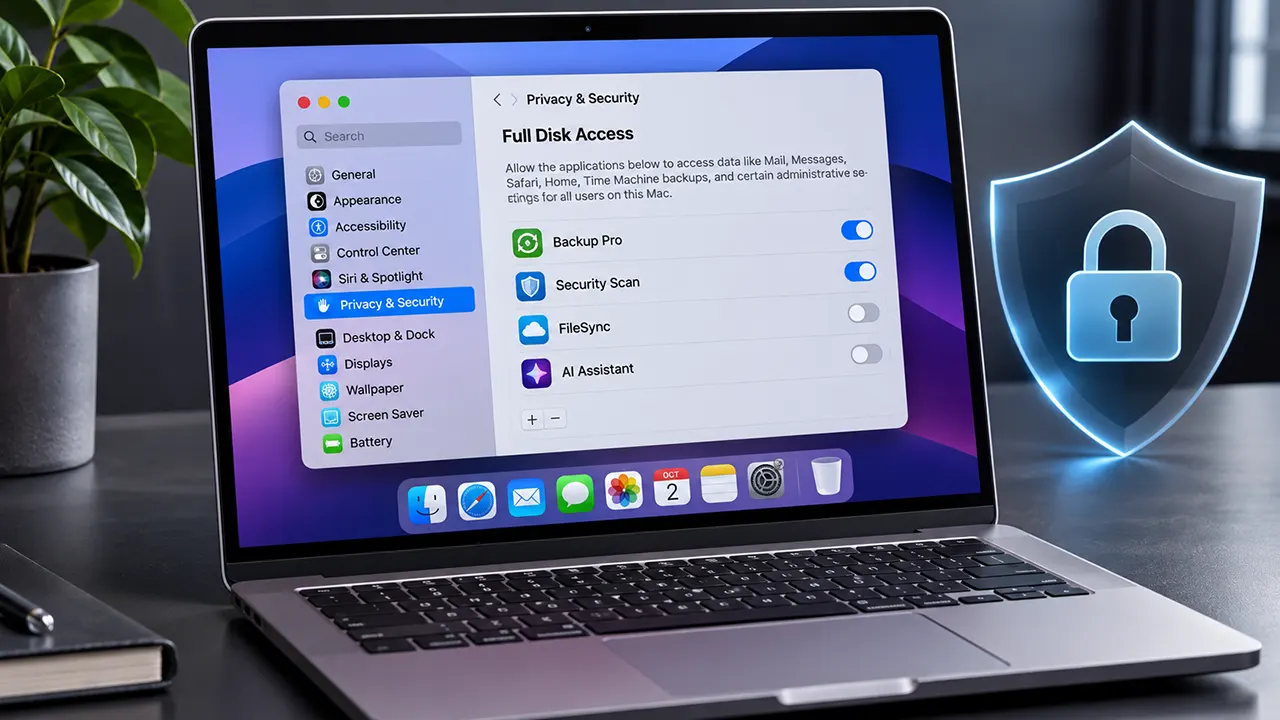
If you have installed several applications on your Mac, some may have permission to access files and data across your system. You can review these permissions and disable access for apps that no longer need it.
To check Full Disk Access on Mac, open Apple menu > System Settings > Privacy & Security > Full Disk Access. Review the application list, find apps with access enabled, and turn off the switch for any application you no longer trust or need. This does not uninstall the application or delete its files.
The process takes only a few minutes. However, before removing permission, it helps to understand what an application uses it for and what might stop working afterward.
How to Check Full Disk Access Mac
You can check Full Disk Access permissions directly from macOS System Settings. Apple provides a dedicated list where you can review applications that have requested this permission and inspect their current authorization status.
Open Full Disk Access in System Settings
Follow these steps on a Mac running macOS Ventura or later:
- Click the Apple menu in the upper-left corner of your screen.
- Select System Settings.
- Click Privacy & Security in the sidebar.
- Scroll down to the Privacy section.
- Select Full Disk Access.
You should now see a list of applications associated with Full Disk Access.
Illustrative interface reference. Check the exact appearance on your installed macOS version.
Tip: If you cannot immediately find Full Disk Access, use the search field in System Settings and search for “Full Disk Access.” This can be quicker than scrolling through the privacy settings.
Review the Apps Listed Under Full Disk Access
After opening Full Disk Access, inspect the application names in the list. You may find backup utilities, antivirus software, file management applications, synchronization tools, and other programs.
Do not assume that every application in this list currently has access. An application can remain listed even when its permission switch is turned off.
Pay attention to:
- Application name: Does the application look familiar?
- Permission switch: Is its access currently enabled?
- Application purpose: Does it have a legitimate reason to access protected data?
- Current usage: Do you still use the application?
If you find an unfamiliar application, identify it before changing its permissions. Check its developer, installation source, and purpose rather than relying on its name alone.
How to Identify Apps With Active Permission
The permission switch is the most important detail to inspect.
| Permission state | What it means | What to do |
|---|---|---|
| Enabled | Full Disk Access is authorized | Review whether the app still needs it |
| Disabled | Full Disk Access is not currently authorized | No action is needed if access is unwanted |
| App listed but switch off | The app remains in the list without active authorization | Keep or remove the entry if the interface offers that option |
An unfamiliar app with an enabled switch deserves attention, but its presence alone does not prove malicious activity. Some legitimate applications need broad file access to perform their advertised functions.
How to Remove Full Disk Access From an App
You can revoke Full Disk Access without uninstalling the application. Open the permission list, locate the app, and turn off its access switch.
Before doing this, consider whether the application needs broad file access for its normal operation. Disabling permission may affect some features.
Turn Off Full Disk Access for an Application
Follow these steps:
- Open System Settings on your Mac.
- Select Privacy & Security.
- Open Full Disk Access.
- Find the application whose permission you want to revoke.
- Locate its switch.
- Turn the switch off.
- Confirm the change if macOS displays a confirmation prompt.
The application should now have its Full Disk Access authorization disabled.
You do not need to uninstall the application or delete its associated files. You are changing its privacy authorization, not removing the software.
Which apps should you consider disabling?
Start with applications that you no longer use, software from developers you cannot identify, and tools that have no clear reason to access protected data across your Mac.
Do not automatically disable every application. Backup and security software may depend on this permission.
Remove an App Entry if the Interface Provides That Option
Turning off the switch is normally enough to revoke Full Disk Access. You may also want to remove an application from the displayed list.
If your macOS interface provides a minus (-) button for the selected entry, you can use it to remove that entry from the permission list. The available controls may differ between macOS releases.
Remember the distinction:
- Turn off the switch: Revokes the application’s Full Disk Access authorization.
- Remove the list entry: Removes the application entry from the displayed permission list.
Removing an entry does not uninstall the application. If the application requests Full Disk Access again, macOS may present another authorization request.
If your only goal is to stop an application from accessing protected data, turning off its permission switch is the important action.
Verify That the Permission Is Disabled
After changing the setting, return to the Full Disk Access list and inspect the application.
Check that:
- The application appears with its permission switched off, if it remains listed.
- You have not accidentally disabled a different application.
- Other applications that need Full Disk Access still have their required authorization.
For an additional check, close and reopen the application. If it requests permission again, consider why it needs access before approving the request.
What Happens After Revoking Full Disk Access?
When you revoke Full Disk Access, macOS no longer authorizes that application to use this broad permission. However, the application itself remains installed.
The practical effect depends on what the application does and whether it uses other independently authorized access methods.
How Revoking Permission Affects App Functionality
Some applications may continue working normally. Others may lose specific features or display permission warnings.
Here are a few examples:
| Application type | Possible effect after revocation |
|---|---|
| Backup software | May be unable to access or back up certain protected data |
| Antivirus software | May lose access needed for particular scanning functions |
| File management tools | May be unable to perform some system-wide file operations |
| Synchronization software | May fail to synchronize protected locations |
| AI agents | May lose the ability to read protected files through Full Disk Access |
| Data recovery tools | May lose access to certain protected data sources |
These are possible consequences, not guaranteed outcomes. Each application handles permission changes differently.
If a program stops working correctly, check its documentation before restoring Full Disk Access. It may support a narrower permission or an alternative workflow.
Does Removing Permission Delete the Application?
No. Revoking Full Disk Access does not uninstall an application or delete its associated files.
Your application remains in its existing location, such as the Applications folder. Its settings, account information and locally stored documents are not automatically removed just because you disabled this permission.
Think of Full Disk Access as an authorization rather than an installation requirement. You can keep the software while limiting what it is allowed to access.
Can You Restore Full Disk Access Later?
Yes. You can grant Full Disk Access again if an application genuinely needs it.
Open:
System Settings > Privacy & Security > Full Disk Access
Find the application and enable its permission switch if it is listed.
If it is no longer listed, use the Add (+) button when available, select the application, and click Open. You may also be able to grant access through an authorization request from the application itself.
Only restore the permission when you understand why the application needs it and trust its developer.
Why Do Some Mac Apps Need Full Disk Access?
Some applications need broader file access to perform their intended functions. For example, backup software may need to read protected data from multiple locations rather than just one user-selected folder.
Apple explains that Full Disk Access allows applications to access files that are otherwise protected by macOS privacy controls. This includes information from Mail, Messages, Safari, Home, Time Machine backups and certain administrative settings.
However, an application requesting Full Disk Access does not automatically mean the request is justified.
Backup and Recovery Applications
Backup applications may need access to protected files to create complete backups of your Mac.
For example, a backup utility that only accesses files in your Documents folder may not need the same permissions as software designed to back up multiple protected data locations.
Before revoking access, check whether your backup application supports another authorization method. Otherwise, some backup operations may become incomplete.
Antivirus and Security Applications
Some security applications request Full Disk Access to inspect files and detect potentially harmful software.
This permission can help certain tools examine protected locations that ordinary applications cannot access.
However, do not assume every antivirus application needs it. Check the developer’s documentation and understand which security features depend on the permission.
File Management and Synchronization Tools
Some file management and synchronization applications work with files across several protected locations.
Examples include applications that organize files, synchronize folders, or manage large collections of local data.
If you revoke Full Disk Access, these applications may continue working with authorized locations while losing access to other protected data.
Check whether granting access to a specific folder through Files & Folders settings is sufficient for your intended workflow.
AI Applications and Autonomous Agents
AI agents deserve particular attention because they may perform multiple tasks with limited user intervention.
An AI agent with Full Disk Access could potentially read sensitive information available through that authorization, depending on its implementation and other system protections.
This may include documents, emails, messages and browsing-related data.
The risk is not limited to the AI model itself. Consider the application developer, connected services, data processing practices, and what actions the agent can perform.
Before granting this permission, ask:
- Does the AI application genuinely need broad file access?
- Can you select individual files or folders instead?
- Does the developer explain how your data is processed?
- Can the agent access information unrelated to your task?
- Can you revoke permission easily when you stop using it?
For a deeper security assessment, read our guide: Should I Give an AI Agent Full Disk Access on Mac?.
Full Disk Access vs. Files & Folders: What’s the Difference?
Full Disk Access and Files & Folders are separate macOS privacy permissions. They control different levels of application access.
Full Disk Access provides broader authorization, while Files & Folders lets you manage access to specific locations.
Apple documents these as separate privacy controls.
| Feature | Full Disk Access | Files & Folders |
|---|---|---|
| Permission scope | Broad access to protected files and data | Access to selected file locations |
| Documents folder | Included in broad authorization | Can be authorized separately |
| Downloads folder | Included in broad authorization | Can be authorized separately |
| Desktop folder | Included in broad authorization | Can be authorized separately |
| Mail and Messages data | Included in Apple’s documented Full Disk Access scope | Not equivalent to broad application-data access |
| Best use case | Applications with legitimate broad access requirements | Applications needing access to specific locations |
What Files & Folders Permission Controls
Files & Folders settings allow you to review application access to locations such as:
- Desktop
- Documents
- Downloads
- Network volumes
- Removable volumes
For example, a document management application may only need access to your Documents folder. In that situation, a narrower permission may be sufficient.
The exact access an application receives depends on the authorization granted and the macOS security model. Do not assume that disabling Full Disk Access automatically revokes every other permission.
When to Review Other macOS Privacy Permissions
Full Disk Access is not the only permission that deserves attention.
If you are auditing your Mac’s privacy settings, also review these categories:
| Permission | What it allows |
|---|---|
| Accessibility | Allows applications to run scripts and system commands to control your Mac |
| Automation | Allows applications to control other applications |
| Input Monitoring | Allows applications to monitor keyboard and mouse input |
| Screen & System Audio Recording | Allows applications to record your screen and audio |
| Camera | Allows applications to access your camera |
| Microphone | Allows applications to access your microphone |
These permissions are independent of Full Disk Access. Disabling one does not automatically disable the others.
You can review them in System Settings > Privacy & Security.
Apple’s October 2026 Full Disk Access Changes: What Mac Users Should Know
Apple announced additional Full Disk Access controls on October 2, 2026. The announcement highlights growing privacy concerns involving applications that can access sensitive information across a Mac, particularly as AI agents become more capable.
This development makes permission reviews especially relevant, but there is an important distinction between Apple’s announcement and changes that are already available to users.
Why Apple Announced Additional Permission Controls
According to Apple’s developer announcement, Full Disk Access can bypass many of macOS’s normal privacy protections. This broad authorization is useful for applications such as backup tools, but Apple says some developers have used it in ways that could expose users’ private information without their full understanding.
Apple specifically identifies:
- Personal files and documents.
- Mail data.
- Messages.
- Browsing history.
- Information belonging to people communicating with the Mac user.
Apple also highlights autonomous AI agents as a growing concern because they can perform more tasks and potentially access more information with less direct user involvement.
The company’s stated intention is to introduce additional controls that require very explicit user action before granting this level of access. Apple Developer
What Has Been Confirmed and What Remains Unknown
As of November 3, 2026, Apple’s October 2 announcement confirms its intention to introduce additional controls. However, it does not identify a specific macOS release or implementation date.
| Detail | Current status |
|---|---|
| Additional Full Disk Access controls | Announced |
| More explicit user authorization | Confirmed intention |
| Specific macOS version | Not announced |
| Implementation date | Not announced |
| Detailed interface changes | Not announced |
| Changes to existing permissions | Not specified |
Do not confuse Apple’s announcement with a completed software update. The existing permission-management instructions in this guide remain based on Apple’s documented macOS settings interface.
You can read the original announcement here: Apple Developer – Updates to Full Disk Access in macOS.
Should You Review Existing App Permissions Now?
Yes. You do not need to wait for Apple’s additional controls to review your existing permissions.
Open Full Disk Access and examine applications that have broad access to your data. Disable permissions that are no longer necessary, particularly for software you no longer use.
If an application genuinely needs this authorization, keep it only when you trust the developer and understand the reason for the request.
What to Do If You Cannot Remove Full Disk Access on Mac
Sometimes Full Disk Access settings do not behave as expected. An application may not appear in the list, a switch may be unavailable, or a program may stop working after you revoke its permission.
The following troubleshooting steps address these situations.
Full Disk Access Is Missing From System Settings
If you cannot find Full Disk Access, first check your macOS version.
For macOS Ventura (13) and later, the location is:
System Settings > Privacy & Security > Full Disk Access
For macOS Monterey (12) and earlier, Apple uses the older interface:
System Preferences > Security & Privacy > Privacy
You can also use System Settings search to locate the permission category.
If the option remains unavailable, check whether your Mac has any configuration restrictions or whether you are using an account with limited administrative privileges.
The Permission Switch Is Greyed Out
A greyed-out switch may indicate that the permission is controlled by a configuration policy or that your account does not have the required authority.
This can happen on work-managed or school-managed Macs.
Try the following:
- Check whether you are signed in with an administrator account.
- Look for a management notice in System Settings.
- Contact your organization’s IT administrator if the Mac is managed.
- Check the application’s documentation for any additional permission requirements.
Do not attempt to bypass an organization’s security policy. Ask the administrator to review the permission if you believe it is unnecessary.
An App Keeps Requesting Full Disk Access
Some applications repeatedly request permission because a feature cannot work without it.
For example, a backup application may ask for access when you start a backup or run a scheduled task.
If this happens:
- Check which application is displaying the request.
- Verify that the application comes from a developer you trust.
- Read the developer’s explanation of why Full Disk Access is required.
- Determine whether a narrower permission can accomplish the same task.
- If the request is unnecessary, leave the permission disabled.
Repeated permission requests are not proof that an application is malicious. However, you should not approve them automatically.
A Backup or Security App Stops Working
If a backup or security application stops performing an important function after you disable Full Disk Access, the permission may have been required for that feature.
Open the application’s settings or documentation and check which operations depend on broad file access.
You have three practical choices:
- Keep Full Disk Access disabled and accept that the affected feature may not work.
- Use an alternative application that supports narrower access.
- Restore Full Disk Access if the application genuinely needs it and you trust its developer.
Do not restore permission simply because an application displays a warning. Understand the reason first.
Your Mac Is Managed by an Employer or School
An organization may use Mobile Device Management (MDM) to enforce security settings on company-owned or school-managed Macs.
Some privacy permissions can be controlled through organizational configuration policies. As a result, you may not have the same control over every setting as you would on a personal Mac.
If you cannot change Full Disk Access on a managed device, contact your IT administrator. They can explain whether the permission is required by an organizational policy.
FAQs: How to check Full Disk Access Mac
1. How do I see which apps have Full Disk Access on my Mac?
Open Apple menu > System Settings > Privacy & Security > Full Disk Access. You will see applications associated with this permission. Check the switch beside each application to determine whether Full Disk Access is enabled. An application appearing in the list does not necessarily mean it currently has authorization.
2. Can I remove Full Disk Access without uninstalling an app?
Yes. You can disable Full Disk Access without uninstalling the application. Open the Full Disk Access settings and turn off the application’s permission switch. The application remains installed, along with its existing files and settings. However, features that depend on broad file access may stop working.
3. Does turning off Full Disk Access take effect immediately?
macOS enforces privacy permissions when applications attempt to access protected resources. After disabling Full Disk Access, close and reopen the application to ensure it recognizes the updated authorization. Some applications may also need additional steps before their affected features work correctly.
4. Can I grant Full Disk Access again later?
Yes. Return to System Settings > Privacy & Security > Full Disk Access and enable the application’s switch if it remains listed. If the application is missing, use the Add button when available or follow its permission request. Only restore access when you trust the application and understand its requirements.
5. Why is an app listed under Full Disk Access when its switch is off?
An application can remain in the Full Disk Access list after you disable its permission. The list identifies applications associated with the setting, while the switch indicates their current authorization. You do not need to remove an entry simply because it remains visible with access disabled.
6. Does Full Disk Access allow an app to read Messages and Mail?
Apple identifies Mail and Messages data among the information accessible through Full Disk Access. However, the actual data an application can obtain also depends on its implementation and other macOS security protections. Only grant this permission when the application’s purpose and developer justify such broad access.
7. Can my employer prevent me from changing Full Disk Access?
Yes, organizational device-management policies can restrict certain privacy settings on managed Macs. If your employer or school controls your device through Mobile Device Management, you may not be able to change every permission yourself. Contact your IT administrator to understand the applicable policy.
Review Your Mac’s App Permissions Regularly
Full Disk Access is a powerful macOS permission. Applications that genuinely need broad file access can benefit from it, but not every application deserves that level of authorization.
Start by reviewing your permission list. Identify unfamiliar applications, check which permissions are enabled, and disable access that is no longer necessary. Pay particular attention to backup utilities, security software and AI agents because their access requirements can differ significantly.
Apple’s October 2026 announcement also makes this a good time to take a closer look at application permissions.
For more guidance, explore our macOS Full Disk Access guide and learn how to evaluate Full Disk Access requests from AI agents before granting them.
A simple permission review can help you maintain better control over the information your Mac applications can access.
References
- Apple Support – Change Privacy & Security settings on Mac
- Apple Platform Security – Controlling app access to files in macOS
- Apple Developer – Updates to Full Disk Access in macOS (October 2, 2026)

Belayet Hossain is a Senior Tech Expert and Certified AI Marketing Strategist. Holding an MSc in CSE (Russia) and over a decade of experience since 2011, he combines traditional systems engineering with modern AI insights. Specializing in Vibe Coding and Intelligent Marketing, Belayet provides forward-thinking analysis on software, digital trends, and SEO, helping readers navigate the rapidly evolving digital landscape. Connect with Belayet Hossain on Facebook, Twitter, Linkedin or read my complete biography.