


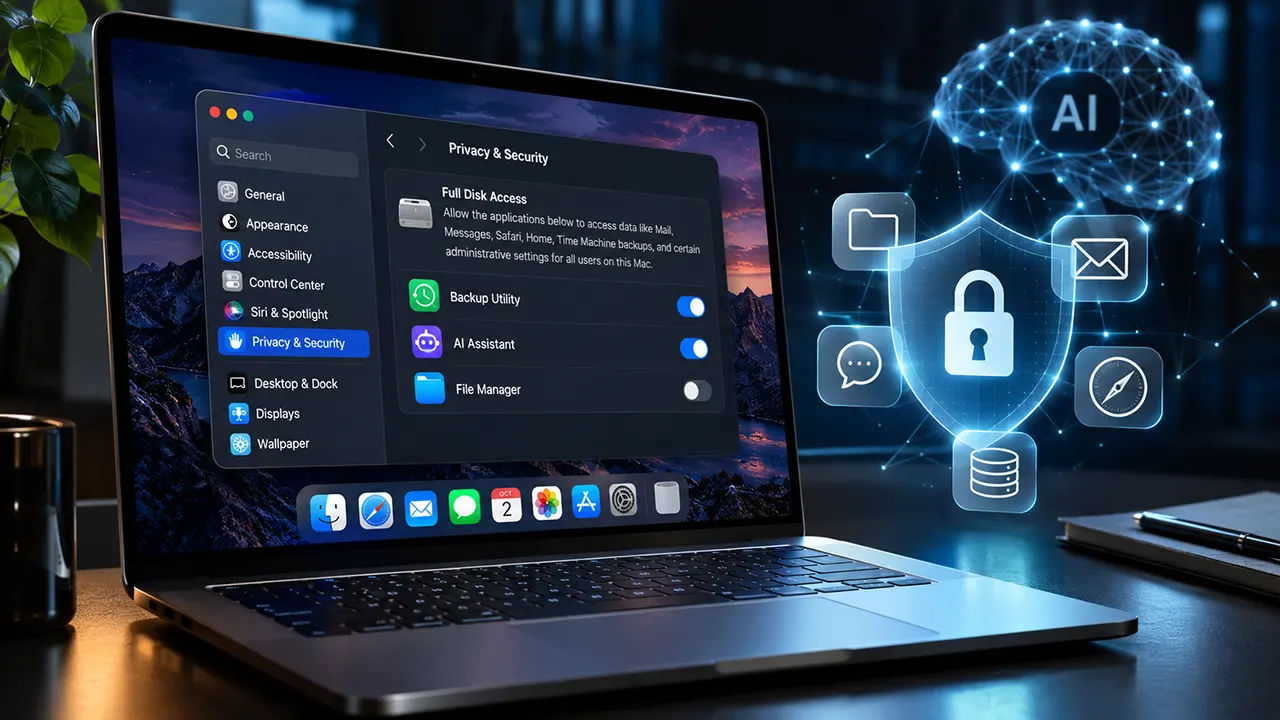
macOS Full Disk Access is a privacy permission that allows an approved application broad access to files and protected data across a Mac, including information associated with Mail, Messages, Safari, Home, and Time Machine backups. Apple announced additional controls on October 2, 2026, requiring more explicit user action before granting this permission. The implementation date has not been announced.
What Is Full Disk Access on macOS?
Full Disk Access is a macOS privacy permission that allows approved applications to access files and data that macOS normally protects from unrestricted application access. It is designed to support applications that need broad access to perform tasks such as backing up or managing files.
For example, a backup application may need to access documents, application data, and other protected locations to create a complete backup. Without the required permission, macOS may prevent it from accessing certain information.
Apple provides this permission through its Privacy & Security settings. However, granting it gives an application a much broader level of access than ordinary folder permissions.
Understanding the Full Disk Access permission
macOS uses privacy controls to decide which applications can access sensitive information. Full Disk Access is an exception to many of these restrictions.
According to Apple, an application with this permission can access all files on the computer, including data from other applications and certain administrative settings.
This is why Apple describes Full Disk Access as an extraordinary level of access. It is not an ordinary permission like allowing an application to use your camera or microphone.
Where to find Full Disk Access in macOS
You can check which applications have Full Disk Access through your Mac’s system settings.
Follow these steps:
- Click the Apple menu in the top-left corner.
- Open System Settings.
- Select Privacy & Security from the sidebar.
- Scroll down and select Full Disk Access.
- Review the applications listed on the screen.
You can review the applications that have been granted this permission and change their access using the available controls.
On macOS 12 and earlier, the corresponding location is System Preferences > Security & Privacy > Privacy > Full Disk Access.
Why Apple created this permission
Some applications need to access information stored across multiple locations on a Mac.
Backup software is a clear example. A backup application may need to read files from different folders, application databases, and other protected locations to create a useful backup.
Rather than asking users to approve access to every individual file, macOS provides a broader permission for applications with legitimate requirements.
The problem arises when developers use this permission for purposes that users may not fully understand.
What Can Full Disk Access Actually See?
Full Disk Access allows an approved application to access a broad range of protected information stored on a Mac. This includes personal files, data associated with other applications, certain backup information, and administrative settings.
Apple specifically identifies Mail, Messages, Safari, Home, and Time Machine backups in its documentation.
Here is what that means in practical terms.
Files, documents, and application data
An application with Full Disk Access may be able to access files that ordinary applications cannot freely read.
Depending on the location and other security controls, this can include:
- Personal documents and work files.
- Files stored in application directories.
- Locally stored databases.
- Information stored in protected folders.
- Files belonging to other applications.
For someone using a Mac for work, this can involve considerably more than the files inside their Downloads folder.
Mail, Messages, and Safari information
This is where Full Disk Access becomes particularly sensitive.
Apple specifically identifies data from Mail, Messages, and Safari as examples of information that applications with this permission can access.
Consider what those applications contain:
| Application | Potentially exposed information |
|---|---|
| Locally stored email data and associated information | |
| Messages | Locally stored message data |
| Safari | Browsing history and related application data |
| Home | Home-related application data |
This does not mean every application automatically reads or uploads all this information. It means macOS grants the application a level of access that may make such information available.
That distinction matters. Permission to access information is not proof that an application has collected, transmitted, or misused it.
Apple also highlights an important privacy issue: communication applications can expose information about people communicating with the Mac owner. In other words, the privacy consequences may extend beyond the person who installed the application.
Time Machine backups and other protected data
Full Disk Access also covers Time Machine backup data and certain administrative settings for all users on the Mac.
This matters because backups can contain copies of information that users may have deleted from their active folders but that remains in older backups.
A broad-access application may therefore have visibility into more than the files a user currently sees in Finder.
Does Full Disk Access include every system resource?
No. Full Disk Access is broad, but it should not be interpreted as unlimited control over every part of macOS.
Other security mechanisms and application-specific restrictions can still apply. For example, FileVault protects data through disk encryption, while other privacy permissions separately control capabilities such as screen recording and application automation.
The important distinction is that Full Disk Access significantly expands file access. It does not automatically grant every possible system capability.
Why Do Mac Applications Need Full Disk Access?
Not every request for Full Disk Access is suspicious. Some applications have legitimate technical reasons to request it.
The important question is whether the requested permission matches the application’s purpose.
Backup and recovery applications
Backup software is one of the clearest examples.
A backup application may need to access files across multiple folders and application data locations to create a comprehensive backup.
Without broad access, certain protected information may be missing from the backup.
Synchronization and file management software
Some synchronization and file management applications need to scan multiple directories to identify changes and maintain consistent copies of files.
Depending on their design, these applications may request Full Disk Access to perform broader operations.
However, not every cloud storage or synchronization application needs this permission for every feature.
Security, maintenance, and administrative utilities
Some security and maintenance applications request broad access because they need to inspect files, identify unwanted software, or manage system resources.
Some device management utilities also request permissions that allow them to perform administrative functions.
The specific requirement depends on the application’s design. Users should check the developer’s documentation rather than assume every request is necessary.
When an application may be requesting more access than necessary
Consider a simple example.
You install a basic note-taking application. It asks for Full Disk Access immediately after installation.
Does writing and saving notes normally require access to Mail databases, Safari history, and Time Machine backups?
Not necessarily.
A permission request should make sense in the context of the task. If the application only needs to work with a particular folder, broad disk access deserves further investigation.
Before approving the request, check:
- Which feature requires the permission?
- Does the developer explain why it is necessary?
- Can the application perform the task with narrower access?
- Is the application from a trustworthy developer?
A legitimate application can still request more access than a particular user needs.
Why Are AI Agents Making Full Disk Access Riskier?
AI agents are changing how desktop applications interact with personal information.
Unlike traditional applications that perform a relatively defined set of operations, autonomous AI agents can interpret instructions, use connected tools, access information, and perform actions through their available capabilities.
This makes broad permissions more important to evaluate.
Apple directly identified increasingly capable and autonomous AI agents as a reason the risks associated with Full Disk Access will grow.
How autonomous AI agents interact with local files
An AI agent may help users search documents, summarize information, organize files, or interact with connected applications.
To perform these tasks, some desktop agents request access to local files or application data.
For example, imagine asking an AI assistant to find information from an old email and prepare a summary.
Depending on its architecture and permissions, the application may need access to locally stored email data or a separate email integration.
This creates an important security question: how much information should the agent be allowed to access to complete one task?
The answer should depend on the actual functionality required, not simply on what permissions the application can obtain.
Why broad permissions increase security exposure
An AI agent with extensive permissions can potentially interact with more information than the user intended for a particular task.
Consider these risks:
Excessive data access: An agent may have access to personal documents, emails, or messages unrelated to the current request.
Sensitive information exposure: If an application processes information through external services, data handling and privacy policies become important.
Unintended actions: An agent with appropriate file operation capabilities may modify, move, or delete files when interpreting instructions incorrectly.
Third-party privacy: Emails and messages contain information belonging to other people, not just the Mac owner.
These risks depend on the application’s actual architecture and behavior. Full Disk Access alone does not prove that an AI agent transmits or misuses personal information.
Prompt injection and unintended agent actions
Prompt injection is another important consideration for autonomous AI systems.
An AI agent may encounter untrusted instructions inside documents, websites, emails, or other content it processes.
If the agent fails to distinguish untrusted content from legitimate user instructions, it may take actions that the user did not intend.
For example, an agent asked to summarize a document might encounter malicious instructions embedded inside that document.
The risk becomes more significant when an agent also has broad file access and permission to perform actions.
This is why developers should use least-privilege access, clear approval boundaries, and safeguards around sensitive operations.
The Meta Muse controversy and communication privacy
The October 2026 Full Disk Access announcement followed controversy surrounding Meta’s Muse application for Mac.
A journalist reported that Muse appeared to know the contents of private Messages conversations. Meta disputed aspects of the report and explained that its Messages integration was opt-in and required both Full Disk Access and an enabled Messages connector. TechCrunch+1
The incident highlighted an important distinction.
An operating system permission and an application’s own integration settings can work together to determine what information an AI agent can access.
This means users should not evaluate an application’s macOS permissions in isolation. They should also understand its connected services, integrations, and data-handling practices.
Why Is Apple Changing Full Disk Access?
Apple announced additional Full Disk Access controls on October 2, 2026, because it believes some developers use the permission in ways that put users’ private information at risk.
The company says that future controls will require very explicit user action before granting this level of access.
What Apple announced on October 2, 2026
Apple’s developer announcement explains that Full Disk Access largely sidesteps the usual privacy protections to support applications such as backup tools.
However, Apple says some developers use the permission in ways that can expose files, mail, messages, and browsing history without users fully understanding the implications.
The company plans to introduce additional controls to make sure people deliberately authorize this extraordinary level of access.
The announcement specifically connects this change to the increasing capabilities and autonomy of AI agents.
What very explicit user action could mean
Apple has not published a detailed description of the new permission interface.
However, the stated objective is to make sure users clearly understand what they are approving.
The additional controls could involve clearer consent steps or more deliberate authorization requirements, but these are possibilities rather than confirmed implementation details.
The important point is that Apple has announced stronger authorization controls, not a confirmed technical redesign of the permission itself.
What Apple has not explained yet
Several important questions remain unanswered:
- Will users see a completely redesigned permission prompt?
- Will applications need to request Full Disk Access differently?
- Will existing applications need to obtain permission again?
- Will developers need to update their applications?
- Will administrators receive additional management controls?
- Will Apple introduce narrower alternatives for certain applications?
Apple’s October 2 announcement does not answer these questions.
It would be misleading to describe any proposed interface, developer requirement, or compatibility change as confirmed.
When will the new Full Disk Access controls arrive?
No implementation date announced
As of November 3, 2026, Apple has not specified an implementation date or identified a macOS release that will introduce the additional controls.
The announcement describes a future change. It does not establish that the new controls are already available.
Mac users should continue checking Apple’s official developer announcements and macOS release information for implementation details.
Which Mac Apps May Request Full Disk Access?
Applications that need broad access to protected files or application data may request Full Disk Access.
However, the permission requirement depends on the application’s functionality and implementation. The following categories are examples, not a definitive list of applications that must request it.
Backup and recovery applications
Backup applications may need broad file access to create complete backups of information stored across the Mac.
This is one of the original purposes Apple identifies for Full Disk Access.
AI assistants and desktop agents
Some AI assistants request Full Disk Access to interact with locally stored information.
However, not every AI application needs this permission. Some work through selected folders, cloud services, browser integrations, or narrower application-specific connectors.
Before approving access, understand exactly which features depend on it.
File management and synchronization tools
Some file management and synchronization applications may request broader access to scan or manage files across different locations.
Check whether the requested access matches the actual feature you intend to use.
How to evaluate an application’s permission request
Use this simple decision framework:
| Question | What to consider |
|---|---|
| Does the application need broad file access? | Check its main functionality. |
| Is the developer trustworthy? | Verify its identity and reputation. |
| Is the permission explained? | Read the developer’s documentation. |
| Is there a narrower alternative? | Check whether selected-folder access is sufficient. |
| Does the application process personal data externally? | Review its privacy and data-handling policies. |
A familiar brand name is not a substitute for understanding a permission request.
Full Disk Access vs. Other macOS Privacy Permissions
macOS provides several different permissions to control how applications interact with files, information, and system capabilities.
Full Disk Access is only one of them.
Understanding the differences helps prevent users from granting unnecessary permissions.
Full Disk Access vs. Files & Folders
Full Disk Access provides broad access to protected files and data across the computer.
Files & Folders provides access to specified protected locations, such as Desktop, Documents, Downloads, network volumes, and removable volumes, depending on the permission category.
For example, an application that only needs to work with documents in your Downloads folder may not need broad disk access.
Full Disk Access vs. Accessibility
Accessibility permission allows applications to run scripts and system commands to control the Mac.
This can support applications that automate interface interactions or provide accessibility-related functionality.
It is different from Full Disk Access, which primarily concerns access to protected files and data.
Full Disk Access vs. Screen Recording
Screen recording permission allows applications to capture screen content.
Depending on the macOS version and selected permission, screen and system audio recording controls may be presented together or separately.
A screen-recording application does not automatically need Full Disk Access simply because it captures the display.
Full Disk Access vs. Automation
Automation permission allows applications to access and control other applications through supported automation mechanisms.
For example, an automation tool may need permission to control another application to complete a workflow.
This is separate from broad file access.
Complete macOS permission comparison
| Permission | What it generally allows | Typical purpose |
|---|---|---|
| Full Disk Access | Broad access to protected files and data | Backup and file management |
| Files & Folders | Access to specified protected locations | Document management |
| Accessibility | Control of parts of the Mac interface | Assistive technology and automation |
| Screen Recording | Capture of screen content | Recording and screen sharing |
| Automation | Access to and control of other applications | App-to-app workflows |
Remember that these permissions are distinct. An application may require more than one permission depending on its features. Other application-specific and macOS security controls can also affect what it can actually do.
Does Full Disk Access Mean an App Can Automatically Read Everything?
No. Granting Full Disk Access does not prove that an application reads every accessible file, collects all personal information, or sends that information to an external server.
It grants broad access that an application may use according to its design and functionality.
This distinction is essential when evaluating privacy risks.
Permission versus actual application behavior
Think of Full Disk Access as an access authorization rather than an activity report.
Once permission is granted, an application has access to protected information within the scope of that permission. Whether it actually reads specific information depends on its implementation.
For example:
- A backup application may scan files to create backups.
- A search application may index documents.
- An AI agent may process information to answer a request.
- Another application may use only a small part of the available access.
The permission itself does not establish which of these activities an application performs.
Other macOS security protections and application controls
Full Disk Access does not eliminate every security boundary in macOS.
Apple maintains separate protections for application access, automation, screen recording, and other sensitive capabilities.
FileVault also provides disk encryption to protect stored information against unauthorized access when the Mac is powered off or otherwise inaccessible without the required credentials.
These protections address different security problems. Full Disk Access should not be confused with permission to bypass every macOS security mechanism.
Why additional app integrations matter
An AI application may combine several access mechanisms.
For example, an application could have Full Disk Access and also provide a separate Messages integration.
The operating system permission determines one part of the access boundary. The application’s own integration settings determine another.
This is why reviewing only the macOS permission list may not provide a complete picture of an application’s data access.
What Full Disk Access does not automatically authorize
Full Disk Access should not be interpreted as automatic permission to:
- Control every application through Accessibility.
- Record the screen without the relevant authorization.
- Use the camera or microphone without their respective permissions.
- Send all accessible files to an external server.
- Perform every possible administrative action.
- Bypass all encryption and authentication protections.
Evaluate each capability separately.
How Can Mac Users Protect Their Private Data?
You do not need to wait for Apple’s upcoming controls to improve your Mac’s privacy.
The existing macOS settings allow you to review Full Disk Access permissions and remove access that is no longer necessary.
How to check which apps have Full Disk Access
Follow these steps:
- Open the Apple menu.
- Select System Settings.
- Click Privacy & Security.
- Select Full Disk Access.
- Review every application listed.
- Identify applications you no longer use or do not recognize.
Pay particular attention to applications that have broad access but do not appear to need it for their primary function.
How to revoke unnecessary Full Disk Access
If an application no longer needs broad file access, you can disable its permission.
- Open System Settings.
- Navigate to Privacy & Security.
- Select Full Disk Access.
- Find the application you want to review.
- Turn off its permission using the available switch.
Revoking access prevents the application from continuing to rely on that Full Disk Access authorization. However, it does not automatically delete information the application may have previously collected or transmitted.
If you use the application regularly, check its documentation before disabling the permission. Some features may stop working.
How to evaluate AI agent permissions
AI agents deserve additional attention because they may combine local file access, connected applications, and the ability to perform actions.
Before enabling Full Disk Access for an AI agent:
- Identify which features require local file access.
- Check whether selected-folder access is available instead.
- Review connected application integrations.
- Read the developer’s privacy and data retention policies.
- Understand whether information is processed locally or sent to external services.
- Avoid granting permissions to applications you cannot identify or trust.
For agents that can modify files or execute actions, also review their confirmation settings and safeguards.
A practical Mac privacy audit checklist
Use this checklist when reviewing your existing applications.
Mac privacy audit
- Review every application listed under Full Disk Access.
- Remove access from applications you no longer use.
- Verify unfamiliar applications before granting permission.
- Review Accessibility permissions separately.
- Check Screen Recording permissions.
- Review Automation permissions and connected applications.
- Check AI agent integrations and data-sharing settings.
- Read privacy policies for applications processing sensitive information.
You do not need to disable every application with Full Disk Access. Focus on permissions that are unnecessary, unexplained, or inconsistent with the application’s purpose.
Frequently Asked Questions About macOS Full Disk Access
1. Is Full Disk Access safe to enable on a Mac?
It can be appropriate when an application genuinely needs broad file access, such as certain backup or maintenance tools. However, it increases the amount of protected information an application may access. Check the developer, the application’s purpose, and its privacy practices before approving the request.
2. Can Full Disk Access expose messages from other people?
Potentially, yes. Messages stored on a Mac can contain private conversations involving other people. Apple specifically warns that applications using Full Disk Access can create privacy risks for people communicating with the Mac owner. Actual access depends on the application and its integrations.
3. Can an AI agent read Safari browsing history?
An AI agent with Full Disk Access may be able to access locally stored Safari browsing history, subject to applicable system and application-specific controls. However, having permission does not prove that the agent actually reads or transmits that information.
4. Can I use a Mac application without granting Full Disk Access?
Sometimes. It depends on the application’s design and the feature you want to use. An application may offer limited functionality through selected folders or narrower permissions. Other applications may require Full Disk Access for specific features, such as comprehensive backups.
5. Does revoking Full Disk Access immediately stop an app from accessing protected data?
Revoking the permission removes that Full Disk Access authorization. The application may lose access to protected information that depended on it. However, this does not undo previous data collection, delete previously transmitted information, or revoke separate permissions granted to the application.
6. Will Apple’s new Full Disk Access controls affect existing applications?
Apple has announced additional controls but has not explained their implementation, compatibility requirements, or whether existing applications will need to request authorization again. Developers and Mac users should wait for official implementation details before making assumptions.
Make Your Mac Permissions a Deliberate Choice
Full Disk Access is useful for applications that genuinely need broad access to files and protected data. But that permission deserves more attention as desktop AI agents become increasingly capable of interacting with personal information.
You do not need to reject every application that requests it. You should understand why the application needs it, what information it may access, and whether its functionality justifies that level of trust.
Review your existing permissions today rather than waiting for Apple’s upcoming changes. When Apple publishes the implementation details, the most important question will be how effectively the new controls help users understand what they are authorizing.

Belayet Hossain is a Senior Tech Expert and Certified AI Marketing Strategist. Holding an MSc in CSE (Russia) and over a decade of experience since 2011, he combines traditional systems engineering with modern AI insights. Specializing in Vibe Coding and Intelligent Marketing, Belayet provides forward-thinking analysis on software, digital trends, and SEO, helping readers navigate the rapidly evolving digital landscape. Connect with Belayet Hossain on Facebook, Twitter, Linkedin or read my complete biography.