


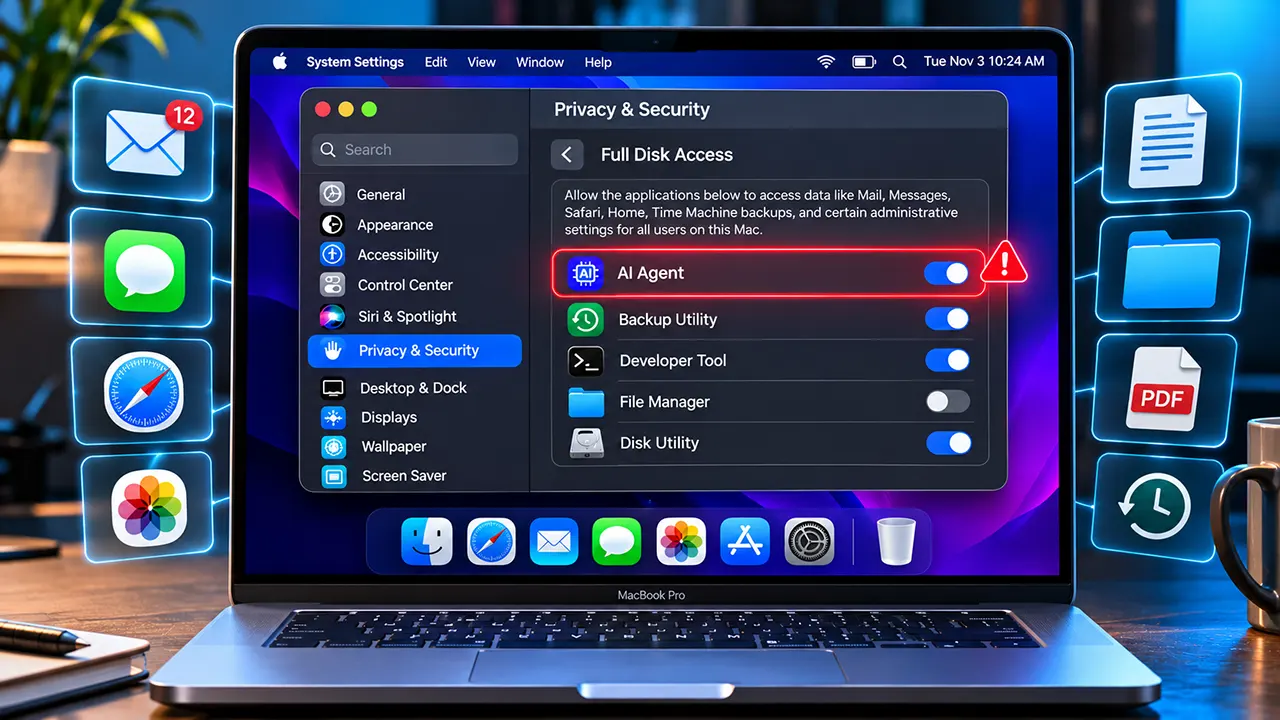
Do not give an AI agent Full Disk Access on your Mac automatically. This permission can expose sensitive files, emails, messages, and browsing history. Grant it only when the application genuinely needs that level of access, you trust its developer, and you understand how it handles your information.
Apple is now paying closer attention to this issue. On October 2, 2026, the company announced additional controls for Full Disk Access, citing the growing privacy risks of autonomous AI agents. However, the announcement did not specify an implementation date or macOS version.
If an AI assistant asks for permission to access your entire Mac, you should pause before clicking Allow. The application might need access to certain files to complete a task, but that does not automatically justify access to your entire storage system.
Here is what Mac users need to understand before granting this permission.
Should You Give an AI Agent Full Disk Access on Mac?
Generally, no. You should not give an AI agent Full Disk Access unless its essential functionality genuinely requires it. Most AI writing, research, and coding workflows can begin with selected documents or specific project folders. Start with the smallest permission that allows the application to do its job.
An AI agent is different from a conventional application because it can perform tasks using information it receives. Depending on its capabilities and enabled integrations, it might search files, summarize documents, interact with applications, or perform actions on your behalf.
That creates an important distinction: an application does not necessarily need unrestricted access to complete every task.
Consider these situations:
- An AI writing assistant needs to edit a report. You can share the report without exposing your entire Documents folder.
- An AI coding agent needs to inspect a software project. Project-level access may be sufficient.
- An AI personal assistant wants to organize your emails. You should evaluate its email integration separately rather than automatically granting Full Disk Access.
- An AI file organizer needs to rename documents. You can start by giving it access to a dedicated folder.
The safest approach is to follow the principle of least privilege: give an application only the permissions necessary for its intended purpose.
A useful rule: If an AI agent cannot explain why it needs Full Disk Access instead of access to selected files, do not grant the permission yet.
What Happens When an AI Agent Gets Full Disk Access?
Full Disk Access is a macOS privacy permission that allows an application to access protected files and data that ordinary application permissions restrict. It exists partly to support legitimate applications, particularly backup utilities that need broad access to perform their jobs.
Apple warns that this permission can expose files, mail, messages, and browsing history. It also explains that Full Disk Access largely bypasses some of the privacy protections designed to control application access to personal information.
What information can an application potentially access?
Depending on the application, macOS version, file protections, and other system conditions, broad access can expose information such as:
| Information | Why it matters |
|---|---|
| Personal documents | May contain financial records, contracts, work files, and private notes |
| Email data | Can expose personal and professional correspondence |
| Messages | May reveal private conversations and shared information |
| Safari browsing history | Can reveal websites and browsing activity |
| Photos and other files | May contain personal images and sensitive documents |
| Time Machine backups | May contain historical copies of files |
| Application data | May contain settings, databases, and other stored information |
These are potential exposure areas, not a guarantee that every AI application reads every category of data.
For example, an AI coding assistant might primarily inspect source files and project configuration. An AI personal assistant with messaging integrations may have a much broader reason to request access.
Why is Full Disk Access different from ordinary file permissions?
macOS provides more limited permissions for common folders and protected resources.
For example, an application may request access to your Documents folder without needing unrestricted access to other protected data.
Full Disk Access is much broader.
The distinction matters because users often approve permission requests without considering their full scope. A request that appears to be about helping an AI assistant find files may grant access far beyond the files required for that particular task.
Remember: Full Disk Access is a permission granted to an application, not a guarantee that the application will use every capability available to it.
Can AI Agents Read Your Emails and Messages on Mac?
Yes, an application with the necessary system-level access and relevant capabilities may be able to access email and messaging data stored on your Mac. However, the exact result depends on the application’s implementation, macOS protections, and any additional integrations it uses.
This is one of the reasons Apple’s announcement deserves attention.
How an AI agent may access email and message data
Some applications work with information stored locally by other applications. If an AI application receives broad access to protected data, it may be able to inspect information that would otherwise be restricted.
For example, an AI assistant might use email content to:
- Summarize conversations.
- Find important messages.
- Identify outstanding tasks.
- Draft replies.
- Extract information from previous discussions.
These capabilities can be useful. But they also raise an important question: does the application need access to all your email data to perform the task you requested?
Usually, a narrower integration is a better starting point.
The Meta Muse controversy
Meta Muse became part of the Full Disk Access discussion after a journalist reported that the AI agent referenced content from a private Apple Messages conversation.
Meta disputed aspects of the privacy concern and explained that its Messages integration was optional. According to the company’s explanation reported by Ars Technica, accessing Messages content required both macOS Full Disk Access and an enabled Messages connector. Ars Technica+1
This distinction is important.
The incident illustrates why users must examine both system permissions and application-level integrations. A permission request and a separate connector can work together to provide access to information.
It does not establish that every AI agent reads private messages or that every application requesting Full Disk Access uses it for messaging.
Why other people’s privacy matters too
Your messages and emails often contain information about other people. A conversation may include a colleague’s business plans, a family member’s personal information, or a customer’s confidential details.
When you connect an AI agent to that information, you are potentially exposing more than your own data.
Before enabling a messaging or email integration, consider whether the application explains its data handling practices and whether you can restrict the information it receives.
Why Autonomous AI Agents Create Additional Privacy Risks
A conventional application generally performs a defined set of operations. An autonomous AI agent can interpret instructions, access connected resources, and perform multiple actions to complete a task.
That flexibility creates additional security considerations.
Imagine asking an AI agent to organize your Mac. You expect it to locate duplicate documents and arrange your folders. But the application may also have the ability to inspect unrelated files, depending on its permissions and capabilities.
The concern is not simply that the agent can read information. It is what the agent can do with the information it can access.
Reading information is different from taking action
Consider the following differences:
| Capability | Potential consequence |
|---|---|
| Read files | Private information may be exposed |
| Summarize documents | Sensitive details may enter an AI processing workflow |
| Modify files | Important information could be changed |
| Delete files | Valuable documents could be lost |
| Access connected applications | Information may be retrieved from additional services |
| Send messages | An agent could communicate using your connected accounts |
These capabilities are not automatically included with Full Disk Access. They depend on the application’s tools, additional permissions, integrations, and operating design.
However, combining broad data access with autonomous actions can increase the consequences of mistakes or compromised instructions.
Prompt injection and untrusted content
Another risk is prompt injection.
An AI agent may encounter instructions embedded in an email, document, website, or other content. These instructions could attempt to manipulate the agent into performing actions that the user did not intend.
For example, an agent asked to summarize a document might encounter hidden or misleading instructions telling it to search for other files or disclose information.
The actual risk depends on the agent’s architecture and security safeguards. Full Disk Access does not itself create prompt injection, but broad access can increase the amount of information potentially exposed if an agent is manipulated.
Cloud processing creates another privacy question
Some AI applications process information locally. Others send prompts, files, or extracted content to remote servers.
If an agent can access a private document, that does not automatically mean it uploads the document. But if the application sends that information to a cloud AI service, a separate data-handling question arises.
This is why you should evaluate the following independently:
- What information can the application access?
- What information does it transmit to an external service?
- How long does the service retain that information?
- Can the information be used to improve or train AI models?
- What actions can the agent perform using the information?
Do not assume that an application is private simply because it runs on your Mac.
When Is Full Disk Access Actually Necessary?
Full Disk Access is not inherently malicious. Some legitimate applications need broad file access to perform their intended functions.
Apple specifically explains that the permission exists partly to allow backup applications to function properly. The problem is not that every application requesting it is unsafe. The problem is granting it without understanding the application’s actual requirements.
1. Backup and recovery applications
Backup software may need to read files across different locations to create a complete backup.
For example, an application designed to back up an entire Mac may have a legitimate reason to request broad file access.
Before approving it, check:
- Whether the developer is established and identifiable.
- Whether the application provides a clear explanation of its permission requirements.
- Whether its backup and encryption practices are documented.
- Whether it offers selective backup options.
A backup application and an autonomous AI assistant should not automatically receive the same level of trust.
2. AI coding agents
Coding agents may need to inspect source code, project configuration files, and dependencies.
However, most individual coding tasks do not inherently require access to your entire Mac.
A project-specific workspace is usually a better starting point. Pay particular attention to files containing API keys, passwords, access tokens, and environment variables.
For example, a coding project might contain a .env file with database credentials. An agent that can inspect the project may encounter those credentials even if it does not need them to complete the requested task.
3. AI file organizers
An AI file organizer may need permission to inspect, rename, move, or categorize documents.
But it should not need unrestricted access to your entire storage system just to organize a particular folder.
Start with a dedicated workspace containing copies of the files you want organized. Where supported, use read-only access for the initial inspection.
4. AI personal assistants
Personal assistants are more complicated because their usefulness often depends on access to different information sources.
An assistant might connect to:
- Email accounts.
- Calendar services.
- Messaging applications.
- Cloud storage.
- Contacts.
- Task management tools.
Evaluate each integration separately. A dedicated email connection does not automatically justify giving the application unrestricted access to your Mac.
Permission decision matrix
Use this matrix before approving an AI application’s request.
| Application purpose | Recommended permission approach | Verdict |
|---|---|---|
| AI writing assistant | Selected documents | Prefer |
| AI coding agent | Project-level access and sandboxing | Prefer |
| AI file organizer | Necessary folders only | Prefer |
| AI personal assistant | Individual connectors | Prefer |
| Backup application | Verify legitimate backup requirements | Evaluate |
| General-purpose autonomous agent | Start with restricted access | Prefer |
These recommendations reduce unnecessary exposure, but they cannot guarantee that an application is safe. The developer, software design, data-handling practices, and other permissions still matter.
How to Evaluate an AI Agent Before Granting Access
Before approving Full Disk Access, examine the application as you would any other software that handles sensitive personal information.
A polished interface or popular brand name is not enough. You need to understand what the application does behind the scenes.
1. Verify the developer
Start by checking who created the application.
Look for:
- An official website.
- A clearly identified developer or company.
- A legitimate download source.
- Published privacy and security documentation.
- A way to contact the developer.
Download the application from its official website or a trusted distribution channel.
Be particularly cautious when an unfamiliar application asks for several powerful macOS permissions immediately after installation.
2. Understand why Full Disk Access is required
A trustworthy developer should explain why the application needs broad access.
Ask yourself:
- Which feature requires this permission?
- Can the feature work with selected folders?
- Can I disable the permission after completing the task?
- Does the application explain what information it reads?
- Does it offer a restricted operating mode?
A vague explanation such as “Full Disk Access is required for the best AI experience” does not provide enough information to make an informed decision.
3. Check local processing and cloud data handling
This is one of the most important privacy checks.
An AI application may use a local model, a remote AI service, or a combination of both.
Read its privacy policy and technical documentation to determine:
| Question | What you should look for |
|---|---|
| Where is data processed? | Locally, remotely, or both |
| What data is transmitted? | Files, prompts, extracted text, metadata |
| How long is data retained? | Retention period and deletion options |
| Is data used for training? | Model training and improvement policies |
| Is data encrypted? | Protection during transmission and storage |
| Who can access the data? | Developer, service providers and subprocessors |
A claim such as “your files stay on your Mac” should be supported by clear technical documentation, not just promotional language.
4. Examine application connectors
An AI agent may connect to external services independently of macOS Full Disk Access.
For example, an assistant might offer separate integrations for Gmail, Google Drive, Microsoft 365, or a messaging platform.
Review the permissions associated with each integration. Check whether the connection is read-only or allows the agent to modify information, send messages, or delete content.
A narrow connector may provide everything an agent needs without granting broad access to unrelated information stored on your Mac.
5. Review its ability to modify files and take actions
Reading private information and changing that information are different risks.
An application that can only inspect documents has a different risk profile from one that can also rename, move, overwrite, or delete files.
Before enabling an autonomous workflow, look for:
- Confirmation before destructive actions.
- File recovery or undo functionality.
- Clear activity logs.
- Restrictions on which folders the agent can modify.
- Options to review actions before execution.
Where possible, test unfamiliar workflows on copies of important documents.
6. Check whether you can revoke permission
A good application should allow you to disconnect integrations and stop using permissions you no longer need.
However, removing Full Disk Access does not necessarily delete information the application has already copied, cached, processed, or transmitted.
You may need to use the application’s own account settings or contact its developer to request deletion of previously collected information.
Safer Alternatives to Full Disk Access
You can use many AI tools productively without granting unrestricted access to your Mac.
The key is to give the application the information needed for the task rather than opening your entire storage system.
1. Share selected documents
If an AI assistant needs to summarize a report, upload or share that particular report.
This is often the simplest approach for:
- Writing assistance.
- Document summarization.
- Research.
- Translation.
- Content editing.
You control which information enters the AI workflow.
2. Use folder-level access
If you regularly work with an AI application, create a dedicated folder for relevant documents.
For example:
Documents/AI-Workspace/
Keep only the files the application needs inside that folder.
Where the application supports folder-level permissions, grant access to that location instead of your entire disk.
3. Prefer project-level access for coding agents
Developers should consider dedicated project workspaces.
An AI coding agent may need access to source files, configuration files, and dependencies. That does not mean it needs access to personal documents, photographs, email databases, or unrelated projects.
A sandboxed development environment can provide additional isolation, although its protection depends on how it is configured.
4. Use read-only workflows where possible
If an AI agent only needs to analyze documents, avoid granting unnecessary write capabilities.
Read-only access can reduce the risk of accidental file modifications.
However, read-only access does not prevent information disclosure. An agent that can read sensitive documents may still expose their contents through an external service if its architecture allows that.
5. Manage external integrations separately
Use dedicated connectors for specific services rather than relying on broad system access.
For example, if an assistant only needs to summarize selected emails, investigate whether its email integration supports limited access.
Do not assume that disconnecting an external service automatically removes the application’s macOS permissions.
The practical principle: Build a smaller workspace for your AI agent instead of making your entire Mac available to it.
What Mac Users Should Do After Apple’s Announcement
Apple’s October 2, 2026 announcement is an important development for Mac privacy. The company acknowledged that some developers use Full Disk Access in ways that could expose information without users fully understanding the consequences.
Apple said it would introduce additional controls requiring very explicit user action before granting this permission. However, it did not specify the macOS version, implementation date, or exact design of those controls.
What Apple has announced
There are three important points:
- Full Disk Access largely bypasses some of macOS’s normal privacy protections.
- Some applications may expose sensitive information beyond what users expect.
- Apple plans to introduce additional controls to make granting this permission more deliberate.
This is particularly relevant as autonomous AI agents become more capable of reading information and performing actions.
What Apple has not confirmed
Mac users should not assume that the announcement represents a completed security update.
Apple has not publicly specified:
- The exact macOS release containing the additional controls.
- The date when those controls will become available.
- Whether the permission interface will receive a complete redesign.
- Whether existing permissions will automatically require renewed approval.
- How the new controls will distinguish different application categories.
As of November 3, 2026, the October 2 announcement remains the primary official description of Apple’s planned changes. Do not assume that the additional controls are already active on your Mac without checking Apple’s subsequent release documentation.
How to review Full Disk Access on your Mac
You do not need to wait for Apple’s planned changes to review your existing permissions.
Follow these steps:
- Click the Apple menu in the top-left corner of your screen.
- Open System Settings.
- Select Privacy & Security.
- Find and open Full Disk Access.
- Review the applications listed.
- Turn off access for applications that no longer need it.
You should also review these separate permission categories:
- Files & Folders: Check which applications can access personal folders.
- Accessibility: Review applications that can control or interact with your Mac.
- Automation: Check which applications can control other applications.
- Input Monitoring: Review applications allowed to monitor keyboard and other input events.
- Screen & System Audio Recording: Check applications that can capture screen or audio information.
The exact settings available can vary by macOS version.
What happens when you revoke Full Disk Access?
Disabling an application’s Full Disk Access permission prevents it from continuing to use that permission for protected data access.
However, it does not automatically:
- Delete files the application previously copied.
- Remove information already transmitted to cloud servers.
- Delete cached or stored application data.
- Disconnect external account integrations.
- Revoke unrelated macOS permissions.
If you no longer trust an application, review its own data deletion controls, disconnect its integrations, and uninstall it if appropriate.
FAQs: Should I give an AI agent Full Disk Access on Mac?
1. Is Full Disk Access safe for AI agents on Mac?
Full Disk Access is not automatically unsafe, but it creates a significant privacy consideration. An application receiving this permission may access sensitive information that ordinary application permissions restrict. Safety depends on the developer, software architecture, data-handling practices, and additional capabilities. Grant it only when the application genuinely requires broad access.
2. Can an AI agent read my Mac files without uploading them?
Yes. An application can access and process files locally without transmitting them to an external server. However, some AI applications send selected information to cloud services for processing. Check the application’s documentation to understand which operations happen locally and which involve external servers.
3. Does removing Full Disk Access delete data already collected by an AI app?
No. Revoking Full Disk Access prevents future access through that permission, but it does not automatically erase previously collected information. If an application has already copied, cached, or transmitted your data, you may need to request deletion through its own privacy or account settings.
4. Can I use an AI coding agent without Full Disk Access?
Yes, many coding workflows can operate with access limited to a specific project folder or workspace. The exact requirements depend on the coding agent and its features. Start with project-level access and protect sensitive files containing API keys, passwords, and environment variables.
5. Is Full Disk Access the same as Accessibility permission?
No. Full Disk Access concerns access to protected files and data, while Accessibility permission allows applications to interact with or control parts of the user interface. An AI agent may request both permissions for different capabilities. Review each permission independently.
6. Should I give Full Disk Access to an app I trust?
Trust is important, but it is not the only consideration. Even a reputable developer can introduce software vulnerabilities, configuration mistakes, or unexpected data-handling behavior. Check whether the application genuinely needs broad access and whether a narrower permission can accomplish the same task.
7. Does Apple’s planned macOS change automatically protect existing applications?
Apple has announced additional controls but has not specified whether existing permissions will automatically require renewed approval. Users should continue reviewing their current permissions and should not assume that previously granted access has been removed or restricted.
Make Your Mac’s Permissions a Deliberate Choice
AI agents can make Mac workflows easier, but convenience should not require unrestricted access to your personal information.
Before approving Full Disk Access, ask one simple question: Does this application genuinely need access to my entire Mac to perform the task I want?
If the answer is unclear, start with selected documents, a dedicated folder, or a restricted workspace. You can always evaluate additional permissions later when a specific feature requires them.
Apple’s planned changes are a useful reminder that users should understand what they are authorizing. Your personal files, conversations, and browsing history deserve that level of attention.
Explore more Mac security and privacy guides on ItPhobia to make informed decisions about the software you install and the permissions you grant.

Belayet Hossain is a Senior Tech Expert and Certified AI Marketing Strategist. Holding an MSc in CSE (Russia) and over a decade of experience since 2011, he combines traditional systems engineering with modern AI insights. Specializing in Vibe Coding and Intelligent Marketing, Belayet provides forward-thinking analysis on software, digital trends, and SEO, helping readers navigate the rapidly evolving digital landscape. Connect with Belayet Hossain on Facebook, Twitter, Linkedin or read my complete biography.