


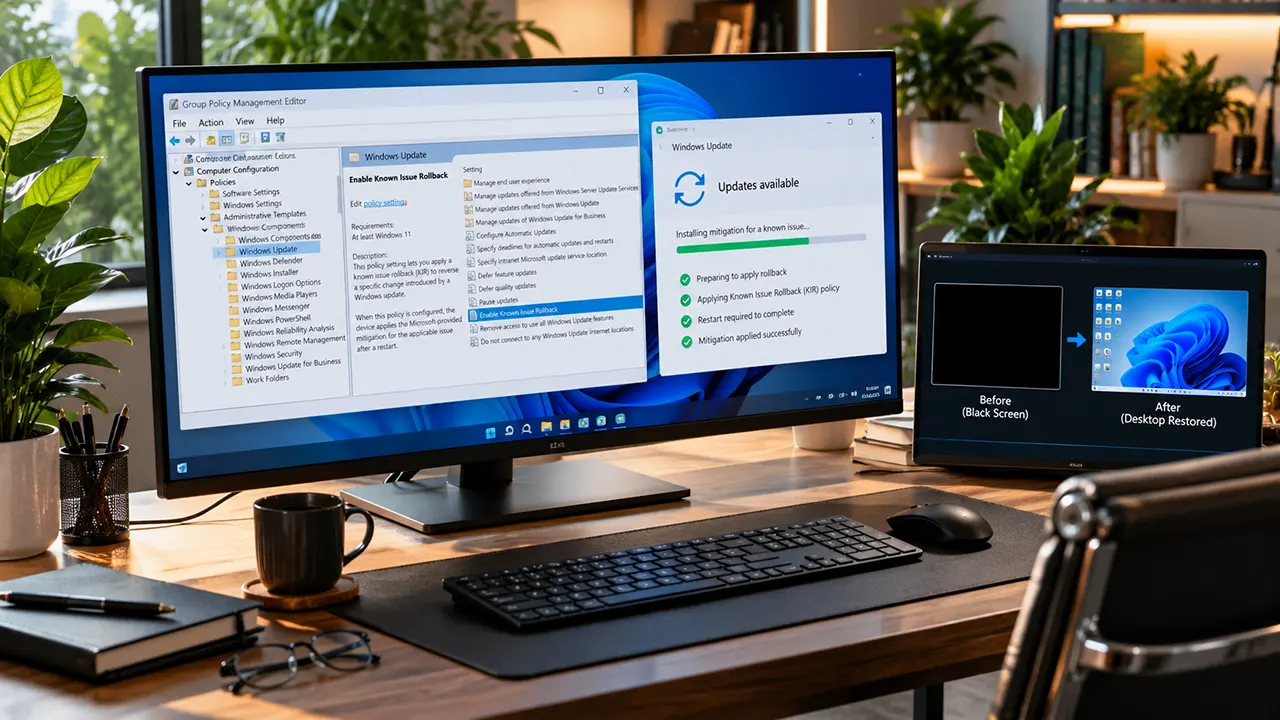
Windows 11 Known Issue Rollback (KIR) is a Microsoft technology that reverses a specific problematic change introduced by a non-security Windows update without uninstalling the entire update. Consumer devices can receive supported mitigations automatically. Enterprise administrators may need to deploy Microsoft’s version-specific KIR Group Policy, refresh policy, and restart affected devices.
What Is Windows 11 Known Issue Rollback?
Windows Known Issue Rollback is a Windows servicing feature that lets Microsoft reverse a targeted change when an update causes a regression. Instead of removing the entire update, KIR disables the problematic change while preserving the other changes included in that release.
Imagine an organization installs a Windows update that fixes several issues but introduces a desktop-loading problem on some virtual desktops. Removing the whole update could also remove useful fixes. If Microsoft publishes a KIR mitigation for the regression, administrators can apply that targeted rollback instead.
KIR is particularly useful when an organization needs a controlled response to a documented update problem. However, it is not a universal repair tool. Administrators must confirm that Microsoft has published a mitigation for the specific issue and that the affected Windows version is supported.
How Windows KIR works behind the scenes
Windows updates can introduce changes to individual operating system components. When Microsoft identifies a qualifying regression caused by a non-security change, it can provide a rollback mechanism that restores the previous behavior of that specific change.
Microsoft manages the mitigation delivery process for consumer devices through Windows Update. For enterprise-managed devices, Microsoft can publish a policy definition that administrators use to activate the mitigation through Group Policy or a supported mobile device management workflow.
The important distinction is that KIR targets a particular change, not the entire update package. Its purpose is to reduce the impact of a regression while Microsoft works on a permanent correction.
KIR applies to qualifying non-security changes. It should not be treated as a way to reverse security fixes or bypass normal Windows servicing safeguards.
Known Issue Rollback vs. Uninstalling a Windows Update
KIR and update uninstallation address related problems in different ways. KIR reverses a specific change when Microsoft provides a supported mitigation. Uninstalling an update removes that update package and may also remove other changes delivered with it.
| Consideration | Known Issue Rollback | Uninstalling an update |
|---|---|---|
| Scope | Targets a specific problematic change | Removes the selected update package |
| Other update changes | Remain intact | May also be removed |
| How it is initiated | Microsoft-delivered mitigation or administrator policy | Supported Windows recovery or update-removal workflow |
| Best use case | A documented regression with an applicable KIR | An appropriate recovery scenario when targeted mitigation is unavailable or insufficient |
| Main limitation | Requires a matching mitigation and supported deployment method | May affect other fixes and servicing state |
For a documented KIR issue, start with Microsoft’s release-health guidance and use the matching mitigation when appropriate. Do not uninstall a cumulative update merely because a symptom appeared after installation; first establish the cause and check Microsoft’s recommended recovery path.
Do Home Users Need to Deploy KIR Manually?
Usually, consumer users do not need to configure a KIR Group Policy manually. Microsoft manages the mitigation process for non-enterprise devices through Windows Update, while enterprise administrators may need to activate the applicable mitigation through their management infrastructure.
How KIR reaches consumer devices
For supported consumer scenarios, Windows Update can deliver the KIR activation automatically. This means an individual user generally does not need to download a policy template or create a Group Policy Object.
Automatic delivery does not mean every Windows problem will receive a KIR. Microsoft must identify a qualifying regression and provide an applicable mitigation. If a problem persists, check the relevant Windows release-health page and update history before assuming that KIR exists for it.
When enterprise administrators must intervene
Administrators should check the official incident documentation when a regression affects domain-managed or centrally managed devices. If Microsoft provides a KIR policy definition for the affected Windows version, the administrator can deploy it through the supported management process.
For domain-managed devices, this generally involves installing the policy definition, creating and configuring a Group Policy Object, monitoring policy application, and restarting affected devices. Intune-managed devices require the corresponding supported MDM approach rather than assuming a traditional GPO will apply.
How to Find the Correct KIR Policy Template
Before deploying a KIR policy, identify the exact Windows issue and confirm that Microsoft provides a mitigation for it. A policy template is not interchangeable with another template simply because both address Windows update problems. Microsoft warns that KIR policy definitions can differ by Windows version and edition.
Check Windows Release Health and the relevant KB article
Use this workflow to locate the correct policy:
- Open the Windows release health dashboard.
- Select the Windows version running on the affected devices.
- Find the documented issue and confirm its symptoms match your incident.
- Open the linked Windows Update KB article and look for the KIR mitigation instructions.
- Record the originating update, affected OS versions, policy name, download link, and current resolution status.
Microsoft publishes KIR information through release-health documentation and the known-issues sections of relevant update articles. If no applicable policy exists, contact Microsoft Support rather than repurposing a different template.
Match the template to the exact Windows version
Check the Windows version and OS build before downloading the policy. You can run winver to identify the Windows release and build information.
A policy package may support multiple specifically listed releases, but that does not mean it supports every Windows 11 version. Confirm the package’s documented applicability before deployment.
Understand the KIR MSI, ADMX, and ADML files
Microsoft distributes enterprise KIR policy definitions in MSI packages. Installing the appropriate package adds the policy definitions needed to configure the mitigation.
In a Group Policy environment, the definitions may be installed locally or copied to the domain’s Central Store when one is used. The ADMX files define the policy settings, while the associated ADML files provide localized policy text. Follow Microsoft’s instructions for the specific package and environment.
How to Deploy Windows Known Issue Rollback Through Group Policy
The following procedure applies to the documented enterprise KIR workflow. The exact policy name and supported Windows versions depend on the incident being mitigated.
Step 1 – Identify the affected devices and Windows builds
Inventory the affected endpoints or virtual desktop hosts. Confirm the Windows release, build, update history, symptoms, and relevant Microsoft incident entry.
If devices run different Windows versions, separate them into appropriate deployment groups. Do not assume one policy will apply to every group.
Step 2 – Download and install the official policy definition
Download the KIR MSI from the official Microsoft source linked by the relevant incident documentation. Install it on the computer used to manage Group Policy.
If your organization uses a Central Store, follow Microsoft’s instructions to place the required ADMX and ADML files there. Verify that the new policy definition appears in Group Policy Management Editor.
Step 3 – Create and link a dedicated Group Policy Object
Open Group Policy Management Console and create a dedicated GPO for the incident. Give it a clear name, such as KIR - Windows Desktop Loading Issue.
Link the GPO to the appropriate organizational unit or target scope. Use your normal change-control process to limit the initial rollout to the devices affected by the documented issue.
Step 4 – Configure the documented KIR activation policy
Edit the GPO and locate the issue-specific policy under the relevant path:
Computer Configuration > Administrative Templates > [KIR issue-specific policy category]
Microsoft’s general KIR deployment instructions specify configuring the relevant activation policy as Disabled. This is counterintuitive, but the state is intentional for the documented KIR policy mechanism. Follow the exact instructions for the applicable template instead of assuming that enabling a policy always activates the rollback.
Do not apply this setting to unrelated policies or use it as a generic Windows black-screen fix.
Step 5 – Refresh policy and restart affected devices
In the default Group Policy configuration, managed devices should receive the updated policy within approximately 90 to 120 minutes. To request a refresh sooner, run the following command on an affected device from an appropriately elevated Command Prompt:
gpupdate /forceAfter the policy applies, restart the affected device. Microsoft explicitly requires a restart for the Group Policy change to take effect. Plan this step carefully for production endpoints and virtual desktop hosts.
Step 6 – Verify the deployment
Use a structured verification checklist:
- Confirm the intended GPO is linked to the correct scope.
- Confirm the device received the policy and is using the expected Windows version.
- Check Group Policy results and troubleshoot any targeting or processing errors.
- Confirm the affected device restarted after policy application.
- Test the original symptom and check relevant application or system logs.
A successful GPO application does not by itself prove that the original problem has been resolved. Confirm the behavior on the affected workload.
How to Deploy KIR Through Microsoft Intune
Organizations using Microsoft Intune can activate supported KIR policies through Microsoft’s ADMX ingestion and custom configuration profile process. This is a separate management workflow from traditional GPO deployment.
The documented process involves:
- Downloading and extracting the correct KIR policy definition.
- Creating a Windows custom configuration profile in Intune.
- Ingesting the relevant ADMX policy definition.
- Configuring the KIR activation setting with the exact identifiers from that ADMX file.
- Assigning the profile and defining OS-version applicability rules.
- Monitoring deployment status and troubleshooting errors or conflicts.
The policy name, parent category, and applicable OS build must come from the actual Microsoft-supplied definition. Do not copy identifiers from an unrelated example.
Microsoft’s official KIR Group Policy and Intune deployment guide provides the detailed custom OMA-URI configuration instructions. Follow that guide for the exact setting values.
September 2026 Windows 11 Black Screen: Which KIR Policy Applies?
In September 2026, Microsoft documented a Windows 11 issue that could leave some users with a black screen after signing in because the desktop session did not load automatically. The issue was observed primarily on Azure Virtual Desktop (AVD) hosts using FSLogix, with some existing user profiles affected more frequently. Windows Explorer crashes may also appear in application event logs.
Symptoms and affected environments
The issue originated with the August 2026 non-security preview updates and could persist after subsequent updates. Affected users might be able to access the desktop only after starting the session manually.
This case illustrates why administrators should diagnose the specific regression rather than treat every black screen as an update rollback problem.
Match the Windows version to the correct policy
Microsoft’s release-health documentation lists the following KIR policies for the incident:
| Windows 11 version | Originating preview update | KIR policy |
|---|---|---|
| 24H2 | KB5120998 | KB5124010 260924_20021 |
| 25H2 | KB5120998 | KB5124010 260924_20021 |
| 26H1 | KB5120996 | KB5124006 260924_20071 |
| 26H2 | Version-specific release-health entry | KB5124010 260924_20021 |
Sources: Microsoft’s Windows 11 24H2 release health, 25H2 release health, 26H1 release health, and 26H2 release health.
The originating update identifies where the regression began; it does not necessarily mean the problem affects only devices that installed that optional preview package. Microsoft documents that subsequent updates can also carry the problematic change.
What administrators should verify before deployment
Before deploying either policy, confirm that:
- The symptoms and environment match Microsoft’s incident description.
- The installed Windows release matches the selected policy.
- The policy download comes from the corresponding Microsoft update or release-health entry.
- The current mitigation status and permanent-resolution notes have been reviewed.
- The required policy refresh and restart have been completed.
For a temporary workaround on an affected session, Microsoft also documents manually launching Windows Explorer. Press Ctrl + Shift + Esc to open Task Manager, select Run new task, enter explorer.exe, and select OK. This can restore the desktop session temporarily, but it does not replace the underlying mitigation.
How to Troubleshoot a KIR Policy That Does Not Work
If the original issue remains after deployment, check policy applicability and activation before attempting unrelated repairs. Microsoft’s troubleshooting guidance highlights incorrect templates, incorrect policy state, and missing restarts as important causes to investigate.
The policy is missing from Group Policy Editor
Check that you installed the official MSI for the affected issue and that the policy definition is available in the correct location. If you use a Central Store, verify that the required ADMX and ADML files were copied there.
Also confirm that you are inspecting the correct issue-specific policy category. A template for another Windows version or incident may not expose the expected setting.
The policy was configured but has not taken effect
Verify the GPO link, device targeting, policy processing, and configured activation state. Use gpupdate /force when an immediate refresh is appropriate, then restart the affected device.
If you are managing a production fleet, test the workflow on a limited group before broad deployment.
The black screen or desktop problem persists
Recheck the Windows version and compare the symptoms with Microsoft’s current incident documentation. If the device does not match the documented case, do not assume the same KIR will help.
For the September 2026 case, check for Explorer crashes and whether manually starting explorer.exe restores the session. If the issue continues after the correct policy and restart, collect the relevant logs and escalate through your organization’s Microsoft support channel.
Intune-managed devices are not applying the mitigation
Review the custom configuration profile’s assignment status. Microsoft Intune distinguishes successful application from errors, conflicts, pending check-ins, and settings that are not applicable to a device.
Confirm that the profile uses the correct ADMX-derived policy name, parent category, OMA-URI, and OS-version applicability rules. Do not reuse configuration strings from another KIR package.
When Can Administrators Remove a Temporary KIR Policy?
A KIR policy is a temporary mitigation. Microsoft explains that, after the original issue is resolved, subsequent Windows updates include the corrected code and the old policy settings become benign. Administrators can then remove the obsolete policy definition from their Group Policy infrastructure.
Before cleanup:
- Confirm Microsoft’s published resolution for the specific incident.
- Verify which Windows update contains the permanent correction.
- Confirm that affected devices have received the appropriate update.
- Follow the organization’s change-control process to remove the temporary policy and its associated deployment configuration.
- Document the cleanup and verify that the original issue does not return.
Do not remove a policy solely because a newer update has appeared. Confirm that the update addresses the specific regression.
Frequently Asked Questions About Windows KIR
1. Is Windows Known Issue Rollback the same as System Restore?
No. System Restore is a Windows recovery feature that can return system files, settings, and other system state to an earlier restore point. KIR is a servicing mechanism that reverses a specific qualifying change introduced by a Windows update. It does not perform a general system restore or return the entire device to an earlier state.
2. Can administrators deploy KIR to a single computer?
Yes. Microsoft’s deployment guidance includes a local Group Policy workflow for an individual device. The administrator installs the matching KIR policy definition, configures the documented activation policy in Local Group Policy Editor, and restarts the device. The policy package must match the affected operating system.
3. Can KIR be deployed without traditional Group Policy?
Yes, for supported scenarios. Microsoft documents an Intune approach using ADMX ingestion and custom configuration profiles. The exact configuration depends on the supplied policy definition, so administrators should follow the official procedure rather than create their own policy identifiers.
4. Does KIR require uninstalling or reinstalling Windows?
No. KIR targets a specific change in a qualifying update. It is designed to preserve the other changes from that update, so a full update removal or Windows reinstallation is not the normal KIR procedure. Other recovery options may still be necessary for problems that KIR does not address.
5. What should administrators do if Microsoft has not published a KIR template for their issue?
First, check the applicable release-health page and update’s known-issues section. If no matching policy is available, contact Microsoft Support and request guidance for the regression. Microsoft may need to identify the relevant setting and publish an appropriate template. Do not use a policy from another issue as a substitute.
6. Can the same KIR template be used across different Windows versions?
Only when Microsoft’s documentation explicitly lists those versions as supported by that template. KIR policy definitions can vary across Windows releases and editions. Check the package name and applicability notes before deploying it to a mixed-version environment.
Choose the Documented Mitigation for Your Windows Build
For IT administrators, the safest next step is to identify the affected Windows build, verify the incident in Microsoft’s release-health documentation, and apply the exact supported mitigation. A targeted KIR can help restore expected behavior without removing an entire update, but only when the policy matches the documented regression.
For the September 2026 black-screen issue, begin with Microsoft’s version-specific release-health entry and follow its current deployment and resolution guidance. Then validate the outcome on the affected devices and document the temporary policy’s eventual cleanup.
Recommended next step: Bookmark Microsoft’s Known Issue Rollback deployment guide for future Windows update incidents.

Belayet Hossain is a Senior Tech Expert and Certified AI Marketing Strategist. Holding an MSc in CSE (Russia) and over a decade of experience since 2011, he combines traditional systems engineering with modern AI insights. Specializing in Vibe Coding and Intelligent Marketing, Belayet provides forward-thinking analysis on software, digital trends, and SEO, helping readers navigate the rapidly evolving digital landscape. Connect with Belayet Hossain on Facebook, Twitter, Linkedin or read my complete biography.