


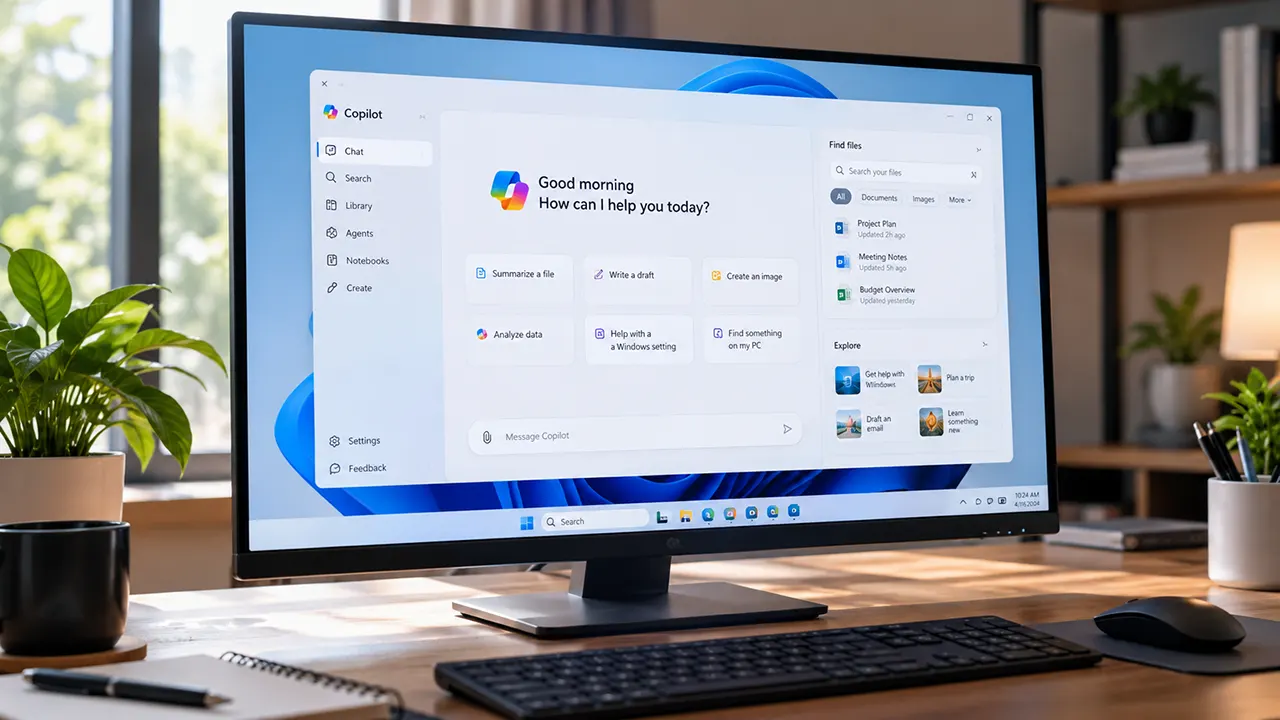
Microsoft Copilot is an AI assistant you can use on Windows 11 to ask questions, draft content, create images, and get help with supported tasks. To get started, look for Copilot in the Start menu. If it is missing, install the official app from Microsoft Store, open it, and sign in with the account you want to use. Available features depend on your account, subscription, and app experience.
If you have opened an older Copilot tutorial and the buttons do not match your screen, you are not alone. Microsoft has been updating the app experience, and some features differ between personal and work or school accounts. This guide explains how to install the app, use its main features, access it with keyboard shortcuts, and troubleshoot common problems without assuming every PC has the same interface.
Testing note: The instructions below are based on current Microsoft documentation reviewed for this article. A hands-on Windows 11 test, installed app version, and original screenshots have not been verified. Those details should be added after testing on a real Windows 11 PC.
Get Started With the New Copilot App on Windows 11
You can usually start using Copilot in three steps: find the app, open it, and sign in if you want access to your account’s additional features. New Windows 11 PCs may already have Copilot installed, so check before downloading it again.
The quickest route is:
- Open the Start menu.
- Type Copilot in the search box.
- Select the Microsoft Copilot app if it appears.
- Sign in with your personal Microsoft account or your work or school account, as appropriate.
- Start a conversation by entering a question or task.
If Copilot does not appear, follow the installation steps below. If it opens but looks different from an older tutorial, check the account and available navigation before assuming something is broken.
How to Check Whether Copilot Is Already Installed
Before installing anything, check whether the app is already on your computer. This avoids unnecessary downloads and gives you a clear starting point.
Find Copilot in the Start menu
Press the Windows key, type Copilot, and look through the results. If the Microsoft Copilot app appears, open it. You can right-click the app in Start to see available options, which may include pinning it to the taskbar.
You can also look along the taskbar for the Copilot icon. Its presence depends on your Windows setup and how the app has been configured.
Check installed apps
If you cannot find Copilot in Start, open Settings > Apps > Installed apps and search for Copilot. If it appears, the app is installed even if you have not pinned it to Start or the taskbar.
If it does not appear, proceed to the Microsoft Store installation method.
How to Install Copilot on Windows 11
The recommended way to install the Windows app is through the official Microsoft Store. Avoid third-party download sites that offer repackaged installers or claim to provide a special version of Copilot.
Download the official app from Microsoft Store

Step 1: Open Microsoft Store
Select Start, type Microsoft Store, and open the app. Make sure you are using the official Windows store.

Step 2: Search for Microsoft Copilot
Search for Microsoft Copilot. Check the app name and publisher before selecting the listing.

Step 3: Install and open
Select the available install or get option. Once installation finishes, choose Open and follow the on-screen prompts.
You can also open Microsoft’s official Copilot app getting-started guide for the current installation instructions.
What if Microsoft Store does not show Copilot?
Try these steps in order:
- Confirm that you searched for the Microsoft Copilot app, not a different Microsoft 365 application.
- Check that Microsoft Store can connect to the internet and load other listings.
- Install any pending Microsoft Store updates.
- Restart the Store and search again.
- Check whether your organization manages app installation on a work or school PC.
If the Store still does not offer the app, use Microsoft’s official Copilot website as an alternative while you investigate. The web experience does not require you to install the Windows desktop app.
Do not download an unofficial installer simply because it appears first in a search result.
How to Open Copilot and Sign In
Once installed, Copilot can be opened from Start, the taskbar if pinned, or a supported keyboard shortcut. Signing in determines which account experience and additional features are available.
Open Copilot from Start or the taskbar
Open Start, search for Copilot, and select the app. If you use it frequently, pin it to the taskbar when that option is available.
When the app opens, look for the navigation pane, chat area, and account profile. The exact navigation options can differ between personal and work or school experiences, so follow the labels actually displayed on your screen.
Sign in with a personal Microsoft account
For personal use, sign in with the account you use for Microsoft consumer services. Depending on the current sign-in options, the app may also offer other supported identity providers.
Signing in can give you access to conversation history, longer conversations, image creation, voice interactions, and other features. Limits and availability may vary.
Use a work or school account
If your organization provides Copilot access, sign in with your work or school account. This is commonly managed through Microsoft Entra ID.
The account you choose matters. Your organization may control which features are enabled, and a work account can provide a different experience from a personal account. Look for the account label in the app to confirm which experience is active.
If you need a broader overview of the updated app, see the Microsoft Copilot app guide on ItPhobia.
How to Use the Copilot App for Everyday Tasks
You do not need to learn every feature before getting value from Copilot. Start with one clear task, give it enough context, and refine the answer if needed.
Ask questions and refine answers
Enter a question in the message box and submit it. For better answers, include your goal, the relevant details, and the format you want.
For example, instead of asking:
Help me with Windows.
Try:
Explain how to free up storage space in Windows 11. Give me beginner-friendly steps and tell me which files I should not delete.
The second prompt gives Copilot a specific task and a clear audience. Check important technical instructions before changing system settings.
Draft, rewrite, and summarize content
Copilot can help you create or revise everyday content. You could ask it to:
- Draft a professional email.
- Rewrite a paragraph in plain English.
- Turn meeting notes into an action list.
- Summarize a document you provide.
- Brainstorm ideas for a project.
Give it a clear audience and desired tone. For example, ask it to rewrite a message for a customer using short sentences and a polite tone.
Treat the result as a draft rather than an automatically verified final answer. Check facts, names, dates, and any instructions that could have real consequences.
Understand the updated interface
The current Copilot app may display navigation options such as Chat, Library, Agents, Search, and Cowork, depending on the account and features available. It may also provide access to other Microsoft 365 applications from its navigation pane.
Do not assume every user will see all these options. If an item is missing, check whether you are using a personal or work account and whether your account has access to that feature.
Which Copilot Features Work on Windows 11?
The Windows app can do more than answer typed questions, but its capabilities are not identical on every PC or account. Microsoft documents features including Vision, file search, screenshot sharing, web content, and help with Windows Settings. Confirm that a feature appears in your installed app before relying on it.
Use Copilot Vision, where available
Copilot Vision can help interpret supported browser windows or applications you have open and guide you through a task. For example, you might ask for help understanding a page or finding a particular option in an application.
If Vision is available in your experience, follow the app’s prompts to enable or start it. Review what you are sharing before proceeding, especially if the screen contains private messages, account details, customer information, or work documents.
Vision availability and interaction options can vary. Do not assume that installing the app automatically enables every Vision feature.
Find and ask questions about files
Microsoft documents file search capabilities that can help locate files, open them, and answer questions about their contents. Its Windows access guide lists support for common formats, including DOCX, XLSX, PPTX, TXT, PDF, and JSON.
To try this feature:
- Open Copilot and look for the file search or file-related option.
- Ask for a file by name or describe the document you need.
- If the app finds the file, ask a specific question about its contents.
- Verify the answer against the original document before using it.
For example, you could ask, “Find my project budget spreadsheet and tell me which expense categories it contains.” Whether this works depends on the feature being available and the file being accessible to the app.
You can review the file-access controls under Account > Settings > File Search and File Read if those options are present.
Share a screenshot and ask a question
If your Copilot app supports screenshot sharing, you can ask about a specific part of your screen without typing everything you see.
- Open the Copilot conversation.
- Select the plus (
+) button in the composer. - Choose Take a Screenshot, if available.
- Select the relevant area.
- Enter your question and submit it.
For example, you could share a screenshot of a Windows error message and ask what it means. Remove passwords, payment information, private messages, and other sensitive details before uploading the image.
Get help with Windows Settings
Microsoft documents Windows Settings assistance in Copilot. You can ask questions such as, “How can I make text easier to read in Windows 11?” and Copilot can guide you to the relevant setting.
Use this as guidance, not proof that every setting can be changed automatically. If Copilot points you to a settings page, review the available options and make the change yourself when appropriate.
Understand subscription and feature limitations
The app’s name alone does not tell you which features are included. Microsoft distinguishes personal accounts from work or school accounts, and some capabilities depend on a subscription, organizational license, or feature rollout.
| Capability | What to check |
|---|---|
| Chat and answers | Available sign-in options and usage limits |
| Image creation | Account eligibility and current limits |
| Voice interactions | Whether voice options appear in your app |
| Vision | Feature availability and supported content |
| File search | File access settings and supported formats |
| Microsoft 365 features | Account type, license, and organization settings |
If a feature shown in a tutorial is missing, check Microsoft’s current documentation and your account before reinstalling Copilot. The issue may be availability rather than a faulty installation.
Copilot Keyboard Shortcuts and Quick Access
You can open Copilot without returning to the Start menu each time. Microsoft documents the Copilot keyboard key and Windows + C as access methods, although their behavior can be configured.
| Shortcut or method | What to know |
|---|---|
| Copilot key | Opens Copilot on supported keyboards |
Windows + C | Can open the full app or a smaller quick-view interface |
| Taskbar icon | Opens the app when it is pinned |
| Start menu | A straightforward alternative if shortcuts behave differently |
| “Hey, Copilot” | Optional wake-word access where supported and enabled |
| Configurable pen button | Available on supported devices with the relevant setting |
Configure the Windows + C shortcut
If Windows + C opens a smaller interface instead of the full Copilot app, that does not necessarily mean the shortcut is broken.
Open Copilot and navigate to Account > Settings > Copilot Keyboard Shortcuts, if that setting is available. Review the options and choose the behavior you prefer. The exact labels may differ across app versions.
If the shortcut does nothing, first try opening Copilot from Start. This helps determine whether the app itself works before you investigate keyboard settings.
Use optional voice or pen access
Microsoft also documents an opt-in “Hey, Copilot” wake word and a configurable pen shortcut on supported devices. These are optional access methods, not requirements for using the app.
If you do not see these options, check the current instructions for your account and device rather than assuming your installation is incomplete.
How to Check Copilot Privacy Settings
Before using Copilot with personal documents or work information, understand which account you are using and what information you choose to share.
Review personal account data-use controls
Open the app’s account or settings area and look for its current privacy controls. Microsoft provides guidance on managing privacy in Copilot, but the available settings and instructions can differ between the updated and older app experiences.
Read the current Microsoft Copilot privacy controls guidance before changing a setting related to conversation history or the use of conversation data. Do not assume that a data-use toggle exists in every account or controls every type of information.
Understand work or school account protections
Work and school accounts may use organizational policies and enterprise data protection. The protections and controls available depend on the account and license, so do not assume they are identical to those for personal accounts.
If you use Copilot at work, follow your organization’s AI and data-handling rules. Ask your IT administrator if you are unsure whether a document can be shared with the service.
Avoid sharing sensitive information unnecessarily
Regardless of the account type, review your prompt and any uploaded content before submitting it. Avoid including passwords, authentication codes, payment details, confidential customer information, or sensitive business records unless you are authorized to use that information with the service.
A useful habit is to share only the information Copilot needs to complete the task. For instance, you can ask for help rewriting a report using a sanitized excerpt instead of uploading the full confidential document.
How to Fix Common Copilot App Problems
When Copilot does not work as expected, identify the symptom before trying a fix. A missing app, a sign-in error, and an unavailable feature have different causes.
| Problem | What to try |
|---|---|
| Copilot is missing from Windows 11 | Search Start and Installed apps, then check Microsoft Store. |
| Copilot will not open | Restart the app, check for updates, and restart Windows. |
| Sign-in fails | Verify your internet connection and account, then try signing in again. |
Windows + C opens the wrong interface | Check Copilot Keyboard Shortcuts in the app settings. |
| A feature is missing | Check your account type, subscription, rollout status, and current Microsoft documentation. |
| Microsoft Store cannot install Copilot | Check Store connectivity, updates, and any organization-imposed restrictions. |
Copilot is missing from Windows 11
First, search for Copilot in Start and check Settings > Apps > Installed apps. If it is absent, open Microsoft Store and search for the official Microsoft Copilot app.
If you still cannot find it, try the Copilot web app while checking Microsoft’s installation guidance. Do not assume that every Windows 11 installation has the desktop app preinstalled.
Copilot will not open
Try these steps in order:
- Close Copilot and reopen it from Start.
- Restart your PC.
- Open Microsoft Store and check for app updates.
- Check Windows Update for available updates.
- If the problem continues, review Windows app repair options under Settings > Apps > Installed apps, if available for Copilot.
Use repair options before considering a reset or reinstall. Resetting an app may affect local app data or settings, so review the warning shown by Windows first.
Sign-in fails or the wrong account opens
Check that you selected the intended personal or work or school account. If your organization manages access, an administrator may need to resolve a licensing or policy issue.
If you can open Copilot but do not see expected features, check the account label in the app and verify which license or experience applies. Microsoft documents different experiences for personal and work or school accounts.
Windows + C opens the wrong interface
Microsoft documents that Windows + C can open either the full Copilot app or a smaller quick-view interface, depending on the configured shortcut behavior. Open Copilot and check Account > Settings > Copilot Keyboard Shortcuts.
If the setting is missing, use Start to open Copilot and check the support instructions for your installed version.
A feature is missing or unavailable
Do not immediately reinstall the app. Confirm that you are signed in with the intended account, check whether your plan includes the feature, and consult Microsoft’s current documentation.
If the feature is part of a gradual rollout, you may need to wait for availability. If it is controlled by a workplace policy, contact your IT administrator.
Frequently Asked Questions
1. Is the Microsoft Copilot app free on Windows 11?
Microsoft offers free Copilot access, but not every capability is unlimited or included in every account. Usage limits, image creation, voice interactions, and additional Microsoft 365 capabilities may depend on your account and subscription. Check the current Microsoft app documentation before paying for a plan solely to unlock a feature.
2. Can I use Copilot without installing the Windows app?
Yes. You can access Copilot through its official website in a supported browser. The website is a useful alternative if the Windows app is missing, cannot be installed, or does not open. Some desktop-specific integrations and access methods may not be available in the browser experience.
3. Do I need a Microsoft account to use Copilot?
The sign-in options depend on the current experience. Microsoft’s documentation describes personal sign-in options and work or school accounts, and it explains that signing in unlocks additional features. Check the options presented in your app and the official getting-started guide if you want to use Copilot without signing in.
4. Can Copilot access files on my computer?
Microsoft documents file search and file-reading features that can locate files and answer questions about supported content. Access depends on the feature being available and the relevant settings. Review the File Search and File Read controls, and check what you are sharing before using Copilot with private or confidential documents.
5. How do I uninstall the Copilot app?
Open Settings > Apps > Installed apps, find Copilot, open its three-dot menu, and select Uninstall if that option is available. Microsoft documents this removal path for Windows 11. If you only want to stop opening Copilot with a shortcut, check the shortcut settings instead. For more guidance, see How to Turn Off Copilot in Windows 11.
Start With One Useful Copilot Task
The easiest way to learn the Copilot app is to start with a small task, such as rewriting a short email or explaining a Windows setting. Once you are comfortable with the basic chat experience, explore any additional features that are available to your account.
If you run into a problem, identify the symptom and check the relevant settings before reinstalling the app. That approach helps you distinguish a genuine installation problem from an account limitation or a feature that has not reached your device.
For more Windows and AI tutorials, explore the related Microsoft Copilot app guide on ItPhobia.

Belayet Hossain is a Senior Tech Expert and Certified AI Marketing Strategist. Holding an MSc in CSE (Russia) and over a decade of experience since 2011, he combines traditional systems engineering with modern AI insights. Specializing in Vibe Coding and Intelligent Marketing, Belayet provides forward-thinking analysis on software, digital trends, and SEO, helping readers navigate the rapidly evolving digital landscape. Connect with Belayet Hossain on Facebook, Twitter, Linkedin or read my complete biography.