


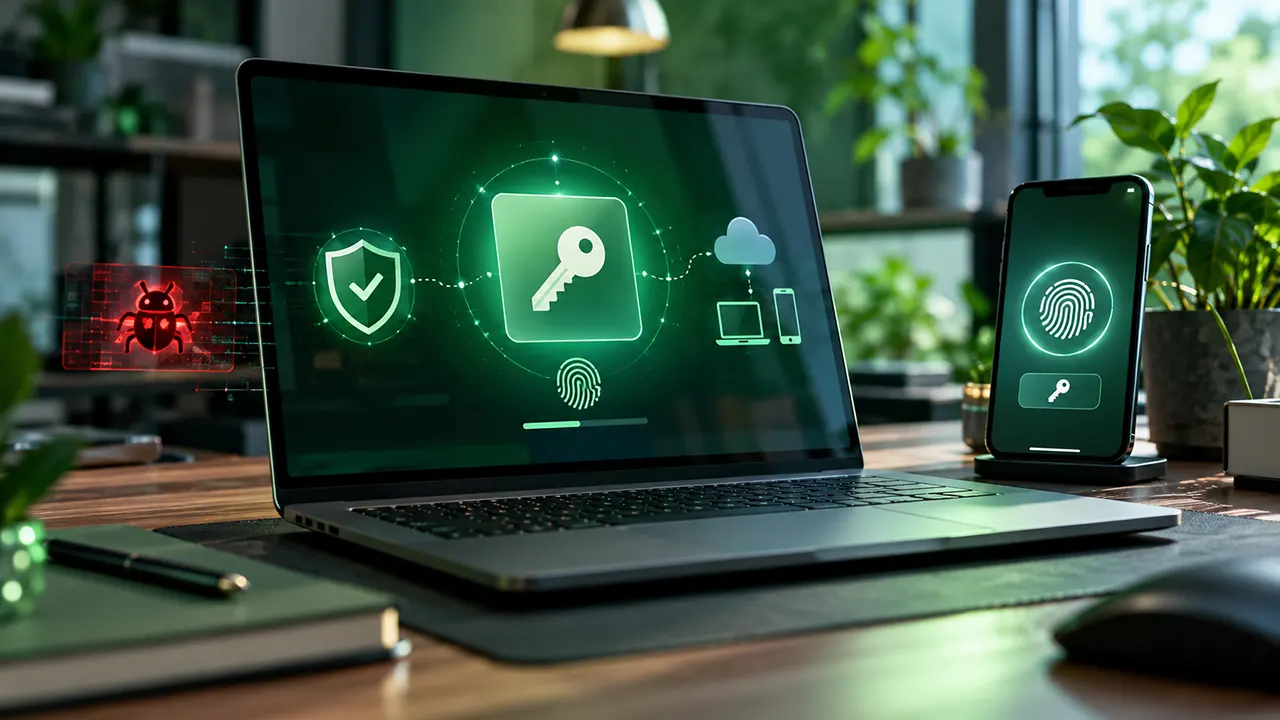
If you use Chrome or Android, you may already have access to passkeys through Google Password Manager. A passkey lets you sign in without typing a password. Instead, your device or passkey provider uses cryptographic credentials and asks you to verify yourself with a fingerprint, face scan, PIN, pattern, or device unlock. Google says passkeys are designed to resist phishing because they are tied to the website or app where they were created.
But there is an important security boundary to understand: phishing-resistant does not mean malware-proof. Passkeys remove many of the weaknesses associated with passwords, but they do not make a compromised computer or phone completely trustworthy.
That distinction matters when evaluating Google Password Manager passkeys. The right question is not simply whether passkeys are safe. It is what threats they protect you from, what threats remain, and how Google Password Manager handles the credential across your devices.
What Is a Passkey in Google Password Manager?
A passkey is a password replacement based on public-key cryptography. When you create one, a cryptographic key pair is generated. The website or app receives the public key, while the private credential is protected by the authenticator or passkey provider. The website can use the public key to verify a login without receiving a password that an attacker could simply steal and reuse.
Google Password Manager acts as a passkey provider for supported Chrome and Android environments. It can store and synchronize passkeys so you can use them on other compatible devices signed in to the same Google Account. Google says synchronized passkeys are end-to-end encrypted.
The basic relationship looks like this:
Passkey → cryptographic credential → authenticator/passkey provider → website or app → verified authentication
A passkey is therefore not simply a password saved in Chrome.
A saved password is a secret that can be autofilled into a login form. A passkey uses a cryptographic authentication process instead. That difference is one reason passkeys can resist phishing and credential stuffing much more effectively than traditional passwords.
How Passkeys Work in Chrome
When a website supports passkeys, Chrome can work with the device or passkey provider to complete authentication.
Creating a passkey
The typical process is straightforward:
- Sign in to a supported website or app.
- Open its account or security settings if it does not immediately offer passkey creation.
- Choose the option to create a passkey.
- Select the available passkey provider if prompted.
- Confirm your identity using your device screen lock, biometric authentication, PIN, or another supported method.
- The passkey is created and stored by the selected provider.
Google’s current Chrome documentation says passkey creation uses the device’s screen unlock mechanism, such as a fingerprint, face recognition, PIN, or pattern. Not every website or app supports passkeys yet.
Signing in with a passkey
The sign-in process is even simpler:
Website → choose account → select passkey → verify with device unlock → authenticated
The important part happens behind the scenes. Instead of sending a password to the website, the authenticator uses the private credential to produce cryptographic proof that can be verified by the site’s public key.
The website therefore does not need your passkey secret to authenticate you.
Why Chrome passkeys resist phishing
Passkeys are associated with the identity of the website or app for which they were created. Google explains that the browser and operating system enforce this relationship, preventing a passkey created for one site from simply being used at an unrelated fraudulent site.
This changes the phishing problem.
With a password, an attacker can create a fake login page and ask you to type your username and password. If you enter them, the attacker has the credentials.
A passkey does not work that way. There is no password for the fake site to collect.
That is why passkeys are considered phishing-resistant authentication. CISA also identifies FIDO/WebAuthn authentication as a widely available form of phishing-resistant authentication.
How Google Password Manager Stores and Syncs Passkeys
This is the section that matters most if you searched for passkeys Google Password Manager.
Google Password Manager can store passkeys and synchronize them between supported environments. Google says Chrome on Android, Windows, macOS, Linux, and ChromeOS supports Google Password Manager passkeys, with some platform-specific differences.
Google says synchronized passkeys are encrypted before synchronization and require authentication to decrypt and use them on a new environment. Depending on the platform, that protection can involve the Android device screen lock or a Google Password Manager PIN.
What the Google Password Manager PIN does
On supported desktop setups, Google Password Manager may ask you to create a PIN when you create your first passkey.
Google says the PIN can help recover passkeys on a new device, protect encrypted data from unauthorized access, and confirm your identity when using passkeys.
That makes the PIN more than a minor Chrome setting. It is part of the security mechanism surrounding synchronized passkeys.
On Android, Google Password Manager uses the device’s screen lock rather than providing the same separate PIN-management experience available on desktop.
Which platforms support Google Password Manager passkeys?
Google’s current documentation lists Google Password Manager support across several Chrome environments, including Windows, macOS, Linux, ChromeOS, and Android. iOS and iPadOS have different default credential-management behavior and can require additional configuration to use Google Password Manager for passkeys.
This is important because “Chrome supports passkeys” does not always mean that Chrome stores the passkey in exactly the same place on every operating system.
For example, Chrome on Windows can work with Google Password Manager, while Windows Hello can also store passkeys locally. Google notes that Windows Hello credentials do not synchronize or back up in the same way as Google Password Manager passkeys.
Synced Passkeys vs Device-Bound Passkeys
Not all passkeys have the same storage model.
FIDO generally distinguishes between synced passkeys, which can be synchronized through a passkey provider, and device-bound passkeys, which remain tied to a particular authenticator or device.
| Security characteristic | Synced passkey | Device-bound passkey |
|---|---|---|
| Available on multiple devices | Yes, through the same passkey provider | No normal synchronization |
| Convenience | High | Lower |
| Device replacement | Easier | Requires another credential or recovery |
| Phishing resistance | Strong | Strong |
| Cloud synchronization | Yes | No |
| Recovery after device loss | Generally easier | More difficult |
| Typical consumer use | Excellent fit | More specialized |
| Malware immunity | No | No |
The key point is that device-bound does not mean malware-proof.
A device-bound credential may reduce synchronization-related exposure and can be appropriate for high-assurance environments. But if the computer or phone running the authentication process is compromised, the security problem has moved beyond the original password-versus-passkey question.
For most consumers, synced passkeys offer a valuable convenience advantage because they can remain available when a device is replaced or lost. FIDO specifically notes that synchronization can improve credential recovery and multi-device usability.
Are Google Password Manager Passkeys Safe From Malware?
No. Passkeys are not a complete defense against malware.
That does not mean passkeys are unsafe. It means that authentication security has several layers, and passkeys primarily solve some credential and phishing problems rather than every endpoint-security problem.
Consider four different situations.
Scenario 1: You visit a phishing website
Passkey protection: strong.
The fake site cannot simply ask for your Google Password Manager passkey in the same way it could ask you to type a password. Passkeys are bound to the legitimate relying party, which is why they are resistant to phishing.
Scenario 2: An attacker wants to steal your password
Passkey protection: strong.
There may be no password to steal from the passkey authentication flow. The website stores a public key rather than a reusable password secret.
Scenario 3: Malware is already running on your computer
Passkey protection: limited.
This is a different threat model.
The attacker is no longer trying to trick you into typing a password into a fake website. The attacker already has malicious software running on the endpoint and may attempt to interfere with authentication, access protected data, abuse trusted sessions, or target recovery and synchronization mechanisms.
That is why endpoint security still matters when using passkeys.
Scenario 4: Your authenticated session is compromised
Passkey protection: limited.
A passkey can provide strong authentication at login, but authentication is only one part of an account session. If an attacker gains control of an already authenticated browser or session through another mechanism, the original passkey does not automatically undo that compromise.
This is the most important mental model:
Passkeys protect the authentication credential. They do not automatically make every layer above and below authentication trustworthy.
What the 2026 malware research changes
Unit 42’s research examined attacks against Google-synced passkeys in Chrome on Windows under a threat model where malware was already present on the endpoint. The researchers described several attack techniques targeting the surrounding passkey lifecycle and trust mechanisms.
The practical lesson is not that attackers can casually steal every Google Password Manager passkey.
The more accurate lesson is that an endpoint already controlled by malware is a fundamentally different security problem from a remote phishing attack.
That distinction is critical.
Passkeys can dramatically reduce the number of credentials an attacker can steal through phishing, password reuse, and credential stuffing. But once an attacker controls the device itself, the security boundary becomes much more complicated.
Passkeys vs Passwords: Which Is Safer?
For normal online authentication, passkeys provide important security advantages over passwords.
| Security property | Password | Passkey |
|---|---|---|
| Phishing resistance | Weak | Strong |
| Password reuse risk | High | Very low |
| Credential stuffing | Vulnerable | Strong protection |
| Server password database theft | Potentially serious | Public key alone is not enough to authenticate |
| Memorization | Required | Usually unnecessary |
| Fake login pages | Can steal credentials | Designed to resist credential phishing |
| Malware on endpoint | Vulnerable | Not automatically prevented |
| Compromised authenticated session | Risk remains | Risk remains |
| Account recovery abuse | Possible | Possible |
| Device compromise | Risk remains | Risk remains |
The biggest improvement is not simply that passkeys are “harder to guess.”
It is that the authentication model removes the reusable password secret from the normal sign-in process.
FIDO describes passkeys as password replacement technology built on FIDO authentication standards and designed to provide phishing-resistant authentication.
So the better conclusion is:
Passkeys are safer than passwords for many common authentication threats, but they are not a replacement for endpoint security.
How to Create a Passkey With Google Password Manager
If a supported website offers passkeys, you can generally create one through its account-security settings.
- Open the website in Chrome.
- Sign in to your existing account.
- Open the account, security, or login settings.
- Look for Passkey, Create a passkey, or a similar option.
- Choose Google Password Manager if Chrome gives you a choice of passkey provider.
- Confirm the account information shown by the website.
- Use your device screen lock, biometric authentication, PIN, or other supported verification method.
- Complete the registration.
Google’s current Chrome instructions confirm that passkey creation requires you to authenticate with the device screen unlock mechanism.
The exact button names can differ between websites. A site might place passkey creation under Security, Sign-in & security, Account settings, or another menu.
If the site does not offer passkeys, you cannot force Chrome or Google Password Manager to create one for that service.
How to Use a Google Password Manager Passkey in Chrome
Once a passkey exists, signing in is normally much faster.
- Open the website or app.
- Select the account you want to use.
- Choose the passkey sign-in option if it is not automatically offered.
- Select the available passkey.
- Verify yourself using your device’s screen lock or biometric authentication.
- Complete the sign-in.
Google says passkeys stored in Google Password Manager can be used across supported devices where you are signed in with the same Google Account.
Using a phone to sign in on another computer
You do not always need the passkey to be synchronized directly onto the computer.
Chrome can support cross-device authentication. A computer can display a QR code, which you scan with your phone. The phone then authenticates you and provides the cryptographic proof needed for the sign-in.
This is particularly useful when your phone has the passkey but the computer does not.
FIDO describes this as cross-device authentication, using a nearby device and standardized protocols to establish the authentication flow.
What Happens If You Lose Your Phone?
The answer depends on how the passkey was stored.
If you use a synchronized passkey provider such as Google Password Manager, losing one device does not necessarily mean losing the passkey permanently. Google documents recovery of synchronized passkeys on a new device using the appropriate account and security factor.
Device-bound credentials are different.
Google notes that passkeys stored in Windows Hello are not synchronized or backed up through Google Password Manager. If the computer is lost or the operating system is reinstalled, those credentials may not be recoverable. Security-key passkeys also require a backup or another recovery method because the credential itself is not backed up.
That is why recovery should be considered when choosing a passkey model.
The strongest credential is not useful if you have no practical way to regain access after losing the authenticator.
FIDO likewise recommends considering alternative authentication or recovery methods because both synced and device-bound passkeys can become inaccessible under certain circumstances.
What Passkeys Still Cannot Protect You From
Passkeys solve a specific class of authentication problems. They should not be treated as a universal cybersecurity shield.
| Threat | What passkeys can do |
|---|---|
| Fake login page | Strong protection |
| Password reuse | Removes the password-reuse problem |
| Credential stuffing | Strong protection |
| Stolen password database | Reduces the value of server-side credential theft |
| Malware already controlling the endpoint | Does not automatically eliminate the threat |
| Compromised browser or operating system | Does not automatically restore trust |
| Stolen authenticated session | Does not automatically invalidate the session |
| Social engineering | Still possible |
| Account recovery abuse | Still possible |
| Lost device | Depends on passkey storage and recovery design |
This distinction prevents one of the most common passkey misconceptions.
A passkey can be phishing-resistant without being endpoint-compromise-resistant.
Those are different security properties.
How to Make Google Password Manager Passkeys Safer
Passkeys are strongest when combined with good device and account security.
1. Keep Chrome updated
Browser security is part of the authentication chain. A strong credential cannot compensate for an unnecessarily vulnerable browser.
2. Keep your operating system updated
Windows, Android, macOS, Linux, and ChromeOS security updates can address vulnerabilities that malware may otherwise exploit.
3. Use a strong device screen lock
Google Password Manager passkeys rely on device security mechanisms to protect access. Google specifically documents the use of Android screen locks and Google Password Manager PINs in its passkey architecture.
4. Protect your Google Account
A synchronized passkey ecosystem depends on the security of the account and devices used to manage it. Use strong account security and review unusual account activity.
5. Protect your Google Password Manager PIN
If your desktop configuration uses a Google Password Manager PIN, treat it as a security credential rather than an ordinary Chrome preference.
6. Be careful with software and browser extensions
If you suspect malware has infected your computer, do not assume that having passkeys means the machine can still be trusted.
7. Maintain recovery options
Recovery becomes especially important if you use device-bound credentials or have only one device capable of authenticating you.
8. Understand what type of passkey you are using
A synchronized Google Password Manager passkey and a device-bound security-key credential have different recovery and portability properties. Knowing which model you use makes account planning much easier.
Passkey Problems You May Encounter in Chrome
The passkey option does not appear
The website may not support passkeys, or the browser and operating system may not have access to the expected passkey provider.
Check the website’s account-security settings and make sure Chrome and your operating system are current.
Chrome asks for a different passkey provider
Your device may have more than one passkey provider. Android, for example, can allow users to select a passkey provider, including Google Password Manager and compatible third-party providers.
Your passkey is not available on another device
Check whether the passkey was synchronized through Google Password Manager or stored locally in another provider such as Windows Hello, a Chrome profile, Apple Passwords, or a security key. These storage models have different synchronization behavior.
A passkey was deleted by the website
Google’s Android documentation notes that a website can indicate that a passkey is no longer valid. In that situation, you may need to create a new passkey on the website.
The Practical Security Verdict
Yes, most consumers should consider using passkeys instead of passwords when a trusted service supports them.
Google Password Manager makes passkeys especially practical because synchronization can reduce the friction of using them across supported devices. Passkeys also remove many of the weaknesses that make passwords attractive targets for phishing, credential stuffing, and reuse.
But do not make the mistake of treating a passkey as a complete security system.
The more accurate model is:
Passkey = strong authentication layer
Secure device + secure browser + secure account + recovery plan = stronger overall security
That is why the most important distinction in modern passkey security is not “passkeys versus passwords.”
It is phishing resistance versus endpoint trust.
If your main concern is password theft and phishing, passkeys are a major improvement. If your device is already infected with sophisticated malware, the problem is much broader than the credential itself.
Frequently Asked Questions About Google Password Manager Passkeys
1. What is a passkey in Google Password Manager?
A passkey is a passwordless authentication credential based on public-key cryptography. Google Password Manager can store and synchronize supported passkeys across compatible devices. You normally unlock or use a passkey with your device’s biometric authentication, PIN, pattern, or screen lock rather than typing a password.
2. Are Google Password Manager passkeys safe?
Yes, for the threats they are designed to address. Passkeys provide strong resistance to phishing and remove many risks associated with password reuse and credential stuffing. Google says synchronized passkeys are end-to-end encrypted. However, passkeys do not make a device immune to malware or other endpoint compromises.
3. Can malware steal a Google Password Manager passkey?
Malware already running on a device can create security risks around passkey authentication, synchronization, recovery, and active sessions. Research from Unit 42 demonstrates attack scenarios under a compromised-endpoint threat model. This is different from saying that ordinary malware can simply copy every passkey private key.
4. Are passkeys phishing-proof?
Passkeys are designed to be phishing-resistant rather than absolutely immune to every possible attack. They are cryptographically associated with the website or app for which they were created, so a fake website cannot simply collect the passkey in the same way it can collect a password.
5. Are passkeys better than passwords?
For many common authentication threats, yes. Passkeys eliminate password reuse and greatly reduce the value of password phishing and credential stuffing. They also avoid sending a reusable password secret to the website. They do not, however, eliminate risks from malware, compromised sessions, social engineering, or account recovery attacks.
6. Can I use Google Password Manager passkeys in Chrome on another device?
Often, yes. Google Password Manager can synchronize passkeys across supported Chrome and Android environments when you are signed in with the same Google Account. Cross-device authentication can also let a nearby phone authenticate a computer through a QR-code flow when the passkey is not directly available on that computer.
7. What is the difference between a synced passkey and a device-bound passkey?
A synced passkey can be synchronized through a passkey provider and made available across supported devices. A device-bound passkey remains tied to a particular authenticator or device. Synced passkeys generally offer better convenience and recovery, while device-bound credentials can provide stronger control over where the credential exists.
8. What happens if I lose my phone with my passkeys?
If your passkeys are synchronized through Google Password Manager, they may be recoverable on a new supported device after you authenticate appropriately. Device-bound credentials are different and may require another credential or account-recovery method. You should therefore maintain a recovery path before losing access to your primary device.
9. Can I use a passkey on a computer that does not have it stored?
Yes. Cross-device authentication can allow a phone containing the passkey to authenticate a nearby computer. The computer can display a QR code, and the phone can approve the authentication. This makes passkeys usable across different device ecosystems without requiring the credential to be permanently copied to the computer.
10. Why is my passkey not working in Chrome?
Common causes include the website not supporting the expected passkey flow, the credential being stored in another provider, a mismatch between devices or accounts, or a passkey that the website has invalidated. Check which passkey provider Chrome is using, confirm that you are signed in to the expected Google Account, and check the site’s security settings before creating a replacement credential.
The Bottom Line
If a website supports passkeys, using one through Google Password Manager is generally a better security choice than continuing to rely on a reusable password. The important caveat is that the passkey is only one layer of the security model.
Passkeys can make phishing and password theft dramatically harder. They cannot turn an already-compromised device into a trusted device.
So use passkeys, keep Chrome and your operating system updated, protect your Google Account and device unlock credentials, and maintain a practical recovery method.
That is the more realistic way to think about passkeys in Google Password Manager: not as magic protection, but as a major upgrade to the authentication layer.

Belayet Hossain is a Senior Tech Expert and Certified AI Marketing Strategist. Holding an MSc in CSE (Russia) and over a decade of experience since 2011, he combines traditional systems engineering with modern AI insights. Specializing in Vibe Coding and Intelligent Marketing, Belayet provides forward-thinking analysis on software, digital trends, and SEO, helping readers navigate the rapidly evolving digital landscape. Connect with Belayet Hossain on Facebook, Twitter, Linkedin or read my complete biography.