


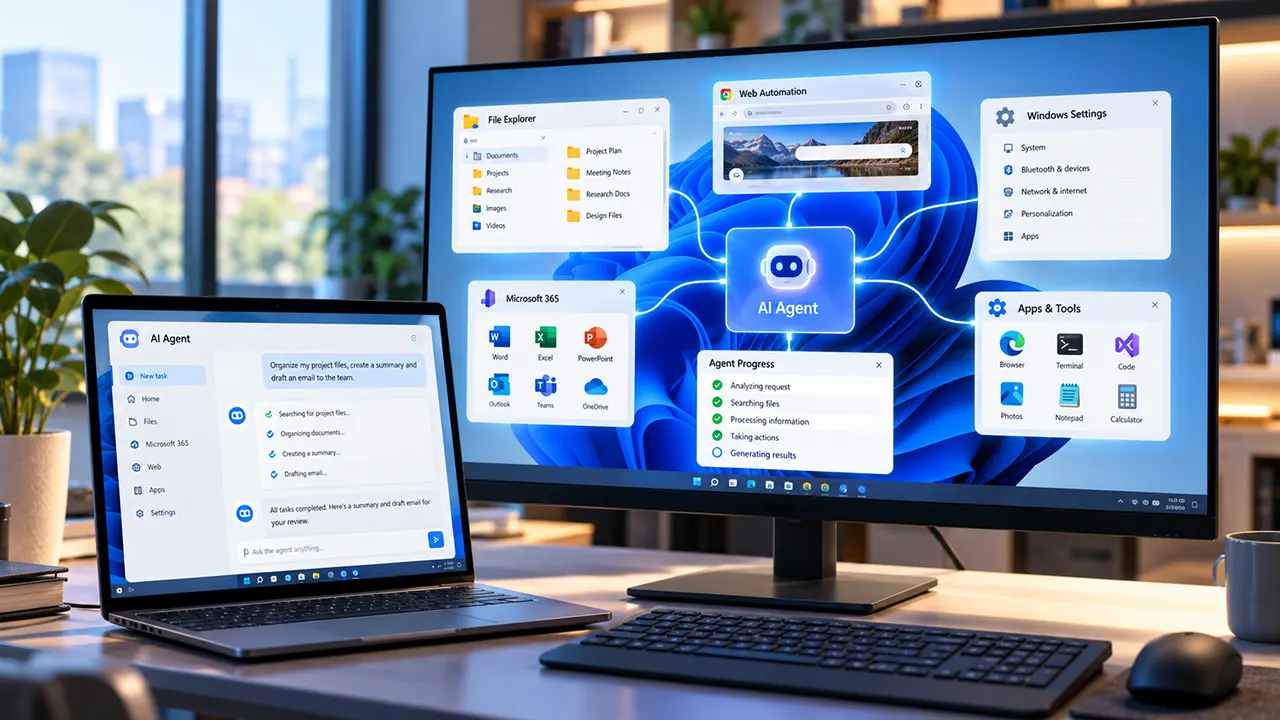
Windows 11 AI agents are AI systems that can understand a goal, reason through tasks, use authorized tools, and take actions on a Windows PC. Unlike basic chatbots, they can work with apps, files, browsers, settings, and connected services to complete multi-step tasks, depending on their permissions, capabilities, and Windows version.
Windows 11 Is Moving From AI Answers to AI Actions
For years, using AI on a Windows PC mostly meant opening a chatbot, typing a question, and reading the response. Windows 11 is moving toward something different: AI that can use tools, interact with apps and files, and complete multi-step tasks with less step-by-step guidance from you.
That shift is driving interest in Windows 11 AI agents. Instead of only generating text, an AI agent can plan a task, use authorized tools, take actions, and report what it accomplished. Microsoft’s newer Windows agent features, Microsoft Scout, Copilot Actions, and third-party tools such as OpenClaw show how quickly this model is developing.
This guide explains what Windows 11 AI agents are, how they differ from chatbots, what they can do, how Microsoft is building agent support into Windows, and what you should know about security and privacy before giving an agent access to your PC.
What Are Windows 11 AI Agents?
Windows 11 AI agents are AI systems that can do more than answer questions. They can use authorized tools, interact with applications and files, perform multiple steps, and take actions on a user’s behalf.
A simple chatbot might answer, “How can I organize these files?” An agent can potentially go further by inspecting the files, deciding how to organize them, creating folders, moving files, and reporting the result.
The important word is action.
An AI agent generally combines several capabilities:
- Natural-language understanding
- Planning and reasoning
- Access to tools
- Interaction with software or data
- Permission management
- Multi-step task execution
- Feedback about its progress and results
The exact capabilities depend on the agent. Some agents mainly work with web services. Others can access local files, browsers, applications, command-line tools, or operating-system functions.
How an AI Agent Works
A simplified Windows 11 AI-agent workflow looks like this:
- You describe a goal.
- The agent interprets the request.
- It creates a plan or selects the required tools.
- It performs authorized actions.
- It asks for approval when required.
- It reports the result.
For example, imagine asking an agent to prepare a project folder. Instead of telling you which files to move, an agent could inspect the workspace, identify relevant documents, create folders, organize files, and show you what it changed.
That does not mean every Windows 11 AI agent can perform every task. Access depends on the agent’s design, permissions, Windows version, connected services, and available tools.
What Makes an AI System “Agentic”?
The defining feature is not simply intelligence. It is the ability to act toward a goal using tools.
An agent may decide which tool to use, perform several actions in sequence, observe the result, and continue until the task is complete or it reaches a limitation.
That makes agentic AI different from a system that only generates an answer.
How AI Agents Differ From AI Chatbots
The difference becomes clearer when you compare what each system is designed to do.
| Capability | Traditional AI chatbot | AI agent |
|---|---|---|
| Answer questions | Yes | Yes |
| Generate text | Yes | Yes |
| Summarize information | Yes | Yes |
| Plan multi-step tasks | Limited | Common |
| Use external tools | Sometimes | Core capability |
| Work with local files | Usually limited | Possible with permission |
| Interact with applications | Usually limited | Possible |
| Execute actions | Limited | Core use case |
| Work with less ongoing input | Limited | Possible |
| Request permissions | Depends on product | Common for sensitive actions |
These are broad distinctions, not rigid technical rules. Some modern chatbots already have tool-use capabilities, while some agents remain highly dependent on user approval.
The practical difference is what happens after the answer is generated.
A chatbot may tell you how to rename 50 files. An agent may be able to perform the renaming itself if it has the necessary tool access and permissions.
How AI Agents Can Interact With Windows 11
Windows 11 can provide agents with access to different resources depending on the feature and security model involved. Microsoft’s current agentic Windows work includes agent workspaces, agent accounts, agent connectors, and MCP-based connections between agents and Windows apps or system tools.
Files and Folders
File access is one of the most useful agent capabilities.
An authorized agent can potentially:
- Find files
- Read documents
- Create documents
- Edit files
- Organize folders
- Search project directories
- Move or manage files
Microsoft’s experimental Windows agent environment uses scoped access rather than automatically giving an agent unrestricted access to a user’s entire PC.
That distinction matters. Giving an AI access to a specific project folder is very different from giving it unrestricted access to every personal document on a computer.
Apps and Browsers
Computer-use agents can interact with applications through interfaces in ways that resemble human interaction.
Depending on the agent, this can include:
- Opening applications
- Clicking interface elements
- Typing information
- Navigating websites
- Filling forms
- Reading information from applications
- Performing multi-step browser workflows
Microsoft describes Copilot Actions as an experimental Windows agent capable of interacting with apps and files using vision and reasoning.
Windows Settings
Windows is also experimenting with more direct AI assistance inside system settings.
Microsoft documents an agent in Windows Settings that can help users find and change settings using natural-language requests. The current implementation has specific hardware, Windows version, and rollout requirements, so it should not be treated as a universal Windows 11 feature.
The important development is the direction: instead of remembering where a setting lives, users can describe what they want to change and let an AI system help locate or perform the task.
Microsoft 365
Agents can become much more powerful when they connect Windows with cloud services.
Depending on the product and permissions, this can include:
- Outlook
- Teams
- OneDrive
- SharePoint
- Calendar data
- Documents
- Meetings
- Contacts
Microsoft Scout is a notable example because it combines desktop capabilities with Microsoft 365 access.
Shell and Developer Tools
Some desktop agents can also interact with command-line environments.
This can allow an agent to:
- Run commands
- Build software
- Run tests
- Inspect code
- Execute scripts
- Analyze errors
- Work with development tools
This capability can be extremely useful for developers, but it also increases the importance of permission controls. A system that can execute shell commands has more potential impact than an AI system that only generates text.
MCP and Agent Connectors
The Model Context Protocol, commonly called MCP, is becoming an important part of the agent ecosystem.
Microsoft describes agent connectors as MCP servers that act as bridges between AI agents and Windows applications or system tools. These connectors can allow an agent to access data or perform actions through defined interfaces.
This matters because agents do not need every capability built directly into the AI model. Instead, tools can extend what an agent can do.
The result is a more flexible architecture:
AI model + tools + permissions + operating-system integration = agentic workflow
Microsoft Scout: A Windows Desktop AI Agent
Microsoft Scout is one of the clearest examples of where desktop AI agents are heading.
Microsoft describes Scout as a desktop AI application that can take action across files, shell commands, browsers, and Microsoft 365 data. It is currently a preview experience rather than a mature, universally available Windows feature.
What Microsoft Scout Can Do
According to Microsoft’s current documentation, Scout can:
- Read, create, edit, and search files
- Work with documents and code
- Run shell commands
- Build and test software
- Automate browser interactions
- Search the internet
- Work with Outlook
- Work with Teams
- Work with OneDrive and SharePoint
- Work with calendars and meetings
- Run autonomous tasks
- Delegate certain work to specialized sub-agents
This makes Scout fundamentally different from a simple chat window.
You can describe a goal, and Scout can determine which tools it needs to complete the work.
Scout’s Local and Cloud Access
One of Scout’s important characteristics is the combination of local desktop access and Microsoft 365 connectivity.
For example, an appropriately configured workflow could involve working with files stored on the computer, using development tools, accessing Microsoft 365 information, and producing a result in one conversation.
That combination is also why permissions matter so much.
The more systems an agent can access, the more carefully users should understand what the agent is allowed to read, change, or send.
Scout Uses Permission Controls
Microsoft’s current Scout documentation describes permission levels that can allow, prompt for, or deny particular actions.
Sensitive actions can require user confirmation.
This creates an important principle for desktop agents:
Autonomy does not have to mean unlimited authority.
An agent can perform many steps automatically while still requiring approval for actions that could send information, modify important data, or affect other people.
Scout’s Current Availability
Scout is currently a preview product available through Microsoft’s Frontier program, with specific account and licensing requirements.
That means readers should not assume that Microsoft Scout is available to every Windows 11 user.
Its capabilities and availability can also change as Microsoft develops the product.
OpenClaw on Windows 11
OpenClaw represents another part of the emerging desktop-agent ecosystem.
Unlike a Windows feature built directly into the operating system, OpenClaw is an open-source AI agent project that can be used as an agent platform and connected to different tools and workflows.
Microsoft has also identified OpenClaw technology as part of the technology behind Microsoft Scout.
OpenClaw and Windows
OpenClaw’s current documentation provides Windows installation and usage paths, including its Windows Hub, PowerShell-based setup, and WSL2 options.
The exact setup depends on how you intend to use OpenClaw.
For developers and technically experienced users, this type of flexibility can be useful because an agent can be connected to development environments, tools, services, and custom workflows.
Why OpenClaw Matters
OpenClaw is relevant to Windows 11 AI agents because it demonstrates that the agent ecosystem is not limited to one operating-system vendor.
Users can encounter several layers:
- Operating-system AI features
- Microsoft AI agents
- Open-source agents
- Developer-focused agents
- Cloud-based agents
- Local desktop agents
- Agents connected through MCP
This distinction will become increasingly important as AI moves from standalone chat applications into operating systems and software workflows.
For detailed installation instructions, a dedicated OpenClaw on Windows 11 guide makes more sense than putting every setup step into this overview.
Microsoft Copilot and Agentic Features in Windows 11
Microsoft Copilot remains an important part of the Windows AI story, but it is useful to distinguish traditional conversational Copilot experiences from newer agentic features.
Copilot Actions
Microsoft describes Copilot Actions as an experimental agent that can interact with apps and files to perform tasks.
Instead of simply explaining how to complete a task, the agent can potentially carry out actions such as editing documents or organizing files.
Because this capability is still evolving, availability and behavior can differ across preview builds and participating users.
Agent Workspace
Microsoft’s Agent Workspace is designed to give agents a contained environment where they can work while remaining separated from the user’s normal desktop session.
An agent workspace can use its own agent account and permissions.
This is significant because operating-system-level AI needs more than a powerful model. It also needs a security boundary around what the model can do.
Agent Connectors
Agent connectors provide another layer.
They can connect agents to Windows applications and system tools through MCP-based interfaces.
Instead of giving an agent unrestricted access to everything, the operating system can manage which connectors are available and what permissions are associated with them.
AI in Windows Settings
Microsoft also offers an Agent in Windows Settings that uses on-device AI to understand natural-language requests, recommend relevant settings, and, with the user’s permission, complete supported setting changes. Microsoft’s current documentation lists Windows 11 version 24H2 with KB5062660 or later and a Copilot+ PC as requirements, with availability also depending on language, geography, rollout, and device configuration.
This feature should not be treated as representative of every Windows 11 PC. Microsoft lists it as a Copilot+ PC capability, and other Windows 11 AI features have their own hardware, software, and availability requirements.
This is a useful example of a narrower AI agent: it does not need broad control over the computer to be useful. It can focus on a specific domain – Windows settings.
What Can Windows 11 AI Agents Automate?
The practical value of an AI agent depends on the tools and permissions available to it.
Here are some of the most useful categories.
File and Document Tasks
Agents can potentially:
- Find documents
- Summarize files
- Create reports
- Rename or organize files
- Convert information into new documents
- Search project folders
- Update spreadsheets
- Prepare presentations
The safest starting point is usually a dedicated workspace containing only the files the agent needs.
Research and Information Gathering
An agent can combine research with other tools.
A workflow might involve:
- Searching for information
- Collecting relevant sources
- Comparing findings
- Creating notes
- Preparing a report
- Saving the result
The important distinction is that the agent can potentially execute the workflow instead of merely telling you how to do each step.
Browser Workflows
Browser-capable agents can potentially:
- Navigate websites
- Search pages
- Fill forms
- Gather information
- Compare data
- Complete repetitive web tasks
These capabilities need extra caution because websites can contain untrusted instructions or malicious content.
Coding and Technical Work
Developer-focused agents can be particularly powerful on Windows.
Depending on their permissions, they may:
- Inspect a codebase
- Modify files
- Run tests
- Execute builds
- Analyze errors
- Run scripts
- Work with Git
- Automate repetitive development tasks
The ability to execute commands makes permission management especially important.
Microsoft 365 Workflows
Agents connected to Microsoft 365 can potentially help with:
- Calendars
- Meetings
- Teams
- OneDrive
- SharePoint
- Documents
This can turn an agent into a workflow coordinator rather than simply a writing assistant.
However, actions that affect other people or shared information should receive more scrutiny than purely local tasks.
Repetitive Business Tasks
AI agents may also help automate repetitive workflows such as:
- Preparing recurring reports
- Sorting documents
- Collecting information
- Creating meeting preparation material
- Checking project files
- Updating routine records
- Preparing drafts
The more consequential the action, the more important it becomes to require human review.
Security and Permissions for Windows 11 AI Agents
Giving an AI agent the ability to act on a computer creates a new security problem.
A chatbot that produces incorrect text can waste your time. An agent with access to files, browsers or commands could potentially make changes before you notice the mistake.
Microsoft therefore describes several security principles for Windows agentic experiences.
Agent Accounts
Windows is developing dedicated accounts for agents rather than simply allowing an agent to operate as the logged-in human user.
This creates a separate identity and allows different policies and permissions to be applied.
Limited Agent Privileges
Microsoft’s current Windows security model emphasizes limited permissions.
An agent starts with restricted access and can receive additional access when the user authorizes it.
This is an important security principle:
Give an agent the minimum access it needs to complete the task.
If an agent only needs a project folder, there is little reason to give it access to unrelated personal files.
Agent Workspace
An agent workspace provides a contained environment for agent activity.
The purpose is to separate agent actions from normal user activity while allowing the agent to perform its assigned work.
Microsoft describes this as a security boundary with scoped authorization and runtime isolation.
User Approval
Agent autonomy should not mean that users lose control.
Microsoft’s current agentic experiences include mechanisms for users to monitor activity and approve sensitive actions.
For important operations, a useful rule is:
Let the agent prepare the action, but keep a human involved before the action creates significant consequences.
Prompt Injection
One of the less obvious risks is prompt injection.
A malicious instruction can be hidden inside content that an agent reads, such as a webpage or document. If an agent treats that content as an instruction rather than untrusted data, it may perform an unintended action.
Microsoft identifies cross-prompt injection as a specific security concern for agentic systems.
This is one reason you should not assume that an AI agent is safe simply because the software itself comes from a trusted company.
Privacy Considerations for Windows 11 AI Agents
Security and privacy overlap, but they are not identical.
Security asks:
Can an unauthorized party make the agent do something?
Privacy asks:
What information can the agent access, process, transmit, or store?
Local vs Cloud Processing
Some AI operations can happen locally, while others may use cloud services.
Before using an agent, check where the relevant processing occurs.
A local desktop application can still connect to cloud services. “Runs on your PC” does not automatically mean “all data stays on your PC.”
Files and Personal Data
An agent with file access may see information that a normal chatbot never sees.
Think carefully before giving an agent access to:
- Financial documents
- Password files
- Private photos
- Personal correspondence
- Identity documents
- Confidential business information
- Client data
Use dedicated workspaces where possible.
Microsoft 365 Data
Connecting an agent to Outlook, Teams, OneDrive, or SharePoint can dramatically increase its usefulness.
It also increases the amount of sensitive information that may become available to the agent.
Check the permissions before connecting a service.
Third-Party Agents
Third-party agents require additional scrutiny.
Before installing one, check:
- Who develops it
- What permissions it requests
- What data it accesses
- Whether it executes commands
- Whether it connects to external services
- How updates are delivered
- Whether you can revoke access
A useful rule is simple:
The more an agent can do, the more carefully you should inspect what it is allowed to access.
Windows 11 AI Agents vs Traditional AI Assistants
The difference between an assistant and an agent is mainly about execution and autonomy.
A traditional AI assistant may help you write an email, summarize a document, explain a setting, or brainstorm a solution.
An agent can potentially take the next steps.
| Area | Traditional AI assistant | AI agent |
|---|---|---|
| Main role | Help you think or create | Help you accomplish a task |
| User interaction | Often prompt-by-prompt | Can execute multi-step workflows |
| Tool usage | Limited or optional | Central to the design |
| Local computer access | Often limited | May be available |
| Background work | Usually limited | Possible |
| Automation | Basic to moderate | Potentially extensive |
| Permissions | Usually simpler | More important |
| Risk from incorrect actions | Lower | Potentially higher |
This does not make agents automatically better for every task.
If you only need an answer, a chatbot or assistant may be simpler.
If you need a repetitive multi-step workflow completed, an agent can be more useful.
The right choice depends on the task and the level of access you are comfortable granting.
What to Know Before Using a Windows 11 AI Agent
Before giving an agent permission to work on your Windows 11 PC, use this checklist.
Start With Low-Risk Tasks
Begin with tasks where a mistake would be easy to reverse.
For example:
- Summarizing documents
- Organizing a test folder
- Researching public information
- Creating a draft
- Analyzing sample data
Avoid starting with sensitive or irreversible actions.
Review Permissions
Ask:
- What files can it access?
- Can it run commands?
- Can it control a browser?
- Can it send email?
- Can it modify shared documents?
- Can it access Microsoft 365?
- Can it work in the background?
If you cannot answer these questions, investigate the permissions before enabling the agent.
Understand Where Your Data Goes
Check whether data is processed:
- Locally
- In the cloud
- Through a third-party service
- Through connected Microsoft services
- Through external MCP servers or tools
The data path matters as much as the AI model.
Keep Sensitive Data Out of Broad Workspaces
If an agent only needs access to one project, create a workspace for that project.
Avoid giving broad access simply because it is convenient.
Review Important Actions
For actions involving:
- Money
- Private data
- Account changes
- Shared documents
- Software installation
- System configuration
human review remains valuable even when the agent can technically perform the action automatically.
Frequently Asked Questions About Windows 11 AI Agents
Does Windows 11 have AI agents?
Yes, Microsoft is introducing and testing several agentic capabilities in Windows 11. These include Copilot Actions, Agent Workspace, agent connectors, and an AI agent experience in Windows Settings. Availability varies by feature, Windows build, device, and preview status.
What can Windows 11 AI agents do?
Depending on the agent and its permissions, they can work with files, applications, browsers, Windows settings, shell commands, Microsoft 365 services, and other connected tools. The exact capabilities vary significantly between agents.
Can AI agents access Windows files?
Some can, but access is controlled by the agent’s permissions and security model. Microsoft’s Windows agent architecture uses scoped access rather than automatically granting every agent unrestricted access to the user’s files.
Are Windows 11 AI agents safe?
Safety depends on the agent, its permissions, the tools it can access, and how it is configured. Windows is adding security controls such as separate agent accounts, scoped permissions, contained workspaces, user transparency, and approval mechanisms. Users should still review permissions and treat external content as potentially untrusted.
What is Microsoft Scout?
Microsoft Scout is a desktop AI application that can act across files, shell commands, browsers, and Microsoft 365 data. Microsoft currently offers Scout as a preview experience through its Frontier program, so its availability and capabilities can change.
What is OpenClaw on Windows 11?
OpenClaw is an open-source AI agent project that can be used on Windows through documented Windows installation and WSL2 options. It is relevant to the Windows agent ecosystem because it provides a flexible platform for agent-based automation and is also part of the technology behind Microsoft’s Scout experience.
Can AI agents automate Windows tasks?
Yes, some can. Depending on their tools and permissions, agents can automate tasks involving files, browsers, applications, system settings, development tools, and connected services. The scope of automation varies by agent.
Do all Windows 11 PCs support AI agents?
No. Windows 11 AI features have different requirements. Some features depend on specific Windows versions, updates, hardware such as Copilot+ PCs, account types, or preview enrollment. Check the requirements for the specific agent rather than assuming that every Windows 11 PC supports it.
Do Windows 11 AI agents always run in the background?
No. Background operation depends on the specific agent and configuration. Some agents can perform autonomous or scheduled work, while others only act when you interact with them.
Can I control what a Windows AI agent can access?
For Microsoft’s newer agentic Windows experiences, permissions and access controls are part of the design. Users can authorize access to specific resources and, in supported experiences, monitor or approve sensitive actions.
A More Agentic Windows Is Taking Shape
Windows 11 AI agents represent a shift in how people may interact with computers.
The traditional model is:
Open an application → find the right tool → perform each step → repeat.
The emerging agent model is:
Describe the goal → let the agent plan and use authorized tools → review the result.
Microsoft Scout, Copilot Actions, Windows Agent Workspace, agent connectors, the Windows Settings agent, and OpenClaw show different parts of that transition.
The technology is still developing, and many of the most advanced capabilities remain in preview. That makes one principle especially important: judge an AI agent by both what it can do and what it is allowed to do.
For everyday users, the safest starting point is a narrow task, a limited workspace, clear permissions, and human review for consequential actions.
For developers and power users, the emerging Windows agent ecosystem offers a much broader opportunity to automate multi-step workflows that previously required manual interaction with several applications.
The important question is no longer only, “What can AI answer?”
It is increasingly:
“What can AI safely do on my Windows PC?”

Belayet Hossain is a Senior Tech Expert and Certified AI Marketing Strategist. Holding an MSc in CSE (Russia) and over a decade of experience since 2011, he combines traditional systems engineering with modern AI insights. Specializing in Vibe Coding and Intelligent Marketing, Belayet provides forward-thinking analysis on software, digital trends, and SEO, helping readers navigate the rapidly evolving digital landscape. Connect with Belayet Hossain on Facebook, Twitter, Linkedin or read my complete biography.