


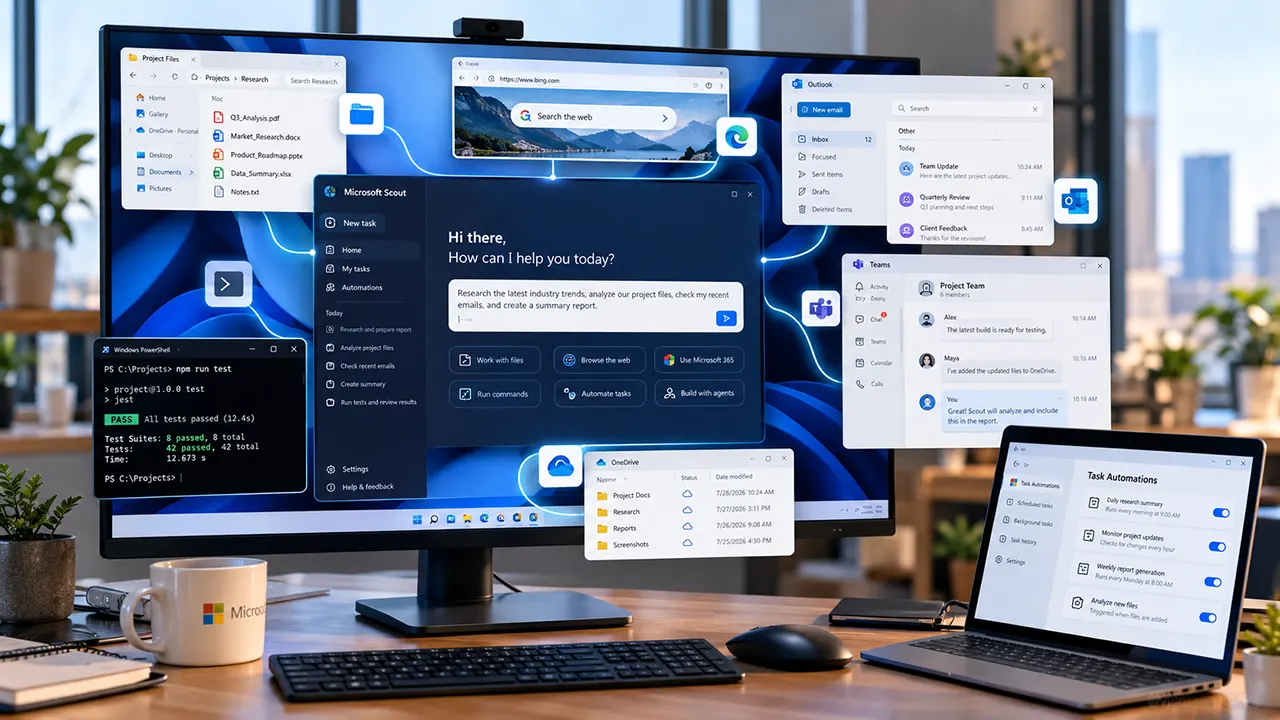
Microsoft Scout is a desktop AI agent from Microsoft for Windows 11 and macOS that can take actions across local files, shell commands, web browsers, development tools, and Microsoft 365. It can also run scheduled or background tasks. Scout is currently a Frontier preview, so access requires organizational enrollment and administrator configuration.
Microsoft Scout Is More Than a Chatbot
Imagine telling an AI assistant to review a folder, investigate a problem, search the web, prepare a report, and organize the results. A traditional chatbot can help you plan those steps or generate the final text. Microsoft Scout is designed to handle more of the work itself.
That is the idea behind Microsoft Scout.
Scout is a desktop AI application that can work with local files, run shell commands, control a browser, interact with Microsoft 365 data, and perform tasks in the background. It combines these capabilities inside one conversational interface.
For Windows users, there is an important distinction: Scout is not simply another built-in Windows 11 feature. It is a separate desktop AI application with permissioned access to your computer and connected Microsoft services.
This article explains what Microsoft Scout is, what it can do, how it works, what you need to use it, how it compares with Copilot, and what limitations you should know before trying it.
What Is Microsoft Scout?
Microsoft Scout is a desktop AI application designed to take action on your behalf across files, the shell, browser, development tools, and Microsoft 365.
Instead of only answering a question, Scout can plan and execute multiple steps needed to complete a task. You describe what you want in natural language, Scout selects the tools it needs, performs the work, shows its progress, and asks for approval when an action requires it.
Microsoft introduced Scout as its first Autopilot agent. The company describes Autopilots as agents designed to remain active and carry work forward instead of stopping after a single response.
Scout is currently available as an experimental Frontier preview. That means its capabilities and availability can change as Microsoft continues developing the product.
The current desktop application supports Windows 11 or later and macOS 12 Monterey or later.
What Can Microsoft Scout Do?
Microsoft Scout combines several capabilities that normally require separate applications or manual steps.
Work With Local Files
Scout can read, write, edit, create, and search files in its workspace.
This includes common document, spreadsheet, presentation, image, text, PDF, and code formats.
For example, you could ask Scout to search a project folder for files related to a quarterly review and create a summary from the relevant material.
You can also ask it to create a new document, update an existing file, organize information, or build an HTML dashboard from data it has found.
The important distinction is that Scout can work with files in its configured workspace instead of requiring you to manually upload every file into a chat.
Run Commands and Work With Code
Scout can work with development environments and execute shell commands subject to its permission system.
Its documented development capabilities include exploring codebases, applying patches, running builds and tests, running linters, and investigating failures. It can work with tools such as Git, GitHub CLI, curl, and PowerShell.
This creates a different workflow from simply asking an AI to explain code.
You could give Scout a project workspace and ask it to investigate a failing test, examine the relevant files, run the appropriate checks, and report what it discovered.
The permission system remains important because shell access gives an AI agent much more control over a computer than a standard text-only assistant.
Control a Web Browser
Microsoft Scout can automate browser interactions.
Its documented browser capabilities include navigating web pages, filling forms, taking snapshots, interacting with web applications, and inspecting browser information.
That means Scout can potentially handle workflows that require both research and interaction with websites.
For example, a task could involve researching information online, collecting the relevant findings, and organizing them into a document.
The agent is not limited to generating instructions for you to follow. It can perform browser actions within the permissions available to it.
Work Across Microsoft 365
Scout can connect to Microsoft 365 and work with services such as Outlook, Calendar, Teams, OneDrive, and SharePoint.
Depending on the connected services and permissions, it can work with email, calendar events, Teams conversations, meetings, files, and other Microsoft 365 information.
This enables multi-step workflows across different applications.
For example, you could ask Scout to prepare a brief for upcoming meetings using relevant information from your Microsoft 365 data and save the result as a document.
Actions that affect other people, such as sending email, sharing information, replying to messages, or changing calendar information, can require confirmation.
Search the Web and Conduct Research
Scout can also search the internet when a task requires current information.
Its research capabilities can retrieve web pages, synthesize information, and provide citations. Microsoft also documents specialized research agents that can work across multiple sources in parallel.
This makes Scout useful for tasks that combine local information with external research.
For example, an employee could ask Scout to investigate a technical issue, check current documentation, compare relevant approaches, and create a research report in the workspace.
Run Background Tasks and Automations
One of Scout’s more distinctive capabilities is its ability to continue working beyond a single conversation.
Microsoft documents both heartbeat mode and automations.
Heartbeat allows periodic background work, while automations can run tasks according to schedules or defined triggers.
This changes the basic AI workflow from:
Ask → receive answer
to:
Define the task → let the agent work → review the result
That is a major part of the difference between a conversational assistant and an autonomous AI agent.
Delegate Work to Sub-agents
Scout can delegate certain tasks to specialized sub-agents.
Microsoft documents agent types for activities such as:
- Exploring codebases
- Running tasks and tests
- Reviewing code
- Conducting research
- Handling complex general-purpose work
Sub-agents can work in parallel and return their findings to the main Scout conversation.
This can be useful when a task contains several independent research or analysis jobs.
How Does Microsoft Scout Work?
The simplest way to understand Scout is as a workflow rather than a chatbot.
- You describe the desired outcome.
- Scout determines which tools it needs.
- It performs the required steps.
- You can see its progress.
- Sensitive actions may require your approval.
- Scout returns the result or saves files to your workspace.
For example, instead of separately asking an AI to inspect a project, run tests, investigate an error, and prepare a report, you can describe the overall goal.
Scout can then coordinate the intermediate steps.
That is the central concept behind agentic AI: the user specifies the objective while the system handles more of the work required to reach it.
Microsoft Scout Requirements: What You Need Before Installing It
This is one of the most important things to understand before searching for a Microsoft Scout download.
Installing the application alone does not automatically give you access.
Microsoft currently requires Frontier participation and several organizational prerequisites.
Windows and macOS Requirements
Microsoft currently supports:
- Windows 11 or later
- macOS 12 Monterey or later
Windows users also need the latest Microsoft Visual C++ Redistributable.
The current Microsoft Download Center provides separate installers for Windows x64, Windows ARM64, Mac ARM64, and Mac x64 systems.
Microsoft 365 and GitHub Copilot Requirements
The current setup requirements include a Microsoft 365 work or school account associated with an organization.
Personal Microsoft accounts are not currently supported.
Microsoft also requires Microsoft 365 Copilot access and a GitHub account with GitHub Copilot Business or Enterprise access.
This means Scout is not currently positioned as a simple consumer AI application that anyone can download and immediately use with a personal Microsoft account.
Organization and Administrator Requirements
Your organization must participate in Microsoft’s Frontier program and enable Microsoft Scout.
Microsoft also requires administrator configuration through Intune for the relevant managed devices.
This creates several access gates:
- Frontier enrollment
- Organizational approval
- Microsoft Scout access configuration
- Appropriate Microsoft 365 access
- GitHub Copilot Business or Enterprise access
- Compatible device and operating system
A user can therefore download the installer successfully and still be unable to use Scout if the organization has not completed the required configuration.
How to Get Started With Microsoft Scout
If your organization meets the current requirements, the setup process is relatively straightforward.
1. Download Microsoft Scout
Use Microsoft’s official Microsoft Scout download page and select the installer for your operating system.
The current Microsoft Download Center lists Microsoft Scout version 0.23.578 for Windows and macOS.
Because Scout is a preview product, the version number and installer details can change.
2. Install the Application
Run the installer and follow the setup instructions.
If your organization manages the device, the application may instead be deployed by your administrator.
3. Sign In With Microsoft 365
Use your organizational Microsoft 365 credentials.
Personal Microsoft accounts are not currently supported.
4. Sign In to GitHub
Connect a GitHub account with the required GitHub Copilot Business or Enterprise access.
5. Configure Your Workspace
Scout asks you to choose a workspace directory.
This is the location where Scout can read and write files as permitted.
A good starting point is a dedicated project folder rather than your entire computer.
6. Review Permissions
Scout has a permission system that determines which actions can happen automatically and which require approval.
Review these settings before giving the agent access to sensitive files or powerful tools.
7. Start With a Small Task
For your first task, give Scout a clearly defined job.
For example:
Search this project folder for files mentioning the quarterly review and create a summary document.
Starting with a contained task makes it easier to understand how Scout plans, acts, requests permissions, and produces results.
Microsoft Scout vs Microsoft Copilot
Microsoft Scout and Copilot Chat both use conversational AI, but they are designed around different workflows.
| Capability | Microsoft Copilot Chat | Microsoft Scout |
|---|---|---|
| Primary role | Conversational AI | Desktop AI agent |
| Local workspace access | Limited by its cloud-based design | Yes, with permissions |
| Shell commands | No | Yes |
| Browser automation | No | Yes |
| Microsoft 365 integration | Yes, depending on access | Yes |
| Background automation | No | Yes |
| Local development workflows | Limited | Core use case |
| Multi-step computer tasks | More limited | Core use case |
The simplest distinction is this:
Copilot Chat is primarily designed to answer, create, summarize, and assist. Scout is designed to act across your digital workspace.
That does not mean Scout replaces Copilot.
Instead, Scout extends the agent concept into areas where local files, development tools, browsers, and background automation matter.
If you only need help writing an email or summarizing a document, a conversational AI experience may be enough.
If you want an agent to investigate files, run commands, operate a browser, work across Microsoft 365, and continue certain tasks in the background, Scout is designed for that broader workflow.
Is Microsoft Scout Safe to Use?
Scout has a permission system designed to give users and administrators control over what the agent can do.
The documented permission levels are:
| Permission level | What happens |
|---|---|
| Auto-approve | An allowed action can run automatically |
| Prompt | Scout asks you before performing the action |
| Deny | The action is blocked |
Microsoft says dangerous commands use the deny level by default.
Scout can also request access to folders outside its normal workspace when a task requires them.
This matters because an AI agent with access to files, shell commands, browsers, and business applications has a much larger action surface than a chatbot that only generates text.
A sensible approach is to begin with restrictive permissions and a limited workspace.
Then expand access only when a specific workflow requires it.
For external-facing actions, Microsoft documents approval controls for activities such as sending email, posting Teams messages, and updating calendar information.
Who Is Microsoft Scout For?
Microsoft Scout is most relevant to people whose work involves multi-step digital tasks.
Potential users include:
- Software developers
- IT professionals
- Technical teams
- Microsoft 365-heavy organizations
- Researchers
- Knowledge workers
- Teams exploring AI workflow automation
Developers may be particularly interested in Scout because it can work with code, Git, shell commands, tests, and browser-based tools.
Knowledge workers may care more about its Microsoft 365 capabilities.
The common factor is not a specific job title.
It is the need to move information and actions across multiple digital environments.
Who May Not Need Microsoft Scout Yet?
Scout may be unnecessary if your AI needs are limited to conversation.
For example, you may not need a desktop agent if you mainly want to:
- Ask questions
- Rewrite text
- Summarize documents
- Brainstorm ideas
- Create simple drafts
- Explain technical concepts
The access requirements are another consideration.
Scout currently requires Frontier participation, organizational configuration, and the relevant Microsoft 365 and GitHub Copilot setup.
For a personal user looking for a simple AI assistant, those requirements may be more important than Scout’s advanced capabilities.
Microsoft Scout Limitations You Should Know
The biggest limitation is its current status.
Microsoft Scout is still a Frontier preview.
Microsoft says preview features are still in development, can have restricted functionality, and may not ultimately become generally available.
Other limitations include:
- Personal Microsoft accounts are not currently supported.
- Organizational access is required.
- Administrator configuration is required.
- GitHub Copilot Business or Enterprise access is required.
- Availability can depend on organizational policies.
- Capabilities can change during the preview.
- Some environments are not supported.
- Permissions can restrict what Scout can do.
Microsoft also documents restrictions for certain government, sovereign, and national cloud environments.
There is another consideration for organizations: Scout processes prompts and content through GitHub Copilot, and the available model catalog is influenced by the organization’s GitHub Copilot configuration.
That makes organizational governance important when evaluating Scout for business use.
Frequently Asked Questions About Microsoft Scout
Is Microsoft Scout available for Windows 11?
Yes. Microsoft currently supports Microsoft Scout on Windows 11 or later. It is also available for macOS 12 Monterey or later. However, Scout remains a Frontier preview and requires the appropriate organizational access and configuration.
Is Microsoft Scout free?
Microsoft’s current documentation does not establish Scout as a simple free consumer product. Access is tied to Frontier and organizational requirements, including Microsoft 365 and GitHub Copilot access. Because the product is still in preview, users should check Microsoft’s current requirements before assuming a particular price or licensing arrangement.
Can Microsoft Scout access local files?
Yes. Scout can read, write, create, edit, and search files in its configured workspace, subject to its permissions. It can work with documents, spreadsheets, presentations, code, PDFs, images, and other supported formats.
Can Microsoft Scout control a browser?
Yes. Scout can automate browser interactions, including navigating pages, filling forms, taking snapshots, and interacting with web applications.
Does Microsoft Scout work with Microsoft 365?
Yes. Scout can connect to Microsoft 365 services such as Outlook, Calendar, Teams, OneDrive, and SharePoint, subject to the required account access and permissions.
Is Microsoft Scout available on mobile?
No. Microsoft currently describes Scout as a desktop application for Windows and macOS. Its local file, shell, and browser capabilities depend on desktop access.
Does Microsoft Scout replace Microsoft Copilot?
Not exactly. Copilot Chat is primarily a conversational AI experience, while Scout is designed to take actions across a desktop environment, local files, browser, shell, and Microsoft 365.
Can Microsoft Scout run tasks in the background?
Yes. Microsoft documents heartbeat mode and automations that allow Scout to perform certain work on a recurring or triggered basis.
Can Microsoft Scout work with code?
Yes. Scout can explore codebases, run builds and tests, use development tools, apply patches, run linters, and investigate failures within the permissions available to it.
Should You Explore Microsoft Scout?
Microsoft Scout shows where desktop AI agents are heading: away from systems that only answer questions and toward agents that can carry out multi-step work across the tools people already use.
Its combination of local files, shell access, browser automation, Microsoft 365 integration, research capabilities, background automation, and sub-agents makes it substantially different from a conventional chatbot.
But the access model matters.
Scout is still a Frontier preview, and its current requirements make it primarily relevant to organizations with the required Microsoft 365, GitHub Copilot, administrator, and Frontier setup.
If you are already exploring the broader world of Windows 11 AI agents, Microsoft Scout is an especially interesting product to watch because it puts the agent directly inside the desktop workflow.
What do you think about Microsoft Scout? Would you trust an AI agent with access to your files, browser, code, and work apps? Share your thoughts in the comments.

Belayet Hossain is a Senior Tech Expert and Certified AI Marketing Strategist. Holding an MSc in CSE (Russia) and over a decade of experience since 2011, he combines traditional systems engineering with modern AI insights. Specializing in Vibe Coding and Intelligent Marketing, Belayet provides forward-thinking analysis on software, digital trends, and SEO, helping readers navigate the rapidly evolving digital landscape. Connect with Belayet Hossain on Facebook, Twitter, Linkedin or read my complete biography.