


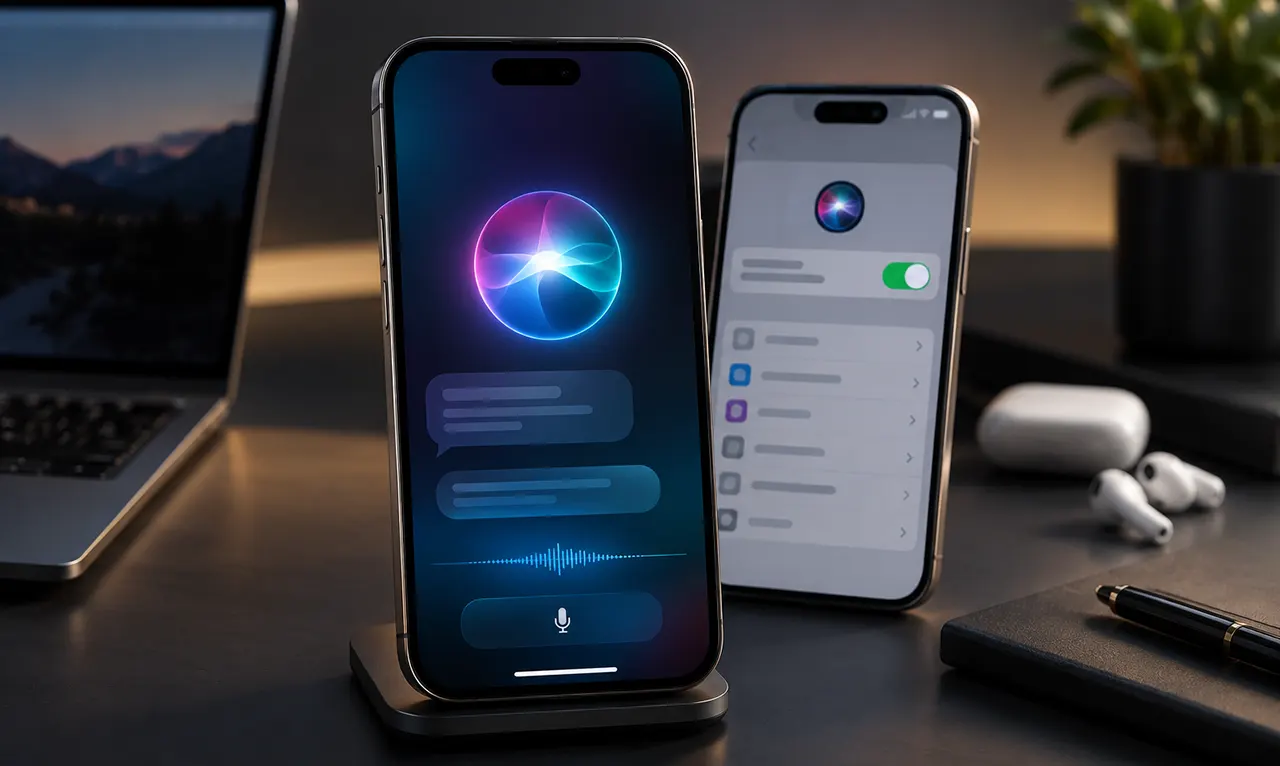
Siri AI is available as a beta in iOS 27 on supported Apple Intelligence-enabled iPhones. To enable it, go to Settings > Siri > Try Siri AI (Beta), then follow the setup instructions. You may need to join a waitlist before getting access. Siri AI currently requires an iPhone 15 Pro, iPhone 15 Pro Max, or iPhone 16 model or later, with Siri and the device set to a supported language. It is available in English to start.
Siri AI on iOS 27: Why You May Not See It Yet
If you updated your iPhone to iOS 27 but Siri still looks and behaves like the older assistant, your iPhone may not be missing the update. Siri AI is a separate beta experience that requires compatible Apple Intelligence hardware, supported language settings, and enrollment through the Siri settings. Apple currently lists Siri AI as a beta feature on iOS 27 or later.
The important distinction is simple: installing iOS 27 does not automatically give every compatible iPhone access to Siri AI. If your iPhone qualifies, you still need to enable the Siri AI beta and, depending on the rollout, wait for access.
What Is Siri AI?
Siri AI is Apple’s new conversational version of Siri, powered by the next generation of Apple Intelligence. Apple describes it as a more capable assistant with personal context understanding, onscreen awareness, broader world knowledge, additional app actions, Siri mode in Camera, and a dedicated Siri app.
The practical difference is that Siri AI is designed to understand more than a simple voice command. For example, Apple says Siri AI can search across supported personal information such as photos, Mail, Messages, and Calendar, understand what is displayed on your screen, and take actions across apps.
That makes Siri AI less like a basic voice-command tool and more like a system-level assistant that can work with information and actions already available on your iPhone.
Are You Eligible for Siri AI?
Before trying to activate Siri AI, check three separate conditions: your iPhone must support Apple Intelligence, your device and Siri languages must meet Apple’s requirements, and Siri AI must be available for your region. Apple currently says Siri AI requires an Apple Intelligence-enabled iPhone 15 Pro, iPhone 15 Pro Max, or iPhone 16 model or later.
iOS 27 vs Siri AI compatibility
This is where many iPhone users get confused. An iPhone can support iOS 27 without supporting Siri AI.
Apple’s broader iOS 27 compatibility list reaches older iPhone models, but Siri AI has the narrower Apple Intelligence hardware requirement. Current reporting also confirms that iOS 27 itself is available on iPhone 11 and newer, while Siri AI begins with the iPhone 15 Pro generation and newer supported models.
So, “Can my iPhone install iOS 27?” and “Can my iPhone use Siri AI?” are two different questions.
Siri AI requirements
For Siri AI on iPhone, Apple currently requires:
- An Apple Intelligence-enabled iPhone.
- iOS 27 or later.
- Siri enabled.
- A supported device and Siri language.
- Availability in your region.
- Enrollment in the Siri AI beta.
Apple currently lists Siri AI as available in English to start. Apple Intelligence itself supports a broader list of languages, but individual features can have different language and regional availability.
Siri AI compatible iPhone models
The key hardware cutoff is the iPhone 15 Pro generation.
| iPhone model | iOS 27 | Siri AI |
|---|---|---|
| iPhone 11 series | Yes | No |
| iPhone 12 series | Yes | No |
| iPhone 13 series | Yes | No |
| iPhone 14 series | Yes | No |
| iPhone 15 | Yes | No |
| iPhone 15 Pro | Yes | Yes |
| iPhone 15 Pro Max | Yes | Yes |
| iPhone 16 series | Yes | Yes |
| Later Apple Intelligence-compatible models | Yes | Yes, subject to Apple’s requirements |
Apple’s current Siri AI documentation identifies the iPhone 15 Pro, iPhone 15 Pro Max, and iPhone 16 models or later as compatible hardware.
The useful takeaway is that owning an iPhone 15 does not automatically mean you have the hardware required for Siri AI. The iPhone 15 Pro and 15 Pro Max meet Apple’s stated requirement, while the standard iPhone 15 does not.
How to Enable Siri AI on iOS 27
If your iPhone meets Apple’s requirements, enabling Siri AI starts in the Settings app.
Before you start
Make sure your iPhone is updated to iOS 27 and that Siri is enabled. Also check that your device and Siri language are supported for Siri AI. Apple currently lists English as the initial Siri AI language.
Step-by-step setup
- Open Settings on your iPhone.
- Tap Siri.
- If Siri is off, tap Turn on Siri.
- Tap Try Siri AI (Beta).
- Follow the onscreen instructions.
- Complete the required setup and enrollment steps.
- If Apple places your account in the rollout queue, wait for access.
Apple’s current setup instructions specifically direct supported users to Settings > Siri > Try Siri AI (Beta).
The most important step is not simply finding the Siri settings. You need to see the Try Siri AI (Beta) option. If it is missing, check the compatibility and availability requirements before assuming that iOS 27 installed incorrectly.
Siri AI Waitlist: What Happens After You Join?
The Siri AI waitlist is one of the biggest differences between installing iOS 27 and actually receiving the new Siri experience.
Apple’s current documentation says Siri AI is a beta feature, while current reporting confirms that users need to join a waitlist before receiving access. MacRumors reports that users can join by opening Settings, tapping Siri, selecting Try Siri AI (Beta), and following the prompts.
Why is there a Siri AI waitlist?
Apple has not published a guaranteed public activation schedule for individual users. The safest explanation is therefore that Siri AI is being rolled out as a beta service with access controlled separately from the iOS 27 installation.
Do not assume that everyone with compatible hardware receives Siri AI at exactly the same time.
How long does the Siri AI waitlist take?
There is no fixed wait time published by Apple.
Current reports show substantial variation. MacRumors reported that some users received Siri AI within minutes while others waited several hours or even days. Business Insider reported user-reported waits ranging from approximately 4 to 48 hours. These are reported experiences, not an Apple-guaranteed activation window.
That means you should not treat claims such as “Siri AI always takes 24 hours” as an official rule.
How will you know Siri AI is ready?
Once access is granted, the new Siri experience becomes available on your supported device. Current reporting says users can receive a notification when access is granted, after which the Siri AI experience and dedicated Siri app become available.
If you have joined the waitlist but do not immediately see Siri AI, waiting is not necessarily evidence that something is wrong.
Can you skip the Siri AI waitlist?
There is currently no verified official Apple method for bypassing the Siri AI waitlist.
Avoid relying on unofficial configuration changes or claims that a particular trick will guarantee immediate access. The safest approach is to complete Apple’s enrollment process and wait for your device to receive access.
Why Is Siri AI Not Showing Up on Your iPhone?
If you installed iOS 27 and cannot find Siri AI, work through the problem in this order.
Your iPhone supports iOS 27 but not Siri AI
This is the first thing to check.
The broader iOS 27 compatibility list does not mean every compatible iPhone supports Apple Intelligence or Siri AI. Siri AI currently requires the Apple Intelligence-enabled iPhone hardware identified by Apple.
If you have a standard iPhone 15, for example, updating to iOS 27 does not make it a Siri AI-compatible device.
You have not completed Siri AI enrollment
On a supported iPhone, open Settings > Siri and look for Try Siri AI (Beta).
Apple’s current instructions use this option to begin the Siri AI setup.
If you have not completed the enrollment process, installing iOS 27 alone will not complete it.
You are still waiting for access
If you completed enrollment but Siri AI has not appeared, you may simply still be waiting for access.
Current user reports show that wait times vary considerably, so a delay does not automatically mean your iPhone is incompatible.
Your language or region is not supported
Apple says Siri AI is initially available in English and that availability can vary by language and region. Apple also says Siri AI will not initially be available in the European Union on iOS, iPadOS, and watchOS.
For U.S. users, the initial English rollout makes the language requirement less likely to be the source of the problem, but your specific device and settings still need to meet Apple’s requirements.
Siri is turned off
Apple’s current setup instructions provide a separate path when Siri is disabled: Settings > Siri > Turn on Siri, followed by Try Siri AI (Beta).
If Siri itself is disabled, turn it on first and then check for the Siri AI beta option.
How to Turn Off Siri AI on iOS 27
You can turn off Siri AI if you prefer the previous Siri experience.
Apple’s current instructions say to open Settings, tap Siri, scroll down, tap Turn Off Siri, and confirm. You can then turn Siri back on and select Siri Classic.
How to get Classic Siri back
The process is:
- Open Settings.
- Tap Siri.
- Scroll down and tap Turn Off Siri.
- Confirm that you want to turn Siri off.
- Tap Turn on Siri.
- Select Siri Classic.
- Confirm the change.
This is useful if you want the traditional Siri interface without disabling Siri entirely. Apple’s current documentation specifically provides a Switch to Siri Classic option.
Do you need to disable Apple Intelligence completely?
No. Turning off Siri AI and disabling Apple Intelligence features across the device are related but broader settings.
Apple provides separate controls for Siri AI and other Apple Intelligence features, including summaries, personalized Smart Replies, Writing Prompts, and other functions.
If your goal is simply to return to the previous Siri experience, use the Siri settings rather than assuming you need to disable every Apple Intelligence feature.
What Can Siri AI Do on iPhone?
Siri AI expands Siri beyond basic voice commands by connecting conversational requests with supported information and actions on the iPhone.
| Capability | What it does |
|---|---|
| Personal context | Helps find relevant information across supported apps and personal data |
| Onscreen awareness | Uses what is displayed on the screen as context |
| App actions | Performs more actions across supported apps |
| World knowledge | Handles broader questions and information requests |
| Siri app | Provides a dedicated place for Siri conversations |
| Camera Siri mode | Lets you ask questions about what the camera sees |
| Expressive voices | Lets supported users adjust Siri’s voice characteristics |
Apple specifically documents personal context, onscreen awareness, broad world knowledge, Camera Siri mode, the dedicated Siri app, and additional app actions as part of the new experience.
One useful way to understand the upgrade is to focus on context. Instead of treating every request as an isolated voice command, Siri AI can use relevant information already available within supported parts of the iPhone.
Siri AI vs Classic Siri: What’s the Difference?
The main distinction is capability rather than simply a redesigned interface.
| Area | Siri Classic | Siri AI |
|---|---|---|
| Basic voice commands | Yes | Yes |
| Conversational interaction | More limited | Expanded |
| Personal context | More limited | Yes |
| Onscreen awareness | Limited | Yes |
| Broader knowledge | More limited | Expanded |
| Cross-app actions | Existing Siri capabilities | Expanded capabilities |
| Dedicated Siri app | No | Yes |
| Siri mode in Camera | No | Yes |
Apple describes Siri AI as a new conversational assistant with personal context understanding, onscreen awareness, broad world knowledge, additional app actions, Camera Siri mode, and a dedicated Siri app.
Because Siri AI is still a beta feature, its capabilities and availability can change as Apple updates the software.
Siri AI vs ChatGPT: How Their Roles Differ
Siri AI and ChatGPT can overlap, but they are designed around different strengths.
Siri AI is deeply integrated into Apple’s operating system. Its advantage is access to supported iPhone context and actions, including onscreen information and Apple apps. ChatGPT is a standalone general-purpose AI assistant designed around broader conversational, writing, research, reasoning, and multimodal workflows.
Current testing by TechRadar illustrates this distinction: Siri AI performed strongly on tasks involving iPhone apps and screen context, while ChatGPT Voice was described as stronger in some conversational scenarios. That is an individual hands-on comparison rather than a universal benchmark, so it should be treated as an example of how the two assistants can differ.
For an iPhone action such as working with information already on your device, Siri AI’s system integration is central to its design. For an extended standalone conversation or broader AI workflow, a dedicated AI assistant can serve a different purpose.
What About Privacy With Siri AI?
Privacy is an important part of Siri AI because the assistant can work with personal context such as messages, email, photos, and calendar information.
Apple says Siri AI is built on its Apple Intelligence architecture and emphasizes privacy protections. At the same time, Apple documents both on-device and server-side Apple Intelligence capabilities, and says some server-side features can be subject to daily usage limits.
The practical lesson is to check Apple’s current privacy documentation rather than assuming that every Siri AI request is processed in exactly the same way. Apple’s implementation can vary depending on the capability being used.
Siri AI FAQ
Why don’t I have Siri AI after updating to iOS 27?
Updating to iOS 27 does not automatically activate Siri AI. Your iPhone must meet Apple’s Apple Intelligence hardware requirements, your language and region must support the feature, and you need to enroll in the Siri AI beta. Eligible users may also have to wait for access after joining the rollout.
Does iOS 27 automatically enable Siri AI?
No. Siri AI is a separate beta experience. On a supported iPhone, Apple directs users to Settings > Siri > Try Siri AI (Beta) to begin the setup process.
How long does the Siri AI waitlist take?
Apple does not publish a guaranteed wait time. Current reports show significant variation, from minutes to hours or days, with Business Insider reporting user-reported waits of approximately 4 to 48 hours. Treat these figures as reported experiences rather than an official Apple timetable.
Can I skip the Siri AI waitlist?
There is no verified official Apple method for bypassing the waitlist. The reliable approach is to use the Siri AI beta enrollment option in Settings and wait for access.
Is Siri AI available on iPhone 15?
The standard iPhone 15 does not meet Apple’s current Siri AI hardware requirement. Apple currently lists the iPhone 15 Pro, iPhone 15 Pro Max, and iPhone 16 models or later as Apple Intelligence-enabled iPhones for Siri AI.
Is Siri AI available on iPhone 15 Pro?
Yes. Apple currently lists the iPhone 15 Pro and iPhone 15 Pro Max among the iPhones that support Siri AI, provided the other requirements are met.
Can I go back to Classic Siri?
Yes. Apple provides a Siri Classic option after you turn off Siri AI. Go to Settings > Siri, turn off Siri, turn Siri back on, and select Siri Classic.
Can I turn off Siri AI without turning off Siri completely?
You can switch away from Siri AI and return to Siri Classic. Apple’s current settings provide a specific path for turning off Siri AI and selecting Siri Classic afterward.
Is Siri AI available in the United States?
Siri AI is rolling out in English, subject to Apple’s device, language, and regional requirements. Apple currently states that Siri AI will not initially be available on iOS in the European Union, while availability can vary by region and language.
Is Siri AI still in beta?
Yes. Apple currently labels Siri AI as Beta on iOS 27 and other supported Apple platforms. Its capabilities and availability can therefore change through future software updates.
Does Siri AI require Apple Intelligence?
Yes. Apple states that Siri AI requires an Apple Intelligence-enabled device and supported language settings.
Does Siri AI work in every language?
Not yet. Apple currently says Siri AI is available in English to start, while Apple Intelligence as a broader platform supports additional languages. Individual features may have different language and regional availability.
The Bottom Line
If you installed iOS 27 and expected Siri AI to appear immediately, the missing step is usually not another software update. Check your iPhone’s Apple Intelligence compatibility, confirm the required language and regional settings, then look under Settings > Siri for Try Siri AI (Beta). If you are eligible but placed on the waitlist, the remaining step is simply to wait for access.
If you try Siri AI and prefer the previous experience, Apple also gives you a direct path back to Siri Classic.

Belayet Hossain is a Senior Tech Expert and Certified AI Marketing Strategist. Holding an MSc in CSE (Russia) and over a decade of experience since 2011, he combines traditional systems engineering with modern AI insights. Specializing in Vibe Coding and Intelligent Marketing, Belayet provides forward-thinking analysis on software, digital trends, and SEO, helping readers navigate the rapidly evolving digital landscape. Connect with Belayet Hossain on Facebook, Twitter, Linkedin or read my complete biography.