


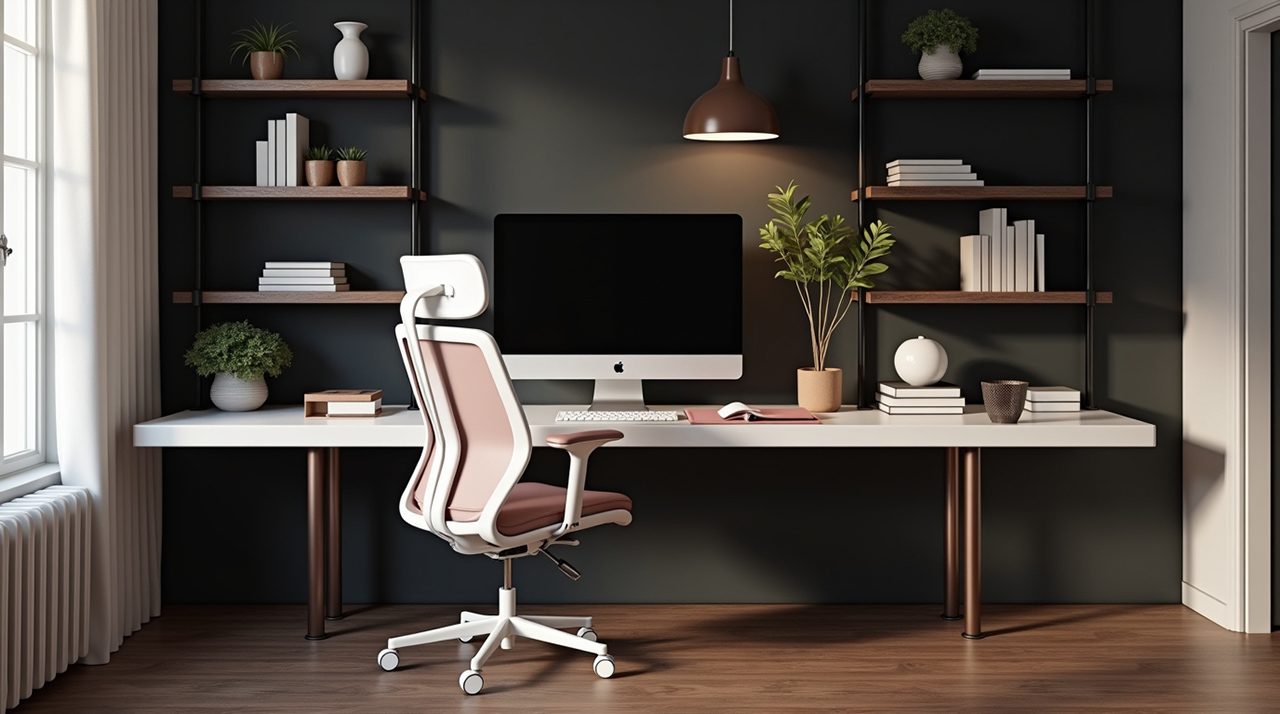
Create an ergonomic desk setup for students to prevent pain, boost focus, and improve academic performance. This guide covers everything from chair height to monitor placement, ensuring a healthier and more productive study environment.
As a student, you spend a lot of time at your desk. Long study sessions, writing papers, and online classes can all take a toll on your body. Poor posture and an uncomfortable workspace can lead to back pain, neck strain, and even headaches. This can make it hard to concentrate and learn. But don’t worry, setting up an ergonomic workspace is easier than you think. This guide will walk you through everything you need to know to create a comfortable and healthy study zone. We’ll cover the best ways to arrange your desk, chair, and computer.
Why an Ergonomic Desk Setup Matters for Students
An ergonomic desk setup is crucial for students because it prioritizes comfort and health. It helps prevent common physical issues like back pain and eye strain. A well-designed workspace also boosts concentration and productivity, which are vital for academic success. Investing time in your setup can lead to better grades and fewer sick days.
The Foundation: Choosing the Right Chair
Your chair is the cornerstone of an ergonomic desk setup. It needs to support your body properly during long study periods. Look for a chair that offers adjustable height, lumbar support, and armrests. These features allow you to customize the fit to your body. A good chair prevents slouching and reduces pressure on your spine.
Adjusting Your Chair for Optimal Support
Proper chair adjustment is key to reaping ergonomic benefits. Your feet should rest flat on the floor. Your knees should be at about a 90-degree angle. Ensure your lower back is supported by the chair’s lumbar curve. Armrests should allow your shoulders to relax. Adjust them so your elbows are also at a 90-degree angle when typing.
Features to Look for in a Student-Friendly Ergonomic Chair
When selecting a chair, prioritize adjustability and comfort. Features like swivel bases and wheels offer mobility. Breathable materials help keep you cool during intense study sessions. A sturdy build ensures durability throughout your academic career. Many affordable options exist that still offer excellent ergonomic support.
Desk Height and Depth: Finding Your Sweet Spot
The height and depth of your desk significantly impact your posture. Your desk should allow your arms to rest comfortably. Your elbows should be bent at roughly 90 degrees when your hands are on the keyboard. The desk surface should be deep enough to place your monitor at a good distance. It should also provide ample space for your keyboard and mouse.
Desk Height Adjustments and Alternatives
If your desk isn’t height-adjustable, you can use risers. Books or sturdy blocks can elevate your desk to the correct height. Alternatively, adjust your chair height and use a footrest. This helps maintain the proper 90-degree angle for your legs and arms. A standing desk converter can also offer flexibility for changing positions.
Desk Depth Considerations for Monitors and Peripherals
A desk that is too shallow can force you to sit too close to your monitor. This strains your eyes and neck. Aim for a depth of at least 24 inches (60 cm). This allows for proper monitor placement and a comfortable working distance. Ensure there’s enough space for your keyboard, mouse, and any other essential study tools.
Monitor Placement: Eye Level is Key
Correct monitor placement is vital for preventing neck and eye strain. The top of your monitor screen should be at or slightly below eye level. This position encourages you to keep your head and neck in a neutral alignment. You shouldn’t have to look up or down significantly to see the screen. This reduces strain on your neck muscles.
Using Monitor Stands or Risers
Monitor stands or risers are simple tools that make a big difference. They elevate your screen to the correct height. Many stands also offer storage space underneath. If you use a laptop, a separate monitor is highly recommended. A laptop stand can also raise its screen to an ergonomic level.
The 20-20-20 Rule for Eye Strain Prevention
Beyond physical setup, remember to give your eyes breaks. Use the 20-20-20 rule: every 20 minutes, look at something 20 feet away for at least 20 seconds. This simple habit can significantly reduce digital eye strain. Staying hydrated also helps keep your eyes comfortable.
Keyboard and Mouse Positioning: Comfort for Your Wrists
Your keyboard and mouse should be positioned to keep your wrists straight and neutral. Avoid bending your wrists up, down, or to the sides while typing or using the mouse. This can lead to repetitive strain injuries like carpal tunnel syndrome. Keep them close to your body to avoid reaching.
Ergonomic Keyboards and Mice: Do They Help?
Ergonomic keyboards and mice are designed to promote neutral wrist posture. Split keyboards and vertical mice can help reduce strain. However, proper placement of standard peripherals is often sufficient. Experiment to see what feels most comfortable for your hands and wrists. Some students find them very helpful, while others adapt well to standard setups.
Tips for Natural Wrist Alignment
When typing, try to keep your wrists floating above the keyboard. Avoid resting them on the desk or wrist rest for extended periods. Your forearms should be parallel to the floor. The mouse should be at the same level as your keyboard. Keep it close to minimize reaching.
Lighting and Glare: Creating a Visually Comfortable Space
Adequate lighting is essential for reducing eye strain and improving focus. Avoid working in dim light, which forces your eyes to work harder. Position your desk so that the main light source is to the side. This prevents glare on your screen. Natural light is often the best option when available.
Minimizing Screen Glare
Screen glare can cause discomfort and headaches. Position your monitor so windows or bright lights are not directly in front or behind it. Anti-glare screen protectors can also be helpful. Adjusting your screen’s brightness to match the room’s ambient light is also beneficial.
Choosing the Right Desk Lamp
A good desk lamp can supplement ambient lighting. Opt for a lamp with adjustable brightness and a flexible neck. This allows you to direct light where you need it most. A warm, diffused light is generally more comfortable than a harsh, direct beam. Ensure it doesn’t create glare on your screen.
Organization and Workflow: A Tidy Desk is a Productive Desk
A cluttered desk can lead to a cluttered mind. Keeping your workspace organized improves efficiency and reduces stress. Arrange frequently used items within easy reach. Use organizers for pens, papers, and other supplies. A clean workspace can make studying feel less overwhelming.
Essential Desk Accessories for Students
Consider accessories that enhance your ergonomic desk setup. Monitor stands, laptop stands, and footrests are key. Cable management solutions keep your desk tidy and safe. A good desk lamp and a comfortable chair cushion can also make a difference. These items help optimize your space.
Creating a System for Your Study Materials
Develop a system for managing your textbooks, notes, and assignments. Use folders, binders, or digital tools to keep track of everything. Regularly declutter your desk to remove anything you no longer need. This helps maintain focus and prevents distractions. A clear desk promotes clear thinking.
Movement and Breaks: The Importance of Not Sitting Still
Even the most perfect ergonomic desk setup can’t replace movement. Prolonged sitting is detrimental to your health. Incorporate regular breaks into your study routine. Stand up, stretch, and walk around for a few minutes every hour. This improves circulation and reduces stiffness.
Simple Stretches for Students
Incorporate simple stretches at your desk. Neck rolls, shoulder shrugs, and wrist flexions can relieve tension. Gentle back stretches can also help. Even a short walk between study sessions can make a significant difference. Listen to your body and move when you feel stiff.
The Benefits of Standing Desks or Converters
Standing desks or converters allow you to alternate between sitting and standing. This reduces the negative effects of prolonged sitting. Standing can improve energy levels and posture. Many students find that switching positions helps them stay more alert and focused. It’s a great way to add variety to your study day.
Technology and Ergonomics: Smart Tools for a Better Setup
Technology offers many tools to enhance your ergonomic desk setup. Smart devices can track your posture or remind you to take breaks. Ergonomic keyboards, mice, and even specialized chairs are readily available. AI-powered software can also help analyze your work habits and suggest improvements. These gadgets can support your well-being.
Ergonomic Gadgets Worth Considering
Consider investing in ergonomic accessories. A good quality mouse pad with wrist support can be beneficial. Adjustable monitor arms offer more flexibility in screen positioning. Lumbar support pillows can add extra comfort to your existing chair. Even a simple laptop stand can transform your setup.
Using Apps to Support Ergonomic Habits
Several apps can help you maintain good ergonomic habits. Apps like “Stretchly” or “Time Out” can remind you to take breaks and stretch. Posture-correcting apps use your device’s camera to give feedback. These digital assistants can reinforce positive behaviors. They make maintaining good habits easier.
Student Case Study: Adapting to Ergonomics on a Budget
Meet Sarah, a university student who struggled with persistent neck pain. She spent hours studying in her small dorm room. Her setup included a basic desk and an uncomfortable chair. Sarah decided to make changes without breaking the bank. She raised her monitor using a stack of old textbooks. Sarah also used a rolled-up towel for lumbar support in her chair. She made a conscious effort to take short breaks every 45 minutes. Within weeks, Sarah noticed a significant reduction in her neck pain. She also felt more focused during study sessions. Her experience shows that even small, low-cost adjustments can yield great results.
FAQ: Your Ergonomic Desk Setup Questions Answered
What is the ideal height for a student’s desk?
The ideal desk height allows your elbows to be bent at a 90-degree angle when your hands are on the keyboard. Your shoulders should be relaxed. If your desk is too high, you can use a footrest. If it’s too low, consider desk risers or a new desk.
How far should my monitor be from my eyes?
Your monitor should be about an arm’s length away from your eyes. This is typically 20-30 inches (50-75 cm). The top of the screen should be at or slightly below eye level. This prevents neck and eye strain.
Can I improve my posture without buying a new chair?
Yes, absolutely! You can improve posture with your current chair by adjusting it correctly. Use lumbar support pillows or rolled towels for your lower back. Ensure your feet are flat on the floor or on a footrest. Consciously sit up straight and relax your shoulders.
What are the most important ergonomic adjustments for students?
The most important adjustments involve your chair height, desk height, and monitor placement. Ensuring your feet are flat, knees are at 90 degrees, and your monitor is at eye level are critical. Proper keyboard and mouse positioning is also vital for wrist health.
How often should students take breaks from their desk?
Students should take short breaks every 45-60 minutes. These breaks should involve standing up, stretching, and moving around for at least 5-10 minutes. This helps prevent stiffness, improves circulation, and reduces mental fatigue.
Are ergonomic keyboards and mice worth the cost for students?
Ergonomic keyboards and mice can be beneficial, especially if you experience wrist pain. However, they are not always necessary. Proper positioning of standard equipment can often be just as effective. It’s best to try them if possible or focus on fundamental setup adjustments first.
Conclusion: Invest in Your Well-being for Academic Success
Creating an ergonomic desk setup is an investment in your health and academic performance. By making thoughtful adjustments to your chair, desk, monitor, and workspace, you can prevent pain and boost your focus. Remember that regular movement and breaks are just as important as the physical setup. Start with the basics and gradually refine your workspace. A comfortable and healthy study environment will help you achieve your academic goals.

Belayet Hossain is a Senior Tech Expert and Certified AI Marketing Strategist. Holding an MSc in CSE (Russia) and over a decade of experience since 2011, he combines traditional systems engineering with modern AI insights. Specializing in Vibe Coding and Intelligent Marketing, Belayet provides forward-thinking analysis on software, digital trends, and SEO, helping readers navigate the rapidly evolving digital landscape. Connect with Belayet Hossain on Facebook, Twitter, Linkedin or read my complete biography.