


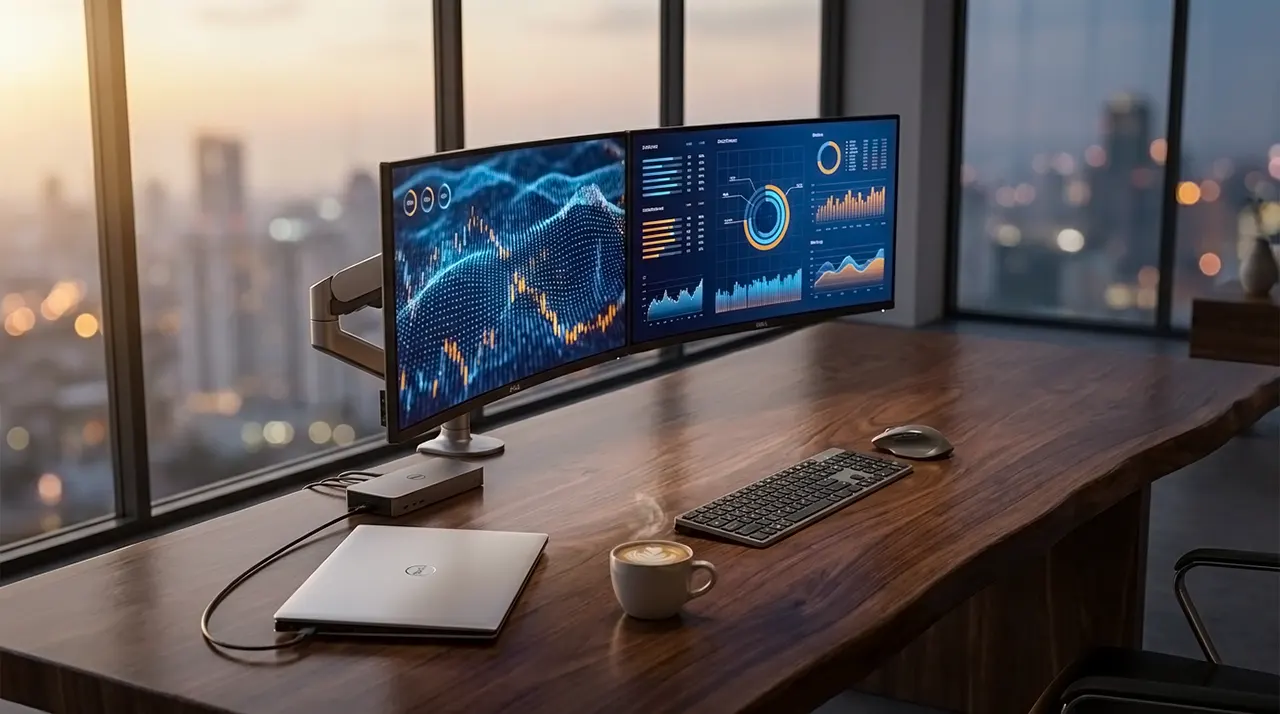
A Dell Dual Monitor Setup is the single most effective upgrade you can make for your productivity. Imagine dragging your cursor from one screen to another, referencing data on the left while typing a report on the right, and finally saying goodbye to Alt-Tabbing forever. Whether you are using a Dell Latitude laptop, an OptiPlex desktop, or mixing Dell monitors with a PC, setting this up doesn’t require a computer science degree. It just requires the right cables and a few minutes in Windows settings. In this guide, I will walk you through the exact physical connections and software settings to get your dual display running perfectly.
How to Check Your Ports Before You Buy Cables
Before you spend a dime on cables, you must identify the video outputs on your computer and the inputs on your monitors. Most connection issues happen because users try to plug a square peg into a round hole—literally. Look at the back of your PC tower or the sides of your laptop.
Identify Your Connection Type:
- HDMI: Looks like a trapezoid. Common on almost all laptops and desktops.
- DisplayPort (DP): Looks like a rectangle with one corner cut off. Common on Dell desktops and newer business laptops.
- USB-C / Thunderbolt: A small oval port. If you see a lightning bolt icon next to it, it supports video (Thunderbolt). If you see a “D” or a “P” icon, it supports DisplayPort Alt Mode. If it is just a plain USB symbol, it might not support video.
Expert Insight: Many modern Dell laptops (like the XPS 13) only have USB-C ports. If your monitors only have HDMI and VGA, you must use a USB-C to HDMI adapter to make them work.
Essential Gear Checklist & Recommendations for Dell Dual Monitor Setup
Setting up dual monitors usually requires connecting two separate cables from your computer to your two monitors. If you lack the ports on your computer, this is where adapters and docks come in. Here is what you might need:
| Scenario | Required Hardware |
|---|---|
| Desktop with 2 Ports (e.g., 1x HDMI, 1x DP) | 2x Cables (HDMI & DisplayPort) |
| Laptop with 1x HDMI & 1x USB-C | 1x HDMI Cable + 1x USB-C to HDMI Adapter |
| Laptop with Only USB-C | Dell Docking Station or USB-C Hub with Dual HDMI/DP |
| Daisy Chaining (Advanced) | 2x DisplayPort Cables (Monitors must support DP Out) |
Where to Buy: Avoid cheap, unbranded cables. For a stable connection, I recommend high-quality shielded cables. If you need a versatile hub, check the best USB-C hubs for Dell laptops on Amazon to ensure compatibility.
Method 1: The Standard Dual Monitor Setup (Direct Connection)
This is the most common method and works for almost all Dell desktops (OptiPlex, Inspiron) and laptops that have dedicated video ports. It uses two separate cables running directly from the computer to each monitor. This provides the highest signal stability.
Step 1: Physical Connection
Turn off your computer and monitors. Connect Monitor 1 to the primary port (often the top one or the one closest to the motherboard on a desktop). Connect Monitor 2 to the secondary port. Ensure both ends of the cables are screwed in or clicked securely.
Scenario Check: If you are using a laptop, plug in the external monitor first, then turn on the laptop. Windows is usually good at detecting them immediately upon boot.
Step 2: Power On and Detection
Turn on the computer and both monitors. Windows should automatically detect the new displays. If you see your desktop background appear on the second screen but no icons, that is normal. It is defaulting to “Extend” mode.
Troubleshooting Tip: If one screen stays black, press the monitor’s menu button and manually select the input source (e.g., switch from HDMI 1 to HDMI 2 or DisplayPort).
IMAGE: [Graphic: Arrows showing cables going from PC to Monitor 1 and PC to Monitor 2]
Method 2: The Daisy Chain Setup (The Cleaner Way)
Daisy chaining allows you to connect both monitors to each other, using a single cable from your computer to the first monitor. This drastically reduces cable clutter. However, it requires specific hardware.
Requirements for Daisy Chaining
To use this method, you must have:
- A PC with a DisplayPort 1.2 or higher output.
- Two Dell monitors that support DisplayPort MST (Multi-Stream Transport). Look for “DP Out” on the monitor specs.
- Two DisplayPort cables.
Golden Nugget: You cannot daisy chain using HDMI. It is physically impossible. You must use DisplayPort or Thunderbolt cables for this method.
Step-by-Step Daisy Chain Instructions
- Link the Monitors: Connect a DisplayPort cable from the DisplayPort Out on Monitor 1 to the DisplayPort In on Monitor 2.
- Connect to PC: Connect a second DisplayPort cable from your computer to the DisplayPort In on Monitor 1.
- Enable MST: On Monitor 1, open the On-Screen Display (OSD) menu by pressing the physical button on the monitor. Navigate to “Display Settings” or “DP Settings” and ensure “MST” is set to “Enable” or “On”.
Once connected, Windows should detect both screens through the single connection.
IMAGE: [Diagram showing PC -> Monitor 1 -> Monitor 2]
Configuring Windows Display Settings
Now that everything is plugged in, you need to tell Windows how to behave. You want to “Extend” your displays, not duplicate them.
Arranging Your Screens
- Right-click on an empty space on your desktop and select Display settings.
- You will see two boxes labeled “1” and “2”. Click on “Identify” to flash numbers on your physical screens to match them to the boxes.
- Click and drag the boxes to match your physical setup. For example, if Monitor 2 is to the left of Monitor 1, drag box 2 to the left of box 1.
- Scroll down to the Multiple displays dropdown menu.
- Select Extend these displays.
- Click Apply.
Now, your mouse cursor will flow naturally from one screen to the next. If it hits a wall where it shouldn’t, your drag-and-drop arrangement in the settings is wrong. Just swap the boxes in the settings window until the movement feels natural.
IMAGE: [Screenshot of Windows Display Settings window showing boxes 1 and 2]
Troubleshooting Common Dell Dual Monitor Issues
If you followed the steps above but one screen remains black or Windows refuses to detect it, don’t panic. This is the most common issue, and the fix is usually simple. In my experience, 90% of issues come down to cable directionality or outdated generic drivers.
The Screen is Black / “No Signal”
Check the input source on your monitor. Monitors often stay on the last used input. Press the physical menu button on the monitor and manually select HDMI, DisplayPort, or USB-C to match the cable you are using.
Windows Won’t Detect the Second Monitor
Go back to Settings > System > Display. Scroll down and click the Detect button. If that fails, restart your computer with both monitors plugged in and powered on. This forces the BIOS and Windows to recognize the hardware handshake on startup.
The “Passive Adapter” Trap: If you are trying to convert DisplayPort to HDMI (or vice versa) using a cheap dongle, it likely won’t work. These adapters are often “active” or “passive” and directional. A “DisplayPort to HDMI” adapter is not the same as an “HDMI to DisplayPort” adapter. Check the label on the adapter carefully.
Outdated Graphics Drivers
Dell ships computers with generic drivers, but these can be buggy for dual screens. Visit the Dell Support site or your GPU manufacturer (Intel, AMD, NVIDIA) website to download the latest specific driver for your graphics card.
IMAGE: [Screenshot of Windows Display settings showing the greyed out ‘Detect’ button]
Setting Up with a Dell Docking Station
If you use a Dell laptop, a docking station is the cleanest way to manage dual monitors. A dock connects to your laptop via a single USB-C or Thunderbolt cable and breaks that signal out into video ports, USB ports, and power. This means you can plug in one cable to your laptop and instantly activate two monitors, your keyboard, and your mouse.
Recommended Dell Docks
For most users, the Dell WD19 series is the industry standard. It supports dual HDMI or DisplayPort outputs and charges your laptop simultaneously.
Setup Steps:
- Connect the Dell Dock’s power cord to the wall.
- Connect your Monitor 1 and Monitor 2 to the back of the Dock (using HDMI or DP cables).
- Connect the Dock’s USB-C cable to your laptop.
- Windows should auto-detect the setup.
If your laptop screen goes black when you dock it (a common issue), you may need to close the laptop lid or change the “When I close the lid” settings in Power Options to “Do nothing.”
IMAGE: [Photo of a Dell WD19 dock connected to a laptop with two monitors glowing]
BIOS Settings for Dell Desktops (The Hidden Fix)
Some older Dell desktops, specifically the Inspiron and OptiPlex towers, disable dual monitor support by default in the BIOS. If you have two cables plugged in but the computer simply ignores one, this is likely your culprit.
Enabling Multi-Display in BIOS
- Restart your computer.
- As soon as the Dell logo appears, repeatedly tap the F2 key.
- This will open the BIOS Setup Utility.
- Use the arrow keys to navigate to Video or Graphics Configuration.
- Look for an option labeled Primary Display or Multi-Display.
- Change it from “Auto” or “IGD” (Integrated Graphics) to “Auto” or “PEG/IGD” (allows both to work).
- Save and Exit (usually F10).
Once the computer reboots, both monitors should light up.
How to Switch Main Screens
By default, Windows sets your laptop screen or the monitor plugged into port #1 as your “Main” display. This is where the taskbar and system icons live. If you want your external Dell monitor to be the main one (highly recommended for productivity), here is how to switch it:
- Go to Settings > System > Display.
- Click on the box representing the monitor you want as main.
- Scroll down and check the box Make this my main display.
- The taskbar and icons will instantly migrate to that screen.
Frequently Asked Questions (FAQ)
What cables are required for dual monitors?
It depends on your ports. Most modern setups use HDMI or DisplayPort cables. If your computer only has USB-C, you need a USB-C to HDMI or DisplayPort adapter. If you are daisy chaining, you must use DisplayPort cables.
Why are my two screens showing the same thing?
Your display mode is set to “Duplicate.” Go to Settings > System > Display and change the dropdown menu from “Duplicate these displays” to “Extend these displays”. This turns your second screen into extra workspace rather than a mirror.
How to connect 2 monitors to a desktop with one HDMI port?
You cannot plug two monitors into a single HDMI port. You have two options: 1) Look for a DisplayPort, DVI, or VGA port on the back of your computer to use for the second monitor, or 2) Use a USB DisplayLink adapter that turns a standard USB port into a video output.
How do I move items between the two screens?
Simply click and drag the window or file. Move your mouse cursor towards the edge of the first screen in the direction of the second screen, and the cursor will pass through to the other monitor. If it hits a “wall”, go to Display settings and drag the monitor boxes to match your physical layout.
How do I get my screen to detect a second monitor?
Go to Settings > System > Display and click the Detect button. If that fails, check your cable connections, ensure the monitor is on the correct input source, and restart your computer.
Conclusion
You now have a fully functional Dell dual monitor setup. This isn’t just about having more screen space; it is about reclaiming your time and mental focus. By extending your display, you create a dedicated workflow that keeps your essential tools visible and your distractions minimized. Don’t stop here, though. The right positioning is just as important as the connection. Check out our guide on ergonomic curved monitor setups to ensure your neck and eyes stay comfortable during those long work sessions. Enjoy your new productivity superpower!
IMAGE: [Wide shot of a clean desk setup with two Dell monitors showing a bright wallpaper]

Belayet Hossain is a Senior Tech Expert and Certified AI Marketing Strategist. Holding an MSc in CSE (Russia) and over a decade of experience since 2011, he combines traditional systems engineering with modern AI insights. Specializing in Vibe Coding and Intelligent Marketing, Belayet provides forward-thinking analysis on software, digital trends, and SEO, helping readers navigate the rapidly evolving digital landscape. Connect with Belayet Hossain on Facebook, Twitter, Linkedin or read my complete biography.