


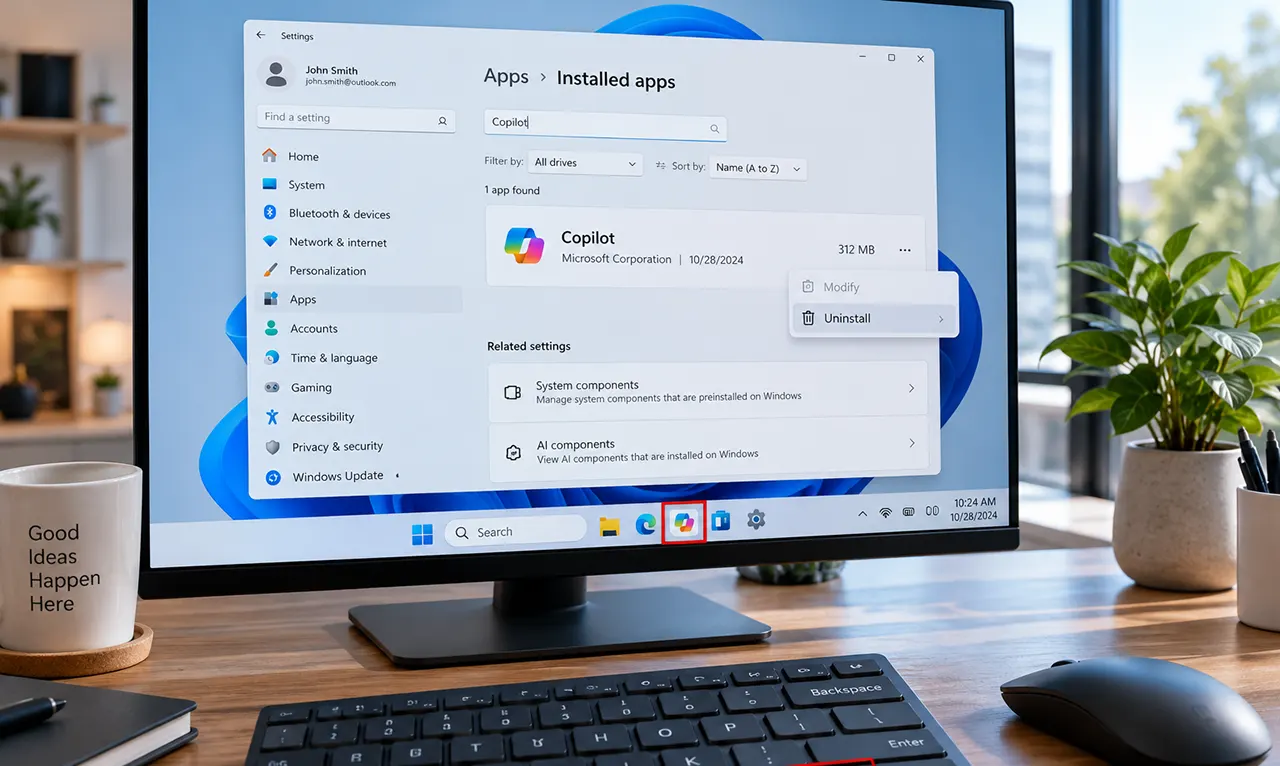
To turn off Copilot in Windows 11, first decide whether you want to hide the Copilot interface, uninstall the standalone Copilot app, or manage Copilot on a work or school PC. On current Windows 11 versions, you can uninstall the standalone Copilot app from Settings > Apps > Installed apps > Copilot > Uninstall. Microsoft also provides separate controls for the Copilot keyboard key and managed devices.
If Copilot keeps appearing after you remove the app, that does not necessarily mean the uninstall failed. Windows 11 can expose Copilot through different apps and controls, including the Copilot app, Microsoft 365, Microsoft Edge, and the Copilot keyboard key. The right solution depends on where you are seeing it.
The easiest way to turn off Copilot in Windows 11
How to turn off copilot in windows 11? Well, for most home users, start with the least invasive option.
If you simply do not want the standalone Copilot app on your PC, uninstall it through Windows Settings:
- Open Settings.
- Select Apps.
- Select Installed apps.
- Find Copilot.
- Click the three-dot menu beside it.
- Select Uninstall.
- Confirm the uninstall.
Microsoft currently documents this as the standard way to remove the Copilot app from Windows 11.
This is different from older tutorials that tell you to create a Registry value or enable the old Turn Off Windows Copilot policy. Those methods were designed around an older Windows Copilot experience.
Hide Copilot when you only want the icon or entry gone
Sometimes you do not want to uninstall anything. You simply want Copilot out of your way.
This is useful if you still want the Copilot app available but do not want it taking up space on the taskbar or appearing as part of your normal workflow.
Windows 11 has changed how Copilot is presented over time, so the exact setting can vary by Windows version and configuration. If you see a Copilot-related taskbar setting on your system, turning it off is the simplest approach.
The important distinction is this:
Hiding Copilot is not the same as uninstalling Copilot.
If your goal is to remove the standalone app, use Settings > Apps > Installed apps instead.
How to uninstall the Copilot app from Windows 11
If you want the standalone Microsoft Copilot app removed from your PC, use the Installed apps method.
Step 1: Open Windows Settings
Press Windows + I to open Settings.
You can also open Start and select Settings.
Step 2: Open Installed apps
Select:
Apps > Installed apps
Windows will display the applications installed on your computer.
Step 3: Find Microsoft Copilot
Use the search box if you have many applications installed.
Search for:
Copilot
Step 4: Uninstall Copilot
Click the three dots beside Copilot and select Uninstall.
Confirm the action when Windows asks.
Microsoft’s current support documentation specifically lists this process for Windows 11.
What this method actually removes
This removes the standalone Copilot app.
It does not automatically remove every Copilot feature that Microsoft provides through other products.
That distinction matters because Copilot is now spread across several Microsoft experiences.
How to turn off the Copilot key on your keyboard
Some newer Windows 11 computers have a dedicated Copilot key on the keyboard.
The key can launch Copilot, but Windows provides a setting that lets users customize what that key does.
On supported systems, go to:
Settings > Personalization > Text input
Look for:
Customize Copilot key on keyboard
Microsoft documents options for changing the application associated with the Copilot key. The available choices can depend on the Windows version, device, and configuration.
This is useful if your main problem is accidental Copilot launches rather than the Copilot application itself.
A useful distinction
Removing the Copilot app and changing the Copilot key solve two different problems.
- Uninstall the app if you do not want the standalone Copilot application.
- Customize the keyboard key if you want to stop the physical key from launching Copilot.
You may need to do both if you want a completely different keyboard experience.
Can you disable Copilot with Group Policy?
Yes, but this is where many older Windows 11 guides become confusing.
Microsoft still documents a TurnOffWindowsCopilot policy for supported editions of Windows, including Windows 11 Pro, Enterprise, and Education. However, Microsoft now marks this policy as deprecated. More importantly, Microsoft says the policy does not apply to the newer Copilot experience being rolled out to Windows.
The old policy is therefore not a universal solution for modern Windows 11.
If you are managing current business devices, Microsoft’s newer documentation points administrators toward more current management controls instead of relying on the legacy policy.
Why you should be careful with old Registry tutorials
You will find many Windows 11 articles recommending Registry changes to disable Copilot.
Some of these instructions are based on the older Windows Copilot architecture.
The problem is that a Registry method can appear to work in one Windows configuration while doing nothing for another Copilot experience.
Microsoft’s current WindowsAI documentation explicitly identifies the old TurnOffWindowsCopilot policy as deprecated and states that it does not apply to the newer Copilot experience.
That makes Registry editing a poor first step for an ordinary Windows 11 user.
A better order is:
- Uninstall the Copilot app if you do not want it.
- Change the Copilot key if your keyboard launches it.
- Adjust the specific Microsoft app if Copilot remains there.
- Use organizational policies only when you actually manage Windows devices.
This approach avoids changing the Registry simply because an old tutorial recommends it.
How to remove Copilot from Microsoft Edge
Uninstalling the Windows Copilot app does not mean every Copilot feature disappears from Microsoft Edge.
Edge has its own Copilot-related controls.
Current Windows 11 guides identify Edge as a separate Copilot surface that must be managed independently from the standalone Windows Copilot app.
If Copilot is appearing inside Edge, open Microsoft Edge Settings and search for Copilot or sidebar.
Depending on your current Edge version, you may see controls for the Copilot button, sidebar, or related Copilot features.
The exact labels can change as Microsoft updates Edge, so use the settings currently shown on your PC rather than following an old screenshot word for word.
What if Copilot still appears in Word, Excel, or Outlook?
This is another common source of confusion.
Microsoft Copilot can also be integrated into Microsoft 365 applications. Removing the standalone Windows Copilot app does not automatically remove Copilot features from Microsoft 365 applications.
If your concern is specifically Copilot inside Word, Excel, PowerPoint, or Outlook, manage the feature from the relevant Microsoft 365 application or account settings.
In other words:
Windows Copilot and Microsoft 365 Copilot are not necessarily the same installation.
Uninstalling one does not automatically remove the other.
What if Copilot is still showing after you uninstall it?
First, identify where you are seeing it.
Copilot is still on the Windows taskbar
Check whether you are seeing the standalone Copilot app, a pinned Microsoft application, or another Windows integration.
The current Windows Copilot experience has changed substantially from the older sidebar-based implementation. Microsoft says the newer experience replaced the legacy Copilot in Windows experience.
Copilot opens when you press a keyboard key
Check:
Settings > Personalization > Text input > Customize Copilot key on keyboard
The Copilot key can be configured to launch another supported application instead.
Copilot appears in Edge
Manage Copilot from Microsoft Edge Settings rather than Windows Installed apps.
Copilot appears in Microsoft 365
Check the relevant Microsoft 365 application or subscription settings.
Copilot appears on a work or school computer
Your organization may control Copilot through Windows management policies.
In that situation, a local uninstall may not be the appropriate long-term solution. Microsoft provides enterprise controls for managing or preventing the Copilot app on managed Windows devices.
How administrators can manage Copilot on Windows 11
Enterprise environments have additional options.
Microsoft currently documents AppLocker as the preferred method for preventing installation or execution of the consumer Copilot app on managed devices instead of relying on the deprecated TurnOffWindowsCopilot policy.
Microsoft also documents a PowerShell method for administrators to remove the Copilot app:
$packageFullName = Get-AppxPackage -Name "Microsoft.Copilot" | Select-Object -ExpandProperty PackageFullName
Remove-AppxPackage -Package $packageFullName
This is an administrative option, not something most home users need to use.
For a personal Windows 11 PC, the normal Settings > Apps > Installed apps > Copilot > Uninstall route is much simpler.
Which Copilot method should you use?
| What you want | What to do |
|---|---|
| Remove the standalone Copilot app | Settings > Apps > Installed apps > Copilot > Uninstall |
| Stop using the Copilot keyboard key | Customize the Copilot key in Windows Settings |
| Remove Copilot features from Edge | Change Copilot/sidebar settings in Edge |
| Remove Copilot from Microsoft 365 apps | Change settings within the relevant Microsoft 365 app |
| Manage Copilot across company PCs | Use Microsoft’s current Windows management controls |
| Follow an old Registry tutorial | Check its Windows version and policy first |
The key lesson is that there is no longer one universal “Copilot switch” for every Microsoft product.
Should you completely remove Copilot from Windows 11?
That depends on what you want to accomplish.
If you simply find the Copilot icon distracting, hiding or changing its access point may be enough.
If you do not use the standalone Copilot app, uninstalling it is the straightforward option Microsoft currently documents for Windows 11.
If your concern is Copilot appearing in Edge or Microsoft 365, uninstalling the Windows app alone will not address those integrations.
And if you manage business computers, use the appropriate Windows management policy instead of applying consumer Registry tweaks to every device.
Frequently Asked Questions
Can I completely remove Copilot from Windows 11?
You can uninstall the standalone Copilot app from Windows 11, but that does not automatically remove every Copilot integration in Microsoft products. Edge and Microsoft 365 can have their own Copilot experiences and controls.
Does uninstalling Copilot remove it from Microsoft Edge?
No. The Windows Copilot app and Copilot features in Microsoft Edge are separate experiences. If Copilot remains in Edge, manage it through Edge’s own settings.
Does Windows 11 still support the old TurnOffWindowsCopilot policy?
Microsoft still documents the policy for certain Windows versions and editions, but it is now marked deprecated. Microsoft also says it does not apply to the newer Copilot experience.
Can I disable the Copilot keyboard key?
Yes. On supported Windows 11 systems, you can customize the Copilot key through Settings > Personalization > Text input. Microsoft documents options for changing the application associated with the key.
Will uninstalling Copilot damage Windows 11?
Uninstalling the standalone Copilot app through Windows’ normal Installed apps interface is an officially documented Microsoft procedure. It removes the app rather than modifying core Windows system files.
Why does Copilot keep appearing after I remove the app?
You may be seeing a different Copilot integration, such as Microsoft Edge, Microsoft 365, or the keyboard key. Removing the standalone app does not automatically disable those separate experiences.
Final thoughts
If your goal is simply to get the standalone Copilot app off your Windows 11 PC, start with Settings > Apps > Installed apps > Copilot > Uninstall. It is the current Microsoft-documented method and avoids unnecessary Registry changes.
If Copilot remains somewhere else, do not immediately assume the uninstall failed. Find the exact place where Copilot appears – Windows, the keyboard, Edge, or Microsoft 365 – and disable that specific integration.
For readers exploring the wider Windows AI ecosystem, see our guide to Windows 11 AI agents, Microsoft Scout, and OpenClaw on Windows 11.

Belayet Hossain is a Senior Tech Expert and Certified AI Marketing Strategist. Holding an MSc in CSE (Russia) and over a decade of experience since 2011, he combines traditional systems engineering with modern AI insights. Specializing in Vibe Coding and Intelligent Marketing, Belayet provides forward-thinking analysis on software, digital trends, and SEO, helping readers navigate the rapidly evolving digital landscape. Connect with Belayet Hossain on Facebook, Twitter, Linkedin or read my complete biography.