


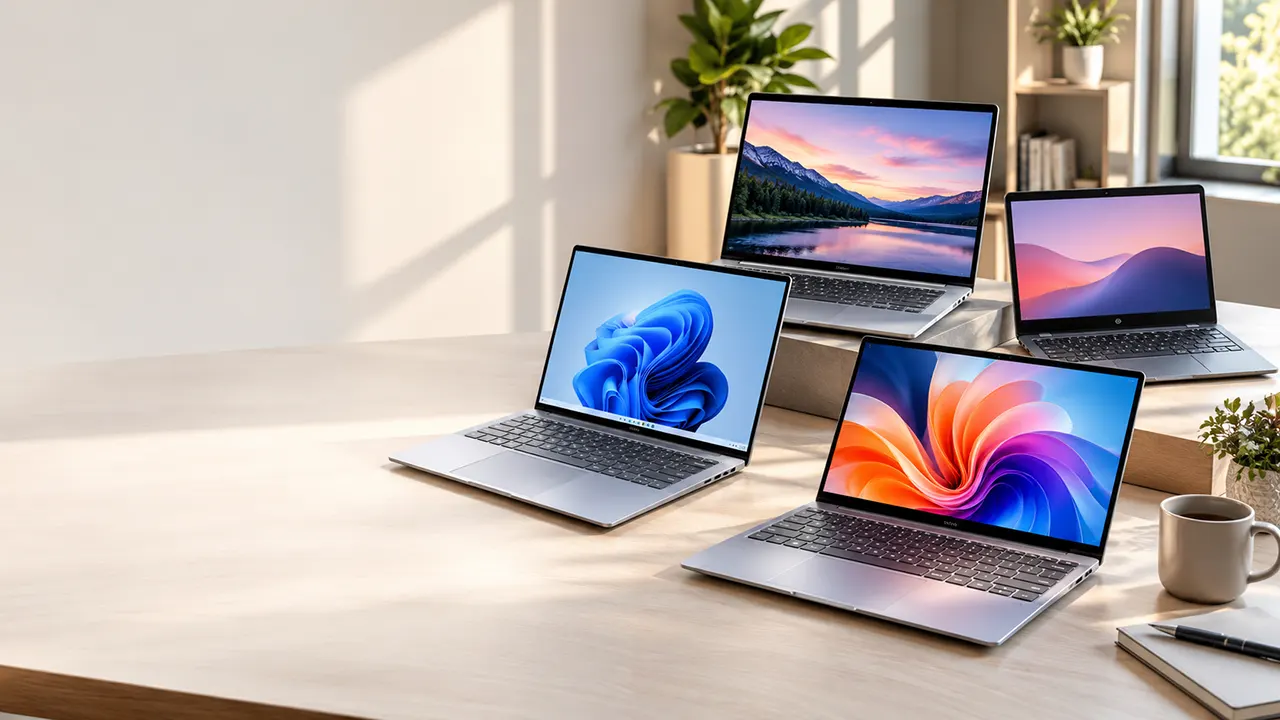
If you are shopping for the best budget laptops in 2026, don’t choose a model based on price alone. A laptop with 16GB RAM and a fast SSD may offer better long-term value than a cheaper machine with limited memory and storage. We compare affordable Windows laptops and Chromebooks, examine their compromises, and highlight one higher-priced upgrade worth considering.
Our main focus is laptops under $500, with an additional option for buyers willing to spend more for better hardware.
Research methodology: This buying guide is based on manufacturer specifications, retailer listings, published third-party reviews, and available product information. We have not personally tested these laptops. Product recommendations are editorial assessments, not hands-on test results.
Affiliate disclosure: ItPhobia participates in affiliate marketing programs. We may earn a commission when you purchase through qualifying links in this article, at no additional cost to you. This does not influence our product selection or recommendations.
Best budget laptops in 2026 at a glance
The best choice depends on how you plan to use your laptop. Some buyers need Windows software, while others can save money with ChromeOS. Here are our selected options and the main reason to consider each one.
| Laptop | Best for | Processor | RAM | Storage | Listed price |
|---|---|---|---|---|---|
| Lenovo IdeaPad Slim 3 | Everyday Windows use | Ryzen 3 7320U | 8GB | 256GB | $389.99 |
| HP OmniBook 3 16 | Large-screen productivity | Ryzen 5 40 | 8GB | 256GB | $485 |
| ASUS Chromebook Plus CX34 | Browser-based work | Core i3-1215U | 8GB | 128GB | $439.99 |
| HP OmniBook 3 14 | Premium upgrade | Snapdragon X | 16GB | 1TB | $749 |
Prices are snapshots from the supplied Amazon listings, not guaranteed live checkout prices. Check the selected configuration, seller, condition, and shipping costs before ordering.
Our quick recommendations:
- Choose the Lenovo IdeaPad Slim 3 if you want an affordable Windows laptop for everyday tasks.
- Choose the HP OmniBook 3 16 if you prefer a large touchscreen and numeric keypad.
- Choose the ASUS Chromebook Plus CX34 if your work mainly happens in a browser.
- Consider the HP OmniBook 3 14 if you can stretch your budget and want 16GB RAM, 1TB storage, and an OLED display.
One important distinction: the first three laptops fall within the $500 budget. The HP OmniBook 3 14 is a more expensive alternative, not a sub-$500 recommendation.
The best budget laptops worth buying in 2026
1. Lenovo IdeaPad Slim 3: Best affordable Windows laptop for everyday use
The Lenovo IdeaPad Slim 3 is a sensible starting point if you need a Windows laptop without spending $500. It offers a Ryzen 3 7320U processor, 8GB memory, and 256GB storage. That configuration can handle everyday computing without requiring a premium budget.
Key specifications
| Component | Details |
|---|---|
| Processor | AMD Ryzen 3 7320U |
| RAM | 8GB |
| Storage | 256GB |
| Display | 15.6-inch Full HD |
| Operating system | Windows 11 Home |
| Model number | 82XQ001GUS |
| Listed price | $389.99 |
Why consider it?
The Ryzen 3 7320U is a four-core, eight-thread processor designed for everyday computing. You can use this laptop for web browsing, email, Microsoft Office, online classes, document editing, and light multitasking.
Its 256GB storage is also a better starting point than the 128GB configurations found in some inexpensive laptops. You have more room for applications, documents, downloads, and offline files.
Lenovo also lists a fingerprint reader, USB-C connectivity, Dolby Audio, and Rapid Charge Boost among the advertised features.
Limitations to consider
The 8GB RAM configuration is the main compromise. It may be sufficient for basic work, but keeping many browser tabs, office applications, and background programs open can make multitasking less comfortable.
Also, the IdeaPad Slim 3 family has several display and memory configurations. Verify the exact model number and display panel before ordering. Do not assume every Slim 3 has the same IPS display or upgrade options.
Who should buy it?
- Students who need an affordable Windows laptop.
- Home users who browse, stream, and manage documents.
- Writers who mainly use browser-based writing tools.
- Buyers who want a 15.6-inch screen without spending $500.
Who should avoid it?
Avoid this configuration if you regularly edit large videos, work with demanding design software, or need extensive multitasking. A 16GB laptop would be a better long-term purchase.
2. HP OmniBook 3 16: Best large-screen budget laptop
If you prefer a larger display, the HP OmniBook 3 16 deserves consideration. It combines a 16-inch touchscreen with a Ryzen 5 processor, 8GB RAM, and 256GB storage.
The larger screen is particularly useful when working with spreadsheets, documents, browser windows, and online meetings.
Key specifications
| Component | Details |
|---|---|
| Processor | AMD Ryzen 5 40 |
| CPU cores | 4 |
| Threads | 8 |
| RAM | 8GB LPDDR5 |
| Storage | 256GB |
| Display | 16-inch 1920 × 1200 IPS touchscreen |
| Graphics | AMD Radeon 610M |
| Operating system | Windows 11 Home |
| Listed price | $485 |
Why consider it?
The 1920 × 1200 resolution provides a 16:10 workspace. This gives you more vertical screen space than a traditional 16:9 Full HD display.
The numeric keypad can also make spreadsheet work and data entry easier. Its advertised connectivity includes USB-C, USB-A, and HDMI 2.1. HP also lists a 1080p webcam and camera privacy shutter.
For someone working from home, these features make the laptop practical for everyday office tasks.
The important compromise
The 8GB memory configuration deserves attention. HP lists LPDDR5 memory, but the supplied configuration does not establish a user-upgradeable memory path. Buyers should assume the memory may not be upgradeable unless HP confirms otherwise.
The price is also close to the $500 limit. At this level, compare it carefully against laptops with 16GB RAM.
Who should buy it?
- Remote workers who prefer a large display.
- Office users who regularly work with spreadsheets.
- Students who want a larger screen for assignments.
- Buyers who prefer a touchscreen.
Who should avoid it?
If your priority is multitasking rather than screen size, a laptop with 16GB RAM may be a better investment.
3. ASUS Chromebook Plus CX34: Best Chromebook for browser-based productivity
Not everyone needs Windows. If most of your work happens in Google Chrome, Google Docs, web applications, and online services, the ASUS Chromebook Plus CX34 is worth considering.
It uses an Intel Core i3-1215U processor with 8GB RAM and 128GB storage. The configuration also includes a 14-inch Full HD display.
Key specifications
| Component | Details |
|---|---|
| Processor | Intel Core i3-1215U |
| Generation | 12th Gen |
| CPU cores | 6 |
| RAM | 8GB |
| Storage | 128GB flash memory |
| Display | 14-inch Full HD |
| Operating system | ChromeOS |
| Model | CX3402CBA-DH388-GR |
| Listed price | $439.99 |
Why consider it?
The Core i3-1215U has six cores, including two performance cores and four efficiency cores. It provides a capable foundation for everyday browser-based productivity.
You can use ChromeOS for:
- Google Docs and Google Sheets.
- Web-based email and communication.
- Online research and browsing.
- Video streaming and online learning.
- Cloud-based productivity applications.
The Chromebook Plus designation also indicates that the device belongs to Google’s enhanced Chromebook category.
Where it falls short
The biggest concern is the 128GB storage capacity. It can work for someone who primarily uses cloud storage, but it may feel restrictive if you download many files or keep large offline libraries.
ChromeOS also has different software compatibility from Windows. Some desktop applications, specialized business programs, and Windows-only tools will not work as they do on a traditional Windows laptop.
At $439.99, this Chromebook is not automatically a better value than the Lenovo or HP Windows options.
Who should buy it?
- Students who primarily use web applications.
- Writers working in Google Docs.
- People who prefer ChromeOS.
- Users who keep most of their files in cloud storage.
Who should avoid it?
Avoid this model if you depend on Windows desktop applications, advanced video-editing software, or specialist business programs.
Is it worth spending more on the HP OmniBook 3 14?
The HP OmniBook 3 14 is different from the other recommendations. It costs substantially more, but it also offers a stronger memory and storage configuration.
This is not the best budget laptop under $500. Instead, it is an option for buyers who can increase their budget to get better hardware.
Key specifications
| Component | Details |
|---|---|
| Processor | Snapdragon X X1-26-100 |
| CPU cores | 8 |
| NPU | Up to 45 TOPS |
| RAM | 16GB LPDDR5x |
| Storage | 1TB PCIe Gen 4 NVMe SSD |
| Display | 14-inch WUXGA OLED |
| Resolution | 1920 × 1200 |
| Color coverage | 100% DCI-P3 |
| Wireless | Wi-Fi 6E |
| Operating system | Windows 11 Pro, according to supplied listing |
| Listed price | $749 |
Why its configuration is attractive
The 16GB RAM configuration gives you more room for multitasking than the 8GB models in our main recommendations.
The 1TB SSD is another meaningful advantage. You can store more documents, applications, media files, and project data without depending heavily on external storage.
The OLED display is particularly interesting for people who spend many hours looking at documents, photographs, and visual content. Its advertised 100% DCI-P3 color coverage also makes it more appealing for color-conscious creative work than basic budget displays.
The Snapdragon X processor includes an NPU rated at up to 45 TOPS. This supports compatible AI workloads, although the presence of an NPU does not automatically make every AI application faster.
The Snapdragon X compatibility question
Before buying an ARM-based Windows laptop, check your essential applications.
Microsoft supports many Windows applications on ARM devices through native ARM64 versions and emulation. However, some drivers, games, security tools, and specialized applications require ARM-compatible versions. Microsoft Support+2
For example, check compatibility before purchasing if you depend on:
- Specialized accounting software.
- Older business applications.
- Professional hardware with custom drivers.
- Certain games and anti-cheat systems.
- Specialized virtualization software.
Who should consider it?
This HP is worth considering if you want 16GB memory, 1TB storage, an OLED screen, and a more premium Windows experience.
However, the $749 price is a significant jump from the under-$500 choices. If your daily tasks involve browsing, documents, email, and video calls, you may not need to spend that much.
Recommended read: Best Lightweight Laptop for Business
What specifications should you look for in a budget laptop?
A laptop’s advertised price tells you very little about its long-term usefulness. Two machines can cost almost the same but offer very different memory, storage, display quality, and upgrade options.
Use the following checklist before making a purchase.
1. RAM: Is 8GB enough for a budget laptop?
For basic computing, 8GB RAM can still work. However, 16GB is a better target for a Windows laptop if you regularly multitask.
Microsoft’s official Windows 11 minimum requirement is 4GB RAM. But this is a compatibility threshold, not a sensible buying target for someone who wants comfortable everyday performance. Microsoft Support
Consider these practical targets:
| Usage | Recommended RAM |
|---|---|
| Basic browsing and documents | 8GB |
| Everyday multitasking | 16GB |
| Heavy productivity and creative work | 16GB or more |
| Basic Chromebook use | 4GB-8GB |
| More demanding Chromebook use | 8GB or more |
One detail matters more than many buyers realize: upgradeability.
Some laptops use soldered memory that cannot be replaced or expanded. If you buy an 8GB model with soldered RAM, you may have to live with that capacity for the entire life of the machine.
Before ordering, check the manufacturer’s specifications for the exact model number.
2. SSD storage: Is 256GB enough?
For most everyday users, 256GB SSD storage is a reasonable starting point. It provides room for Windows, applications, documents, and a useful amount of personal data.
However, 512GB is preferable if you regularly download large files, keep media offline, or work with multiple projects.
| Storage | Recommendation |
|---|---|
| 64GB eMMC | Only for very basic Chromebook use |
| 128GB | Limited storage |
| 256GB SSD | Reasonable starting point |
| 512GB SSD | Better everyday flexibility |
| 1TB SSD | Useful for large files and projects |
Do not confuse eMMC storage with an NVMe SSD. Both store your files, but they use different storage technologies and can offer different performance characteristics.
A cheap laptop with 128GB eMMC may look attractive, but it is not necessarily a good long-term purchase.
3. Processor: Which CPU should you choose?
The processor affects how quickly your laptop handles applications, browser tasks, and background workloads.
For an affordable Windows laptop, consider recent Intel Core 3/Core 5 or AMD Ryzen 3/Ryzen 5 options. However, the processor name alone is not enough. You should also check its generation, exact model, core configuration, and power characteristics.
For Chromebooks, the processor should match the applications you use. A Chromebook does not need the same hardware configuration as a Windows laptop running several desktop applications.
Avoid purchasing an older processor simply because a retailer advertises a large discount.
4. Display: Do not ignore screen quality
You may spend several hours every day looking at your laptop display. A poor screen can make an otherwise capable laptop unpleasant to use.
Look for:
- At least 1920 × 1080 resolution.
- IPS technology where available.
- Adequate brightness for your workspace.
- Comfortable viewing angles.
- Anti-glare coating when useful.
A 1920 × 1200 display offers additional vertical space compared with a standard 1920 × 1080 screen. OLED displays can offer richer contrast and color, but they generally cost more.
Also check brightness and color coverage. Full HD resolution alone does not guarantee a good display.
5. Battery, keyboard, ports, and warranty
A laptop is more than its processor and memory.
Check whether it includes the ports you need, such as USB-A, USB-C, and HDMI. If you regularly attend online meetings, pay attention to webcam quality and microphone features.
Battery life should come from independent testing of the exact configuration whenever possible. Manufacturer battery estimates often use controlled conditions that may differ from your daily workload.
Finally, check the warranty, seller, and return policy. A low price is less attractive if you cannot get proper support when something goes wrong.
Windows laptop vs Chromebook: Which offers better value?
Both operating systems can be good choices, but they serve different needs.
| Feature | Windows laptop | Chromebook |
|---|---|---|
| Desktop software | Broad Windows application support | More limited |
| Microsoft Office | Full desktop applications available | Web and Android options |
| Browser-based work | Excellent | Excellent |
| Offline work | Strong | Depends on application |
| Specialized software | Better compatibility overall | Limited |
| Hardware flexibility | Broad range of configurations | Often simpler configurations |
| Best for | General-purpose computing | Cloud-based productivity |
When an affordable Windows laptop makes more sense
Choose Windows if you need desktop Microsoft Office, specialist business software, traditional file-management tools, or applications that are not available on ChromeOS.
Windows is also a safer choice when you are unsure which applications you may need in the future.
When a Chromebook is the smarter purchase
A Chromebook makes sense if most of your work happens online. Google Docs, Gmail, browser-based project management tools, and web applications can cover many everyday tasks.
However, check the device’s automatic update expiration date before buying. A Chromebook’s remaining update support is an important part of its long-term value.
New budget laptop vs refurbished business laptop
A refurbished business laptop can sometimes offer better hardware than a new entry-level consumer laptop.
Consider families such as:
- Lenovo ThinkPad T-series.
- Dell Latitude.
- HP EliteBook.
These models are designed for business environments and may offer useful features such as better keyboards, port selection, and serviceability.
However, refurbished does not automatically mean better.
Before purchasing, check:
- Exact processor model and generation.
- RAM capacity and upgrade options.
- SSD health and storage capacity.
- Battery condition and replacement cost.
- Display condition and keyboard wear.
- Seller reputation and return policy.
- Warranty coverage and whether it is transferable.
Amazon also distinguishes between products sold and fulfilled by Amazon and those sold by independent third-party sellers. Check the seller and fulfillment details before placing an order. Digprj Survey
A refurbished laptop with a worn battery or no meaningful warranty may not be a better purchase than a new budget model.
Cheap laptop compromises you should avoid
Not every inexpensive laptop is a bad purchase. The problem starts when the low price comes from compromises that directly affect your work.
Here are the warning signs.
1. Too little RAM for Windows
A Windows laptop with 4GB RAM is not a good general-purpose purchase in 2026. Even 8GB may feel restrictive if the memory cannot be upgraded.
2. Very limited storage
Avoid a Windows laptop with 64GB or 128GB storage unless you have a specific reason to buy it. Windows, updates, applications, and personal files can consume available space quickly.
3. Soldered RAM without an upgrade path
A low-cost laptop may use soldered memory to reduce size and cost. That is not automatically bad, but you should understand the limitation before buying.
4. Poor display quality
A laptop may have a modern processor and enough memory but still use a dim, low-quality display. This is particularly disappointing if you work with documents, spreadsheets, or visual content throughout the day.
5. Misleading processor descriptions
Retailers sometimes emphasize a processor family rather than its exact model. Always verify the full processor name.
A newer-sounding product label does not automatically guarantee better performance.
6. Unclear warranty or seller information
Be careful with unusually cheap marketplace listings. Check the actual seller, product condition, shipping terms, return policy, and warranty coverage.
Are expensive budget laptop discounts actually worth it?
A discount does not automatically make a laptop a good deal.
Suppose two laptops have similar advertised prices. One has 8GB RAM and 128GB storage, while the other has 16GB RAM and 512GB storage. The second machine may provide better long-term value even if its original retail price is higher.
Compare the exact configuration rather than relying on the product-family name.
Before buying, calculate the total purchase cost:
- Laptop price.
- Shipping and applicable taxes.
- Necessary accessories.
- Potential storage upgrades.
- Warranty extensions, if worthwhile.
- Battery replacement costs for refurbished devices.
When Black Friday and clearance sales make sense
The US holiday shopping season is an important opportunity to find laptop discounts. Black Friday and Cyber Monday can bring attractive offers, especially on previous-generation configurations.
But do not assume every advertised discount represents a genuine saving.
Compare the exact model number and configuration. Check whether the price is lower than its normal selling price and whether the seller offers a reasonable return policy.
A good deal is a laptop that offers the hardware you need at a fair total price, not simply one with a large discount percentage.
Which budget laptop should you choose?
The right laptop depends on what you plan to do with it.
| Your needs | Recommended choice | Reason |
|---|---|---|
| Basic everyday Windows use | Lenovo IdeaPad Slim 3 | Affordable entry-level Windows configuration |
| Large-screen office work | HP OmniBook 3 16 | 16-inch touchscreen and numeric keypad |
| Browser-based productivity | ASUS Chromebook Plus CX34 | ChromeOS and Core i3 processor |
| More memory and storage | HP OmniBook 3 14 | 16GB RAM and 1TB SSD |
| Tight budget | Look for a discounted 8GB/256GB Windows laptop | Better balance than very limited configurations |
For most buyers with a strict $500 budget, I would start with the Lenovo IdeaPad Slim 3. It offers a reasonable combination of processor, memory, and storage at the lowest listed price among our main recommendations.
However, if you can find a genuinely new Windows laptop with 16GB RAM and 256GB SSD close to $500, compare it carefully before purchasing. That configuration may offer better long-term flexibility.
The $749 HP is a different purchasing decision. It makes sense only when you can use its additional memory, storage, and OLED display.
Frequently asked questions
1. What is the best budget laptop in 2026?
The best budget laptop depends on your operating system preference and workload. The Lenovo IdeaPad Slim 3 is our everyday Windows pick, while the ASUS Chromebook Plus CX34 is suitable for browser-based productivity. Buyers who need a large display may prefer the HP OmniBook 3 16.
2. Is 8GB RAM enough for a budget Windows laptop?
Yes, 8GB RAM can handle basic browsing, document editing, email, and light multitasking. However, 16GB is preferable if you regularly keep many applications and browser tabs open. Also check whether the memory is upgradeable before buying.
3. Should I buy a laptop with 16GB RAM?
If you can find a suitable laptop with 16GB RAM within your budget, it is generally a better long-term choice for Windows multitasking. More memory can help when running multiple applications, although processor performance and storage also matter.
4. Is a $300 laptop worth buying?
A $300 laptop can be worthwhile for basic tasks, but check its processor, memory, storage, display, and warranty. Avoid choosing a model simply because it is inexpensive. An older refurbished business laptop may sometimes offer better hardware, provided its condition and warranty are acceptable.
5. Is a Chromebook better than a cheap Windows laptop?
A Chromebook can be better for browser-based work, online learning, email, and cloud applications. Windows is generally more suitable when you need traditional desktop software, specialist applications, or broader hardware compatibility. Choose according to your software requirements.
6. Is 256GB SSD enough for everyday work?
Yes, 256GB SSD storage is enough for many everyday users who mainly work with documents, web applications, and a moderate number of files. Choose 512GB if you regularly store large videos, photographs, or project files locally.
7. Are refurbished business laptops reliable?
They can be, but reliability depends on the device’s condition, battery health, previous use, seller, and warranty. Check the exact hardware configuration and return policy before purchasing. A certified refurbishment program can provide additional purchasing confidence, but it does not eliminate the need to inspect the warranty terms.
8. How long should a budget laptop last?
There is no guaranteed lifespan for every budget laptop. Actual longevity depends on build quality, battery condition, hardware demands, maintenance, and software support. Buying sufficient RAM and storage at the beginning can help avoid an early upgrade.
Make your budget count
You do not need to spend $1,000 to get a useful laptop. But spending less should not mean accepting hardware that limits your everyday work.
For a strict $500 budget, start with the Lenovo IdeaPad Slim 3, compare the HP OmniBook 3 16 if you prefer a larger screen, and consider the ASUS Chromebook Plus CX34 if ChromeOS meets your needs.
If your budget can stretch to $749, the HP OmniBook 3 14 offers a different level of memory, storage, and display quality. Just make sure its ARM-based processor supports the software you depend on.
Before purchasing, compare the exact configuration and final checkout price. A good budget laptop should save money without creating problems you’ll have to pay to fix later.

Belayet Hossain is a Senior Tech Expert and Certified AI Marketing Strategist. Holding an MSc in CSE (Russia) and over a decade of experience since 2011, he combines traditional systems engineering with modern AI insights. Specializing in Vibe Coding and Intelligent Marketing, Belayet provides forward-thinking analysis on software, digital trends, and SEO, helping readers navigate the rapidly evolving digital landscape. Connect with Belayet Hossain on Facebook, Twitter, Linkedin or read my complete biography.