
Published on: 11/09/2025 | Updated on: September 11, 2025
Master fire stick remote troubleshooting with these essential fixes to get your streaming back on track quickly and easily.
Experiencing a frozen Fire Stick remote can be incredibly frustrating when all you want to do is relax and stream your favorite shows. This common issue disrupts your entertainment flow, leaving you wondering what went wrong. Fortunately, most Fire Stick remote problems have straightforward solutions that you can implement yourself without needing a technician. This guide will walk you through essential fire stick remote troubleshooting steps, from simple battery checks to more advanced software fixes.
Why Does My Fire Stick Remote Stop Working?
A non-responsive Fire Stick remote is often caused by simple, easily rectifiable issues, ranging from drained batteries to software glitches or signal interference. Understanding these common culprits is the first step in effective fire stick remote troubleshooting. Often, a quick fix is all that’s needed to restore seamless control over your streaming experience.
1. The Universal First Step: Battery Check and Replacement
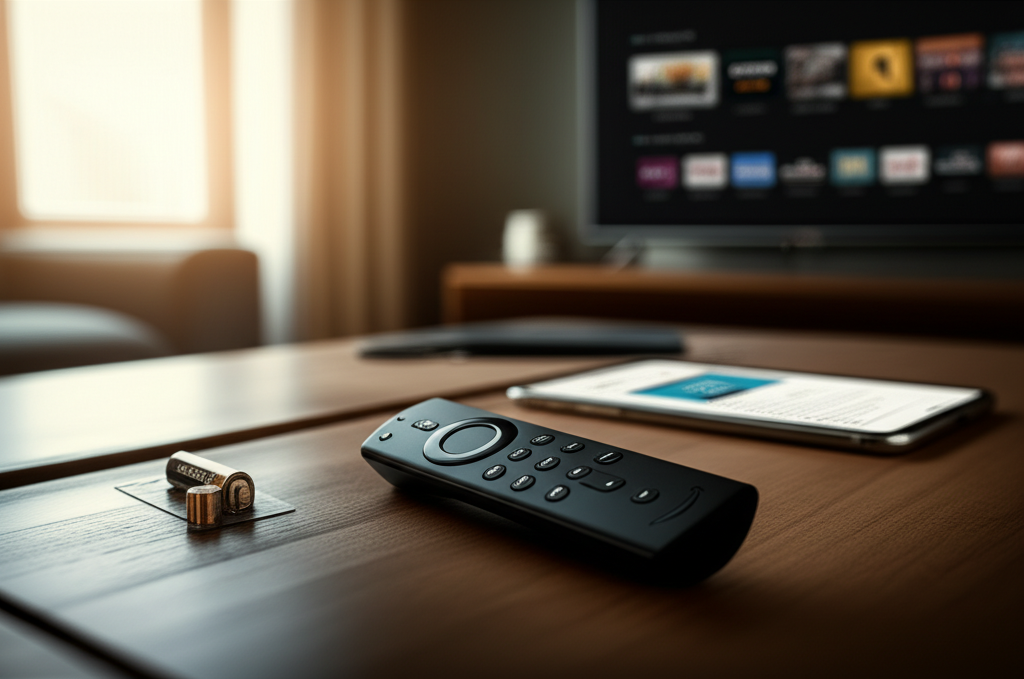
Before diving into complex solutions, always start with the most common cause: your remote’s batteries. Low or dead batteries are the leading reason for a Fire Stick remote to stop responding. This simple check is crucial for effective fire stick remote troubleshooting.
Check Battery Levels

Ensure the batteries are correctly inserted, with positive and negative terminals aligned as indicated inside the battery compartment. Sometimes, even if they seem okay, they might be depleted.
Replace with Fresh Batteries
If you suspect the batteries are the issue, replace them with a brand-new pair of high-quality alkaline batteries. Avoid using rechargeable batteries unless specifically recommended by Amazon, as their voltage can sometimes cause connectivity problems.
After replacing the batteries, try using your remote again. If it works, congratulations on a successful troubleshooting session! If not, don’t worry; we have plenty more fire stick remote troubleshooting steps to explore.
2. Re-Pairing Your Fire Stick Remote: The Magic Button
If new batteries don’t solve the problem, the next logical step in fire stick remote troubleshooting is to re-pair your remote with your Fire Stick device. This process helps re-establish the Bluetooth connection between the two.
The Standard Re-Pairing Process
1. Unplug Your Fire Stick: Disconnect the power adapter from your Fire Stick device and wait for 60 seconds. This allows the device to fully reset.
2. Plug Back In and Wait: Reconnect the power adapter and wait for the Fire Stick home screen to appear.
3. Press and Hold Pairing Button: On your Fire Stick remote, press and hold the Home button for at least 10 to 20 seconds.
4. Look for Confirmation: You should see an on-screen confirmation message or the LED light on the remote will flash, indicating it’s attempting to pair.
This re-pairing process is often highly effective for resolving connectivity issues and is a cornerstone of fire stick remote troubleshooting.
Troubleshooting Pairing Issues
If the remote doesn’t pair after this, ensure there are no obstructions between the remote and the Fire Stick. Also, try moving closer to the device. Sometimes, interference from other Bluetooth devices can disrupt pairing.
3. Restarting Your Fire Stick Device: A Soft Reset Solution
A simple restart of your Fire Stick can often resolve temporary software glitches that might be affecting remote functionality. This is a fundamental step in fire stick remote troubleshooting that clears temporary memory and reloads the system.
How to Restart Your Fire Stick
Via Settings: Navigate to Settings > My Fire TV > Restart. This is the recommended method.
Power Cycle: Unplug the power adapter from your Fire Stick for at least 60 seconds, then plug it back in. This performs a hard reboot.
Restarting your device refreshes its operating system and can fix many minor bugs, including those that prevent your remote from working. After the restart, test your remote again.
4. Checking for Remote App Connectivity and Interference
If your physical remote isn’t working, consider using the Amazon Fire TV app on your smartphone as a temporary or alternative control. This can help you navigate menus to perform further fire stick remote troubleshooting or simply continue watching.
Using the Fire TV App
1. Download the App: Get the “Amazon Fire TV” app from your smartphone’s app store (iOS or Android).
2. Connect to the Same Wi-Fi: Ensure your smartphone is connected to the same Wi-Fi network as your Fire Stick.
3. Select Your Device: Open the app, and it should automatically detect your Fire Stick device. Tap on it to connect.
This app is an invaluable tool during fire stick remote troubleshooting, allowing you to control your device while you work on fixing the physical remote.
Identifying Interference Sources
Other electronic devices, like microwaves, cordless phones, or even other Bluetooth devices, can interfere with your Fire Stick remote’s signal. Try moving your Fire Stick away from potential sources of interference. A clear line of sight is always beneficial.
5. Updating Your Fire Stick Software: Keeping it Current
Outdated software on your Fire Stick can lead to compatibility issues with accessories, including your remote. Regularly updating your Fire Stick ensures you have the latest bug fixes and features, which is crucial for smooth operation and effective fire stick remote troubleshooting.
How to Update Your Fire Stick
1. Navigate to Settings: Go to Settings > My Fire TV.
2. Select “About”: Choose the About option.
3. Check for Updates: Select Install system update or Check for Updates. If an update is available, it will download and install automatically. Your Fire Stick may restart during this process.
Keeping your Fire Stick’s software up-to-date is a proactive measure that can prevent many common issues, including remote problems.
6. Factory Resetting Your Fire Stick: The Last Resort
If all other fire stick remote troubleshooting steps have failed, a factory reset might be necessary. This will erase all your data, settings, and downloaded apps, returning your Fire Stick to its original state. It’s a drastic step, but it often resolves persistent software issues.
Performing a Factory Reset
Via Settings: Go to Settings > My Fire TV > Reset to Factory Defaults.
Using Remote Buttons (if remote partially works or you use the app): Hold the Right button on the directional navigation (on your remote) and the Back button simultaneously for 10 seconds. Then, select Reset or Factory Reset from the on-screen prompt.
Remember to back up any essential data or settings before performing a factory reset. After the reset, you will need to set up your Fire Stick again and re-pair your remote.
7. Advanced Fire Stick Remote Troubleshooting: Checking the Device Itself
Sometimes, the issue might lie with the remote hardware itself. Physical damage or internal component failure can render your remote unusable. While less common than software or battery issues, it’s a possibility to consider in your fire stick remote troubleshooting journey.
Inspect for Physical Damage
Carefully examine your remote for any signs of cracks, water damage, or loose buttons. If you find visible damage, the remote may need to be replaced.
Test Remote Functionality (LED Indicator)
Many Fire Stick remotes have an LED indicator light that flashes when a button is pressed. If this light doesn’t illuminate even with new batteries, it strongly suggests a hardware problem with the remote itself.
If you suspect hardware failure, it’s likely time to consider purchasing a replacement remote from Amazon or a compatible third-party option.
8. Exploring Compatible Replacement Remotes and Accessories
If your Fire Stick remote is beyond repair, or if you’re looking for an upgrade, there are several compatible replacement options available. Knowing your choices is part of a comprehensive approach to fire stick remote troubleshooting and maintenance.
Official Amazon Remotes
Amazon offers official replacement remotes for various Fire Stick models. These guarantee compatibility and often come with enhanced features like voice control via Alexa.
Third-Party Remotes
Numerous third-party manufacturers produce remotes compatible with Fire Stick devices. These can be a more budget-friendly option, but ensure they are explicitly advertised as compatible with your specific Fire Stick model. Always check reviews before purchasing.
Universal Remotes
Some universal remotes can be programmed to control your Fire Stick, along with other entertainment devices. This can simplify your setup if you have multiple gadgets.
Investing in a reliable replacement ensures your fire stick remote troubleshooting efforts are not in vain and that you can quickly get back to enjoying your streaming content.
9. When to Contact Amazon Support
If you’ve exhausted all fire stick remote troubleshooting steps and your remote still isn’t working, it’s time to reach out to Amazon’s customer support. They can offer further assistance, diagnose potential device issues, and guide you through warranty claims if applicable.
What to Have Ready
When contacting support, have your Fire Stick model, the remote model, and a summary of the troubleshooting steps you’ve already taken ready. This will help them assist you more efficiently.
Amazon’s support team can provide expert guidance when DIY fire stick remote troubleshooting reaches its limits.
Frequently Asked Questions (FAQ) About Fire Stick Remote Troubleshooting
Q1: My Fire Stick remote isn’t responding at all. What should I do first?
A: Always start by replacing the batteries with a fresh pair. Ensure they are inserted correctly. If that doesn’t work, try re-pairing the remote by holding the Home button.
Q2: Can I use my phone as a remote if my Fire Stick remote is broken?
A: Yes, you can download the “Amazon Fire TV” app on your smartphone. Make sure your phone and Fire Stick are on the same Wi-Fi network to connect and control your device.
Q3: How do I re-pair my Fire Stick remote if it’s not connecting?
A: Unplug your Fire Stick for 60 seconds, then plug it back in. Once the home screen loads, press and hold the Home button on your remote for 10-20 seconds until you see an on-screen confirmation.
Q4: My remote works sometimes but not always. What could be the problem?
A: This might be due to interference from other electronic devices or a weak Bluetooth signal. Try moving your Fire Stick away from potential interference sources and ensure your remote is within range.
Q5: Will a factory reset erase my Amazon account information?
A: A factory reset will remove all personal data and settings from your Fire Stick, including downloaded apps and account logins. You will need to sign back into your Amazon account and reconfigure your device after the reset.
Q6: How often should I update my Fire Stick software?
A: Your Fire Stick can be set to update automatically. It’s good practice to manually check for updates periodically via Settings > My Fire TV > About > Check for Updates to ensure you have the latest features and fixes.
Conclusion: Getting Your Fire Stick Remote Back in Action
Dealing with a malfunctioning Fire Stick remote can be a temporary setback, but as we’ve explored, most fire stick remote troubleshooting scenarios have practical solutions. From the simplest battery check to more involved software resets and re-pairing procedures, you now have a comprehensive guide to get your remote working again. Remember to always start with the basics, ensure your software is up-to-date, and don’t hesitate to use the Amazon Fire TV app as a bridge while you fix your primary remote. With these essential fixes, you can quickly resume your streaming and enjoy your favorite content without interruption.

Belayet Hossain is a Senior Tech Expert and Certified AI Marketing Strategist. Holding an MSc in CSE (Russia) and over a decade of experience since 2011, he combines traditional systems engineering with modern AI insights. Specializing in Vibe Coding and Intelligent Marketing, Belayet provides forward-thinking analysis on software, digital trends, and SEO, helping readers navigate the rapidly evolving digital landscape. Connect with Belayet Hossain on Facebook, Twitter, Linkedin or read my complete biography.