


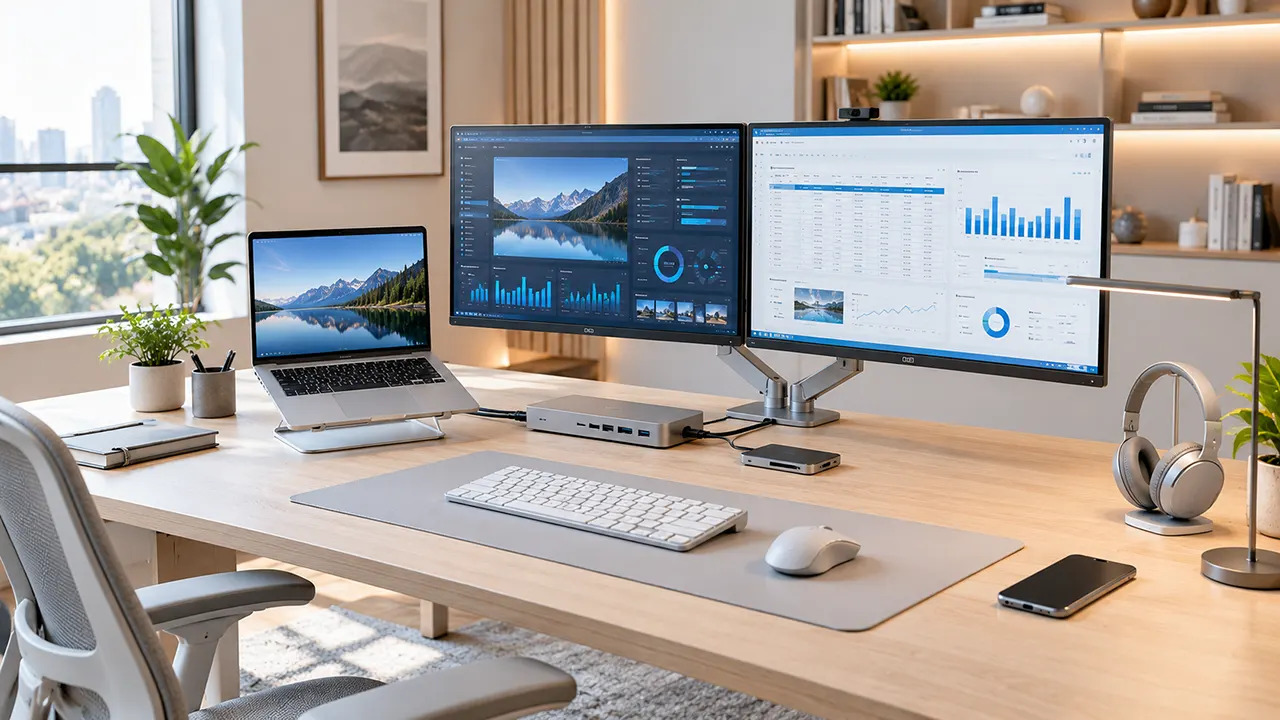
A good laptop docking station for work can turn a portable laptop into a complete desktop workstation. You can connect external monitors, keyboards, mice, Ethernet, storage devices, and other accessories through one cable. However, not every dock works with every laptop, and having multiple HDMI ports does not guarantee support for multiple independent displays.
For most home office users, the Plugable TBT4-UDZ is a strong starting point because it combines Thunderbolt 4 connectivity, 100W laptop charging, dual 2.5Gb Ethernet, and multiple display connections. Professionals who need more bandwidth and connectivity should consider the CalDigit TS5 Plus, while MacBook owners who need additional displays can consider the Plugable UD-6950PDH.
This guide compares five docking stations based on their specifications, connectivity, charging capabilities, display support, compatibility, and intended use. It also explains the differences between USB-C, USB4, Thunderbolt, and DisplayLink so you can choose a dock that actually works with your laptop.
Affiliate disclosure: ItPhobia may earn a commission when you purchase through qualifying affiliate links in this article. This does not affect our recommendations or product selection.
Review methodology: These recommendations are based on manufacturer documentation, published independent reviews, technical specifications, and available buyer feedback. Our team has not independently hands-on tested the five products.
Best Laptop Docking Stations for Work in 2026
The best docking station depends on your laptop, monitor requirements, and the devices you want to connect. A premium Thunderbolt 5 dock may be unnecessary for someone who only needs one external monitor and a few USB accessories.
Here are five options for different home office setups.
1. Plugable TBT4-UDZ – Best Overall for a Home Office
The Plugable TBT4-UDZ is a practical option for professionals who need multiple connections without moving to an expensive Thunderbolt 5 workstation.
It offers 16-in-1 connectivity, 100W advertised laptop charging, and multiple display outputs. Its combination of HDMI, DisplayPort, Ethernet, USB ports, and card readers makes it suitable for a permanent home office desk.
Important specifications
| Feature | Specification |
|---|---|
| Connection | Thunderbolt 4 / USB4 / compatible USB-C |
| Number of advertised ports | 16 |
| Host charging | 100W advertised, 98W certified |
| Video outputs | 2 HDMI 2.0, 2 DisplayPort 1.2 |
| Ethernet | 2.5GbE |
| Card readers | SD and microSD |
| Display support | Up to four displays on supported Windows systems |
| Price | $289.99 list price |
Source: Plugable’s official product documentation and display compatibility guide.
Why consider it?
- Multiple display output options make monitor connections flexible.
- 100W advertised charging can power many professional laptops.
- 2.5Gb Ethernet provides a wired networking option.
- SD and microSD readers are useful for photographers and content creators.
- No DisplayLink driver is required for its native Thunderbolt display functionality.
Important compatibility limitations
The TBT4-UDZ does not provide the same display experience on every computer.
Plugable documents up to four 4K 60Hz extended displays on certain Windows Thunderbolt 4 and USB4 systems with DisplayPort 1.4 HBR3 and DSC support. Base M1 and M2 Macs are limited to one native external display through this dock. Compatible Macs with Pro or Max chips can support up to two, subject to their display limits. Plugable Knowledge Base
Plugable also does not officially guarantee high-refresh-rate operation above 60Hz, HDR, or adaptive sync with this dock.
Who should buy it?
Choose the TBT4-UDZ if you have a compatible Thunderbolt 4 or USB4 laptop and want a versatile workstation with several peripherals and external displays.
It is not the best choice if you need Thunderbolt 5 bandwidth or guaranteed high-refresh-rate gaming monitor support.
Price: Approximately $289.99 at Plugable’s US listing. Check current availability and discounts before purchasing.
Official product information: Plugable TBT4-UDZ
2. CalDigit TS5 Plus – Best Premium Thunderbolt 5 Dock
The CalDigit TS5 Plus is designed for professionals who need extensive connectivity, high-speed storage, powerful charging, and demanding display configurations.
It is more expensive than a typical home office dock, but its 20-port design and 10Gb Ethernet make it a strong candidate for advanced workstations.
Important specifications
| Feature | Specification |
|---|---|
| Connection | Thunderbolt 5 |
| Number of ports | 20 |
| Host charging | Up to 140W |
| Thunderbolt bandwidth | 80Gbps bidirectional |
| Bandwidth Boost | Up to 120Gbps |
| Ethernet | 10GbE |
| Display output | DisplayPort 2.1 |
| USB-A | 5 ports, 10Gbps |
| USB-C | 5 ports, 10Gbps |
| Power supply | 330W |
| Warranty | 2 years |
| Price | $499.99 |
Source: CalDigit’s official specifications.
Why consider it?
- Thunderbolt 5 supports high-bandwidth professional workflows.
- 140W host charging is useful for compatible power-hungry laptops.
- 10Gb Ethernet is valuable for high-speed local networks and professional storage systems.
- Multiple USB-A and USB-C connections reduce the need for additional hubs.
- The SD and microSD card readers are useful for creative professionals.
The dock also supports multiple high-resolution displays, depending on the connected computer. CalDigit documents configurations including three 4K 144Hz displays on supported M5 Pro, M5 Max, and compatible Thunderbolt 5 Windows systems.
Important compatibility limitations
The TS5 Plus is not a universal USB-C dock. It requires Thunderbolt or compatible USB4 host connectivity with PCIe tunneling.
CalDigit specifies Windows 11 or newer and Thunderbolt 4 or newer for its Windows compatibility requirements. It does not support Thunderbolt 3 Windows PCs, although Thunderbolt 3 Macs are supported under the stated macOS requirements. Ordinary 5Gbps and 10Gbps USB-C-only hosts are not compatible.
Another consideration is its large external 330W power supply. It is designed for a permanent workstation rather than a lightweight travel setup.
Who should buy it?
Choose the TS5 Plus if you use a compatible high-performance laptop and regularly work with large files, multiple monitors, fast network storage, and numerous peripherals.
For ordinary office tasks, this dock may be more expensive than necessary.
Price: $499.99 at CalDigit’s US shop. Availability can vary.
Official product information: CalDigit TS5 Plus
3. Anker Prime Thunderbolt 5 Docking Station – Best Alternative for a Modern TB5 Setup
The Anker Prime Thunderbolt 5 Docking Station offers another option for users upgrading to Thunderbolt 5.
Its 14-in-1 design includes Thunderbolt connections, USB ports, a display output, Ethernet, audio, and memory card readers. It also supports up to 140W host charging.
Important specifications
| Feature | Specification |
|---|---|
| Connection | Thunderbolt 5 |
| Number of ports | 14 |
| Host charging | Up to 140W |
| Downstream Thunderbolt | 2 ports |
| USB-A | 3 ports, 10Gbps |
| USB-C | 2 ports, 10Gbps |
| Video | HDMI 2.1 or DisplayPort 2.1 |
| Ethernet | 2.5GbE |
| Card readers | SD and TF |
| Price | $399.99 |
Source: Anker’s official product page.
Why consider it?
- Thunderbolt 5 connectivity supports demanding professional workloads.
- 140W host charging can power compatible laptops.
- Two downstream Thunderbolt ports provide additional connectivity.
- HDMI 2.1 and DisplayPort 2.1 offer modern display connection options.
- Active cooling helps manage heat during demanding operation.
Important compatibility limitations
Anker specifies Thunderbolt 4 and Thunderbolt 5 laptop compatibility. It does not support Thunderbolt 3 laptops, ChromeOS, or Linux systems.
There is another important detail: the HDMI 2.1 and DisplayPort 2.1 outputs cannot be used simultaneously. Anker also documents limitations involving standard USB-C laptops and the number of independent external displays.
Therefore, do not purchase this dock simply because it advertises 14 ports or Thunderbolt 5. Verify the exact display configuration your laptop supports.
Who should buy it?
Consider the Anker Prime if you want a modern Thunderbolt 5 workstation with 140W charging and do not need the additional port count or 10Gb Ethernet of the CalDigit TS5 Plus.
Price: $399.99 at Anker’s US store.
Official product information: Anker Prime Thunderbolt 5 Dock
4. Belkin Connect USB-C 11-in-1 Pro GaN Dock – Best Compact USB-C Dock
The Belkin Connect USB-C 11-in-1 Pro GaN Dock is an interesting option for professionals who want a compact docking station without paying for Thunderbolt 5.
It uses GaN power technology and provides up to 96W host charging. Its integrated power design also supplies power to connected accessories.
Important specifications
| Feature | Specification |
|---|---|
| Model | INC020 |
| Connection | USB-C |
| Number of ports | 11 |
| Total power system | 150W GaN |
| Total specified output | 146W |
| Host charging | Up to 96W |
| Video | USB-C DisplayPort Alt Mode and 2 HDMI |
| Ethernet | Verify exact configuration before purchase |
| Warranty | 2 years |
| Price | Check current retailer pricing |
Belkin documents 96W host charging and 50W available for peripherals within its stated power distribution. Belkin US
Why consider it?
- Compact design helps keep a desk organized.
- GaN technology allows an integrated power solution.
- Up to 96W host charging is sufficient for many office laptops.
- It supports multiple display configurations on compatible Windows systems.
- It can connect to compatible USB-C, Thunderbolt 3, and Thunderbolt 4 systems.
Important compatibility limitations
The dock’s display behavior changes between Windows, macOS, and ChromeOS.
Belkin documents extended display support through MST on Windows and ChromeOS. On macOS, the display outputs operate differently, with extended displays mirrored in the configurations documented by Belkin.
For this reason, Mac users should not assume that connecting three monitors will provide three independent desktops. Belkin US
Who should buy it?
Consider the Belkin INC020 if you need a compact USB-C docking station for a compatible Windows home office and do not require Thunderbolt 5 performance.
It is not the right choice if independent multi-monitor support on macOS is your main requirement.
Official product information: Belkin INC020 compatibility and specifications
5. Plugable UD-6950PDH – Best for MacBooks Needing Additional Displays
The Plugable UD-6950PDH solves a different problem from the other products in this guide.
Some MacBooks have limits on the number of external displays they can drive natively. A conventional Thunderbolt dock cannot automatically remove those limits.
The UD-6950PDH uses DisplayLink technology to provide additional display outputs through a software-assisted USB connection.
Important specifications
| Feature | Specification |
|---|---|
| Connection | USB-C |
| Display technology | DisplayLink |
| Number of displays | 2 external displays |
| Resolution | Dual 4K at 60Hz |
| Host charging | Up to 100W |
| Ethernet | Gigabit Ethernet |
| USB ports | 5 |
| Card readers | SD and microSD |
| Price | $199.99 |
Source: Plugable’s official product documentation.
Why consider it?
- Enables two external 4K 60Hz displays through DisplayLink.
- Useful for compatible M1, M2, M3, M4, and M5 MacBooks with native display limitations.
- Provides laptop charging and multiple peripheral connections.
- Supports compatible Windows and ChromeOS systems.
- Does not require a Thunderbolt 5 laptop.
Important compatibility limitations
DisplayLink requires software installation. Mac users must install DisplayLink Manager and grant the required macOS permissions.
Plugable also states that HDCP-protected content is not supported on macOS while this dock is connected. This matters if you use protected streaming services or other copy-protected video applications. Plugable Technologies
DisplayLink is also not the best choice for every workload. If you need low-latency gaming, demanding 3D graphics, or an entirely native display connection, consider a compatible Thunderbolt dock instead.
Who should buy it?
Choose the UD-6950PDH if you have a MacBook with limited native external display support and want two additional monitors for productivity.
It is particularly relevant to office workers who use spreadsheets, documents, browsers, and communication applications across multiple screens.
Official product information: Plugable UD-6950PDH
Compare the Best Laptop Docking Stations at a Glance
The following table highlights the differences that matter most when selecting a docking station for a home office.
| Docking station | Connection | Charging | Ethernet | Best use |
|---|---|---|---|---|
| Plugable TBT4-UDZ | TB4 | 100W | 2.5GbE | General professional work |
| CalDigit TS5 Plus | TB5 | 140W | 10GbE | Advanced workstation |
| Anker Prime TB5 | TB5 | 140W | 2.5GbE | Modern TB5 setup |
| Belkin INC020 | USB-C | 96W | Verify configuration | Compact desk |
| Plugable UD-6950PDH | USB-C / DisplayLink | 100W | 1GbE | Additional Mac displays |
Charging figures are manufacturer-advertised maximums. Actual charging depends on the laptop, power configuration, and connected devices.
Which docking station should you choose?
- For most compatible Windows and Mac workstations: Plugable TBT4-UDZ.
- For advanced professional work: CalDigit TS5 Plus.
- For a modern Thunderbolt 5 setup: Anker Prime Thunderbolt 5.
- For a compact USB-C desk: Belkin INC020.
- For additional MacBook displays: Plugable UD-6950PDH.
One important distinction: the best docking station is not necessarily the one with the highest bandwidth. If your laptop only supports USB-C DisplayPort Alt Mode, spending $500 on a Thunderbolt 5 dock may not deliver the benefits you expect.
How to Choose a Docking Station That Works With Your Laptop
Before buying a laptop docking station, check the capabilities of your laptop’s connection port. This is more important than comparing the number of ports advertised by manufacturers.
Check Your Laptop’s USB-C or Thunderbolt Port
USB-C is a physical connector. It does not automatically mean that the port supports high-speed data, external monitors, or laptop charging.
For example, two laptops can have identical USB-C ports but completely different capabilities.
One may support USB 3.2 data transfer and charging only. Another may support Thunderbolt 4, multiple external monitors, and high-speed external storage.
Check these specifications in your laptop’s official documentation:
- Thunderbolt 3, 4, or 5 support.
- USB4 or USB4 Version 2 support.
- DisplayPort Alt Mode.
- USB Power Delivery.
- Maximum supported external displays.
- Supported display resolution and refresh rate.
You can also check the manufacturer’s technical specifications for your exact laptop model.
A practical warning: A USB-C port with a charging symbol does not necessarily support external displays. Verify video output separately.
USB-C vs. USB4 vs. Thunderbolt: What’s the Difference?
These technologies are related, but they are not interchangeable.
| Technology | What it means | What buyers should know |
|---|---|---|
| USB-C | Physical connector | Does not guarantee video or charging |
| USB 3.2 | USB data standard | Data speeds depend on the specific generation |
| USB4 | USB connectivity architecture | Supports data and display protocols |
| Thunderbolt 3 | Earlier high-speed interface | Supports compatible Thunderbolt peripherals |
| Thunderbolt 4 | 40Gbps Thunderbolt standard | Strong choice for professional docking |
| Thunderbolt 5 | Newer high-bandwidth standard | Better suited to demanding display and storage workflows |
The USB Implementers Forum explains that USB4 supports multiple simultaneous data and display protocols. Its Version 2.0 specification also defines operation up to 80Gbps.
Intel’s Thunderbolt 5 technology offers 80Gbps bidirectional bandwidth and Bandwidth Boost up to 120Gbps for display-intensive workloads.
This is useful for professionals working with high-resolution displays, large files, and high-speed storage.
However, a Thunderbolt 5 dock does not automatically make a Thunderbolt 4 laptop faster. The connection operates according to the capabilities supported by both devices.
My recommendation: For ordinary office work, Thunderbolt 4 is already a capable choice. Buy Thunderbolt 5 when your laptop, monitors, storage devices, and workflow can take advantage of its additional capabilities.
Understand DisplayPort Alt Mode, MST, and DisplayLink
These three technologies are particularly important when building a dual-monitor laptop setup.
DisplayPort Alt Mode
DisplayPort Alt Mode allows compatible USB-C connections to carry video signals to external monitors.
A compatible USB-C docking station can use this capability to provide HDMI or DisplayPort connections.
DisplayPort MST
Multi-Stream Transport allows compatible systems to send multiple independent display streams through one DisplayPort connection.
Many Windows docking stations use MST to support dual or multiple external monitors.
However, the laptop’s graphics hardware, operating system, and dock must all support the intended configuration.
DisplayLink
DisplayLink uses a dedicated chipset and software to provide additional display output through USB.
It can help users overcome certain native display limitations, particularly on compatible MacBooks.
However, it requires software installation and has different performance characteristics from native Thunderbolt or DisplayPort connections.
| Technology | Primary purpose | Main consideration |
|---|---|---|
| DisplayPort Alt Mode | Native USB-C video | Requires compatible laptop port |
| MST | Multiple independent displays | Host and OS support required |
| DisplayLink | Software-assisted display expansion | Requires drivers and has limitations |
Plugable’s UD-6950PDH is an example of a DisplayLink-based docking station, while the TBT4-UDZ uses native display connectivity. Plugable Technologies+1
Check Your Laptop’s Maximum External Display Support
Your laptop’s graphics hardware and processor can limit the number of external monitors you can use.
This is particularly important for MacBook buyers.
A docking station with two HDMI ports cannot guarantee two independent extended displays. The laptop must support the required display configuration.
Here is a practical compatibility matrix.
| Laptop platform | Display considerations | Recommended approach |
|---|---|---|
| Windows Thunderbolt 4 | Multiple displays depend on GPU and dock configuration | Compatible TB4 dock |
| Windows Thunderbolt 5 | Supports advanced multi-display configurations on compatible systems | TB5 dock |
| Windows USB4 | Depends on USB4 implementation and graphics support | Verified USB4 dock |
| Windows USB-C | Requires appropriate DisplayPort Alt Mode support | Compatible USB-C dock |
| Base M1/M2 MacBook | One native external display on supported base models | DisplayLink for additional displays |
| M-series Pro/Max MacBook | Higher native external display support, model-dependent | Compatible Thunderbolt dock |
| Chromebook | Display support varies by model and ChromeOS | ChromeOS-compatible dock |
| Linux laptop | Driver and display support vary by hardware | Verify Linux compatibility |
This matrix is a general buying guide, not a universal compatibility certification. Check your exact laptop model before purchasing.
Apple’s official display support documentation is particularly important because different Apple Silicon chips support different external display configurations. Apple Support+2
USB-C Hub vs. Laptop Docking Station: Which Should You Buy?
A USB-C hub and a full docking station both expand your laptop’s connectivity. However, they serve different purposes.
A USB-C hub is generally designed for basic port expansion. A full docking station is better suited to a permanent workstation with several monitors and connected accessories.
When a USB-C Hub Is Enough
A USB-C hub may be sufficient if your home office setup includes:
- One external monitor.
- A keyboard and mouse.
- One or two USB storage devices.
- An occasional memory card reader.
- Basic laptop charging.
Hubs are generally smaller and easier to carry. They are also a practical option for people who work from different locations.
However, check the hub’s actual video and charging specifications. A small USB-C hub may not support the same monitor configurations as a full docking station.
When You Need a Full Docking Station
A full docking station makes more sense when you use your laptop as your primary desktop computer.
For example, a professional working from home may need two monitors, a wired Ethernet connection, an external SSD, a webcam, a keyboard, a mouse, and a headset.
Connecting all these devices separately can make a desk unnecessarily complicated.
A docking station consolidates these connections into one central device.
When a Thunderbolt Dock Makes More Sense
A Thunderbolt docking station is worth considering when your laptop supports Thunderbolt and you need higher-bandwidth connections.
It is particularly useful for:
- Multiple high-resolution monitors.
- Fast external SSDs.
- Professional video editing.
- High-speed network storage.
- Multiple Thunderbolt accessories.
You do not need Thunderbolt simply because you work from home. For basic productivity, a suitable USB-C dock can be enough.
What to Check Before Connecting Two Monitors
A dual-monitor docking station can make a home office more productive. You can keep a spreadsheet open on one screen while managing emails, documents, or research on another.
However, buying a dock with two display outputs is only the first step.
Dual 1080p vs. Dual 4K Monitor Support
Two 1080p monitors require less display bandwidth than two 4K monitors.
A docking station may support dual 1080p displays but have limitations when you connect two 4K screens at 60Hz.
Consider your actual requirements before paying for a premium dock.
| Monitor setup | What to check |
|---|---|
| Single 1080p | Basic video output |
| Dual 1080p | Two independent display streams |
| Single 4K 60Hz | Compatible video output and bandwidth |
| Dual 4K 60Hz | Host, dock, GPU and connection support |
| Dual 4K high refresh rate | Higher display bandwidth and DSC support |
| 5K or 8K display | Exact resolution and interface compatibility |
A dock’s advertised maximum resolution does not necessarily apply to every combination of connected monitors.
HDMI vs. DisplayPort Connections
HDMI and DisplayPort are two common ways to connect external monitors.
Both can provide high-resolution video, but their capabilities depend on the versions supported by the laptop, dock, cable, and monitor.
Choose HDMI when:
- Your monitor has HDMI inputs.
- You use a conventional office monitor.
- You want a straightforward connection to a television or display.
Choose DisplayPort when:
- Your monitor supports higher refresh rates through DisplayPort.
- You need a particular multi-monitor configuration.
- Your workstation uses professional monitors with DisplayPort inputs.
For example, the Plugable TBT4-UDZ offers both HDMI 2.0 and DisplayPort 1.2 outputs, while the CalDigit TS5 Plus includes DisplayPort 2.1. These are different display connection capabilities, so check the monitor’s specifications before choosing a dock.
Refresh Rates and Resolution Limitations
Resolution describes the number of pixels displayed on a monitor. Refresh rate describes how frequently the image updates.
A 4K 60Hz display and a 4K 144Hz display have different requirements.
Do not assume a docking station supports every refresh rate simply because it supports 4K resolution.
Check:
- Maximum resolution per monitor.
- Maximum refresh rate.
- Number of simultaneous displays.
- HDR support.
- DSC requirements.
- Whether the laptop supports the same configuration.
The Plugable TBT4-UDZ, for example, does not officially guarantee operation above 60Hz, HDR, or adaptive sync. This is an important limitation for people who want to use gaming monitors. Plugable Knowledge Base
MacBook vs. Windows Dual-Monitor Compatibility
Windows and macOS do not always handle multiple display connections in the same way.
Many Windows systems support MST for multiple independent displays through compatible docking stations.
macOS has different MST behavior. A conventional MST dock may mirror displays instead of extending them independently.
This is why MacBook users should pay particular attention to native Thunderbolt display support and DisplayLink alternatives.
If you own a MacBook, check Apple’s external display documentation and the docking station manufacturer’s compatibility list before purchasing.
How Much Power Delivery Does Your Laptop Dock Need?
Power Delivery determines how much electrical power a docking station can supply to a connected laptop.
If the dock provides insufficient power, your laptop may charge slowly or display a warning that the connected charger is underpowered.
65W vs. 90W vs. 100W Charging
Different laptops require different charging capacities.
| Charging capacity | Typical use |
|---|---|
| 45W-65W | Many lightweight office laptops |
| 90W-100W | Many mainstream professional laptops |
| 130W-140W | Certain higher-power laptops |
| More than 140W | Specialized systems with higher charging requirements |
These are practical categories, not universal laptop charging requirements.
Check the original laptop charger or the manufacturer’s recommended USB-C Power Delivery specification.
For example, a laptop supplied with a 65W charger does not necessarily need a 140W docking station.
When 140W Power Delivery Makes Sense
A 140W docking station can be useful when you own a compatible high-performance laptop.
The CalDigit TS5 Plus and Anker Prime Thunderbolt 5 Dock both advertise up to 140W host charging.
However, the laptop must support the required charging standard and power level.
Buying a 140W dock does not force 140W into a laptop designed for lower charging capacity. The devices negotiate supported power levels.
Why the Dock’s Power Supply Matters
A docking station distributes power between the laptop and connected accessories.
For example, a dock may advertise 150W of total power but reserve only 96W for the host laptop.
That does not mean the manufacturer is providing misleading information. It means the total power budget is shared.
Check the host charging specification separately from the dock’s total power output.
Which Ports Should a Work Docking Station Have?
The right port selection depends on the devices you use every day.
Do not pay extra for connectivity that your workstation does not need.
USB-A and USB-C Ports
USB-A remains useful for older keyboards, mice, flash drives, and other accessories.
USB-C is increasingly common for modern storage devices, phones, and peripherals.
If you use several older accessories, check the number of USB-A ports before purchasing.
If you use modern high-speed external storage, check the individual port’s transfer speed rather than just its connector shape.
Ethernet and Network Connectivity
A wired Ethernet connection can provide a more consistent network connection than Wi-Fi in some home office environments.
This is useful for:
- Large file transfers.
- Remote desktop sessions.
- Video conferences.
- Network-attached storage.
- Professional network environments.
Gigabit Ethernet is sufficient for many home internet connections. A 2.5GbE or 10GbE connection makes more sense when your router, network switch, and other devices support those speeds.
For example, the CalDigit TS5 Plus includes 10Gb Ethernet, while the Plugable TBT4-UDZ offers 2.5Gb Ethernet.
HDMI and DisplayPort
Choose a docking station with the display connections your monitors actually support.
If your monitor has DisplayPort and HDMI, you have more flexibility.
If you have older monitors, you may need an appropriate adapter. Check whether the dock requires an active or passive adapter for the connection you intend to use.
SD Card Readers, Audio and External Storage
Creative professionals may benefit from integrated card readers.
A photographer, for example, may frequently transfer images from an SD card to an external SSD.
Audio ports are useful for wired headphones and headsets. Additional USB ports can simplify connections for webcams, microphones, and external drives.
These features are not essential for every office worker, but they can reduce the number of accessories required on a desk.
Laptop Docking Station Buyer Checklist
Before ordering a docking station, use this checklist to avoid compatibility problems and unnecessary expenses.
Your purchase checklist
- Confirm your laptop supports the dock’s connection standard.
- Check whether the USB-C port supports DisplayPort Alt Mode.
- Verify the maximum number of independent external displays.
- Check supported monitor resolution and refresh rate.
- Match host charging capacity to laptop requirements.
- Count the USB-A and USB-C ports you actually need.
- Check Ethernet speed if you use a wired network.
- Verify macOS, Windows, ChromeOS or Linux compatibility.
- Check whether DisplayLink software or other drivers are required.
- Confirm the included power supply and connection cable.
- Review warranty, return policy and current product availability.
Frequently Asked Questions
1. What is the best laptop docking station for work?
The Plugable TBT4-UDZ is a strong overall option for compatible Thunderbolt 4 and USB4 laptops. It offers multiple display outputs, 100W advertised charging, 2.5Gb Ethernet, and extensive peripheral connectivity. The CalDigit TS5 Plus is a better option for professionals who need Thunderbolt 5 bandwidth and 10Gb Ethernet.
2. Can a laptop docking station charge a laptop?
Yes. Many full docking stations support USB Power Delivery and can charge a compatible laptop while connecting external monitors and peripherals. However, charging capacity varies by model. Check the dock’s maximum host charging output and your laptop’s supported charging requirements before purchasing.
3. Can I connect two monitors to one USB-C port?
Yes, if your laptop, connection standard, and docking station support the required display configuration. USB-C DisplayPort Alt Mode with MST, Thunderbolt, USB4, and DisplayLink can provide different ways to connect multiple displays. A USB-C connector alone does not guarantee dual-monitor support.
4. Does a Thunderbolt dock work with a regular USB-C laptop?
Not necessarily. Some Thunderbolt docking stations support backward compatibility with certain USB-C or USB4 devices, while others require a Thunderbolt connection. Always check the manufacturer’s host compatibility requirements. For example, the CalDigit TS5 Plus does not support ordinary USB-C-only hosts.
5. Do docking stations work with MacBook Air?
Yes, compatible docking stations work with MacBook Air models. However, the number of external displays depends on the MacBook’s processor, model, operating system, and docking technology. Some models also benefit from DisplayLink docks when additional external displays are required.
6. Can I use a docking station without installing drivers?
Many conventional Thunderbolt and USB-C docking stations work without installing additional display drivers. However, DisplayLink docking stations require compatible software. Some docks may also offer optional drivers for better Ethernet performance, firmware updates, or additional features.
7. Does a docking station affect laptop performance?
A compatible docking station should not normally reduce everyday laptop performance simply because several accessories are connected. However, multiple high-resolution displays and high-bandwidth peripherals share available connection resources. DisplayLink also introduces software-assisted graphics processing, which differs from native display output.
8. Can I leave my laptop connected to a docking station all day?
Yes. A compatible docking station is designed for regular workstation use. Make sure it has adequate ventilation, uses its supplied power adapter, and operates within the manufacturer’s environmental specifications. Follow the laptop manufacturer’s battery and charging recommendations as well.
9. Is Thunderbolt 5 worth buying for office work?
Thunderbolt 5 is worth considering if you use multiple high-resolution monitors, fast external storage, and demanding professional peripherals. For email, spreadsheets, browsing, and ordinary remote work, Thunderbolt 4 or a suitable USB-C dock will often provide enough connectivity. Choose based on your actual hardware requirements rather than buying the newest standard automatically.
Choose the Dock That Matches Your Laptop
The best laptop docking station for work is the one that supports your laptop’s display capabilities, charging requirements, and everyday accessories without making you pay for features you will never use.
For a balanced home office workstation, start with the Plugable TBT4-UDZ. If your work involves demanding displays, high-speed storage, and professional networking, the CalDigit TS5 Plus deserves consideration. MacBook owners who need additional external displays should examine the Plugable UD-6950PDH and its DisplayLink requirements.
Before purchasing, verify your laptop’s exact model and connection specifications. A few minutes of compatibility checking can prevent an expensive docking station from becoming an unsuitable addition to your desk.
Ready to upgrade your workspace? Compare the specifications and current prices of the recommended docking stations, then choose the model that fits your laptop and monitor setup.

Belayet Hossain is a Senior Tech Expert and Certified AI Marketing Strategist. Holding an MSc in CSE (Russia) and over a decade of experience since 2011, he combines traditional systems engineering with modern AI insights. Specializing in Vibe Coding and Intelligent Marketing, Belayet provides forward-thinking analysis on software, digital trends, and SEO, helping readers navigate the rapidly evolving digital landscape. Connect with Belayet Hossain on Facebook, Twitter, Linkedin or read my complete biography.