


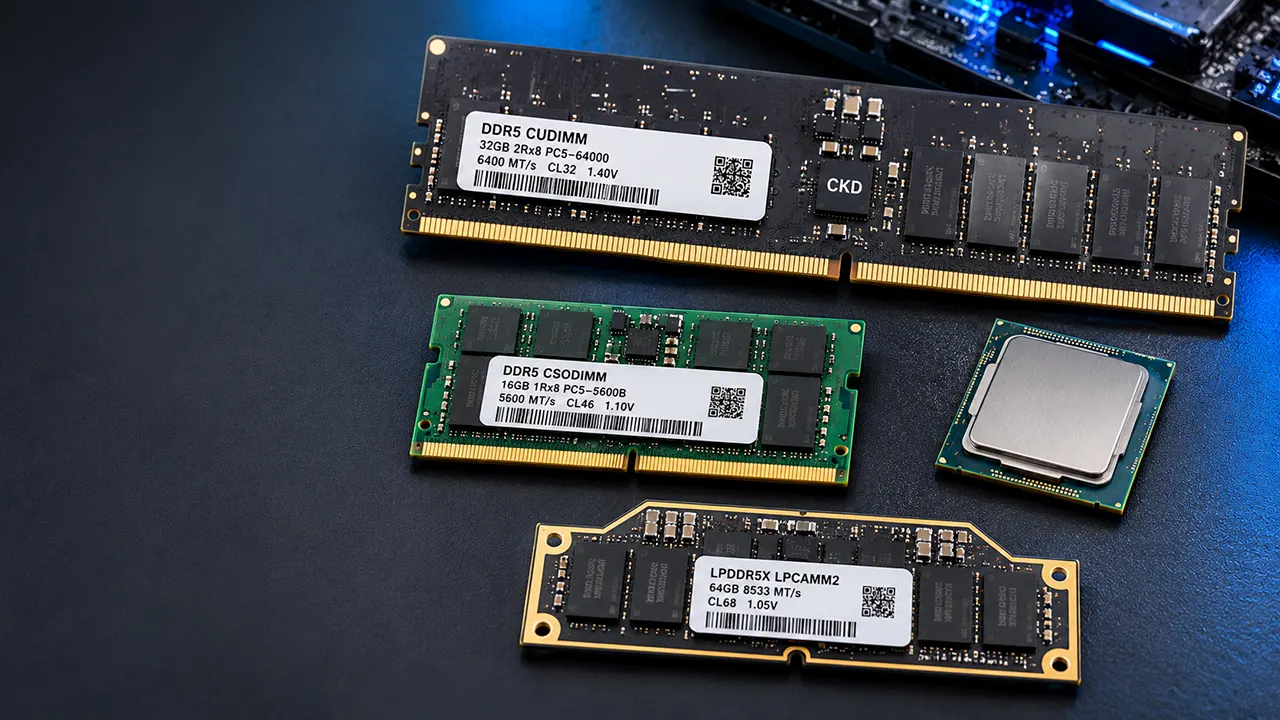
RAM speed is not always easy to identify. You may find a number such as PC4-25600, DDR4-3200, or CL16 printed on a memory stick, but what does each number mean?
You can identify your RAM speed in several ways. Check the physical label, search the manufacturer’s model number, use Windows Task Manager, or inspect the memory information with CPU-Z. Each method provides different information.
If you are planning a RAM upgrade, there is another important step. You should identify your processor model and check its supported memory specifications. Your motherboard or laptop specifications also determine which RAM configurations will work.
This guide explains how to identify RAM speed from its label, understand processor model numbers, check your current memory speed, and choose compatible RAM.
How to Know Your RAM Speed Without Guessing
The easiest way to identify RAM speed is to check its printed specification or model number. If you cannot access the physical memory module, Windows and third-party utilities can show its operating speed.
Here are four practical methods:
- Read the specification printed on the RAM label.
- Search the RAM manufacturer’s part number.
- Check the installed memory speed in Windows.
- Identify your processor and verify its supported memory speed.
Before using these methods, understand three important specifications.
| RAM specification | Meaning |
|---|---|
| Rated speed | The data rate advertised for the RAM module or kit |
| Operating speed | The data rate at which the installed RAM currently runs |
| Maximum supported speed | The highest memory speed supported under a specified processor and hardware configuration |
For example, you may own DDR4-3200 RAM, but your computer may currently run it at DDR4-2133. This does not automatically mean your RAM is defective. The memory profile, processor, motherboard, and BIOS configuration can affect its operating speed.
How to Read RAM Speed From Its Label
Looking at the physical RAM label is one of the easiest ways to identify its specifications.
Most memory modules have a small sticker containing information about capacity, generation, speed, manufacturer, and part number.
For example, you might find these markings:
- 8GB DDR4-3200
- 16GB PC4-25600
- 32GB DDR5-5600
- PC5-44800
- 1Rx8 or 2Rx8
You do not need to understand every code. Start with the memory generation and speed.
What Do DDR3, DDR4, and DDR5 Mean on a RAM Label?
DDR stands for Double Data Rate. It is the technology used by modern system memory to transfer data.
The number after DDR identifies the memory generation.
| RAM generation | Common data rates |
|---|---|
| DDR3 | 1066, 1333, 1600, 1866 MT/s |
| DDR4 | 2133, 2400, 2666, 2933, 3200 MT/s |
| DDR5 | 4800, 5200, 5600, 6000, 6400 MT/s and higher |
These are examples, not complete limits for each generation.
DDR4 and DDR5 modules have different electrical and physical designs. You cannot install DDR5 memory in a DDR4 motherboard or combine both generations in the same memory slots.
How to Identify RAM Speed From PC3, PC4, and PC5 Numbers
Some RAM labels display PC codes instead of the familiar DDR speed.
This can confuse beginners because PC4-25600 does not look like DDR4-3200.
However, these codes provide useful information about the memory generation and bandwidth.
| Printed RAM code | Equivalent memory data rate |
|---|---|
| PC3-12800 | DDR3-1600 |
| PC3-17000 | DDR3-2133 |
| PC4-19200 | DDR4-2400 |
| PC4-21300 | DDR4-2666 |
| PC4-25600 | DDR4-3200 |
| PC5-38400 | DDR5-4800 |
| PC5-44800 | DDR5-5600 |
| PC5-48000 | DDR5-6000 |
The number after PC represents theoretical bandwidth in MB/s.
For example, PC4-25600 indicates approximately 25,600 MB/s of theoretical bandwidth. This corresponds to DDR4-3200 memory.
You can use the following formula to understand the relationship:
Bandwidth = Data Rate X 8
For DDR4-3200:
3200 X 8 = 25,600 MB/s
Remember that this is the theoretical bandwidth per 64-bit memory channel, not a guarantee of actual application performance.
How to Read Capacity, Rank, and Module Type
You may also find markings such as:
16GB 2Rx8 PC4-25600
Here is what they mean:
- 16GB: The memory capacity of the module.
- 2R: The module has two ranks.
- x8: The DRAM devices have an x8 data width.
- PC4: The memory belongs to the DDR4 generation.
- 25600: The theoretical bandwidth classification in MB/s.
Rank and chip width are technical memory organization details. They are not the same as RAM capacity or speed.
You may also encounter DIMM, SO-DIMM, UDIMM, and RDIMM markings.
- DIMM is commonly used for desktop memory modules.
- SO-DIMM is commonly used in laptops and compact computers.
- UDIMM refers to unbuffered memory.
- RDIMM refers to registered memory, commonly used in servers.
Do not assume that every final letter in a RAM label has the same meaning across manufacturers. Check the manufacturer’s documentation for the exact part number.
How to Identify RAM Speed From a Manufacturer Part Number
RAM manufacturers often print a unique part number on each memory module or retail package.
For example:
CMK32GX4M2E3200C16
This is an illustrative Corsair Vengeance product number.
Instead of trying to decode every character, use the following procedure:
- Find the complete part number on the RAM sticker.
- Copy it without removing letters or numbers.
- Search for the number on the manufacturer’s official website.
- Open the exact product specification.
- Check its memory generation, capacity, data rate, and latency.
This method is particularly useful when the RAM label contains a long manufacturer-specific code.
Samsung, SK hynix, Micron, Kingston, Crucial, Corsair, and G.Skill do not all use identical part-number formats.
A model number can also identify a specific memory kit rather than an individual module. Make sure you are checking the correct product configuration.
What If the RAM Label Is Missing?
You can still identify your memory without removing it from the computer.
Use Windows Task Manager or CPU-Z to check the installed RAM information.
CPU-Z also provides an SPD tab that can display the manufacturer, part number, and specifications stored in the memory module.
How to Know RAM Speed by Its Model Number
A RAM model number is useful when you want to find the complete specifications of a memory module.
Suppose your RAM sticker contains a part number, but the speed is not clearly printed.
You can search that number using Google or visit the manufacturer’s website directly.
For example:
- Identify the manufacturer.
- Copy the complete RAM model number.
- Search the manufacturer’s product database.
- Find the matching memory product.
- Verify the specifications.
Pay attention to these details:
| Specification | Why it matters |
|---|---|
| Memory generation | Determines DDR compatibility |
| Data rate | Identifies rated RAM speed |
| Capacity | Shows how much memory is installed |
| CAS latency | Helps compare memory timing |
| Voltage | Important for configuration compatibility |
| Form factor | Determines physical compatibility |
Do not purchase RAM simply because two modules have similar model numbers. A small difference in the product code may represent a different capacity, memory generation, or configuration.
How to Identify Your Processor Model for RAM Compatibility
Identifying your processor is an important part of choosing compatible RAM.
Your CPU contains the memory controller that manages communication with system memory. Its official specifications explain which memory generations and data rates it supports.
However, the processor model number does not directly tell you the RAM speed currently running in your computer.
You must look up the complete processor model.
Find Your Processor Model in Windows
You do not need to open your computer to identify the processor.
Follow these steps:
- Press
Windows + R. - Type
msinfo32. - Press Enter.
- Find the Processor entry.
- Note the complete processor name.
You can also open Task Manager.
- Press
Ctrl + Shift + Esc. - Select Performance.
- Open CPU.
- Find the processor name near the top.
Write down the complete model number. You will need it to find the official memory specifications.
How to Identify Intel Core and Core Ultra Processor Models
Intel processors have different naming structures depending on their product generation.
For example:
| Processor model | Product identification |
|---|---|
| Intel Core i5-12400 | 12th-generation Core desktop processor |
| Intel Core i7-13700K | 13th-generation Core desktop processor |
| Intel Core i5-14600K | 14th-generation Core desktop processor |
| Intel Core Ultra 7 265K | Core Ultra Series 2 desktop processor |
The naming structure helps you identify the processor family and product series.
However, do not use the processor name alone to estimate its memory speed.
How to check Intel RAM compatibility:
- Visit Intel’s official processor database.
- Search your exact processor model.
- Open its specification page.
- Find the Memory Specifications section.
- Check supported memory types, maximum memory size, and maximum supported memory speed.
For example, Intel lists the Core Ultra 7 265K as supporting up to DDR5-6400 MT/s, with a maximum memory size of 256GB. Intel+1
This is an official processor specification, not a guarantee that every motherboard and memory configuration will operate at that rate.
How to Identify AMD Ryzen Processor Models
AMD Ryzen processors use different naming systems for desktop and mobile products.
Here are some examples:
| Processor | Product family |
|---|---|
| Ryzen 7 9700X | Ryzen 9000 desktop |
| Ryzen 7 9800X3D | Ryzen 9000 desktop |
| Ryzen AI 9 HX 370 | Ryzen AI mobile |
| Ryzen AI 9 365 | Ryzen AI mobile |
You should always verify the exact model rather than assuming that similar Ryzen numbers have identical memory specifications.
How to check AMD RAM compatibility:
- Visit AMD’s official processor specifications.
- Search your processor model.
- Open its product page.
- Find System Memory Type.
- Check the maximum memory speed and capacity.
- Review the memory configuration requirements.
For example, AMD’s Ryzen 7 9700X specifications list DDR5 memory, two memory channels, and different maximum speeds depending on the number and rank of installed modules. Its published specifications list DDR5-5600 for certain two-module configurations and DDR5-3600 for certain four-module configurations. AMD
This demonstrates why memory configuration matters when interpreting a processor’s maximum supported speed.
How to Find the Maximum RAM Speed Your Computer Supports
Knowing the processor’s memory specification is not enough to select RAM confidently.
You should also check the motherboard or laptop manufacturer’s specifications.
Three hardware components matter:
- RAM module.
- Processor memory controller.
- Motherboard or laptop memory design.
For example, your processor may support DDR5 memory, but your laptop might use soldered LPDDR5X memory rather than replaceable DDR5 SO-DIMM modules.
Similarly, a desktop motherboard may support different memory speeds depending on the number of installed modules and whether an XMP or EXPO profile is enabled.
Before buying RAM, check:
- Supported DDR generation.
- Maximum memory capacity.
- Number of memory slots.
- Supported module types.
- Supported memory speeds.
- Memory QVL, if available.
- Laptop upgrade restrictions.
A motherboard’s Qualified Vendor List (QVL) can help you identify memory modules tested by the manufacturer.
Do not assume that a faster RAM kit will automatically run at its advertised speed.
How to Check Your Current RAM Speed in Windows 11 and Windows 10
You can identify your current RAM operating speed without opening your computer.
Windows provides several useful methods.
Check RAM Speed in Task Manager
Task Manager is the easiest method for most Windows users.
Follow these steps:
- Press
Ctrl + Shift + Esc. - Select Performance.
- Click Memory.
- Find the Speed entry.
You may see a value such as:
- 2133 MT/s
- 2400 MT/s
- 2666 MT/s
- 3200 MT/s
- 4800 MT/s
- 5600 MT/s
The displayed value indicates the reported memory speed, not necessarily the maximum speed printed on the RAM label.
Task Manager may not provide the complete specifications of every installed memory module. Use CPU-Z or the manufacturer’s documentation if you need more details.
Check Individual RAM Modules With CPU-Z
CPU-Z is a popular utility for identifying processor and memory information.
Download it from the official CPU-Z website.
After installing it:
- Open CPU-Z.
- Select the Memory tab.
- Check the memory type and DRAM frequency.
- Open the SPD tab.
- Select an available memory slot.
- Check the module manufacturer, part number, and supported profiles.
The Memory tab shows information about the current memory configuration.
The SPD tab provides information about individual modules and their stored memory profiles.
One important detail: CPU-Z may display a DRAM frequency that looks like half the advertised DDR data rate.
For example:
| CPU-Z DRAM frequency | Approximate DDR data rate |
|---|---|
| 1066 MHz | DDR4-2133 |
| 1200 MHz | DDR4-2400 |
| 1333 MHz | DDR4-2666 |
| 1600 MHz | DDR4-3200 |
| 2400 MHz | DDR5-4800 |
| 2800 MHz | DDR5-5600 |
DDR memory transfers data twice per clock cycle. Therefore, the actual clock frequency and effective data rate are different measurements.
Do not assume your RAM is running slowly just because CPU-Z displays 1600 MHz for DDR4-3200.
Check RAM Speed Using PowerShell
You can also use Windows PowerShell to identify memory specifications.
Follow these steps:
- Right-click the Start button.
- Open Terminal or Windows PowerShell.
- Run this command:
Get-CimInstance Win32_PhysicalMemory |
Select-Object Manufacturer, PartNumber, Capacity, Speed, ConfiguredClockSpeed
This command displays useful information about each installed memory module.
The important fields are:
- Manufacturer: RAM manufacturer.
- PartNumber: Module model number.
- Capacity: Installed module capacity in bytes.
- Speed: Reported memory speed.
- ConfiguredClockSpeed: Configured operating clock speed, when reported by the system.
These values depend on the firmware and hardware reporting information. If the results are missing or inconsistent, check CPU-Z or BIOS.
Check RAM Speed in BIOS or UEFI
BIOS or UEFI provides another way to inspect memory configuration.
To access it:
- Restart your computer.
- Press the BIOS setup key during startup.
- Open the memory or overclocking section.
- Look for DRAM frequency or memory speed.
- Check whether XMP or EXPO is enabled.
Common BIOS keys include Delete, F2, F10, and Esc, depending on the computer manufacturer.
Be careful when changing memory settings. An incorrect configuration can cause startup problems or system instability.
How to Choose the Best RAM Speed for DDR3, DDR4, and DDR5 Computers
The best RAM speed depends on your processor, motherboard, memory configuration, and intended use.
Here are some common memory data rates.
| Memory generation | Example speeds | Typical use |
|---|---|---|
| DDR3 | 1333-1600 MT/s | Older desktop and laptop computers |
| DDR4 | 2666-3200 MT/s | Many mainstream desktop and laptop systems |
| DDR5 | 4800-6400 MT/s | Modern desktop and laptop systems |
These are practical examples, not universal recommendations.
What Is a Good DDR4 RAM Speed?
DDR4-3200 is a common memory configuration for compatible desktop systems.
DDR4-2666 and DDR4-2933 are also widely used.
If your computer supports DDR4-3200, a compatible 3200 MT/s kit can be a reasonable choice.
However, if your processor or motherboard limits the memory to 2666 MT/s, a faster kit may operate at a lower rate.
What Is a Good DDR5 RAM Speed?
DDR5 offers higher data rates and bandwidth than DDR4.
Common configurations include:
- DDR5-4800
- DDR5-5200
- DDR5-5600
- DDR5-6000
- DDR5-6400
The best choice depends on your hardware.
Check the processor and motherboard specifications before choosing a high-speed DDR5 kit.
Desktop vs Laptop RAM Speed Selection
Desktop and laptop memory are not always interchangeable.
Desktop computers commonly use DIMM modules, while laptops commonly use SO-DIMM modules.
Some modern laptops also use soldered memory that cannot be upgraded.
Before buying a laptop memory module, check its exact supported form factor, memory generation, and capacity.
RAM Speed vs Frequency vs MT/s vs MHz
These terms often appear together, but they do not mean exactly the same thing.
MHz measures clock frequency, while MT/s measures data transfers per second.
DDR memory transfers data twice per clock cycle.
For example, DDR4-3200 operates at a physical memory clock of approximately 1600 MHz and delivers 3200 million transfers per second.
This is why you may see different numbers when checking the same RAM module using different software.
When reading RAM specifications, use the advertised DDR data rate in MT/s to compare memory speeds.
Does RAM Latency Matter When Choosing Faster RAM?
RAM speed is not the only factor affecting memory performance.
Latency also matters.
You may find markings such as:
- CL16
- CL18
- CL22
- CL30
- CL36
CL stands for CAS Latency. It represents the number of memory clock cycles involved in a particular read operation.
For example, DDR4-3200 CL16 and DDR4-3200 CL22 have the same data rate but different CAS latency.
A lower CAS latency can indicate faster response time when comparing modules with the same data rate.
However, comparing latency across different memory speeds requires more care.
A simplified CAS latency calculation is:
Latency (ns) = (CL X 2000) / Data rate (MT/s)
For DDR4-3200 CL16:
(16 X 2000) / 3200 = 10 ns
This gives an approximate CAS latency, not the complete system memory access latency.
When choosing RAM, consider both data rate and timings rather than looking at CL alone.
Why Is Your RAM Running Slower Than Its Label?
You may discover that your RAM is operating below its advertised speed.
For example, your RAM sticker says DDR4-3200, but Windows reports 2133 MT/s.
Several things can cause this.
XMP Is Disabled
Intel XMP allows compatible memory kits to use predefined performance profiles.
If XMP is disabled, the memory may operate using a standard JEDEC profile instead of its advertised performance profile.
Check your motherboard BIOS to see whether XMP is available and enabled.
AMD EXPO Is Not Enabled
AMD EXPO is a memory overclocking profile technology for supported AMD platforms.
If your memory and motherboard support EXPO, enabling the appropriate profile may allow the memory to operate at its rated performance settings.
However, the processor and motherboard must support the selected configuration.
Processor or Motherboard Limitations
Your processor and motherboard may not support the memory speed printed on your RAM label.
Check both specifications before changing BIOS settings.
Mixed RAM Modules
Using different memory modules can affect the final operating speed.
For example, combining modules with different rated speeds and timings may cause the system to select a common compatible configuration.
BIOS Compatibility Issues
An outdated BIOS may have memory compatibility limitations.
Check the motherboard manufacturer’s update documentation before updating the BIOS.
Do not interrupt a BIOS update, and follow the manufacturer’s instructions carefully.
RAM Identification and Upgrade Checklist
Before purchasing new RAM, complete these checks:
- Identify the RAM generation.
- Read the speed printed on the RAM label.
- Find the manufacturer’s part number.
- Check the installed memory capacity.
- Identify the exact processor model.
- Verify the processor’s supported memory specifications.
- Check motherboard or laptop memory compatibility.
- Confirm the physical module type.
- Compare data rate and latency.
- Check the current operating speed.
- Verify XMP or EXPO support when relevant.
This process helps you avoid purchasing memory that does not fit your computer or cannot operate at the expected speed.
FAQs: How to Know RAM Speed
1. How do I know my RAM speed from its sticker?
Look for a DDR speed marking or a PC code. For example, PC4-25600 indicates DDR4-3200, while PC5-44800 indicates DDR5-5600.
2. What does PC4-25600 mean?
PC4-25600 identifies DDR4 memory with a theoretical bandwidth of approximately 25,600 MB/s per 64-bit channel. It corresponds to DDR4-3200.
3. How do I identify DDR4 and DDR5 RAM?
Check the printed label or manufacturer part number. You can also use CPU-Z to identify the memory generation. DDR4 and DDR5 have different physical and electrical specifications.
4. Can I identify RAM speed by its model number?
Yes. Copy the complete part number and search the manufacturer’s official product database. Check the exact product specifications to identify its data rate, capacity, and timings.
5. Does the processor determine RAM speed?
The processor’s memory controller determines which memory types and data rates it supports. However, the motherboard, BIOS, and installed memory configuration also affect the final operating speed.
6. Can I use 3200 MT/s RAM on a computer that supports 2666 MT/s?
In some compatible configurations, yes. The faster memory may operate at 2666 MT/s or another supported speed. Check the motherboard and processor specifications before purchasing.
7. Why does CPU-Z show half my RAM speed?
CPU-Z displays the physical DRAM clock frequency in its Memory tab. DDR memory transfers data twice per clock cycle. Therefore, approximately 1600 MHz corresponds to DDR4-3200.
8. Is the RAM speed printed on the label the actual running speed?
Not necessarily. The label generally identifies the module’s rated specification. Your computer may operate it at a lower or different speed depending on its configuration.
Final Thoughts
Identifying RAM speed is easier when you understand the information printed on the memory label. PC3, PC4, and PC5 codes help you identify the memory generation and bandwidth classification, while manufacturer part numbers provide access to more detailed specifications.
However, checking the RAM label is only the first step when planning an upgrade.
Identify your processor model, check its official memory specifications, and verify your motherboard or laptop’s supported configurations. Then compare the rated RAM speed with the actual operating speed in Windows or BIOS.
This way, you can choose compatible memory without paying extra for a speed your computer cannot use.

Belayet Hossain is a Senior Tech Expert and Certified AI Marketing Strategist. Holding an MSc in CSE (Russia) and over a decade of experience since 2011, he combines traditional systems engineering with modern AI insights. Specializing in Vibe Coding and Intelligent Marketing, Belayet provides forward-thinking analysis on software, digital trends, and SEO, helping readers navigate the rapidly evolving digital landscape. Connect with Belayet Hossain on Facebook, Twitter, Linkedin or read my complete biography.