


Published on: 04/11/2025 | Updated on: November 4, 2025
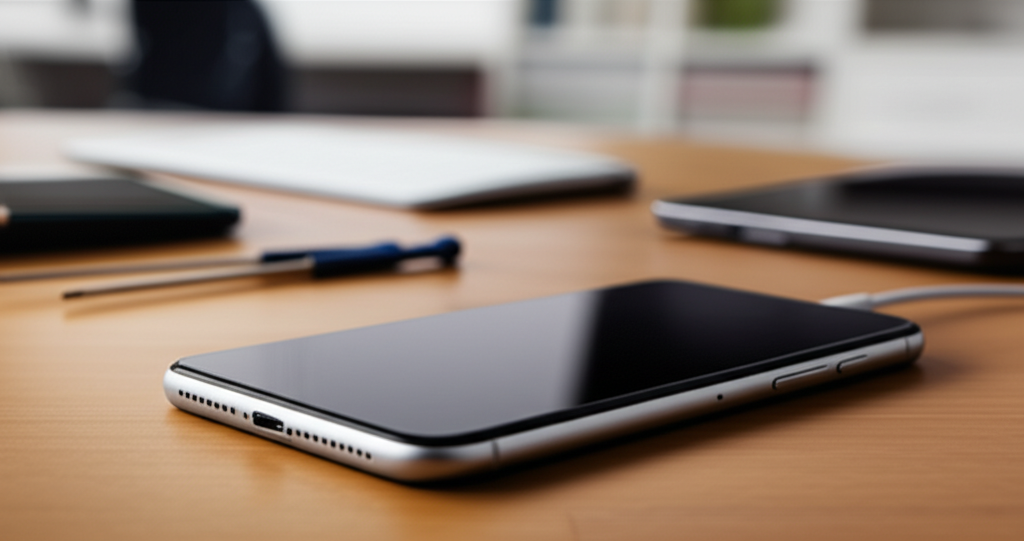
This guide offers essential steps to fix your iPhone black screen, covering software glitches, hardware issues, and when to seek professional help, ensuring you get your device working again.
A black screen on your iPhone can be startling. It’s like your phone just went to sleep and won’t wake up. This problem happens to many iPhone users. It can be caused by simple software issues or more complex hardware problems. Don’t worry, though. We’ll guide you through the steps to diagnose and fix your iPhone black screen. You can often solve this yourself with the right knowledge. This article will cover common causes and solutions.
Understanding the iPhone Black Screen Issue
An iPhone with a black screen is unresponsive. The display shows nothing. It might not make any sound either. This can happen suddenly. It might occur after an iOS update. It can also happen after dropping your phone. Sometimes, it just happens for no clear reason. Understanding why this happens is the first step to fixing it.
Symptoms of an iPhone Black Screen

Your iPhone screen stays completely black. You cannot see anything on it. The device might feel warm to the touch. You might hear sounds like notifications or alarms. However, you cannot see them. The Apple logo may not appear when you try to turn it on. This lack of visual feedback is the main symptom.
Common Causes of an iPhone Black Screen
Several factors can lead to a black screen. A software crash is a frequent culprit. A failed iOS update can cause this. Low battery can also make the screen go black. Sometimes, physical damage is the reason. A broken display or internal component can cause this. Even water damage can lead to a black screen.
Initial Troubleshooting Steps for a Black Screen iPhone
Before diving into complex repairs, try these simple fixes. They often resolve the issue quickly. These steps are safe and easy to perform. They don’t require special tools.
Force Restarting Your iPhone
A force restart can fix many software glitches. It’s like rebooting a computer. This process closes all apps. It also clears temporary data. This can solve a frozen screen problem.
For iPhone 8 or later:
1. Press and quickly release the Volume Up button.
2. Press and quickly release the Volume Down button.
3. Press and hold the Side button.
4. Release the Side button when you see the Apple logo.
For iPhone 7 or iPhone 7 Plus:
1. Press and hold both the Side button and the Volume Down button.
2. Release both buttons when you see the Apple logo.
For iPhone 6s or earlier:
1. Press and hold both the Home button and the Side button.
2. Release both buttons when you see the Apple logo.
A force restart is a good first step. It often wakes up a frozen iPhone.
Charging Your iPhone
A completely drained battery can cause a black screen. Your iPhone might need more power. Connect it to a charger. Use an official Apple charger and cable. Wait for at least 30 minutes. If the screen turns on, your battery was just dead.
Charging Your iPhone:
| Step | Action |
| :— | :————————————— |
| 1 | Connect your iPhone to a power source. |
| 2 | Use a known working charger and cable. |
| 3 | Wait for the charging screen to appear. |
| 4 | If no screen, try a different cable. |
| 5 | If still black, try a different charger. |
Ensure your charging accessories are in good condition. Faulty chargers can prevent charging.
Checking for Physical Damage and Water Exposure
Physical damage or water exposure are serious issues. They can cause a black screen. Inspect your iPhone carefully. Look for any visible cracks or dents. Check the charging port for debris.
Inspecting for Physical Damage
Look closely at the screen and body. Are there any signs of impact? A cracked screen might still work internally. However, a severe drop can damage internal components. This could lead to a black screen.
Signs of Water Damage
Check the Liquid Contact Indicators (LCIs). These are small white dots. They turn red or pink if exposed to liquid. On most iPhones, they are inside the SIM card tray slot. Water damage can corrode internal parts. This often causes malfunctions like a black screen.
Using a Computer to Restore Your iPhone
If force restarting and charging don’t work, a computer can help. You can use iTunes (on older Macs or Windows) or Finder (on newer Macs). This process is called restoring your iPhone. It reinstalls iOS. It can fix software issues causing the black screen.
Connecting to a Computer
You will need a USB cable to connect your iPhone to your computer. Make sure you have the latest version of iTunes or macOS. The computer needs to recognize your iPhone.
Putting iPhone into Recovery Mode
Recovery mode helps your iPhone communicate with your computer. This allows you to restore the software.
For iPhone 8 or later:
1. Connect your iPhone to the computer.
2. Press and quickly release Volume Up.
3. Press and quickly release Volume Down.
4. Press and hold the Side button.
5. Keep holding the Side button until the recovery mode screen appears.
For iPhone 7 or iPhone 7 Plus:
1. Connect your iPhone to the computer.
2. Press and hold the Side and Volume Down buttons.
3. Keep holding them until the recovery mode screen appears.
For iPhone 6s or earlier:
1. Connect your iPhone to the computer.
2. Press and hold the Home and Top (or Side) buttons.
3. Keep holding them until the recovery mode screen appears.
Once in recovery mode, your computer will detect the iPhone. It will offer to restore or update it. Choose ‘Restore’. This will erase your iPhone and install a fresh copy of iOS.
Important Note: Restoring your iPhone will erase all data. Make sure you have backups if possible. This step is for software issues. If it doesn’t fix the black screen, it might be a hardware problem.
Advanced Hardware Troubleshooting for the Black Screen
If software fixes don’t work, the issue might be hardware-related. This requires more technical skill. It often involves opening the iPhone.
Checking the Display Connector
The display connects to the iPhone’s logic board. This connection can become loose. It can also get damaged. A loose or damaged connector can cause a black screen.
Tools needed for this step:
Pentalobe screwdriver
Small Phillips screwdriver
Spudger or plastic opening tool
Suction cup
Anti-static wrist strap
Carefully remove the iPhone’s screws. Use a suction cup to lift the screen. Gently disconnect the display cable. Inspect it for damage. Reconnect it securely. Then, reassemble the iPhone. This requires precision and care.
Battery Health and Replacement
A failing battery can sometimes cause strange issues. This includes a black screen. If your iPhone is old, the battery might be degraded. You can check battery health in Settings if the screen works. If not, a battery test might be needed.
Signs of a bad battery:
Sudden shutdowns.
iPhone not holding a charge.
Battery percentage drops quickly.
iPhone feels unusually hot.
Replacing the battery can solve black screen issues caused by power problems. This is a repair best done by professionals.
Logic Board Issues
The logic board is the iPhone’s main circuit board. It controls everything. Damage to the logic board can cause a black screen. This could be from drops, water, or manufacturing defects. Logic board repair is complex. It often involves micro-soldering. This is a job for experienced technicians.
When to Seek Professional iPhone Repair
If you’ve tried all the steps above, it’s time for expert help. Some problems are beyond DIY repair. A professional technician can diagnose complex issues. They have specialized tools and knowledge.
Choosing a Repair Service
Consider official Apple repair services. They use genuine parts. They have certified technicians. Independent repair shops are also an option. Look for reputable shops. Check their reviews and certifications.
Repair Service Considerations:
Genuine Parts: Apple uses original parts. Third-party shops may use aftermarket parts.
Warranty: Apple offers a warranty on repairs. Independent shops may offer their own warranty.
Cost: Apple repairs can be more expensive. Independent shops might offer lower prices.
Turnaround Time: Some shops offer same-day repairs.
Always ask about the warranty and parts used. This ensures a quality repair.
What Professionals Will Check
Technicians will perform a thorough diagnostic. They check all internal components. This includes the display, battery, and logic board. They use specialized testing equipment. This helps pinpoint the exact cause.
Essential Tools for iPhone Repair
For DIY repairs, having the right tools is crucial. These tools help you work safely and effectively. They prevent further damage to your iPhone.
Basic Toolkit Essentials
A good toolkit includes screwdrivers. You’ll need Pentalobe and Phillips head drivers. A spudger is useful for prying. A suction cup helps lift the screen. Tweezers are good for small parts.
Essential Repair Tools:
Pentalobe P2 Screwdriver: For iPhone external screws.
Phillips #000 Screwdriver: For internal screws.
Spudger/Plastic Opening Tool: For prying open the phone.
Suction Cup: To lift the screen assembly.
Tweezers: For handling small connectors and screws.
Anti-Static Wrist Strap: To prevent electrostatic discharge (ESD).
Advanced Repair Tools
For more complex repairs, you might need advanced tools. These include heat guns and multimeters. Soldering equipment is for logic board repairs.
Advanced Tools:
Heat Gun/iOpener: To soften adhesive.
Multimeter: To test electrical continuity.
Microscope: For examining small components.
Soldering Station: For repairing logic board circuits.
Always use ESD protection. Static electricity can damage sensitive components.
Protecting Your iPhone from Future Black Screens
Prevention is better than cure. Taking good care of your iPhone can avoid future issues. These tips help keep your device in good working order.
Software Maintenance Tips
Keep your iOS updated. Updates often include bug fixes. Avoid installing beta software unless you are testing. Back up your iPhone regularly. This ensures your data is safe.
Hardware Protection Measures
Use a protective case. A good case absorbs shock from drops. A screen protector can prevent screen damage. Avoid exposing your iPhone to extreme temperatures. Keep it away from liquids.
iPhone Protection Checklist:
Use a durable phone case.
Apply a tempered glass screen protector.
Avoid extreme heat and cold.
Keep away from water and moisture.
Handle with care to avoid drops.
Following these steps can help prevent common problems.
Frequently Asked Questions (FAQ)
What if my iPhone screen is black but it’s making sounds?
This often means the display itself has failed. The iPhone is still working internally. It might need a new screen replacement.
Can I fix a black screen iPhone without a computer?
You can try force restarting and charging it. These steps don’t need a computer. However, restoring the iPhone software usually requires one.
How long does it take to fix an iPhone black screen?
Simple fixes like restarting take minutes. Screen replacement might take an hour or two. Logic board repair can take several days.
Is it worth fixing an iPhone with a black screen?
It depends on the cause and your iPhone model. A simple software fix is always worth it. Replacing a screen on an older model might be less cost-effective.
What is ESD and why is it important for repairs?
ESD stands for Electrostatic Discharge. It’s static electricity. It can damage delicate electronic components inside your iPhone. Using an anti-static wrist strap prevents this damage.
Conclusion
Dealing with an iPhone black screen can be frustrating. However, many cases are fixable with simple steps. We’ve covered force restarting, charging, and software restoration. We also looked at hardware checks and when to seek professional help. Remember to use the right tools and practice safety. Protecting your iPhone with cases and careful handling can prevent future black screen issues. If you’ve tried these steps and your iPhone is still black, it’s time to visit a repair professional. They can diagnose and fix more complex hardware problems.
Need more help with your iPhone repairs? Check out our other guides on iPhone troubleshooting and essential repair tools.

Belayet Hossain is a Senior Tech Expert and Certified AI Marketing Strategist. Holding an MSc in CSE (Russia) and over a decade of experience since 2011, he combines traditional systems engineering with modern AI insights. Specializing in Vibe Coding and Intelligent Marketing, Belayet provides forward-thinking analysis on software, digital trends, and SEO, helping readers navigate the rapidly evolving digital landscape. Connect with Belayet Hossain on Facebook, Twitter, Linkedin or read my complete biography.