
Published on: 04/11/2025 | Updated on: November 4, 2025
Fix your iPhone green screen with these essential steps. This guide provides clear solutions for a common issue, helping you restore your iPhone’s display functionality safely and effectively.
The iPhone green screen is a frustrating sight. Your screen suddenly turns green, making it impossible to see anything clearly. This can happen unexpectedly. It might be due to software glitches or hardware problems. Don’t worry, though. Many times, this issue is fixable. We’ll guide you through the steps to get your iPhone screen back to normal.
Understanding the iPhone Green Screen Issue
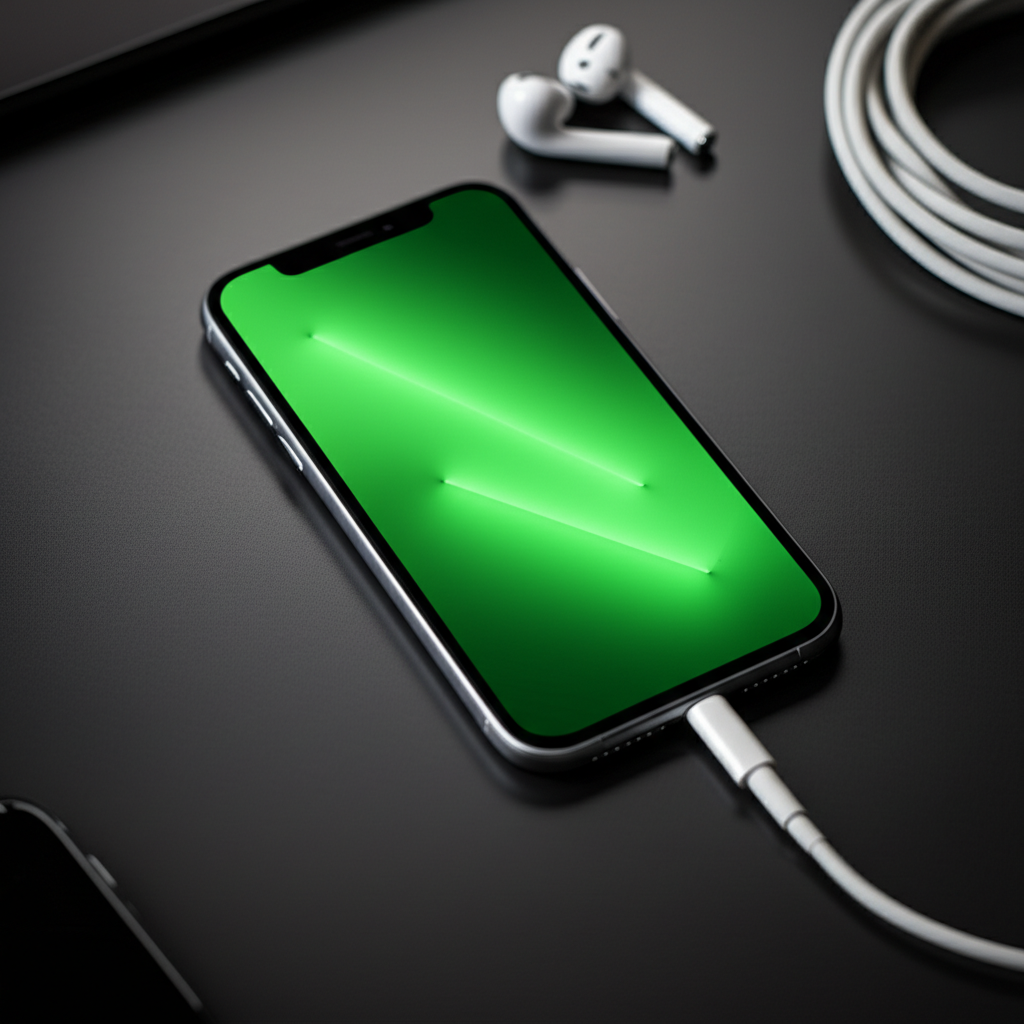
An iPhone green screen means your display isn’t showing colors correctly. It looks like a green tint or a solid green color. This problem can affect the entire screen or just parts of it. It often appears suddenly. This makes it hard to use your phone. The cause can vary, from simple software bugs to more complex hardware failures.
Common Causes of an iPhone Green Screen
Several factors can lead to your iPhone displaying a green screen. Understanding these helps in diagnosing the problem. It guides us toward the right fix.
Software Glitches and Bugs

Sometimes, a temporary software issue can cause display problems. This might happen after an iOS update. A minor bug can disrupt how the screen renders images. These are often the easiest to fix.
Hardware Damage
Physical damage is a common culprit. Dropping your iPhone can damage internal components. This includes the display connector or the screen itself. Water damage can also cause circuits to fail. This leads to screen malfunctions like the green tint.
Overheating
If your iPhone gets too hot, its components can be affected. Overheating can temporarily disrupt the display. It might cause colors to appear strange. Letting the phone cool down can sometimes resolve this.
Faulty Display Cable
The cable connecting the display to the iPhone’s logic board is delicate. If this cable is loose or damaged, it can cause display issues. This includes the green screen problem.
Display or Graphics Chip Failure
In more severe cases, the iPhone’s display panel itself might be faulty. The graphics processing unit (GPU) on the logic board could also have issues. These are more serious hardware problems.
Symptoms of an iPhone Green Screen
Recognizing the signs is the first step to fixing the problem. The green screen issue can appear in a few different ways.
Full Screen Green Tint
The most common symptom is the entire screen showing a green hue. This makes all content difficult to see. It’s like looking through a green filter.
Green Lines or Patches
Sometimes, only parts of the screen turn green. You might see green lines running across the display. Or, specific areas might show a solid green color. This can vary in intensity.
Flickering Green Screen
The green tint might not be constant. Your screen could flicker between normal colors and a green tint. This flickering can be very distracting. It indicates an unstable display connection.
Diagnostic Steps Before You Fix iPhone Green Screen
Before attempting any fixes, it’s wise to run a few checks. These simple steps can help pinpoint the cause. They can sometimes solve the problem without tools.
Restart Your iPhone
A simple restart can fix many temporary software glitches. Turn your iPhone off completely. Then, turn it back on after a minute. See if the green screen issue persists.
Check for Software Updates
Ensure your iPhone is running the latest version of iOS. Sometimes, Apple releases updates to fix display bugs. Go to Settings > General > Software Update.
Force Restart Your iPhone
If a normal restart doesn’t work, try a force restart. The method varies by iPhone model. This action clears out more system memory. It can resolve deeper software issues.
For iPhone 8 or later: Press and quickly release the Volume Up button. Press and quickly release the Volume Down button. Press and hold the Side button until you see the Apple logo.
For iPhone 7/7 Plus: Press and hold both the Side button and the Volume Down button. Keep holding them until the Apple logo appears.
* For iPhone 6s or earlier: Press and hold both the Home button and the Top (or Side) button. Continue holding until the Apple logo appears.
A force restart can often clear up display anomalies caused by software. It’s a good next step if a regular restart fails.
Restore iPhone from Backup (Advanced)
If you suspect a software issue, restoring your iPhone might help. This reinstalls iOS. It can fix corrupted system files. Warning: This erases your iPhone. Make sure you have a recent backup. You can restore using iTunes or Finder.
Essential Tools for Fixing iPhone Green Screen
If software fixes don’t work, you might need tools. These are for checking hardware connections. They are for more advanced repairs.
Small Phillips Head Screwdriver
You’ll need a small Phillips head screwdriver. This is for removing internal screws. These screws hold the iPhone’s components in place.
Pentalobe Screwdriver
iPhones use special Pentalobe screws. These are on the bottom edge of the phone. A Pentalobe screwdriver is necessary to open the device.
Spudger and Plastic Opening Tools
A spudger is a plastic tool. It helps to gently pry open components. Plastic opening tools are useful for separating parts. They prevent damage to the iPhone’s casing.
Suction Cup
A suction cup can help lift the screen. You attach it to the display. Then, you gently pull to create a small gap. This allows you to insert opening tools.
ESD Protection (Crucial!)
Electrostatic Discharge (ESD) can damage sensitive electronics. Always use an ESD wrist strap. Work on an ESD-safe mat. This protects your iPhone’s logic board.
You can find comprehensive repair tool kits online. Many include all the necessary items.
iFixit offers excellent tool kits. They also provide detailed repair guides.
Step-by-Step Guide: How to Fix iPhone Green Screen (Hardware)
This guide assumes you’re comfortable with basic electronics repair. If not, consider professional help. Always work in a clean, well-lit area.
Step 1: Power Down Your iPhone
Before opening your iPhone, ensure it’s completely off. Press and hold the power button. Slide to power off. This prevents short circuits.
Step 2: Remove Screen Screws
Locate the two Pentalobe screws. They are on either side of the charging port. Use your Pentalobe screwdriver to remove them. Keep these screws safe.
Step 3: Open the iPhone Display Assembly
Place a suction cup near the bottom edge of the screen. Gently pull upwards. At the same time, insert a thin plastic opening tool into the gap. Carefully slide the tool along the edges. This separates the screen from the frame. Do not force it. The display is still connected by cables.
Step 4: Disconnect the Battery
This is a critical safety step. Locate the battery connector. It’s usually covered by a small metal bracket. Remove the bracket screws. Use a spudger to gently disconnect the battery. This prevents power from flowing.
Step 5: Disconnect Display Cables
You’ll see several cables connecting the screen to the logic board. They are often under metal shields. Remove the screws holding these shields. Use your spudger to carefully disconnect each display cable. Note their positions.
Step 6: Inspect the Display Connector
Examine the display connector on the logic board. Look for any signs of damage or corrosion. Sometimes, dirt or debris can interfere. Gently clean the connector if needed. Use isopropyl alcohol and a soft brush.
Step 7: Inspect the Screen’s Flex Cables
Check the flex cables attached to the back of the display. Look for tears or damage. If a cable is damaged, the screen assembly likely needs replacement.
Step 8: Reconnect Cables and Test
Carefully reconnect the display cables. Ensure they click into place securely. Reconnect the battery. Power on your iPhone to test the display. Do not reassemble fully yet.
Step 9: Reassemble the iPhone
If the screen is working correctly, power off the iPhone again. Reassemble the metal shields and their screws. Reattach the battery bracket. Place the display assembly back onto the frame. Secure it with the Pentalobe screws.
If the green screen persists after these steps, the display assembly itself may be faulty. You will likely need a replacement screen.
When to Seek Professional iPhone Repair
Not everyone is comfortable opening their iPhone. If you’re unsure, it’s best to get professional help.
If You Lack Tools or Experience
Opening an iPhone requires specific tools. It also demands a steady hand. If you don’t have these, you risk further damage. A professional repair shop has the right equipment.
If the Problem Persists After DIY Attempts
You’ve tried software fixes and hardware checks. The green screen remains. This suggests a more complex issue. It could be the logic board or GPU. Professionals have advanced diagnostic tools.
For Water Damage or Severe Impact
If your iPhone suffered water damage or a major drop, professional assessment is crucial. They can check for hidden damage. They can repair or replace affected components.
Apple Authorized Service Providers offer genuine parts. Independent repair shops can also be reliable. Look for shops with good reviews and warranties.
Replacing the iPhone Screen: A Last Resort
If all troubleshooting fails, a screen replacement is often the solution. This is a more involved repair.
Genuine vs. Third-Party Screens
Genuine Apple screens offer the best quality. They are designed specifically for your iPhone model. Third-party screens can be cheaper. However, quality can vary significantly. Some may not support all features. They might also have color accuracy issues.
DIY Screen Replacement vs. Professional
DIY screen replacement saves money. However, it carries risks. You could damage other components. Professional replacement is safer. It often comes with a warranty.
Cost of Screen Replacement
The cost varies by iPhone model. Newer models with advanced displays are more expensive. Check with Apple or reputable repair shops for quotes.
Preventing Future iPhone Green Screen Issues
Once fixed, take steps to avoid recurrence. Prevention is always better than cure.
Protect Your iPhone from Drops
Use a sturdy protective case. Avoid using your iPhone in situations where it might fall. A good case can absorb impact.
Avoid Extreme Temperatures
Don’t leave your iPhone in direct sunlight. Avoid hot cars. Extreme heat can damage the battery and display. Similarly, avoid extreme cold.
Keep iPhone Dry
Protect your iPhone from water and other liquids. Even if it’s water-resistant, prolonged submersion can cause damage.
Install Updates Promptly
Keep your iOS updated. Apple often releases software patches. These can fix bugs that might affect display performance.
Frequently Asked Questions (FAQ) About iPhone Green Screen
Q1: Can a software update fix an iPhone green screen?
Yes, sometimes a software glitch causes the green screen. Updating to the latest iOS version can resolve such issues. Check for updates in Settings.
Q2: Is it safe to open my iPhone myself?
It can be safe if you are careful and use the right tools. However, there is a risk of damaging delicate components. If you are not experienced, professional repair is recommended.
Q3: How much does it cost to fix an iPhone green screen?
The cost depends on the cause. A software fix is free. A screen replacement can cost $100-$300 or more, depending on your iPhone model. Professional diagnostics may also have a fee.
Q4: Will Apple fix a green screen under warranty?
If the green screen is due to a manufacturing defect, Apple will likely fix it for free under warranty. However, if it’s caused by accidental damage (like drops or water), there will be a repair charge.
Q5: What if only part of my iPhone screen is green?
This often indicates a hardware issue with the display itself or its connection. Inspecting the display cables is a good first step. If that doesn’t help, a screen replacement is usually needed.
Q6: Can I use my iPhone with a green screen?
It depends on the severity. If it’s a slight tint, you might still be able to use it. If the screen is mostly green or flickering heavily, it can be very difficult and may worsen over time.
Final Verdict
The iPhone green screen can be alarming, but it’s often fixable. Start with simple software troubleshooting like restarts and updates. If those don’t work, and you’re comfortable, proceed with hardware checks. Inspecting internal connections is key. Remember to always prioritize safety with ESD protection. If DIY repairs seem too daunting or the issue persists, professional help is your best bet. A screen replacement might be necessary for persistent problems. By following these steps, you can increase your chances of restoring your iPhone’s display.
If you found this guide helpful, consider subscribing to Itphobia for more repair tips and tech advice.

Belayet Hossain is a Senior Tech Expert and Certified AI Marketing Strategist. Holding an MSc in CSE (Russia) and over a decade of experience since 2011, he combines traditional systems engineering with modern AI insights. Specializing in Vibe Coding and Intelligent Marketing, Belayet provides forward-thinking analysis on software, digital trends, and SEO, helping readers navigate the rapidly evolving digital landscape. Connect with Belayet Hossain on Facebook, Twitter, Linkedin or read my complete biography.