


Published on: 04/11/2025 | Updated on: November 4, 2025
Fix your iPhone’s home button with these proven, essential steps. Learn common causes and simple solutions to get your button working perfectly again.
Is your iPhone’s home button not responding? It’s a common problem that can be very frustrating. This button is your main way to get around your iPhone. When it stops working, it feels like your phone is stuck. But don’t worry, there are many ways to fix it. This guide will show you how. We’ll cover simple software fixes and what to do if you need a hardware repair. Let’s get your home button back in action.
Why Is My iPhone Home Button Not Working?
Your iPhone’s home button might not work for several reasons. It could be a simple software glitch. Sometimes, dirt or debris can get under the button. For older iPhones, the button itself might be worn out. Even a recent software update can sometimes cause temporary issues. Understanding the cause helps us find the right fix.
Common iPhone Home Button Issues
There are a few main ways your iPhone home button can misbehave. It might not respond at all when you press it. Sometimes, it might feel loose or sticky. You might notice it works only sometimes. Or, it could be very slow to respond. These symptoms point to different underlying problems.
Troubleshooting Software Glitches for a Non-Working Home Button
Many home button issues are not hardware problems. They can be fixed with simple software adjustments. These are the easiest things to try first. They don’t cost anything and can often solve the problem quickly.
Restart Your iPhone

A simple restart can fix many temporary software bugs. It’s like giving your phone a quick refresh.
1. Press and hold the side button and either volume button.
2. Slide to power off your iPhone.
3. Wait for your iPhone to turn off.
4. Press and hold the side button again.
5. Release the button when you see the Apple logo.
Restarting your iPhone clears out temporary files. This can resolve minor software conflicts. It’s a good first step for any iPhone issue.
Reset All Settings
This option resets your iPhone’s system settings. It won’t delete your apps or personal data. It will reset network settings, keyboard dictionary, and privacy settings.
1. Go to Settings.
2. Tap General.
3. Scroll down and tap Transfer or Reset iPhone.
4. Tap Reset.
5. Tap Reset All Settings.
6. Enter your passcode if prompted.
7. Tap Reset All Settings again to confirm.
Resetting settings can fix deeper software issues. It returns your phone to its default configuration. This often resolves persistent glitches.
Update iOS
Apple regularly releases software updates. These updates fix bugs and improve performance. An outdated iOS version could be causing your home button problems.
1. Go to Settings.
2. Tap General.
3. Tap Software Update.
4. If an update is available, tap Download and Install.
5. Follow the on-screen instructions.
Keeping your iPhone’s software up-to-date is important. It ensures you have the latest fixes and features. Many bugs are resolved in these updates.
Check Home Button Settings (Touch ID & Passcode)
For iPhones with a physical home button, there are settings that affect its behavior. Ensuring these are correct is vital.
1. Go to Settings.
2. Tap Accessibility.
3. Tap Touch & Haptic Feedback.
4. Ensure Rest Finger to Open is turned Off if you prefer the older click-to-open behavior.
5. Also, check Haptic Feedback settings. Sometimes, adjusting this can make the button feel more responsive.
These settings control how your home button responds to touches and presses. Adjusting them can make a big difference. It ensures the button works the way you expect.
Using AssistiveTouch as a Temporary Fix
If your home button is completely unresponsive, AssistiveTouch is a lifesaver. It adds a virtual button to your screen. This virtual button can do everything your physical home button does. It’s a great workaround while you fix the physical button.
How to Enable AssistiveTouch
1. Go to Settings.
2. Tap Accessibility.
3. Tap Touch.
4. Tap AssistiveTouch.
5. Toggle AssistiveTouch to On.
A small circle will appear on your screen. Tap it to open the menu. You can then tap “Home” to activate the home button function.
Customizing the AssistiveTouch Menu
You can customize the AssistiveTouch menu. This lets you add shortcuts for your most used actions.
1. Go to Settings > Accessibility > Touch > AssistiveTouch.
2. Under Custom Actions, you can set single-tap, double-tap, and long press actions.
3. For example, set Double-Tap to Home. This makes accessing the home function faster.
AssistiveTouch is an excellent accessibility feature. It ensures you can always use your iPhone. It’s a reliable temporary solution.
Cleaning Your iPhone Home Button
Dirt, dust, and grime can build up around the home button. This can prevent it from registering presses. Cleaning it carefully can often restore its function.
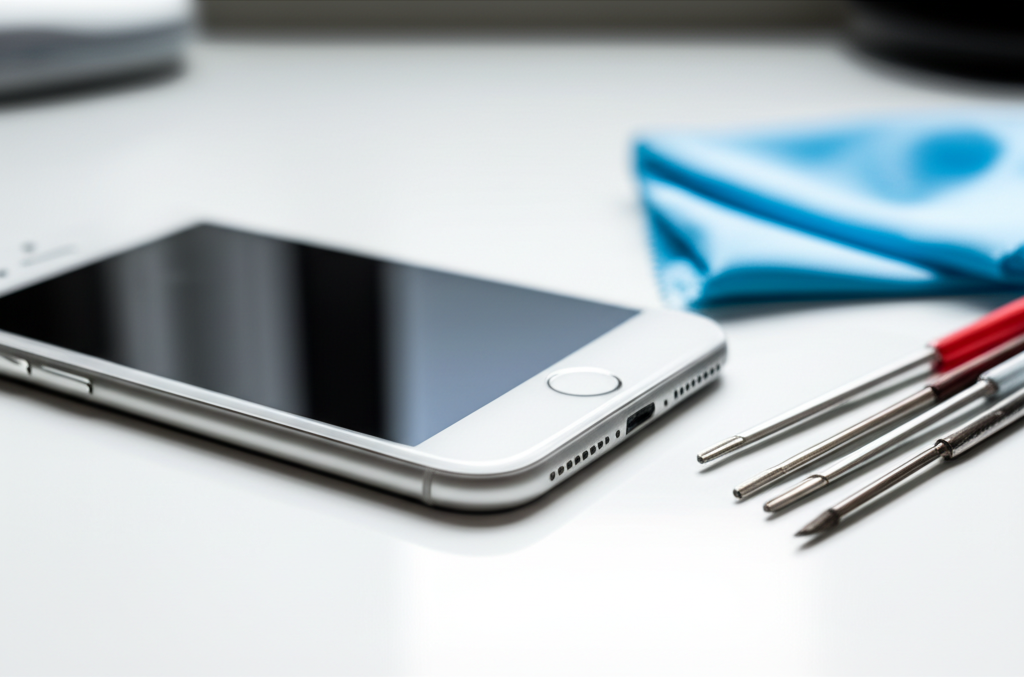
Tools You’ll Need
Microfiber cloth: Soft and lint-free.
Isopropyl alcohol (90% or higher): For cleaning.
Cotton swabs or Q-tips: For precision.
Compressed air can: To blow out debris.
Plastic spudger or guitar pick: To gently pry.
ESD-safe mat and wrist strap: Crucial for electronics repair.
Note: Always ensure your iPhone is powered off before cleaning. If you plan to open your iPhone, use an ESD-safe mat and wrist strap. This prevents static electricity from damaging components. You can find these at reputable repair supply stores like iFixit.
Step-by-Step Cleaning Process
1. Power off your iPhone. This is essential for safety.
2. Use compressed air. Hold the can upright. Spray short bursts around the edges of the home button. This can dislodge loose debris.
3. Dampen a cotton swab. Lightly dampen a cotton swab with isopropyl alcohol. Do not make it soaking wet.
4. Gently clean around the button. Carefully wipe around the edges of the home button. Avoid getting liquid inside the phone.
5. Use a dry microfiber cloth. Gently wipe away any remaining residue.
6. Allow to dry completely. Make sure the area is dry before powering on your iPhone.
This cleaning method is safe for most iPhones. It can remove sticky residue. It’s a simple fix for a sticky home button.
Fixing a Loose or Sticky Home Button
If your home button feels physically loose or sticks when you press it, it might be due to debris or a slightly damaged internal mechanism.
The “Wiggle and Press” Technique
For a slightly sticky button, sometimes a gentle manipulation can help.
1. Power off your iPhone.
2. Gently wiggle the home button. Try moving it slightly in different directions.
3. Press and hold. While gently wiggling, press and hold the home button.
4. Repeat. Try this a few times. This can sometimes dislodge minor obstructions.
This technique is for very minor stickiness. It’s not a fix for serious hardware damage.
Cleaning Internal Components (Advanced)
If external cleaning doesn’t work, debris might be inside. This requires opening the iPhone. This is a more advanced repair.
Warning: Opening your iPhone can void your warranty. It also carries risks if not done correctly. Static electricity can damage internal parts. Always use ESD protection.
1. Gather your tools. You’ll need a repair kit with small screwdrivers, a prying tool, and tweezers. An ESD-safe mat is mandatory.
2. Follow a reliable guide. Use a step-by-step guide from a reputable source like iFixit. They have detailed instructions for each iPhone model.
3. Disconnect the battery first. This is the most crucial safety step.
4. Carefully remove the screen.
5. Access the home button cable. The home button assembly is connected by a small cable.
6. Clean the cable and connector. Use a dry cotton swab to gently clean the home button cable and its connector on the logic board.
7. Inspect for damage. Look for any tears on the cable or bent pins on the connector.
8. Reassemble carefully. Follow the guide in reverse order.
This internal cleaning requires precision. It’s best for those with some repair experience. Static discharge is a major risk here.
When to Replace the Home Button Assembly
If software fixes, cleaning, and gentle manipulation don’t work, the home button assembly may be damaged. This requires replacement. This is a moderately difficult repair.
Signs the Home Button Needs Replacement
Button is unresponsive: No matter what you try, it doesn’t work.
Physical damage: The button is cracked or visibly broken.
Intermittent function: Works only sometimes, even after cleaning.
Touch ID not working: If Touch ID fails and software fixes are exhausted, the sensor might be faulty.
Important Note: On iPhones with Touch ID (iPhone 5s and later), the original home button is paired with the logic board. Replacing it with a non-original part will disable Touch ID. You can buy replacement assemblies that include a new Touch ID sensor, but they require programming to work with your specific iPhone. For simple home button function, a generic replacement might suffice.
The Replacement Process (Overview)
1. Obtain the correct replacement part. Ensure it’s for your specific iPhone model.
2. Power off your iPhone.
3. Follow a detailed repair guide. This involves removing the screen, disconnecting components, and carefully transferring parts.
4. Disconnect the old home button assembly.
5. Install the new assembly. Connect the new home button cable.
6. Reconnect the battery.
7. Test before full reassembly. Ensure the new button works.
8. Reassemble your iPhone.
This repair is complex. If you’re not comfortable, seek professional help. A faulty home button assembly often needs professional replacement.
Professional Repair Options
If you’re hesitant to perform the repair yourself, there are professional options available. These are often the safest and most reliable choices.
Apple Store or Authorized Service Provider
This is the official route. Apple technicians can replace your home button.
Pros: Genuine parts, warranty often maintained, expert service.
Cons: Can be more expensive, requires an appointment.
If your iPhone is still under warranty or AppleCare+, this is usually the best option. They can often replace the entire device if the repair is complex.
Third-Party Repair Shops
Many independent repair shops can fix your iPhone home button.
Pros: Often faster and cheaper than Apple, convenient locations.
Cons: Quality varies, non-genuine parts may be used, warranty might be affected.
Look for shops with good reviews and experienced technicians. Ask about the parts they use and their warranty.
Preventing Future Home Button Issues
Taking good care of your iPhone can prevent future home button problems. Simple habits go a long way.
Keep Your iPhone Clean
Regularly wipe down your phone. Pay attention to the home button area. This prevents dirt buildup.
Use a Screen Protector and Case
A good case protects your phone from drops. A screen protector can prevent damage to the screen and surrounding areas. This reduces stress on the home button.
Avoid Extreme Conditions
Keep your iPhone away from dust, sand, and moisture. These elements can easily get into the home button mechanism. Extreme heat or cold can also affect performance.
Handle with Care
Avoid dropping your iPhone. Don’t poke sharp objects into the home button. Gentle handling is key to longevity.
FAQ: Fixing Your iPhone Home Button
Q1: My iPhone home button is sticky. What should I do?
Try cleaning it first. Use compressed air and a lightly dampened cotton swab with isopropyl alcohol. If that doesn’t work, a gentle wiggle while pressing might help.
Q2: Can I fix a broken home button myself?
Yes, if you have the right tools and follow a detailed guide. It’s a moderately difficult repair. For iPhones with Touch ID, replacement requires careful handling to retain functionality.
Q3: Will replacing the home button disable Touch ID?
On iPhones 5s and later, replacing the original home button assembly with a non-original one will disable Touch ID. You need a special programmed replacement or professional service.
Q4: How much does it cost to fix an iPhone home button?
Costs vary. Apple repairs can range from $49-$99+. Third-party shops might charge $30-$80+. DIY repair parts cost $10-$30.
Q5: My iPhone’s home button doesn’t work after dropping it. What’s wrong?
A drop can damage the internal home button cable or connector. It might also affect the logic board connection. You’ll likely need a hardware repair or replacement.
Q6: Is there a way to use my iPhone without a home button?
Yes, you can use AssistiveTouch. This feature adds a virtual button to your screen that mimics the home button’s functions. Go to Settings > Accessibility > Touch > AssistiveTouch.
Q7: How do I know if it’s a software or hardware problem?
If restarting your iPhone or updating iOS fixes it, it was likely software. If the button remains unresponsive after all software troubleshooting, it’s probably a hardware issue.
Conclusion
Fixing your iPhone home button can seem daunting, but it’s often manageable. Start with the simple software fixes like restarting and updating iOS. If those don’t help, try cleaning the button carefully. For more serious issues, you might need to replace the home button assembly or seek professional help. Remember to always prioritize safety, especially when working with electronics. By following these steps, you can confidently address most home button problems and get your iPhone working like new again. If you found this guide helpful, consider subscribing to Itphobia for more expert repair tips and guides.

Belayet Hossain is a Senior Tech Expert and Certified AI Marketing Strategist. Holding an MSc in CSE (Russia) and over a decade of experience since 2011, he combines traditional systems engineering with modern AI insights. Specializing in Vibe Coding and Intelligent Marketing, Belayet provides forward-thinking analysis on software, digital trends, and SEO, helping readers navigate the rapidly evolving digital landscape. Connect with Belayet Hossain on Facebook, Twitter, Linkedin or read my complete biography.