


Published on: 04/11/2025 | Updated on: November 4, 2025
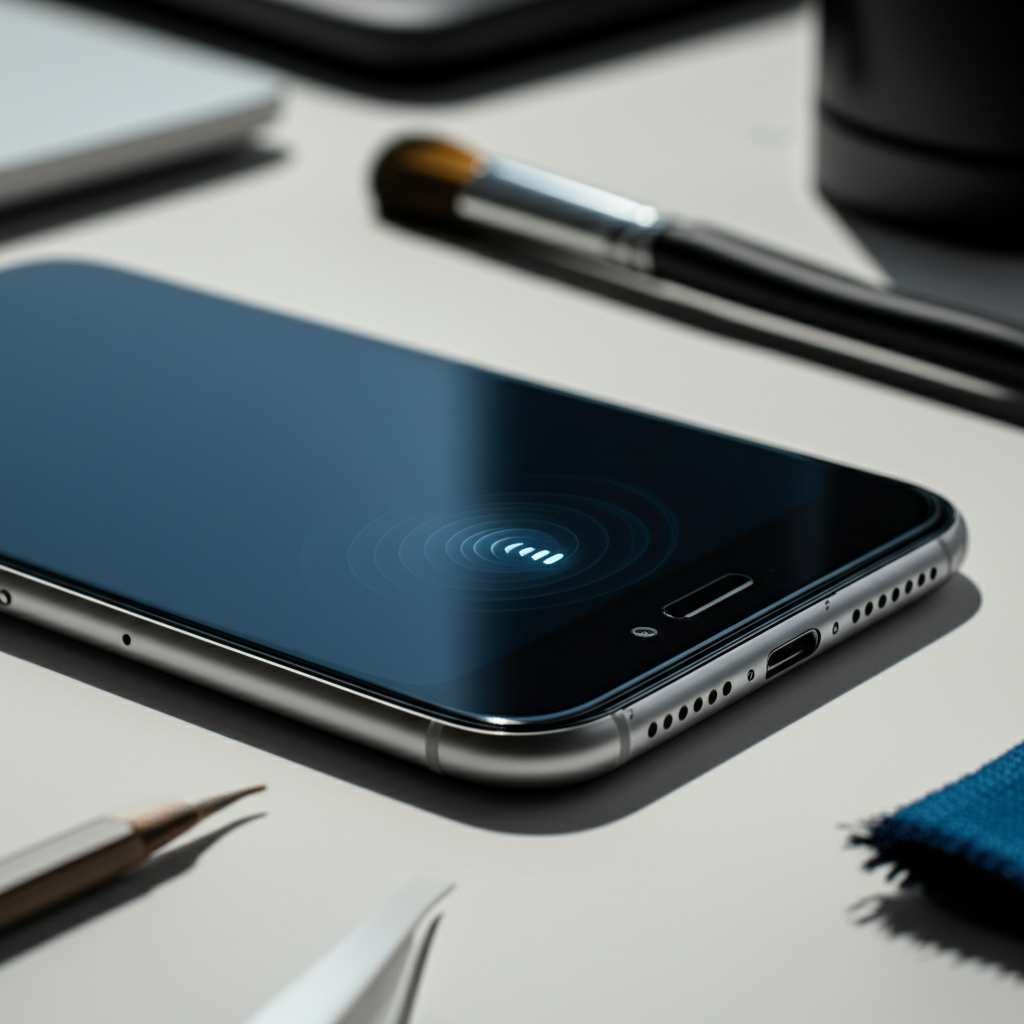
Learn how to fix your phone speaker with this essential guide. We cover common causes, simple fixes, and when to seek professional help.
Is your phone’s speaker silent? It’s a common problem that stops you from hearing calls, music, or notifications. Don’t worry, this guide will help you understand why it happens. We will walk you through easy steps to fix your phone speaker. You’ll learn to diagnose the issue and get your sound back.
Why Your Phone Speaker Might Be Silent
A silent phone speaker can be frustrating. It stops you from enjoying your favorite songs or hearing important calls. This issue can stem from simple software glitches or more complex hardware problems. Understanding the root cause is the first step to a successful repair.
Common Reasons for a Phone Speaker Not Working

Several factors can lead to a dead phone speaker. Dust and debris are common culprits. They can block the speaker grille. Software issues, like a muted setting or a glitchy app, also cause silence. Sometimes, a phone drop can damage internal components.
Blockages: Dirt, lint, or earwax can pack the speaker holes.
Software Glitches: A bug in the operating system can disable the speaker.
Volume Settings: The ringer or media volume might be turned all the way down.
App Conflicts: A specific app might be causing sound issues.
Hardware Damage: Physical impact or water exposure can break the speaker.
Symptoms of a Broken Phone Speaker
You’ll know your speaker is broken if you hear no sound at all. This includes calls, notifications, music, and videos. Even when you turn the volume up, nothing happens. You might also notice distorted or muffled sounds.
No sound from the earpiece during calls.
No notification alerts or ringtones.
Music or videos play without audio.
Sound is crackly, distorted, or very low.
Diagnosing the Speaker Problem: Simple Checks First
Before you open your phone, let’s try some easy fixes. These steps often solve the problem without needing tools. They are safe and quick to perform. Always start with the simplest solutions.
Check Basic Volume and Mute Settings
Your phone might just be on silent mode. Check your volume controls. Make sure the ringer and media volumes are not set to zero. Also, ensure that “Do Not Disturb” mode is turned off.
Press the volume up button on the side of your phone.
Swipe down from the top of your screen to access quick settings. Look for a speaker or bell icon.
Check your phone’s settings menu for Sound & Vibration options.
Cleaning Your Phone Speaker Grille
Dust and debris are often the silent saboteurs of phone speakers. A dirty grille can muffle sound or block it completely. Cleaning it carefully can often restore your speaker’s clarity.
Tools for Cleaning Speaker Grilles
You don’t need fancy tools for this. Simple household items work best. Be gentle to avoid damaging the speaker.
Soft brush: A clean, dry toothbrush or a small, soft-bristled paintbrush.
Compressed air: A can of compressed air for electronics.
Toothpick or needle: Use with extreme caution for stubborn debris.
Step-by-Step Cleaning Process
Follow these steps to safely clean your phone speaker. This process is straightforward and effective.
1. Power off your phone: This prevents accidental actions.
2. Use a soft brush: Gently brush the speaker grille. This removes loose dust.
3. Use compressed air: Hold the can upright. Spray short bursts into the grille. Keep the can at a distance.
4. Use a toothpick (carefully): If debris remains, use a toothpick. Gently scrape around the grille edges. Do not push anything into the speaker.
5. Test the sound: Turn your phone back on and check the speaker.
Testing the Speaker with Different Apps and Sounds
To confirm the speaker issue, test it thoroughly. Try various applications. This helps determine if the problem is global or app-specific.
What to Test
Play different types of audio. This ensures you cover all speaker functions.
Ringtones and Notifications: Go to sound settings and play them.
Music Player: Play a song from your music library.
Video App: Watch a video on YouTube or another platform.
Speakerphone: Make a test call and switch to speakerphone.
If sound works in one app but not another, the issue might be with that specific app. Try uninstalling and reinstalling the problematic app.
Restarting Your Phone: A Simple Fix
Sometimes, a simple restart can fix many phone issues. This includes sound problems. It clears temporary glitches in the phone’s software.
How to Restart Your Phone
The restart process varies slightly by phone model. Generally, you press and hold the power button. Then, you select the restart option.
Android: Press and hold the power button. Tap “Restart” or “Power off,” then turn it back on.
iPhone: Press and hold the side button and either volume button. Slide to power off. Turn it back on by holding the side button.
A restart is a quick way to refresh your phone’s system. It can resolve many minor software bugs.
Updating Your Phone’s Software
Outdated software can sometimes cause unexpected problems. Your phone’s operating system (OS) manages its functions, including audio. Updating to the latest version can fix bugs and improve performance.
Checking for Software Updates
Go to your phone’s settings. Look for a “System” or “Software Update” option. If an update is available, download and install it.
Android: Settings > System > System update.
iPhone: Settings > General > Software Update.
Software updates often contain fixes for known issues. They can be crucial for keeping your phone running smoothly.
Resetting App Preferences or All Settings
If a specific app is causing sound problems, resetting app preferences might help. For more stubborn issues, you can reset all settings. This won’t delete your data but restores system settings to default.
Resetting App Preferences (Android)
This resets all disabled apps, notification restrictions, background data restrictions, and permission restrictions.
1. Go to Settings.
2. Tap “System” or “General management.”
3. Select “Reset” or “Reset options.”
4. Tap “Reset app preferences.”
Resetting All Settings
This returns settings like network, keyboard dictionary, and home screen layout to their defaults.
Android: Settings > System > Reset options > Erase all data (factory reset) – Caution: This erases everything. Use “Reset network settings” or “Reset Wi-Fi, mobile & Bluetooth” first.
iPhone: Settings > General > Transfer or Reset iPhone > Reset > Reset All Settings.
Resetting settings can resolve complex software conflicts. It’s a powerful troubleshooting step.
When to Consider a Hardware Repair for Your Phone Speaker
If none of the above steps work, the problem might be with the speaker hardware itself. This often happens after a drop or water damage. In such cases, a professional repair is usually needed.
Signs of Hardware Failure
The speaker is physically damaged.
Sound issues persist after all software troubleshooting.
Water damage indicators have changed color.
The phone has been dropped recently.
Professional Repair Options
You can take your phone to the manufacturer’s service center. Alternatively, a reputable third-party repair shop can help. They have the tools and expertise to replace the speaker module.
For DIY enthusiasts, replacement speaker modules are available online. However, this requires technical skill and proper tools like a repair toolkit and potentially a soldering iron for some models. Always use an ESD-safe mat and wrist strap to protect components from static discharge.
Essential Tools for Phone Speaker Repair
If you decide to tackle the repair yourself, having the right tools is crucial. These tools help you safely open your phone and replace components. Quality tools make the job easier and reduce the risk of damage.
Recommended Repair Toolkit
A good phone repair kit usually includes:
Screwdrivers: Precision bits for various screw types (Phillips, Pentalobe, Torx).
Spudgers and Opening Tools: Plastic tools to pry open the phone casing without scratching.
Suction Cup: To lift the screen or back panel.
Tweezers: For handling small screws and components.
Heat Gun or Hair Dryer: To soften adhesive.
* ESD Wrist Strap: To prevent static damage to internal parts.
For advanced repairs, you might need a microscope and a soldering station. Always prioritize ESD protection when working on electronics.
Step-by-Step Guide: Replacing a Phone Speaker Module
This guide provides general steps. Specific procedures vary by phone model. Always find a repair guide for your exact phone model. Websites like iFixit offer detailed guides and parts.
Safety First: ESD Protection
Before you begin, ensure you are grounded. Static electricity can destroy delicate phone components.
1. Work on a clean, well-lit surface.
2. Wear an ESD wrist strap connected to a grounded point.
3. Use an ESD mat if available.
Disassembling Your Phone
1. Power off the phone: Essential for safety.
2. Remove screws: Locate and remove all external screws. These are often at the bottom edge.
3. Heat adhesive: Use a heat gun or hair dryer on low heat. Warm the edges of the screen or back panel. This softens the adhesive.
4. Pry open: Use a suction cup to lift the screen slightly. Insert an opening tool into the gap. Carefully slide it around the edges to cut the adhesive.
5. Disconnect cables: Once open, locate the battery and screen connectors. Carefully disconnect them using a plastic spudger. This prevents short circuits.
6. Locate the speaker: The speaker module is usually near the bottom or top of the phone. It might be a separate component or part of the charging port assembly.
7. Remove the old speaker: Unscrew and disconnect the old speaker module.
Installing the New Speaker
1. Connect the new speaker: Place the new speaker module in position. Connect its ribbon cable.
2. Secure the speaker: Screw the new module into place.
3. Reconnect cables: Reconnect the battery and screen cables.
4. Reassemble the phone: Carefully align the screen or back panel. Press down to secure the adhesive. Replace all screws.
5. Test: Power on your phone and test the speaker.
Replacing a speaker module can be complex. If you are unsure, seeking professional help is wise. Certified technicians ensure the repair is done correctly.
Tips for Maintaining Your Phone Speaker
Preventing problems is better than fixing them. Regular maintenance can keep your phone speaker working well. Simple habits can extend its lifespan.
Keep Your Phone Clean
Avoid exposing your phone to dust, sand, or lint. Clean the speaker grille regularly. Use compressed air and a soft brush.
Protect from Liquids
Water and other liquids are speaker enemies. If your phone gets wet, turn it off immediately. Dry it thoroughly. Seek professional help if sound issues arise.
Handle with Care
Avoid dropping your phone. Use a protective case. These measures reduce the risk of physical damage to the speaker.
Software Hygiene
Keep your phone’s software updated. Uninstall apps you no longer use. This helps prevent software conflicts that might affect sound.
Frequently Asked Questions (FAQ) about Phone Speakers
Q1: Can I fix a phone speaker myself?
Yes, for many common issues like blockages or simple software glitches, you can fix it yourself. If the speaker hardware is damaged, it might require replacement. This can be a DIY job if you have the right tools and follow a guide.
Q2: How much does it cost to fix a phone speaker?
DIY cleaning is free. Software resets are also free. Replacing a speaker module can cost from $20 to $100 for parts, depending on the phone model. Professional repair services typically charge $50 to $150.
Q3: Is it safe to use a toothpick to clean my phone speaker?
Yes, but you must be very gentle. Only use it for stubborn debris around the grille. Never push the toothpick into the speaker holes. You could damage the delicate speaker membrane.
Q4: Why does my phone speaker sound muffled?
A muffled speaker is usually due to blockage. Dust, lint, or earwax can accumulate in the grille. Cleaning the grille with a soft brush and compressed air often resolves this.
Q5: My phone fell, and now the speaker is broken. What should I do?
First, check if the issue is software-related by restarting your phone. If sound is still bad or gone, the drop likely caused hardware damage. You will probably need to replace the speaker module.
Q6: Can I use my phone while the speaker is broken?
You can still use your phone for many functions. However, you won’t hear calls on speakerphone, ringtones, or audio from apps. You might need to use headphones or an external speaker.
Q7: Where can I find a repair guide for my specific phone model?
Websites like iFixit.com offer free, detailed repair guides for a wide range of phone models. You can also find videos on YouTube by searching for “[Your Phone Model] speaker replacement.”
Conclusion
Fixing a silent phone speaker often starts with simple checks. Cleaning the grille, restarting your device, and updating software can solve many issues. If these steps don’t work, it might be time for a hardware repair. For DIY enthusiasts, a repair toolkit and a model-specific guide are essential. Remember to always prioritize safety, especially ESD protection, when working inside your phone. If you’re not comfortable with hardware repairs, professional help is readily available. Getting your phone speaker back in working order will restore your full mobile experience.

Belayet Hossain is a Senior Tech Expert and Certified AI Marketing Strategist. Holding an MSc in CSE (Russia) and over a decade of experience since 2011, he combines traditional systems engineering with modern AI insights. Specializing in Vibe Coding and Intelligent Marketing, Belayet provides forward-thinking analysis on software, digital trends, and SEO, helping readers navigate the rapidly evolving digital landscape. Connect with Belayet Hossain on Facebook, Twitter, Linkedin or read my complete biography.