


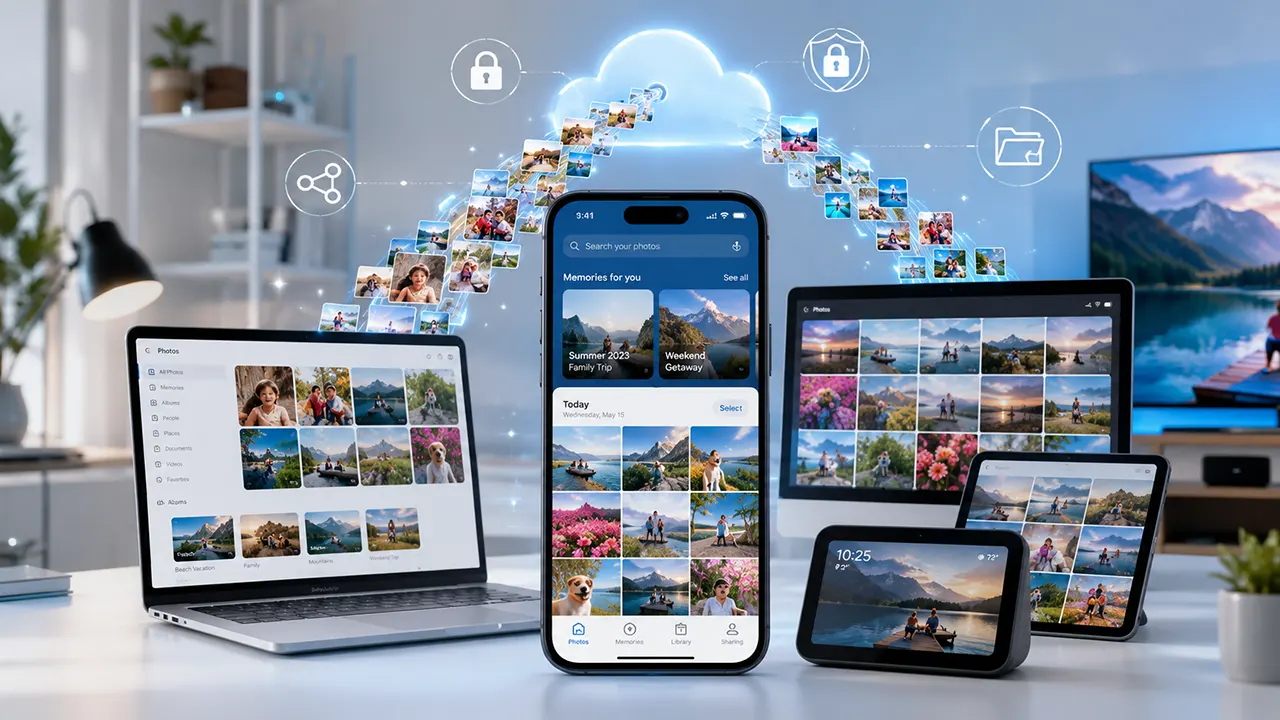
Amazon Photos lets you securely back up, organize, search, and share your photos across devices. To get started, sign in with your Amazon account, install the Amazon Photos app on your iPhone, Android device, or computer, grant photo access, and enable Auto Save to automatically back up your camera roll. Prime members in the U.S. receive unlimited full-resolution photo storage and 5 GB of video storage, while additional video storage is available through paid plans.
Overview
If your phone is packed with thousands of photos, finding a specific memory can quickly become frustrating. Family vacations, birthdays, pets, receipts, screenshots, and everyday moments all end up mixed together, making your photo library difficult to manage.
Amazon Photos solves that problem by combining secure cloud backup with intelligent organization, powerful search, and seamless access across your devices. Whether you use an iPhone, Android phone, Windows PC, or Mac, you can keep your memories safe while viewing them almost anywhere.
This guide explains how to use Amazon Photos from the ground up. You’ll learn how to install the app, upload photos, organize albums, manage storage, use Amazon Photos on different devices, share memories with family, and take advantage of features like AI-powered search and smart displays.
If you’re new to Amazon Photos – or want to get more value from your Prime membership – this guide will walk you through every step.
Affiliate Disclosure: Some products or services mentioned in this guide may include affiliate links. If you purchase through those links, we may earn a commission at no additional cost to you.
What Is Amazon Photos?
Amazon Photos is a cloud photo storage service that lets you securely back up, organize, search, and access your photos from almost any supported device. It is available through a web browser, mobile apps, and desktop applications, making it easy to keep your photo library synchronized across your digital life.
Unlike many cloud storage services that focus on files in general, Amazon Photos is designed specifically for managing personal photo collections. It combines automatic backup, intelligent organization, sharing tools, and integration with Amazon devices such as Echo Show and Fire TV.
For U.S. Prime members, one of its biggest advantages is unlimited full-resolution photo storage, along with 5 GB of video storage included as part of the membership. Users without Prime can still use Amazon Photos, although storage limits and benefits differ.
Key Features
Amazon Photos includes several features designed to make managing large photo libraries easier:
- Unlimited full-resolution photo storage for eligible Prime members
- 5 GB of video storage included
- Automatic camera roll backup
- AI-powered natural language search
- Curated Memories and “On This Day”
- Album creation and organization
- Family sharing options
- Secure cloud storage
- Access from mobile devices, desktop computers, and the web
- Integration with Echo Show, Fire TV, and Alexa
These features make Amazon Photos useful not only for backing up memories but also for rediscovering them.
How to Get Started with Amazon Photos
Setting up Amazon Photos takes only a few minutes. After signing in with your Amazon account, install the app on your preferred device, allow access to your photos, and choose whether to enable automatic backup.
Step 1: Sign in to Amazon Photos
Visit the Amazon Photos website or open the mobile app.
Sign in using your existing Amazon account.
If you already have Amazon Prime, your storage benefits are automatically linked to the same account.
If you don’t yet have an Amazon account, create one before continuing.
Step 2: Install the Amazon Photos App
Amazon Photos is available for:
- iPhone
- iPad
- Android phones
- Android tablets
- Windows
- macOS
- Web browsers
Install the appropriate version for your device and sign in with the same Amazon account on each device.
Step 3: Allow Photo Permissions
The first time you open the app, you’ll be asked to grant permission to access your photos and videos.
Allowing this permission enables Amazon Photos to:
- Back up your camera roll
- Organize new photos automatically
- Keep your library updated
Without permission, automatic backup cannot function.
Step 4: Choose Your Backup Preferences
During setup, Amazon Photos lets you decide how backups should work.
You can:
- Enable Auto Save
- Upload only over Wi-Fi
- Include videos
- Select specific folders (Android)
- Upload manually instead
For most users, enabling Auto Save over Wi-Fi provides the best balance between convenience and mobile data usage.
Amazon Photos Login
Logging into Amazon Photos is straightforward because it uses your existing Amazon account credentials. Once signed in, your photos, albums, and storage become available across every supported device connected to that account.
To log in:
- Open the Amazon Photos app or website.
- Select Sign In.
- Enter your Amazon email address or mobile number.
- Enter your password.
- Complete two-step verification if enabled.
- Your photo library will begin syncing automatically.
If you use multiple Amazon accounts, double-check that you’re signing into the correct one. Many “missing photo” issues are simply caused by logging into a different Amazon account than the one used to upload the images.
Common Login Problems
If you’re unable to sign in:
- Verify your email address and password.
- Reset your Amazon password if needed.
- Complete any required two-factor authentication.
- Check your internet connection.
- Confirm you’re using the correct regional Amazon account.
How to Upload Photos to Amazon Photos
Uploading photos to Amazon Photos is simple whether you’re using an iPhone, Android device, Windows PC, Mac, or a web browser. You can choose automatic backups for convenience or manually upload selected files when you want more control.
The best upload method depends on how many photos you have and where they’re stored.
Upload Photos from an iPhone
The Amazon Photos app can automatically back up your iPhone’s camera roll, ensuring every new photo is safely stored in the cloud.
Enable Auto Save
- Install and open the Amazon Photos app.
- Sign in with your Amazon account.
- Allow access to your Photos.
- Tap your profile icon.
- Open Settings.
- Enable Auto Save.
- Choose whether uploads occur over Wi-Fi only or mobile data.
After setup, new photos upload automatically in the background whenever your selected conditions are met.
Upload Photos Manually
If you don’t want every image backed up:
- Open Amazon Photos.
- Tap Add or Upload.
- Select the photos you want.
- Confirm the upload.
This method works well for occasional backups or selected albums.
Best Practice
Keep Auto Save enabled while periodically reviewing screenshots, downloaded images, and duplicates. This prevents unnecessary cloud clutter over time.
How to Use Amazon Photos on Android
Android users can automatically back up photos, videos, and selected folders using the Amazon Photos app. The app offers more flexibility than many mobile photo services by allowing folder-level backup controls on supported Android devices.
Set Up Automatic Backup
- Install Amazon Photos from your device’s app store.
- Sign in with your Amazon account.
- Grant storage and media permissions.
- Open Settings.
- Turn on Auto Save.
- Select the folders you want backed up.
- Choose Wi-Fi only or mobile data uploads.
Photos begin uploading automatically once the device meets your selected conditions.
Upload Individual Photos
To upload specific images:
- Open Amazon Photos.
- Tap Upload.
- Choose the images or folders.
- Start the upload.
This option is useful if you only want to save selected memories instead of your entire gallery.
Golden Nugget
Many Android phones store images in multiple folders, including Camera, Downloads, WhatsApp, Screenshots, and social media apps. Review your backup folder list to avoid filling your cloud storage with files you don’t actually need.
How to Use the Amazon Photos Desktop App
The Amazon Photos desktop app is ideal for backing up large photo collections stored on your computer. It allows you to upload thousands of photos efficiently while keeping your originals safely stored on your hard drive.
This is often the preferred option for photographers and anyone migrating years of memories from external drives.
Install the Desktop App
- Download the Amazon Photos desktop application.
- Install it on Windows or macOS.
- Sign in using your Amazon account.
- Choose the folders you want Amazon Photos to monitor.
The application can automatically upload new photos placed inside those folders.
Upload Large Photo Libraries
If you’re moving thousands of photos:
- Organize folders before uploading.
- Remove obvious duplicates.
- Verify dates and metadata when possible.
- Upload one year or one major folder at a time.
- Confirm uploads before deleting local copies.
Uploading in smaller batches makes it easier to identify missing files or interrupted uploads.
Expert Tip
The community experiences you shared consistently recommend organizing photos locally before uploading. Creating clearly named folders—such as event-based or year-based collections—can make album creation much easier later. This is practical advice from experienced users rather than official Amazon guidance.
Backup vs. Sync: Know the Difference
Many users assume backup and sync mean the same thing, but they serve different purposes.
| Backup | Sync |
|---|---|
| Creates a cloud copy of your files | Keeps files identical across locations |
| Protects against device failure | Mirrors changes everywhere |
| Original files stay on your computer | Changes can affect all synced devices |
| Better for long-term photo archives | Better for active working files |
For most personal photo collections, a backup-first approach provides greater protection against accidental deletion.
How to Organize Your Amazon Photos Library
A well-organized photo library makes finding memories much easier. Amazon Photos offers albums, AI-powered search, and date-based browsing, but your own organization strategy also plays an important role.
Use Albums for Events
Create albums for:
- Vacations
- Holidays
- Birthdays
- Weddings
- School events
- Family gatherings
Albums allow you to group related photos without creating duplicate copies.
Take Advantage of AI Search
Amazon Photos supports natural language search for many users.
Instead of remembering exact dates, you can search using descriptions such as:
- Beach sunset
- Snow vacation
- Birthday cake
- Golden retriever
- Mountains
- Christmas decorations
This feature becomes even more useful as your library grows.
Review Your Library Regularly
Every few months:
- Delete blurry images.
- Remove accidental screenshots.
- Merge duplicate albums.
- Check storage usage.
- Create new albums for recent events.
A few minutes of maintenance helps keep your library organized for years.
How to Share Photos and Albums in Amazon Photos
Amazon Photos makes it easy to share individual photos, albums, and collections with friends and family. You can send images through email, text messages, or shared groups, and recipients don’t need an Amazon Prime membership to view the content you share.
Sharing features are designed for everything from vacation albums to family memories.
Share Individual Photos
To share a single photo:
- Open Amazon Photos.
- Select the photo.
- Tap or click the Share icon.
- Choose how you’d like to send it.
- Select your recipient.
- Send the photo.
You can share through supported messaging apps, email, or by creating a shareable link where available.
Share Entire Albums
Albums are ideal when you want to share multiple memories from the same event.
Examples include:
- Weddings
- Birthdays
- Family vacations
- School events
- Holidays
Sharing an album keeps related photos together instead of sending dozens of separate images.
Create Shared Groups
Amazon Photos also lets you create shared groups for ongoing collaboration.
These work well for:
- Families
- Sports teams
- Clubs
- Class reunions
- Travel groups
Members can access newly shared content without receiving individual messages every time.
Golden Nugget
Instead of creating dozens of small shared albums, create one long-term family group and organize memories into albums within it. This keeps sharing simple as your library grows.
Family Vault vs. Shared Albums
Family Vault and Shared Albums serve different purposes. Understanding the difference helps you choose the right option for your household.
| Feature | Family Vault | Shared Albums |
|---|---|---|
| Purpose | Share photo storage with family | Share selected photos or albums |
| Best For | Household members | Friends, relatives, or groups |
| Automatic sharing | Optional | No |
| Photo ownership | Original owner retains ownership | Original owner retains ownership |
| Ideal Use | Family backups | Trips, events, celebrations |
When to Use Family Vault
Choose Family Vault if you want:
- Household members to contribute photos
- Shared access to family memories
- Easier collaboration between spouses or close family
When to Use Shared Albums
Choose Shared Albums if you simply want to:
- Send vacation photos
- Share wedding pictures
- Share birthday events
- Collaborate on specific collections
The two features complement each other rather than compete.
Using Amazon Photos with Echo Show, Fire TV, and Alexa
Amazon Photos integrates with several Amazon smart devices, allowing your favorite memories to appear throughout your home. Once connected, your photos can become rotating displays, digital picture frames, or searchable collections using voice commands.
Display Photos on Echo Show
You can personalize your Echo Show with albums or automatically generated memories.
Popular options include:
- Daily Memories
- Family albums
- Vacation collections
- Holiday photos
Instead of showing generic wallpapers, your Echo Show becomes a personalized digital photo frame.
Show Photos on Fire TV
Fire TV can display your photo library on the television.
This works well for:
- Family gatherings
- Holiday slideshows
- Travel memories
- Home displays
Viewing photos on a large screen often makes old memories much more enjoyable than browsing them on a phone.
Use Alexa Voice Commands
Supported Alexa devices can help locate photos using natural requests.
Examples include:
- “Show my Hawaii photos.”
- “Show pictures of my dog.”
- “Show family vacation photos.”
- “Show beach memories.”
Natural language search reduces the need to manually browse thousands of images.
Golden Nugget
If you regularly use Echo Show or Fire TV, create dedicated albums such as Family Favorites, Vacation Highlights, or Best of the Year. Smaller curated albums create much more engaging slideshows than displaying every photo you’ve ever uploaded.
Understanding Amazon Photos Storage
Amazon Photos storage depends on whether you have an Amazon Prime membership. Prime members receive generous photo storage benefits, while non-Prime users have more limited cloud storage.
Storage Comparison
| Feature | Prime Member | Non-Prime User |
|---|---|---|
| Photo Storage | Unlimited full-resolution photos | Included within available storage allowance |
| Video Storage | 5 GB included | 5 GB included |
| Additional Storage | Available through paid plans | Available through paid plans |
If you frequently capture high-resolution photos, Prime’s unlimited photo storage is one of the service’s biggest advantages.
Amazon Photos Subscription Plans
Users who need additional video storage can upgrade through paid storage plans.
Available options include:
| Plan | Suitable For |
|---|---|
| 50 GB | Casual video users |
| 100 GB | Moderate video collections |
| 1 TB | Large family libraries |
| 2 TB | Professional creators and extensive archives |
Choose a plan based on your video library rather than your photo collection, since eligible Prime members already receive unlimited photo storage.
Best Practices for Using Amazon Photos
Following a few simple habits can make your photo library easier to manage over the long term.
Recommended Best Practices
- Enable Auto Save for new photos.
- Upload over Wi-Fi when possible.
- Organize albums by events or years.
- Review duplicates periodically.
- Keep important photos stored locally as well.
- Enable two-factor authentication on your Amazon account.
- Regularly monitor your storage usage.
- Use descriptive album names.
- Create curated albums for Echo Show and Fire TV.
- Review your backups after large uploads.
Expert Insight
Cloud storage is an excellent backup solution, but it shouldn’t always be your only backup. Keeping an additional copy on an external drive or another trusted backup location provides extra protection against accidental deletion, account issues, or other unexpected events.
Common Mistakes to Avoid
Many new users encounter avoidable problems when first using Amazon Photos.
Avoid these common mistakes:
- Uploading thousands of unorganized photos at once.
- Ignoring duplicate images.
- Forgetting to enable Auto Save.
- Uploading over mobile data without checking settings.
- Assuming backup and synchronization are identical.
- Logging into the wrong Amazon account.
- Deleting local copies before confirming uploads have completed.
- Leaving screenshots and temporary images mixed with personal memories.
- Waiting until storage is full before reviewing usage.
Small adjustments early on can save hours of cleanup later.
Troubleshooting Amazon Photos
Most Amazon Photos problems can be solved by checking your account, internet connection, app permissions, or storage settings. If photos aren’t uploading, syncing, or appearing correctly, start with the simplest fixes before reinstalling the app or contacting Amazon Support.
Amazon Photos Login Problems
If you can’t sign in to Amazon Photos, try the following steps:
- Make sure you’re using the correct Amazon account.
- Double-check your email address or mobile number.
- Verify your password.
- Complete two-step verification if it’s enabled.
- Restart the app or browser.
- Ensure you have a stable internet connection.
- Update the app to the latest version.
If you recently changed your Amazon password, sign in again on all devices to restore syncing.
Photos Not Uploading
If uploads are stuck or never start, check these common causes:
- Auto Save is turned off.
- The app doesn’t have permission to access your photos.
- You’re waiting for a Wi-Fi connection.
- Battery-saving mode is restricting background activity.
- Your internet connection is unstable.
- The app needs to be updated.
For large libraries, uploads may take several hours or even days depending on your internet speed and the number of files.
Photos Not Syncing Across Devices
If photos appear on one device but not another:
- Verify that both devices use the same Amazon account.
- Refresh the app.
- Check your internet connection.
- Wait for recent uploads to finish processing.
- Update the Amazon Photos app on every device.
Cloud libraries occasionally require a short amount of time before newly uploaded photos become available everywhere.
Missing Photos
If you can’t find a photo:
- Search using keywords instead of dates.
- Check recently uploaded items.
- Look inside the correct album.
- Confirm you’re using the correct Amazon account.
- Review whether the upload completed successfully.
Natural language search can often locate photos even when you don’t remember exactly when they were taken.
Storage Problems
If you receive storage warnings:
- Review your current storage usage.
- Delete unwanted videos if appropriate.
- Remove unnecessary duplicates.
- Upgrade your storage plan if needed.
Remember that eligible Prime members receive unlimited photo storage, while video storage has separate limits.
Quick Troubleshooting Checklist
| Problem | First Thing to Check |
|---|---|
| Can’t log in | Correct Amazon account and password |
| Photos won’t upload | Auto Save and permissions |
| Sync issues | Internet connection and account |
| Missing photos | Search, albums, upload status |
| Storage warning | Available storage and video usage |
Golden Nugget
When troubleshooting, change only one setting at a time and test again. If you modify several settings together, it becomes much harder to identify what actually solved—or caused—the problem.
Frequently Asked Questions
1. Is Amazon Photos free?
Amazon Photos is free to use with an Amazon account, but storage benefits differ. Eligible Prime members receive unlimited full-resolution photo storage and 5 GB of video storage. Users without Prime can still use the service with more limited storage and the option to purchase additional capacity.
2. Can I use Amazon Photos without Amazon Prime?
Yes. You don’t need Prime to use Amazon Photos. However, Prime members receive significantly more storage benefits, including unlimited photo storage, making the service much more valuable for large photo libraries.
3. How do I upload photos to Amazon Photos?
Install the Amazon Photos app or use the web interface, sign in with your Amazon account, and either enable Auto Save or manually select the photos you want to upload. Desktop users can also upload entire folders using the desktop application.
4. Does Amazon Photos reduce photo quality?
Amazon Photos stores supported photos at their original resolution, allowing you to preserve image quality for future viewing, sharing, and printing.
5. Can I delete photos from my phone after backing them up?
Yes, but only after confirming the upload completed successfully. Many users prefer keeping at least one additional backup before permanently removing photos from their device.
6. Can I access Amazon Photos on my computer?
Yes. You can use Amazon Photos through any supported web browser or install the Amazon Photos desktop app for Windows or macOS to upload, organize, and manage large photo libraries.
7. Can I share photos with people who don’t have Prime?
Yes. Shared photos and albums can generally be viewed by recipients even if they don’t have an Amazon Prime membership, making Amazon Photos convenient for sharing family memories.
8. Is Amazon Photos safe?
Amazon Photos is designed to securely store your photos in the cloud. For additional protection, use a strong password, enable two-factor authentication on your Amazon account, and maintain another backup of irreplaceable memories.
Conclusion
Amazon Photos has grown far beyond a simple cloud backup service. It now combines secure storage, AI-powered search, automatic backups, smart organization, family sharing, and deep integration with Amazon devices into a single platform that’s easy to use across your phone, computer, and home.
Whether you’re backing up a few hundred family photos or preserving decades of memories, taking a little time to organize your library, enable automatic backups, and understand your storage options will make the experience much smoother.
If you’re already an Amazon Prime member, you’re likely leaving one of your membership’s most valuable benefits unused. Unlimited full-resolution photo storage can help protect your memories while making them easier to find and enjoy.
Ready to get started? Install Amazon Photos, upload your first collection, organize it into albums, and explore features like AI search, Family Vault, and smart display integration. If you’re considering Prime for its photo storage benefits, this is also the right time to compare plans using your affiliate links and choose the option that best fits your needs.

Belayet Hossain is a Senior Tech Expert and Certified AI Marketing Strategist. Holding an MSc in CSE (Russia) and over a decade of experience since 2011, he combines traditional systems engineering with modern AI insights. Specializing in Vibe Coding and Intelligent Marketing, Belayet provides forward-thinking analysis on software, digital trends, and SEO, helping readers navigate the rapidly evolving digital landscape. Connect with Belayet Hossain on Facebook, Twitter, Linkedin or read my complete biography.