
Published on: 10/11/2025 | Updated on: November 10, 2025
Replacing iPhone repair adhesive is crucial for restoring structural integrity and water resistance after screen or battery repairs, ensuring your device functions like new and stays protected from dust and moisture.
When you repair your iPhone, especially the screen or battery, you’ll need to replace the adhesive. This special tape holds everything together. It also helps keep water and dust out. Without it, your iPhone might not be as strong. It might also be more open to damage. This guide will show you exactly how to do it. We will cover what adhesive to use and how to apply it correctly. Let’s get your iPhone sealed up tight again.
Why Replacing iPhone Adhesive Matters
Replacing iPhone adhesive is vital for maintaining your device’s structural integrity and water resistance after internal component access, preventing future issues like dust ingress or screen lifting.
Think of the adhesive as the glue that keeps your iPhone together. Apple uses specific adhesive strips when they build the phone. These strips do two important jobs. First, they hold the screen and other parts securely in place. Second, they create a seal. This seal stops tiny particles like dust and water from getting inside. When you open an iPhone for repair, this original seal is broken. It needs to be replaced to restore these protective functions.
Understanding iPhone Adhesive Types
iPhone repair adhesive comes in various forms, with pre-cut kits tailored to specific iPhone models offering the easiest and most accurate application for a reliable seal.
Not all adhesive is the same. For iPhones, you usually see a few types. There are universal adhesive sheets you can cut yourself. Then there are pre-cut adhesive strips. These are made for specific iPhone models. For example, the adhesive for an iPhone 13 is different from an iPhone 11. Pre-cut kits are usually the best choice. They fit perfectly around the screen or battery. This ensures a strong bond and a good seal. Using the wrong adhesive can lead to a poor fit. It might also not be strong enough.
Essential Tools for Adhesive Replacement
A successful iPhone repair adhesive replacement requires a specific set of tools, including a heat source, prying tools, tweezers, and specialized adhesive application aids for precision.
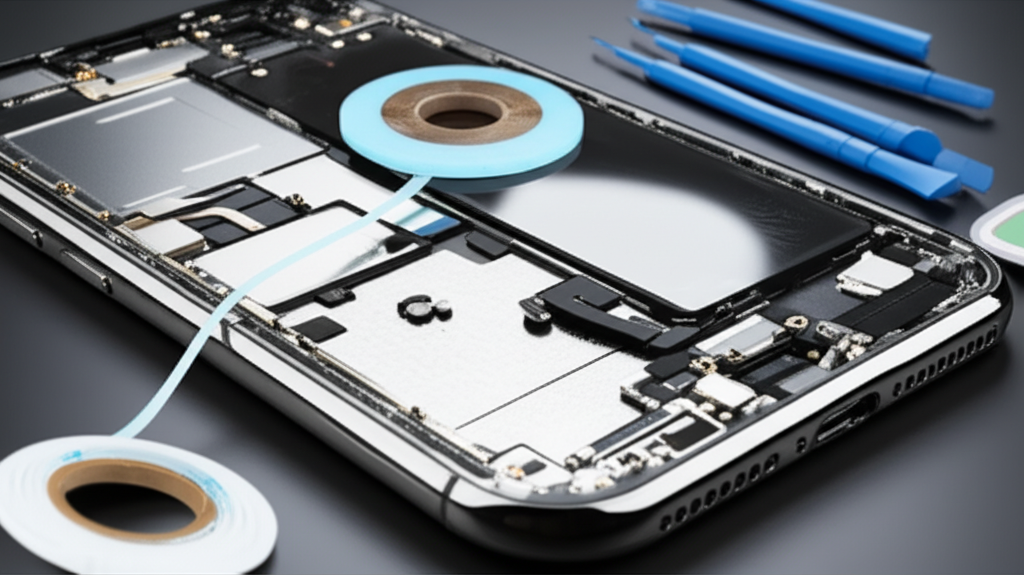
To replace the adhesive, you need the right tools. A heat gun or iOpener is important. You use heat to soften the old adhesive. This makes it easier to remove. A thin prying tool, like a plastic spudger, is also needed. This helps you gently lift the screen or other parts. Fine-tipped tweezers are good for picking out old adhesive. You’ll also need a clean workspace. A mat with grids can help keep things organized. For applying new adhesive, a roller or a specialized applicator can make it smoother.
Here’s a quick look at the most common tools:
| Tool | Purpose |
| :————— | :———————————————————————- |
| Heat Gun/iOpener | Softens old adhesive for easier removal. |
| Plastic Spudger | Gently pries open components without causing damage. |
| Tweezers | Removes small pieces of old adhesive and places new adhesive strips. |
| Isopropyl Alcohol | Cleans residue from the frame and new adhesive surfaces. |
| Pre-cut Adhesive | Specifically designed for your iPhone model, ensuring a perfect fit. |
| Microfiber Cloth | Wipes away dust and smudges from the frame and components. |
Step-by-Step: Removing Old Adhesive
Carefully removing old iPhone adhesive involves applying controlled heat and using precise prying techniques to lift the display or components without damaging internal parts.
Before you can put on new adhesive, you must remove the old stuff. Start by gently heating the edges of the screen. This softens the adhesive underneath. Use your prying tool to slowly lift the screen. Work your way around the edges. Be patient and don’t force anything. If it feels stuck, apply a little more heat. Once the screen is lifted, you need to remove the old adhesive from the frame. Use tweezers to peel it off. Sometimes, it comes off in strips. Other times, it’s a bit sticky. You can use a small amount of isopropyl alcohol to help clean any remaining residue. Make sure the frame is perfectly clean before applying new adhesive.
Preparing the iPhone Frame for New Adhesive
A clean and residue-free iPhone frame is crucial for the new adhesive to bond properly, ensuring a secure fit and effective seal against environmental elements.
After removing the old adhesive, the frame needs to be spotless. Any tiny bits of old glue or dust will prevent the new adhesive from sticking well. Use a clean microfiber cloth to wipe down the entire edge of the frame. If there’s any sticky residue left, a small amount of isopropyl alcohol can help. Dab it onto the cloth, not directly onto the phone. Gently rub the residue away. Ensure the frame is completely dry before proceeding. A clean surface is key for a strong, lasting bond. This step is very important for water resistance.
Applying New iPhone Repair Adhesive
Applying new iPhone repair adhesive correctly involves precise placement of pre-cut strips or custom-cut adhesive, ensuring full coverage and even pressure for a secure seal.
Now comes the part where you apply the new adhesive. If you have a pre-cut kit, it will have numbered pieces. These usually correspond to different parts of the phone. Carefully peel off the backing from the first piece of adhesive. Align it perfectly with the edge of the frame. Press down gently to ensure it sticks. Then, peel off the top layer of protective film. Repeat this for all the adhesive pieces. It’s important to align them precisely. Gaps can let dust and water in. Take your time with this step. A good application makes a big difference.
Sealing the iPhone After Repair
Properly sealing an iPhone after adhesive replacement involves carefully aligning and pressing the display or component back into place, ensuring even pressure for the adhesive to cure and create a tight seal.
Once the new adhesive is in place, it’s time to put the phone back together. Carefully align the screen or component you removed. Make sure it sits perfectly into the frame. There are usually small notches or guides to help you. Once aligned, gently press down around the edges. Start from one corner and work your way around. You want to apply even pressure. This helps the new adhesive bond securely. Don’t force it if it doesn’t feel right. It might be misaligned. After pressing it down, some technicians recommend a light clamp or rubber bands. This helps the adhesive set firmly.
Testing the Seal and Functionality
After replacing iPhone adhesive and reassembling the device, thorough testing of screen responsiveness, speaker function, and water resistance is essential to confirm a successful repair.
After you’ve sealed the iPhone, it’s time to test everything. First, turn the phone on. Check if the screen works correctly. Touch the whole screen to make sure it responds. Test the front and rear cameras. Listen to the speaker and microphone. Make sure calls sound clear. If you replaced the battery, check its charge level and stability. For advanced users, you can check water resistance. However, it’s important to know that DIY repairs may never fully restore the original water resistance. iFixit notes that even official repairs can affect water resistance. So, be cautious around liquids after any repair.
Common Mistakes and How to Avoid Them
Avoiding common errors during iPhone repair adhesive replacement, such as using the wrong adhesive or applying too much heat, is key to a successful and lasting repair.
Mistakes can happen during any repair. One common error is using the wrong adhesive. Always get adhesive made for your specific iPhone model. Another mistake is using too much heat. This can damage the battery or other internal parts. Be gentle when prying. Forcing a component can break cables. Also, not cleaning the frame properly is a big issue. This leads to a weak bond. Finally, not applying even pressure when sealing can leave gaps. Taking your time and following the steps carefully helps avoid these problems.
Frequently Asked Questions About iPhone Adhesive Replacement
What is the best adhesive for iPhone screen replacement?

The best adhesive is the pre-cut gasket specifically designed for your iPhone model. These kits ensure a perfect fit and optimal sealing.
Do I really need to replace the adhesive after an iPhone repair?
Yes, replacing the adhesive is crucial. It restores structural integrity and helps maintain water resistance.
How long does iPhone adhesive take to set?
iPhone adhesive typically needs a few hours to fully set and bond. Some recommend leaving it overnight under light pressure.
Can I reuse the old iPhone adhesive?
No, you should never reuse old adhesive. It loses its stickiness and sealing properties once removed.
Will my iPhone still be waterproof after replacing the adhesive myself?
While replacing adhesive helps, DIY repairs may not fully restore the original factory water resistance. It’s best to be cautious around water.
Where can I buy iPhone repair adhesive?
You can buy iPhone repair adhesive from reputable online repair parts suppliers like iFixit, MobileSentrix, or Injured Gadgets.
Conclusion
Replacing iPhone repair adhesive might seem like a small step, but it’s vital. It ensures your iPhone is strong and protected. Following these steps will help you do it right. Always use the correct adhesive for your model. Work in a clean space. Be patient and gentle. A successful adhesive replacement means your iPhone will be sealed well. This keeps dust and water out. It helps maintain the phone’s structure. Happy repairing!

Belayet Hossain is a Senior Tech Expert and Certified AI Marketing Strategist. Holding an MSc in CSE (Russia) and over a decade of experience since 2011, he combines traditional systems engineering with modern AI insights. Specializing in Vibe Coding and Intelligent Marketing, Belayet provides forward-thinking analysis on software, digital trends, and SEO, helping readers navigate the rapidly evolving digital landscape. Connect with Belayet Hossain on Facebook, Twitter, Linkedin or read my complete biography.