
Published on: 19/10/2025 | Updated on: October 19, 2025
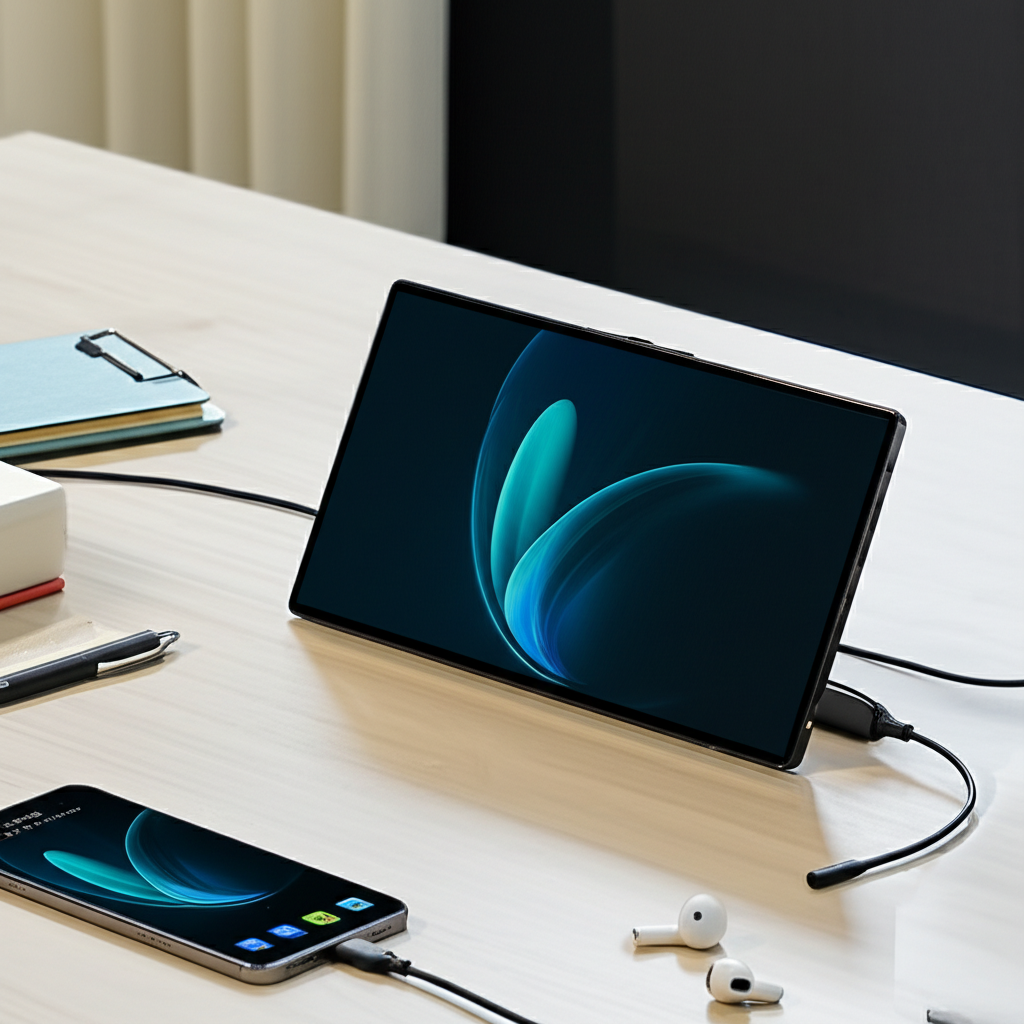
Connect your Arzopa portable monitor to your phone with ease for a bigger, better viewing experience. This guide makes the process simple, essential, and effortless, turning your smartphone into a powerful productivity or entertainment hub. Get ready to expand your digital world instantly.
Have you ever wished your phone’s screen was just a little bit bigger? Maybe for work, or perhaps to watch a movie with friends? You’ve likely looked at your smartphone and thought, “If only this was larger.” It’s a common feeling, especially as our phones become our main devices for so many tasks. The good news is, you don’t have to be stuck with a small screen. Connecting an Arzopa portable monitor to your phone can completely change how you use your device. It’s not as complicated as it sounds. This article will show you exactly how to make that connection happen, step-by-step. We’ll cover everything you need to know to make your phone and monitor work together perfectly.
Why Connect Your Phone to a Portable Monitor?
Expanding your mobile screen real estate is a game-changer for many activities. A portable monitor offers a much larger canvas than your phone. This makes tasks like editing documents, reviewing spreadsheets, or even gaming much more comfortable. It can also significantly improve your viewing experience for movies or video calls. Many users find this setup boosts their productivity dramatically. It allows for better multitasking and reduces eye strain from looking at a tiny screen for extended periods.
For professionals, a portable monitor can transform a phone into a mini workstation on the go. Students can benefit from a larger display for research and writing papers. Even for casual users, enjoying media content on a bigger screen is simply more immersive. The Arzopa portable monitor is designed to be lightweight and easy to set up, making it an ideal companion for your smartphone.
Understanding Your Arzopa Portable Monitor and Phone Compatibility
Before you connect, it’s important to know what your devices can do. Most modern smartphones, both Android and iOS, can output video. However, the way they do this varies. Arzopa portable monitors typically connect via USB-C or HDMI. Your phone needs to support video output through one of these ports. For USB-C, this is often called DisplayPort Alternate Mode (DP Alt Mode).
Check your phone’s specifications to see if it supports video out. You can usually find this on the manufacturer’s website or in the phone’s user manual. If your phone only has a standard USB-C port without DP Alt Mode, you might need an adapter. This ensures your phone can send a video signal to the monitor. Knowing this upfront saves a lot of hassle later.
Essential Cables and Adapters You Might Need
The right cables are crucial for a successful connection. For most modern phones with USB-C ports that support video output, a single USB-C to USB-C cable might be all you need. This cable handles both video and power, simplifying the setup. Arzopa monitors often come with these cables. If your phone uses a different port, like older micro-USB, you might need a different adapter.
For iPhones, especially older models without USB-C, you’ll likely need Apple’s Lightning Digital AV Adapter. This adapter converts the Lightning port to HDMI. You would then use an HDMI cable to connect to the Arzopa monitor. Always double-check the ports on both your phone and the monitor. This ensures you have the correct connection type.
Connecting Your Phone via USB-C (The Easy Way)
Using a USB-C connection is often the most straightforward method. Many Android phones and newer iPhones (iPhone 15 series and later) support video output over USB-C. This is thanks to a feature called DisplayPort Alternate Mode. When you connect your phone to the Arzopa monitor using a compatible USB-C cable, the monitor should detect the signal automatically.
First, ensure your Arzopa monitor is powered on. Then, plug one end of the USB-C cable into your phone’s USB-C port. Plug the other end into the USB-C port on your Arzopa monitor that supports video input. Your phone might ask for permission to share its screen; simply allow it. The monitor should then display your phone’s screen.
This single-cable solution is incredibly convenient. It provides a clean setup with fewer wires. It’s the preferred method if both your phone and monitor support it. This approach is also great for charging your phone simultaneously if the monitor supports power delivery.
Connecting Your Phone via HDMI (For Broader Compatibility)
If your phone doesn’t support video output via USB-C, HDMI is your next best option. This method usually requires an adapter. For Android phones with USB-C, you’ll need a USB-C to HDMI adapter. For iPhones, as mentioned, Apple’s Lightning Digital AV Adapter is typically required.
The process involves a few more steps. First, connect the appropriate adapter to your phone. Then, connect an HDMI cable from the adapter to the HDMI input port on your Arzopa portable monitor. Make sure the monitor is set to the correct HDMI input source. You might also need to connect a separate USB cable for power to the monitor, depending on its model.
While this setup uses more cables, it offers wider compatibility. It works with a vast range of smartphones, including older models. This ensures you can still enjoy a larger screen experience. The HDMI connection provides a stable and high-quality video signal.
Setting Up Your Arzopa Monitor for the First Time
When you first unbox your Arzopa portable monitor, there are a few setup steps. Connect it to a power source using the provided power adapter or USB-C cable. Then, connect your phone using the appropriate method (USB-C or HDMI). If you’re using USB-C for video and power, ensure it’s plugged into the correct port on the monitor.
Some Arzopa monitors have physical buttons for adjusting settings like brightness, contrast, and input source. Familiarize yourself with these controls. You might need to select the correct input source (USB-C or HDMI) manually if the monitor doesn’t auto-detect it. Refer to your Arzopa monitor’s manual for specific instructions related to its model. This ensures optimal display settings for your viewing pleasure.
Troubleshooting Common Connection Issues
Sometimes, things don’t work perfectly right away. If your Arzopa portable monitor isn’t connecting to your phone, don’t worry. The first step is to check all your cable connections. Ensure they are plugged in securely at both ends. Try using a different USB-C or HDMI cable if possible, as cables can sometimes be faulty.
Restarting both your phone and the monitor can resolve many temporary glitches. For USB-C connections, confirm that your phone supports DP Alt Mode. You might need to enable screen mirroring or USB debugging in your phone’s developer options. If using HDMI, double-check that the monitor is set to the correct input source. A quick search for your specific phone model and “video out” can provide helpful details.
Maximizing Your Dual-Screen Setup: Tips and Tricks
Once your Arzopa portable monitor is connected, you can do so much more. For productivity, use the larger screen for your main work. Keep email or reference materials on the monitor while you type on your phone’s keyboard or a connected Bluetooth keyboard. This dual-screen setup mirrors the experience of using a laptop.
For entertainment, stream movies or play games on the bigger display. It’s far more immersive than your phone’s screen. You can also use the portable monitor for video calls. This allows participants to see you and your surroundings much better. Experiment with different apps and workflows to see what works best for you.
Consider using a phone stand to prop up your device. This creates a comfortable viewing angle for both screens. A portable Bluetooth keyboard and mouse can further enhance the workstation experience. This transforms your phone and monitor into a versatile productivity powerhouse.
Arzopa Portable Monitor vs. Other Brands: What to Consider
Arzopa offers a range of portable monitors, known for their affordability and decent performance. When choosing, consider screen size, resolution (e.g., Full HD 1080p is common and good), panel type (IPS offers better colors and viewing angles), and connectivity options (USB-C, HDMI). Arzopa monitors often include built-in speakers, which is a convenient feature.
Other brands like ASUS, GeChic, and HP also offer portable monitors. These can sometimes come with higher price tags but might offer premium features like touch functionality or higher refresh rates. Arzopa strikes a good balance for users seeking an essential, easy-to-use solution without breaking the bank. Read reviews specific to the Arzopa model you are considering to understand its strengths and weaknesses.
Real-World Use Cases: Arzopa Monitor with Your Phone
Imagine a graphic designer needing to show a client a design on a larger screen during a meeting. They can easily connect their Arzopa monitor to their phone to present the work. A student can use the monitor for research, with multiple browser tabs open side-by-side. This makes gathering information for assignments much more efficient.
A gamer can connect their phone to the portable monitor for a more expansive gaming experience. This is especially true for mobile games that support controller input. Even for casual use, watching YouTube videos or browsing social media becomes more enjoyable on a bigger display. The portability means you can set this up almost anywhere – a coffee shop, a hotel room, or a co-working space.
Frequently Asked Questions About Connecting Arzopa Monitors to Phones
Can I connect any smartphone to an Arzopa portable monitor?

Generally, yes, most modern smartphones can connect. However, compatibility depends on your phone’s video output capabilities, typically via USB-C with DP Alt Mode or through an adapter for HDMI.
Do I need special software to connect my phone?
Usually, no special software is needed. The connection relies on your phone’s built-in video output features. You might just need to allow screen mirroring when prompted.
Will my phone charge while connected to the Arzopa monitor?
If you use a single USB-C cable for both video and power, and your Arzopa monitor supports USB-C Power Delivery, your phone should charge. Check the monitor’s specifications for this feature.
How do I switch between my phone and another device on the monitor?
If your Arzopa monitor has multiple input ports (e.g., USB-C and HDMI), use the monitor’s physical buttons to select the desired input source.
Is the picture quality good when connecting a phone?
Yes, the picture quality is typically good, especially with Full HD resolution monitors. It depends on your phone’s video output resolution and the cable quality.
Can I use my phone while it’s connected to the monitor?
Yes, you can. With a USB-C connection, your phone remains usable. If using an HDMI adapter, you can still interact with your phone’s touchscreen.
What if my phone doesn’t have USB-C?
If your phone has a different port (like micro-USB or Lightning), you will need an appropriate adapter (e.g., Lightning to HDMI adapter for iPhones) to connect to the monitor via HDMI.
Conclusion: Your Bigger Screen Awaits
Connecting your Arzopa portable monitor to your phone is an essential step for anyone looking to enhance their mobile experience. It’s an effortless way to gain a larger display for work, study, or entertainment. By understanding your phone’s capabilities and using the right cables, you can easily set up a dual-screen system. This setup offers increased productivity and a more immersive way to enjoy your content. The Arzopa portable monitor proves that expanding your digital workspace doesn’t have to be complicated or expensive. Get ready to see your phone’s potential in a whole new light.
If you found this guide helpful, consider subscribing for more tech tips and reviews!

Belayet Hossain is a Senior Tech Expert and Certified AI Marketing Strategist. Holding an MSc in CSE (Russia) and over a decade of experience since 2011, he combines traditional systems engineering with modern AI insights. Specializing in Vibe Coding and Intelligent Marketing, Belayet provides forward-thinking analysis on software, digital trends, and SEO, helping readers navigate the rapidly evolving digital landscape. Connect with Belayet Hossain on Facebook, Twitter, Linkedin or read my complete biography.