
Published on: 19/10/2025 | Updated on: October 19, 2025
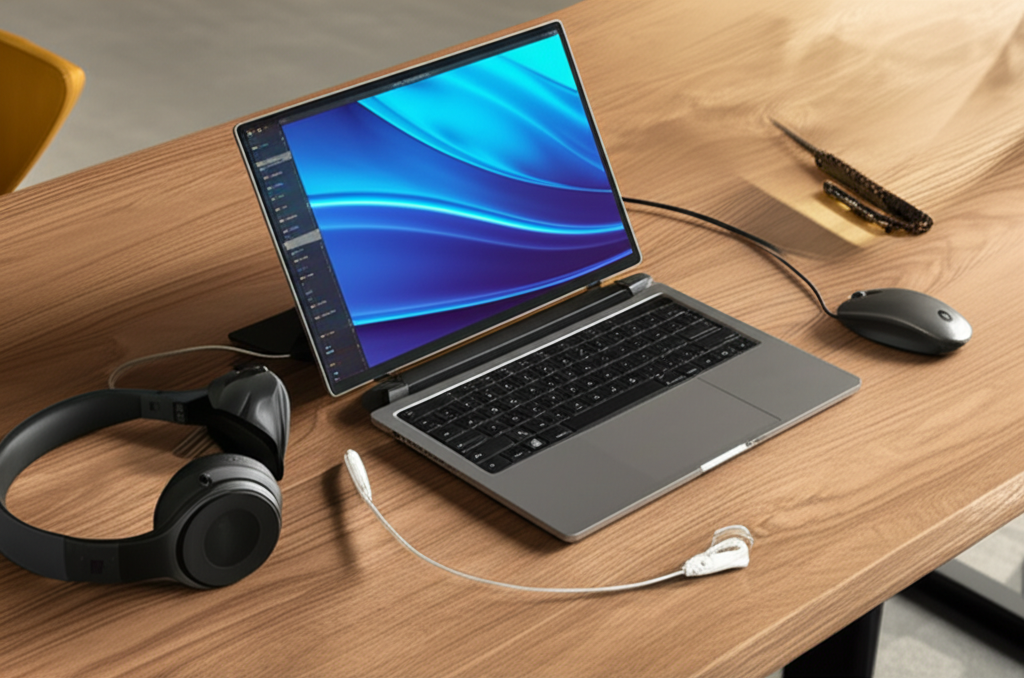
Effortlessly expand your laptop’s workspace with the Arzopa portable monitor setup. This guide ensures a seamless connection, unlocking enhanced productivity and a more immersive viewing experience with simple, essential steps.
Are you tired of squinting at a small laptop screen? Do you wish you had more space to spread out your work or enjoy your entertainment? Many of us face this challenge daily. Juggling multiple applications on a single screen can feel like a constant game of window Tetris. It’s frustrating when you can’t see everything clearly. But what if I told you there’s a simple, affordable way to double your screen real estate? The Arzopa portable monitor is designed to do just that. It connects easily to your laptop. This guide will walk you through the Arzopa portable monitor setup with your laptop. We’ll make it absolutely effortless. You’ll be enjoying a bigger, better view in no time. Let’s get started on this easy upgrade.
Why an Arzopa Portable Monitor is Your Next Essential Gadget
An Arzopa portable monitor is more than just an extra screen. It’s a productivity booster and an entertainment enhancer. It gives you more space to work, play, and create. Imagine editing photos with more detail visible. Think about having multiple documents open side-by-side without constant switching. This device is a game-changer for many users. It’s particularly useful for students and professionals on the go.
Portable monitors offer a significant advantage over traditional setups. They are lightweight and easy to carry. This makes them perfect for remote work or travel. An Arzopa monitor brings this convenience to your fingertips. It’s designed for simplicity and performance. This means you get a great experience without complex setup.
Understanding Your Arzopa Portable Monitor: What’s Inside the Box?
When you unbox your Arzopa portable monitor, you’ll find a few key items. These are all you need for a successful setup. Carefully check that everything is present. This ensures you have all the necessary components.
The Portable Monitor: This is the main event, your new larger screen.
USB-C Cable: This cable is often used for both power and video signal.
HDMI Cable: Some models use HDMI for video. You might also need a separate USB-C cable for power.
USB-A to USB-C Cable: This is for power delivery if your laptop doesn’t support USB-C video out.
Screen Protector: Many Arzopa monitors come with one to keep the screen safe.
Stand or Cover: This helps you prop up the monitor at a comfortable angle.
User Manual: Always a good idea to skim this, even if setup is easy.
Having these items ready makes the Arzopa portable monitor setup with your laptop a breeze. You won’t need to hunt for extra accessories. Arzopa has thought of most things for you.
Connecting Your Arzopa Monitor: The Step-by-Step Process
Setting up your Arzopa portable monitor is straightforward. Most connections use a single USB-C cable. This makes it incredibly convenient. Let’s go through the most common methods.
Method 1: USB-C Connection (The Easiest Way)

This is the preferred method if your laptop supports it. Many modern laptops have USB-C ports that can output video. This single cable handles both power and display.
1. Identify the Correct Port: Look for a USB-C port on your laptop that has a Thunderbolt symbol (a lightning bolt) or a DisplayPort symbol (a ‘D’ inside a rectangle). These ports typically support video output.
2. Connect the USB-C Cable: Plug one end of the included USB-C cable into your laptop’s compatible port. Connect the other end to the USB-C port on your Arzopa portable monitor.
3. Power On: Turn on your Arzopa monitor. It should automatically detect the signal from your laptop.
4. Laptop Display Settings: Your laptop should recognize the new monitor. You might need to adjust display settings. Go to your laptop’s display settings and choose how you want to extend or duplicate your screen.
This USB-C connection is the definition of effortless. It’s clean, simple, and requires minimal fuss.
Method 2: HDMI and USB-A/USB-C for Power
If your laptop doesn’t support video over USB-C, don’t worry. You can still connect your Arzopa monitor using HDMI. This method requires two cables: one for video and one for power.
1. Connect HDMI: Plug one end of the HDMI cable into your laptop’s HDMI port. Connect the other end to the HDMI port on your Arzopa monitor.
2. Connect Power: Use the USB-A to USB-C cable. Plug the USB-A end into a USB port on your laptop or a USB power adapter. Connect the USB-C end to the power input port on your Arzopa monitor.
3. Power On: Turn on your Arzopa monitor. It should detect the HDMI signal.
4. Laptop Display Settings: Your laptop will recognize the external display. Access your laptop’s display settings to configure it. You can extend your desktop or mirror it.
This dual-cable setup is still quite simple. It ensures compatibility with a wider range of laptops.
Key Takeaway: The Arzopa portable monitor setup with your laptop can be as easy as plugging in one or two cables. USB-C is the simplest, but HDMI offers broader compatibility.
Optimizing Your Display Settings for the Best Experience
Once your Arzopa portable monitor is connected, you’ll want to fine-tune its settings. This ensures the best visual quality and user experience. Your laptop’s operating system has built-in tools for this. Adjusting these settings makes a big difference.
Extending vs. Mirroring Your Display
Your laptop offers two main ways to use the portable monitor. Understanding the difference helps you choose the best option for your task.
Extend: This makes your portable monitor a seamless extension of your main laptop screen. You can drag windows and applications between screens. This is ideal for multitasking, coding, or detailed work.
Duplicate: This mirrors your laptop’s screen onto the portable monitor. Both screens will show the exact same content. This is useful for presentations or sharing your screen with others.
You can typically switch between these modes in your laptop’s display settings. Simply right-click on your desktop and select “Display settings.”
Adjusting Resolution and Refresh Rate
For the sharpest image, ensure the resolution is set correctly. Your Arzopa monitor has a native resolution, usually Full HD (1920×1080). Make sure your laptop is outputting at this resolution. Also, check the refresh rate. A higher refresh rate (like 60Hz) offers smoother motion.
Color Calibration and Brightness
You might want to adjust brightness and contrast. This can help match the portable monitor to your laptop’s screen. Some models allow for more advanced color calibration. This is great for creative professionals. Most users will find the default settings perfectly adequate.
Key Takeaway: Fine-tuning display settings like resolution and extend/duplicate mode optimizes your Arzopa portable monitor for specific tasks. This ensures clarity and smooth visuals.
Troubleshooting Common Arzopa Portable Monitor Issues
Even with an effortless setup, occasional hiccups can occur. Don’t panic if your Arzopa portable monitor doesn’t work immediately. Most problems have simple solutions. These are common issues and how to fix them.
No Signal Detected
Check Cables: Ensure all cables are securely plugged into both the laptop and the monitor. Try a different port on your laptop if available.
Correct Input Source: Some monitors require you to select the input source (USB-C or HDMI) manually. Use the monitor’s buttons to cycle through inputs.
Restart Devices: A simple restart of both your laptop and the Arzopa monitor can resolve temporary glitches.
Power Check: For HDMI setups, confirm the USB power cable is connected and providing power to the monitor.
Flickering or Distorted Image
Cable Quality: A damaged or low-quality cable can cause visual issues. Try using the cables provided by Arzopa or a known good quality replacement.
Driver Updates: Ensure your laptop’s graphics drivers are up to date. Outdated drivers can sometimes cause display problems.
Refresh Rate Mismatch: Double-check that the refresh rate is set appropriately in your laptop’s display settings.
Touchscreen Not Working (If Applicable)
USB Connection for Touch: If your monitor has a touchscreen, it usually requires a separate USB connection for touch functionality. Make sure this USB cable is plugged in.
Driver Installation: Some touchscreens might need specific drivers. Check the Arzopa website for any necessary downloads.
Key Takeaway: Most Arzopa portable monitor issues stem from connection problems or outdated drivers, which can usually be fixed with simple troubleshooting steps.
Maximizing Productivity with Your Dual-Screen Setup
The real magic of an Arzopa portable monitor lies in how it transforms your workflow. Suddenly, you have more space to breathe and work efficiently. This is where the “essential” part of the setup truly shines.
Multitasking Made Easy
With an extended display, you can finally ditch the constant alt-tabbing. Keep your email or chat client open on one screen while you focus on your main document or code on the other. This significantly reduces context switching, a major productivity killer. Studies show that using multiple monitors can increase productivity by up to 50% [Source: Jon Peddie Research].
Enhanced Creative Workflows
For designers, video editors, or photographers, a second screen is invaluable. You can place your editing tools, timelines, or reference images on the Arzopa monitor. This keeps your primary workspace clean and focused on the main canvas. It allows for a much more fluid and intuitive creative process.
Streamlined Research and Writing
When writing reports or articles, having multiple sources open simultaneously is crucial. You can have your research materials on the Arzopa monitor and your writing document on your laptop screen. This makes referencing and fact-checking far more efficient. No more tiny browser windows you can barely read.
The Arzopa portable monitor setup with laptop makes these advanced workflows accessible and simple. It’s an investment that pays dividends in saved time and reduced frustration.
Portable Monitor Features to Look For in Arzopa Models
Arzopa offers a range of portable monitors, each with slightly different features. Understanding these can help you choose the best model for your needs. While the core setup remains similar, advanced features enhance the experience.
Display Quality: Resolution and Panel Type
Most Arzopa monitors offer Full HD (1920×1080) resolution, which is excellent for most uses. Some higher-end models might offer 2K or 4K. Panel types like IPS provide wider viewing angles and better color accuracy. This is important if you often view the screen from the side or do color-sensitive work.
Connectivity Options
As discussed, USB-C and HDMI are standard. Look for models with multiple USB-C ports if you plan to use it frequently. Some might also include Mini-HDMI ports. Ensure the monitor supports the type of connection your laptop uses.
Built-in Speakers and HDR Support
While not essential for everyone, built-in speakers can be convenient for casual media consumption. High Dynamic Range (HDR) support offers better contrast and more vibrant colors, enhancing movies and games. However, for pure productivity, these might be secondary features.
Touchscreen Functionality
As mentioned, some Arzopa models include a responsive touchscreen. This adds another layer of interactivity, especially useful for drawing, note-taking, or navigating applications designed for touch. This requires an additional USB connection for touch data.
Key Takeaway: When selecting an Arzopa portable monitor, prioritize display resolution, panel type, and connectivity that matches your laptop and intended use.
Arzopa Portable Monitor vs. Other Brands: What Sets Arzopa Apart?
The portable monitor market is competitive. Arzopa has carved out a niche by focusing on affordability and ease of use. While premium brands might offer slightly better build quality or advanced specs, Arzopa often hits a sweet spot.
Many users report that the Arzopa portable monitor setup with their laptop is remarkably similar to more expensive options. The plug-and-play nature is a significant selling point. This means less time fiddling with settings and more time being productive.
Comparison Table: Arzopa vs. Competitors (General)
| Feature | Arzopa Portable Monitor | Premium Brands (e.g., ASUS, Dell) | Budget Brands |
| :————— | :———————- | :——————————– | :———— |
| Price | Very Affordable | Mid to High | Low to Mid |
| Setup | Effortless (USB-C/HDMI) | Effortless (USB-C/HDMI) | Generally Easy |
| Display Quality| Good to Very Good (IPS) | Excellent (IPS, OLED options) | Fair to Good |
| Build Quality| Solid, functional | Premium materials, robust | Basic |
| Features | Essential features | Advanced features, touch options | Basic |
Arzopa’s strength lies in delivering a high-value experience without the premium price tag. For most users, especially those new to portable monitors, Arzopa offers an excellent entry point. It provides the essential functionality needed for an expanded digital workspace.
Powering Your Arzopa Portable Monitor: Best Practices
Ensuring your portable monitor stays powered is crucial for uninterrupted workflow. Arzopa monitors are designed to be power-efficient. However, how you connect them for power matters.
USB-C Power Delivery (PD)
If your laptop supports USB-C Power Delivery (PD), this is the ideal scenario. A single USB-C cable can power the monitor and transmit video. This keeps your setup clean and uses your laptop’s power source efficiently. Be mindful that intensive use of the monitor might drain your laptop battery faster.
External Power Adapter
For older laptops or if your laptop’s USB-C port doesn’t provide enough power, using the included USB-A to USB-C cable with a wall adapter is recommended. This ensures the monitor receives stable power independently. It also prevents unnecessary battery drain on your laptop.
Power Bank Compatibility
Some users find success using a portable power bank to power their Arzopa monitor. Ensure the power bank has a sufficient output wattage (usually 15W or higher is recommended). This offers maximum portability, allowing you to use your extended display anywhere without needing a wall outlet.
Always refer to your specific Arzopa monitor model’s manual for recommended power requirements. Proper power management ensures consistent performance.
Key Takeaway: Utilize USB-C Power Delivery for a clean setup or an external adapter/power bank for dedicated power to ensure your Arzopa monitor runs reliably.
Frequently Asked Questions About Arzopa Portable Monitor Setup
Here are answers to some common questions users have about setting up their Arzopa portable monitors. These address beginner concerns and clarify common points of confusion.
Q1: Will my laptop work with any Arzopa portable monitor?
A1: Most laptops with a USB-C port that supports DisplayPort Alternate Mode or an HDMI output will work. Always check your laptop’s specifications for video output capabilities. Older laptops might only support HDMI.
Q2: Do I need to install any drivers for the Arzopa monitor?
A2: For most setups, especially USB-C connections, Arzopa monitors are plug-and-play. No drivers are usually needed. If you encounter issues or have a touchscreen model, check the Arzopa website for potential driver downloads.
Q3: Can I use my Arzopa portable monitor with a smartphone or tablet?
A3: Some Arzopa models support connection to smartphones or tablets via USB-C, provided the device supports video output over USB-C (like Samsung DeX or DisplayPort Alternate Mode). Check your device’s compatibility.
Q4: How do I adjust the brightness and volume on my Arzopa monitor?
A4: Most Arzopa monitors have physical buttons on the side or bottom. These buttons allow you to navigate menus to adjust brightness, contrast, volume, and select input sources.
Q5: Is the Arzopa portable monitor good for gaming?
A5: For casual gaming, yes. Most Arzopa monitors offer a 60Hz refresh rate and Full HD resolution, which is adequate. For competitive or high-end gaming, you might need monitors with higher refresh rates and lower response times.
Q6: Can I connect two Arzopa portable monitors to one laptop?
A6: This depends on your laptop’s graphics capabilities and available ports. If your laptop has multiple video output ports (e.g., two USB-C or one USB-C and one HDMI), you can likely connect two. You may need a USB-C hub or dock for more ports.
Conclusion: The Effortless Upgrade You Need
The Arzopa portable monitor setup with your laptop is designed to be simple, fast, and effective. You’ve learned how to connect it using USB-C or HDMI, troubleshoot common issues, and optimize your display settings. This essential gadget dramatically expands your digital workspace. It boosts productivity and enhances your viewing experience without breaking the bank.
Whether you’re a student, a professional, or just someone who loves having more screen space, the Arzopa portable monitor is an excellent choice. Its ease of use makes it accessible to everyone. You can now multitask with ease, enjoy more immersive entertainment, and work more comfortably. Embrace the simplicity and power of an expanded view. Your upgraded workflow awaits.
Don’t forget to explore more tech guides and reviews to keep your digital life running smoothly. Subscribe for the latest tips!

Belayet Hossain is a Senior Tech Expert and Certified AI Marketing Strategist. Holding an MSc in CSE (Russia) and over a decade of experience since 2011, he combines traditional systems engineering with modern AI insights. Specializing in Vibe Coding and Intelligent Marketing, Belayet provides forward-thinking analysis on software, digital trends, and SEO, helping readers navigate the rapidly evolving digital landscape. Connect with Belayet Hossain on Facebook, Twitter, Linkedin or read my complete biography.