
Published on: 19/10/2025 | Updated on: October 19, 2025
Arzopa Portable Monitor Setup With Nintendo Switch: Ultimate Guide
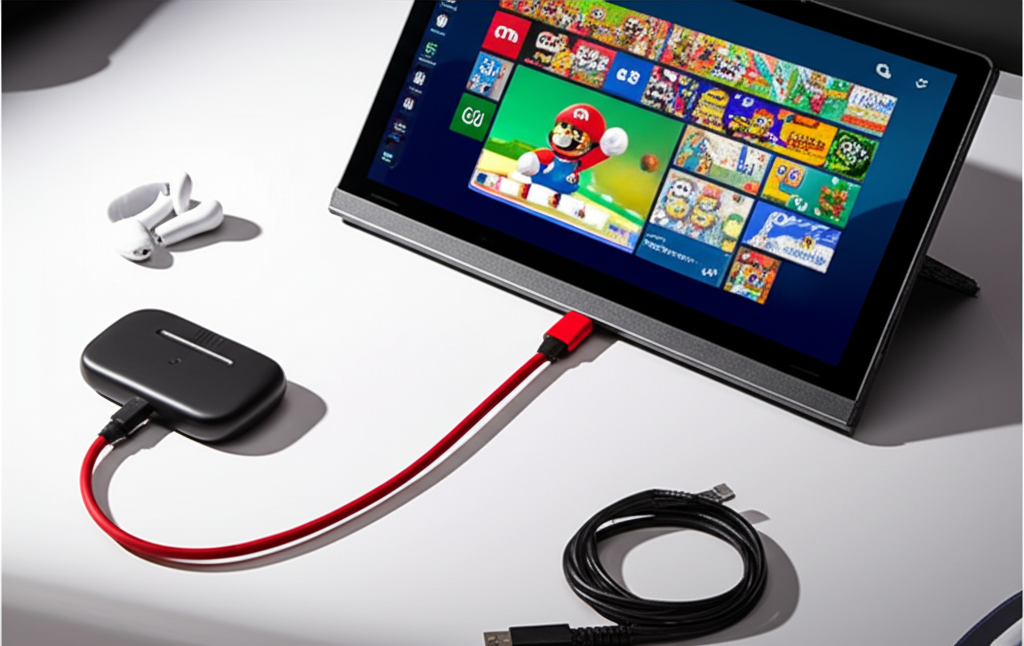
Unlock bigger screen gaming for your Nintendo Switch with an Arzopa portable monitor. This guide provides a step-by-step setup process, covers connection types, power needs, and offers tips for the best portable gaming experience, making your Switch adventures larger and more immersive.
Have you ever wished your Nintendo Switch games looked bigger than the built-in screen? Many gamers do. Playing on the small Switch screen can be fun, but a larger display truly enhances the experience, especially for multiplayer games or when you want to see every detail. Setting up an external monitor might seem tricky, but it’s actually quite straightforward. This guide will walk you through everything you need to know to connect your Arzopa portable monitor to your Nintendo Switch. Get ready to enjoy your favorite games on a bigger, more vibrant screen!
Why Use a Portable Monitor with Your Nintendo Switch?
Using a portable monitor like an Arzopa device with your Nintendo Switch offers a significant upgrade to your gaming sessions. It’s about expanding your play space and enhancing visual immersion. Imagine playing your favorite RPGs with more detail or enjoying a party game with friends on a screen everyone can see clearly.
Portable monitors are designed for convenience. They are lightweight and easy to carry. This makes them perfect for travel, gaming on the go, or simply setting up a second screen in a different room. Connecting your Switch to an Arzopa monitor transforms your gaming experience from a personal session to a more communal or visually rich adventure.
Arzopa Portable Monitors: A Quick Overview
Arzopa offers a range of portable monitors that are popular for their affordability and versatility. These monitors are often chosen for their slim design, good display quality, and multiple input options. They are not just for gaming; they can also serve as a second screen for laptops or tablets.
When considering an Arzopa monitor for your Nintendo Switch, it’s important to look at its specifications. Key features include screen size, resolution, refresh rate, and connectivity options like USB-C and HDMI. These factors will directly impact how well it works with your Switch and the overall quality of the visual output.
Nintendo Switch Connectivity Options: What You Need to Know
The Nintendo Switch has specific ways it can connect to external displays. Understanding these is crucial for a smooth setup. The Switch typically outputs video and audio through its USB-C port when in docked mode. This port is also used for power.
To connect to a monitor, you usually need the official Nintendo Switch Dock. This dock converts the Switch’s USB-C signal into a standard HDMI output. The Arzopa portable monitor will then connect to this HDMI output. Some newer portable monitors also offer direct USB-C connectivity that can support video signals, potentially simplifying the setup.
Step-by-Step: Arzopa Portable Monitor Setup With Nintendo Switch
Setting up your Arzopa portable monitor with your Nintendo Switch involves a few simple steps. This process ensures you get a clear picture and sound from your console to your external display. It’s designed to be user-friendly, even if you’re not a tech expert.
1. Gather Your Equipment

Before you begin, make sure you have all the necessary items. You will need your Nintendo Switch, the official Nintendo Switch Dock, an HDMI cable, and a USB-C cable. Of course, you’ll also need your Arzopa portable monitor and its power adapter.
Having everything ready in one place makes the setup process much smoother. It prevents you from searching for cables or power sources midway through.
2. Connect the Nintendo Switch Dock
First, connect your Nintendo Switch Dock to a power source using its AC adapter. Then, connect one end of the HDMI cable to the HDMI OUT port on the back of the dock. Connect the other end of the HDMI cable to the HDMI IN port on your Arzopa portable monitor.
This HDMI connection is what carries the video and audio signal from your Switch to the monitor. Ensure both ends of the HDMI cable are securely plugged in.
3. Powering the Arzopa Monitor
Your Arzopa portable monitor will need its own power source. Most portable monitors come with a dedicated power adapter. Plug this adapter into the monitor and then into a wall outlet. Some Arzopa monitors can also be powered via USB-C if your power source supports it, like a compatible power bank or a laptop charger.
Check the specific power requirements for your Arzopa model. Adequate power is essential for the monitor to function correctly and display a stable image.
4. Connecting the Nintendo Switch to the Dock
Gently place your Nintendo Switch into the dock. Make sure it’s seated correctly. The dock is designed to align the Switch’s USB-C port with the connector inside the dock.
Once the Switch is in the dock, it will automatically be recognized by the dock. If you are playing in handheld mode and want to switch to external display, you will need to dock it.
5. Selecting the Correct Input on Your Arzopa Monitor
Turn on your Arzopa portable monitor. You will likely need to select the correct input source. Use the monitor’s control buttons to navigate its menu and choose “HDMI” as the input source.
If your Arzopa monitor also supports USB-C video input, you might choose that instead, depending on your connection method. Selecting the right input ensures the monitor displays the signal from your Nintendo Switch.
6. Final Checks and Play
With everything connected and the correct input selected, your Nintendo Switch should now be displayed on your Arzopa portable monitor. You should see the Switch’s home screen or the game you were playing. The sound should also come through the monitor’s built-in speakers or through an attached headphone jack.
If you don’t see an image, double-check all cable connections and ensure the correct input is selected. Power cycling the monitor and the Switch dock can also resolve minor issues.
Alternative Connection Methods: USB-C
Some Arzopa portable monitors support direct video input via USB-C. This can offer a simpler connection if your monitor and setup allow it. However, the Nintendo Switch’s official support for video output over USB-C without the dock can be inconsistent.
For reliable USB-C connectivity, you would typically need a USB-C cable that supports DisplayPort Alternate Mode (DP Alt Mode). Not all USB-C cables are created equal; some only carry power or data. The Nintendo Switch dock handles the conversion to HDMI, which is generally the most stable method.
If your Arzopa monitor specifically advertises direct Switch compatibility via USB-C, it likely has built-in solutions for this. Always refer to your monitor’s manual for specific instructions on USB-C connections with gaming consoles.
Powering Your Setup: What You Need
Powering your setup is a crucial part of the Arzopa portable monitor setup with Nintendo Switch. The Nintendo Switch itself needs to be powered while docked. The dock connects to its AC adapter, which draws power from the wall.
The Arzopa portable monitor also requires its own power. This usually comes from its included power adapter. Some monitors can draw power via USB-C from a sufficiently powerful source, which can be useful for portability.
Consider using a surge protector for all your devices to ensure they are protected from power fluctuations. This helps maintain the longevity of your gaming equipment.
Optimizing Your Gaming Experience
Once your Arzopa portable monitor is set up with your Nintendo Switch, you can fine-tune the experience. Adjusting display settings on both the Switch and the monitor can make a big difference. Consider brightness, contrast, and color settings.
Many portable monitors offer various picture modes. Experiment with these to find what looks best for your games. Ensuring the monitor is placed at a comfortable viewing angle will also enhance your play sessions.
Troubleshooting Common Issues
Sometimes, setups don’t work perfectly the first time. If you encounter problems with your Arzopa portable monitor setup with Nintendo Switch, here are a few common issues and solutions.
No Signal: Double-check all HDMI and power connections. Ensure the correct input source is selected on the Arzopa monitor. Try a different HDMI cable or port.
No Sound: Verify that audio is set to output through HDMI on your Nintendo Switch settings. Check the volume levels on both the Switch and the Arzopa monitor.
Flickering Screen: This can sometimes be caused by a weak power supply or a faulty cable. Ensure both the Switch dock and the Arzopa monitor are receiving stable power. Try a different HDMI cable.
Display is Blurry or Distorted: Make sure the resolution settings on the Nintendo Switch are compatible with your Arzopa monitor. Most portable monitors support 1080p, which is ideal for the Switch.
For more specific troubleshooting, consult the user manuals for both your Nintendo Switch and your Arzopa portable monitor.
Arzopa Portable Monitor vs. Traditional TV/Monitor
Choosing a portable monitor over a traditional TV or monitor for your Switch comes with its own set of advantages and disadvantages. Portable monitors are lightweight and compact, making them ideal for travel or small spaces. They often consume less power than larger displays.
However, traditional TVs and larger monitors might offer better picture quality, higher refresh rates, and wider color gamuts, which can be appealing for serious gamers. The Arzopa portable monitor strikes a balance, offering a significantly larger screen than the Switch itself without the bulk of a full-sized display.
| Feature | Arzopa Portable Monitor | Traditional TV/Monitor |
| :—————- | :———————- | :——————— |
| Portability | High | Low |
| Size | Compact (15-17 inches) | Larger (24+ inches) |
| Setup Ease | Simple | Simple |
| Power Needs | Lower | Higher |
| Cost | Generally Lower | Varies Widely |
| Visual Quality| Good for Price | Often Superior |
This table highlights the key differences. For many users, the convenience and cost-effectiveness of a portable monitor like Arzopa make it a compelling choice for enhancing their Nintendo Switch experience.
Beyond Gaming: Other Uses for Your Arzopa Monitor
Your Arzopa portable monitor isn’t just for playing games. It’s a versatile device that can boost your productivity and entertainment in other ways too. You can use it as a second screen for your laptop, which is fantastic for multitasking. Imagine having your emails on one screen and your work document on another.
It can also be a great companion for tablets or even smartphones that support video output. This opens up possibilities for enjoying movies, streaming content, or presenting work on a larger, more comfortable display. This multi-functionality adds significant value to your purchase.
Frequently Asked Questions (FAQ)
Q1: Do I need the Nintendo Switch Dock to connect to an Arzopa portable monitor?
Yes, for the most reliable connection, you will need the official Nintendo Switch Dock. It converts the Switch’s signal to HDMI, which most Arzopa monitors use. Some Arzopa models might support direct USB-C video input, but this is less common for the Switch.
Q2: Can I power my Arzopa monitor and charge my Switch simultaneously through one USB-C connection?
Typically, no. While some Arzopa monitors support USB-C power input, the Nintendo Switch requires its own dedicated power through the dock’s AC adapter for stable gameplay. You will likely need separate power connections for the monitor and the Switch dock.
Q3: What is the best Arzopa portable monitor size for the Nintendo Switch?
For a good balance of portability and screen real estate, a 15.6-inch or 17-inch Arzopa portable monitor is often ideal. This size provides a noticeable upgrade from the Switch’s built-in screen without being too bulky to carry.
Q4: Will the Arzopa monitor support the Nintendo Switch’s full 1080p resolution?
Most modern Arzopa portable monitors support 1080p (Full HD) resolution. The Nintendo Switch outputs at 1080p when docked and connected to an external display, so your games should look sharp and clear on a compatible Arzopa monitor.
Q5: How do I get sound from my Nintendo Switch through the Arzopa portable monitor?
When connected via HDMI, sound usually passes through automatically. Check your Nintendo Switch system settings to ensure audio output is set to HDMI. Your Arzopa monitor will have built-in speakers, or you can plug headphones into the monitor’s audio-out jack.
Q6: Can I use my Arzopa portable monitor with other gaming consoles?
Yes, absolutely. Most Arzopa portable monitors can be used with other consoles like the PlayStation 4/5, Xbox, or even a PC, as long as they have an HDMI output. This makes the portable monitor a versatile accessory for various gaming setups.
Conclusion: Elevate Your Switch Gaming
Setting up your Arzopa portable monitor with your Nintendo Switch is a fantastic way to enhance your gaming experience. By following these simple steps, you can easily connect your console to a larger screen, bringing more immersion and enjoyment to your favorite titles. The process is straightforward, and the benefits of a bigger display are well worth the minimal effort.
Whether you’re looking to play in a more comfortable setting at home or want to share your gaming adventures with friends, the Arzopa portable monitor is a smart and accessible choice. It transforms your Nintendo Switch into a more versatile gaming device. Enjoy the bigger picture and dive deeper into your virtual worlds!

Belayet Hossain is a Senior Tech Expert and Certified AI Marketing Strategist. Holding an MSc in CSE (Russia) and over a decade of experience since 2011, he combines traditional systems engineering with modern AI insights. Specializing in Vibe Coding and Intelligent Marketing, Belayet provides forward-thinking analysis on software, digital trends, and SEO, helping readers navigate the rapidly evolving digital landscape. Connect with Belayet Hossain on Facebook, Twitter, Linkedin or read my complete biography.