
Published on: 21/10/2025 | Updated on: October 21, 2025
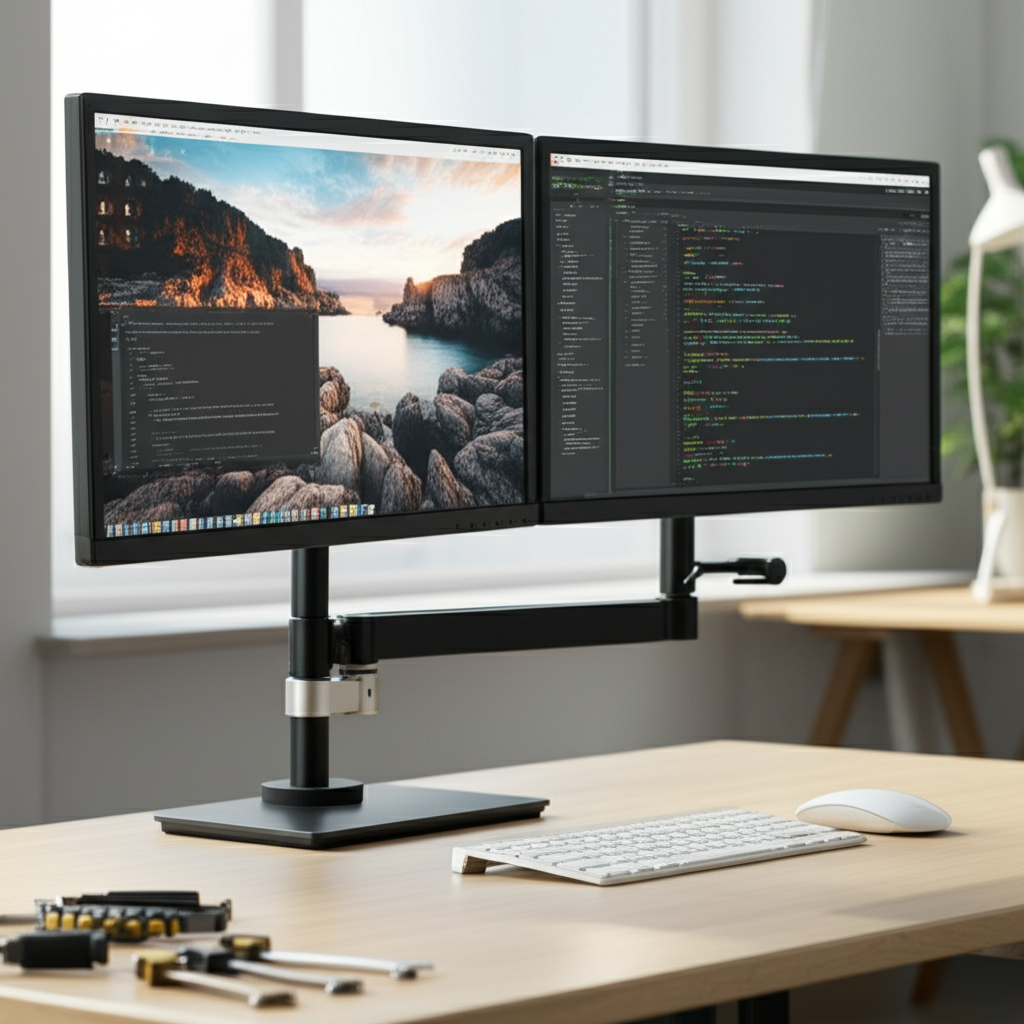
A back to back monitor stand is a smart way to set up two screens facing opposite directions, saving space and boosting productivity. This guide makes setting up your dual-display system simple and efficient, so you can get to work or play faster.
Imagine a world where your desk setup works smarter, not harder. You’re likely here because you’ve seen those setups with two monitors facing opposite ways. Maybe you’re a gamer wanting to share your screen, a professional needing to present to a colleague, or a streamer interacting with chat. Whatever your reason, a back to back monitor stand can be a game-changer. It lets you have two screens in one footprint, facing different directions. This guide will walk you through everything you need to know. We’ll cover what they are, why you might need one, how to pick the right one, and most importantly, how to set it up easily. Get ready to transform your workspace.
What Exactly is a Back to Back Monitor Stand?
A back to back monitor stand is a special mount that holds two monitors. Crucially, it positions them back to back. This means one monitor faces one way, and the other faces the complete opposite direction. They are usually mounted on a single pole or arm. This design is perfect for sharing screens or creating a versatile workstation.
This setup is ideal for shared workspaces or areas where space is limited. It allows two people to view separate content simultaneously. Think of a reception desk or a gaming setup for two.
Why You Might Need a Back to Back Monitor Stand
There are many reasons why a back to back monitor stand could be the perfect addition to your setup. It’s not just about having more screens; it’s about how you use them. These stands offer unique benefits that standard monitor mounts can’t match.
This stand type maximizes desk real estate by stacking monitors vertically or placing them back to back. It’s a smart solution for small offices or shared desks. You can easily switch between tasks or share your screen with someone else.
For Productivity Boosts and Collaboration

Professionals often benefit from split-screen setups. A back to back stand enhances this by allowing two individuals to work side-by-side or face-to-face. One person can view a presentation while the other reviews notes. This fosters seamless collaboration without needing a separate screen for each person.
Sharing information becomes much easier. Colleagues can quickly glance at the same data. This reduces confusion and speeds up decision-making processes. It’s like having a mini-conference room right at your desk.
For Gamers and Streamers
Gamers and streamers often use multiple monitors. A back to back stand can be brilliant for this. One screen can show your game, while the other displays chat or streaming software. This keeps everything you need within easy view.
You can also use it for couch co-op gaming. One player faces one way, and the other faces the opposite. It makes gaming together more immersive and fun. No more awkward screen sharing or rotating.
For Space-Saving and Decluttering
Desk space is precious. A back to back monitor stand consolidates two monitors onto one base. This frees up significant desk surface area. It also helps to reduce cable clutter.
Instead of two separate stands, you have one. This creates a cleaner, more organized, and visually appealing workspace. Less clutter often leads to better focus and less stress.
Types of Back to Back Monitor Stands
When looking for a back to back monitor stand, you’ll find a few main types. Each has its own strengths. Understanding these will help you choose the best fit for your needs.
The primary differences lie in their mounting style and adjustability. Some are fixed, while others offer more flexibility. Consider how you’ll use your monitors most often.
Pole-Mounted Stands
These stands use a vertical pole that clamps to your desk. The monitor arms attach to this pole. They offer good height adjustment. Many allow you to swivel and tilt each monitor independently.
This is a very common and versatile option. It’s great for adjusting the height of your screens. You can also position them side-by-side or back to back easily.
Desk Clamp Stands
Similar to pole-mounted ones, these also clamp to your desk. However, they might have a more integrated arm system. The arms extend outwards from a central point. These can offer a very sleek and modern look.
They provide strong support for your monitors. Some models offer a wider range of motion. This makes them ideal for complex desk setups.
Freestanding Stands
These stands don’t require a desk clamp. They have a base that sits directly on your desk. This is a good choice if you can’t clamp something to your desk. It offers stability without altering your furniture.
However, freestanding bases can take up more desk space than clamp-on models. Ensure the base is large and stable enough for your monitors.
Key Features to Look For
Choosing the right back to back monitor stand involves considering several important features. These details can make a big difference in usability and long-term satisfaction. Don’t just pick the first one you see.
Think about what you need your stand to do. Does it need to hold heavy monitors? Do you need to adjust the height often? These questions will guide your choice.
VESA Compatibility
This is crucial. VESA is a standard for mounting monitors. Most monitors have VESA mounting holes on the back. Check that the stand’s VESA pattern (e.g., 75x75mm, 100x100mm) matches your monitors.
Without matching VESA patterns, your monitors won’t attach to the stand. This information is usually found in your monitor’s manual. Reputable monitor stands will clearly state their VESA compatibility.
Weight Capacity
Each monitor arm has a maximum weight limit. Ensure the stand can safely support the weight of both your monitors. Exceeding this limit can cause the stand to fail or sag.
Manufacturers usually list the weight capacity per arm and for the total setup. Always check the specifications carefully. It’s better to have a stand that’s stronger than you need.
Adjustability and Articulation
How much can you move the monitors? Look for stands that offer tilt, swivel, and rotation. This allows you to find the perfect viewing angle for each screen. Full articulation means you can position screens precisely.
Consider if you need height adjustment. Some stands let you move the monitors up and down. This is great for ergonomics and matching screen heights.
Cable Management
Tangled cables can ruin even the cleanest setup. Good cable management features help keep your wires neat and out of sight. Look for clips or channels built into the stand’s arms or pole.
Clean cable management not only looks good but also prevents cables from snagging or getting damaged. It makes moving your monitors easier too.
Desk Mounting Method
How does the stand attach to your desk? Desk clamps are popular as they save space. Grommet mounts go through a hole in your desk. Freestanding bases sit on top.
Ensure your desk is suitable for the mounting method. A thick desk might not work with some clamps. A fragile surface might not support a freestanding base.
Setting Up Your Back to Back Monitor Stand: A Step-by-Step Guide
Setting up your new back to back monitor stand might seem daunting, but it’s usually quite straightforward. Follow these steps carefully, and you’ll have your dual-display system ready in no time. Take your time and don’t rush.
This process involves attaching the stand to your desk, mounting the arms, and then attaching your monitors. Patience is key.
Step 1: Prepare Your Workspace and Desk
First, clear the area where you’ll be setting up. You need enough space to work comfortably. Make sure your desk is sturdy and can support the weight of the stand and monitors. Check the thickness of your desk if you’re using a clamp mount.
Ensure you have the necessary tools. Most stands come with an Allen wrench or other basic tools. You might also need a screwdriver or a drill for some mounting options.
Step 2: Assemble the Stand Base and Pole
Most back to back stands start with assembling the main support. This is often a vertical pole. If it’s a clamp-style mount, attach the clamp mechanism to the pole. For freestanding bases, secure the pole to the base.
Follow the manufacturer’s instructions precisely. Double-check that all bolts are tightened securely. A wobbly base means an unstable setup.
Step 3: Mount the Stand to Your Desk
Now, attach the assembled pole to your desk. If using a clamp, position it on the edge of your desk and tighten the screws. Ensure it’s firmly gripping the desk surface. For a grommet mount, insert it through the desk hole and secure it.
If you have a freestanding base, simply place it on your desk in the desired position. Make sure it sits flat and doesn’t wobble. Test the stability by gently pushing on the pole.
Step 4: Attach the Monitor Arms
Slide the monitor arms onto the pole. Most arms have a mechanism to lock them in place at your desired height. You might be able to adjust the horizontal spacing too. Position them so they are ready to receive your monitors.
Ensure the arms are securely attached to the pole. They need to hold the weight of your monitors without slipping.
Step 5: Prepare Your Monitors for Mounting
Before attaching monitors, you need to attach the VESA plates to them. These are the square or rectangular brackets that will connect to the arms. Most VESA plates attach to the back of your monitor using screws. Your monitor manual will tell you which screws to use.
Be careful when handling your monitors. Lay them screen-down on a soft surface like a blanket. This prevents scratches.
Step 6: Mount Your Monitors onto the Arms
Carefully lift each monitor and align its VESA plate with the corresponding mount on the monitor arm. Most arms have a quick-release or locking mechanism. Ensure the monitor clicks securely into place.
This is often a two-person job, especially for larger monitors. Make sure each monitor is stable before letting go.
Step 7: Connect Cables and Manage Them
With monitors mounted, connect your display cables (HDMI, DisplayPort) to your computer. Also, connect power cables. Use the stand’s cable management features to route and secure these cables.
Neatly managed cables make the setup look much better. They also prevent strain on the ports.
Step 8: Adjust and Position Your Monitors
Finally, adjust the tilt, swivel, and rotation of each monitor. Position them for optimal viewing angles. Ensure they are aligned correctly.
This is where you fine-tune your setup. Take your time to get the ergonomics just right. You’ll be using this setup for hours.
Choosing the Right Back to Back Monitor Stand for Your Needs
Selecting the perfect stand involves matching its capabilities to your specific requirements. Think about the size and weight of your monitors, your desk type, and how you’ll use the setup. This ensures you get a stand that’s both functional and durable.
Consider the overall aesthetic you want for your desk. Some stands are more industrial, while others are sleeker and more modern.
Monitor Size and Weight Considerations
Monitor sizes range from small 21-inch displays to large 32-inch or even bigger screens. Similarly, monitor weights vary significantly. Always check the stand’s specifications against your monitor’s dimensions and weight. A stand rated for 20 lbs per arm might not handle two 27-inch gaming monitors.
For example, ultra-wide monitors present a unique challenge. Their weight and width require robust stands. Always err on the side of caution and choose a stand with a higher weight capacity than you think you need.
Desk Compatibility and Mounting Options
Your desk plays a big role in which stand you can use. Clamp mounts work best on desks with a solid edge and a certain thickness range. Freestanding stands are universal but occupy desk space. Grommet mounts require a pre-drilled hole.
Measure your desk edge thickness and check for stability. If you have a glass desk or a very delicate surface, a freestanding model is likely your best bet. Many manufacturers list the compatible desk thickness for their clamp mounts.
Your Primary Use Case: Productivity or Entertainment?
Your main activity will influence the best stand features. For productivity, easy height adjustment and tilt are key for ergonomics. For gaming, smooth articulation and stability are paramount. For streaming, quick access to chat or stream controls on one screen is useful.
Consider how often you’ll adjust the monitors. If you change your setup frequently, look for highly adjustable arms. If it’s a set-it-and-forget-it situation, simpler models might suffice.
Popular Back to Back Monitor Stand Brands and Models
The market offers many great options. Some brands are known for their quality and durability. Researching popular models can give you a good starting point.
Here are a few well-regarded brands that often offer reliable back to back monitor stands. Always check recent reviews for specific model performance.
Ergotron: Often considered a premium brand, Ergotron stands are known for their build quality and ergonomic designs. Their products are generally more expensive but offer excellent durability and adjustability.
HUANUO: This brand offers a good balance of affordability and functionality. They provide a wide range of monitor mounts, including several back to back options that are popular with users.
AmazonBasics: For budget-conscious buyers, AmazonBasics offers simple and functional monitor stands. They are a good entry-level choice for basic needs.
WALI: WALI provides a variety of monitor mounts at competitive prices. They often feature good adjustability and support for multiple monitors.
It’s always wise to read user reviews for specific models. Look for feedback on ease of setup, stability, and long-term performance.
Optimizing Your Setup with a Back to Back Monitor Stand
Once your stand is set up, you can fine-tune your display settings for the best experience. This involves adjusting your operating system and monitor settings. These small tweaks can make a big difference in comfort and efficiency.
Proper calibration ensures your screens are working together seamlessly. It also helps reduce eye strain.
Adjusting Display Settings in Your OS
Windows and macOS offer options to manage multiple displays. You can set your primary monitor, arrange their positions, and choose display modes (duplicate, extend). For a back to back setup, you’ll almost always want to use the ‘Extend’ option. This allows you to have different content on each screen.
Go to your system’s display settings. You can drag and drop the monitor icons to match their physical placement. This ensures your mouse moves correctly between screens.
Monitor Calibration and Color Accuracy
Monitors can show colors differently. Calibrating them ensures consistency. You can use built-in operating system tools or dedicated calibration software and hardware. This is especially important for creative professionals.
Even for general use, calibrating can make text sharper and colors more pleasing. It helps reduce eye fatigue over long work sessions.
Ergonomic Placement and Eye Strain Reduction
Positioning your monitors correctly is vital for comfort. The top of your screens should be at or slightly below eye level. They should be about an arm’s length away. For a back to back setup, this means finding a balance for both users or for your primary viewing direction.
Ensure you don’t have to crane your neck or strain your eyes. Adjust the height and tilt of the monitors on the stand until it feels comfortable. Taking regular breaks is also crucial.
Frequently Asked Questions (FAQ)
What is the main benefit of a back to back monitor stand?
The primary benefit is saving desk space by mounting two monitors on a single stand. It also allows for easy screen sharing or dual-facing setups. This makes it great for collaboration or entertainment.
Can I use different sized monitors with a back to back stand?
Yes, many back to back monitor stands can accommodate different sized monitors, as long as both fall within the stand’s weight capacity and VESA compatibility. You may need to adjust the arms to balance them.
How do I know if my monitors are compatible with a stand?
Check the VESA mounting pattern on the back of your monitor. Most stands list compatible VESA sizes (e.g., 75x75mm, 100x100mm). Your monitor manual or manufacturer’s website will have this information.
Is a back to back stand stable enough for heavy monitors?
Reputable back to back monitor stands are designed to be stable. Look for stands with a strong desk clamp, a heavy-duty pole, and a high weight capacity. Reading user reviews can help confirm stability.
Do I need special cables for a back to back monitor setup?
No, you use standard display cables like HDMI or DisplayPort. The stand itself doesn’t require special cables. You might need longer cables depending on how far your computer is from the stand.
How difficult is the setup process?
Setup is generally straightforward and can be done by one person, though two people make mounting larger monitors easier. Most stands come with all necessary tools and clear instructions. The process typically takes 30-60 minutes.
Conclusion: Elevate Your Workspace with a Back to Back Monitor Stand
A back to back monitor stand is more than just a piece of hardware; it’s a strategic choice for optimizing your workspace. Whether you’re looking to boost productivity through seamless collaboration, enhance your gaming experience, or simply declutter your desk, this versatile solution offers significant advantages. By carefully considering features like VESA compatibility, weight capacity, and adjustability, you can find a stand that perfectly suits your needs. The setup process, while requiring a bit of attention, is manageable and rewarding, leading to a more efficient and organized environment. Investing in a quality back to back monitor stand is an investment in your comfort, productivity, and overall desk aesthetics.
Ready to transform your desk? Explore our recommended back to back monitor stands today and take the first step towards a smarter, more efficient workspace.

Belayet Hossain is a Senior Tech Expert and Certified AI Marketing Strategist. Holding an MSc in CSE (Russia) and over a decade of experience since 2011, he combines traditional systems engineering with modern AI insights. Specializing in Vibe Coding and Intelligent Marketing, Belayet provides forward-thinking analysis on software, digital trends, and SEO, helping readers navigate the rapidly evolving digital landscape. Connect with Belayet Hossain on Facebook, Twitter, Linkedin or read my complete biography.