
Published on: 28/10/2025 | Updated on: October 28, 2025
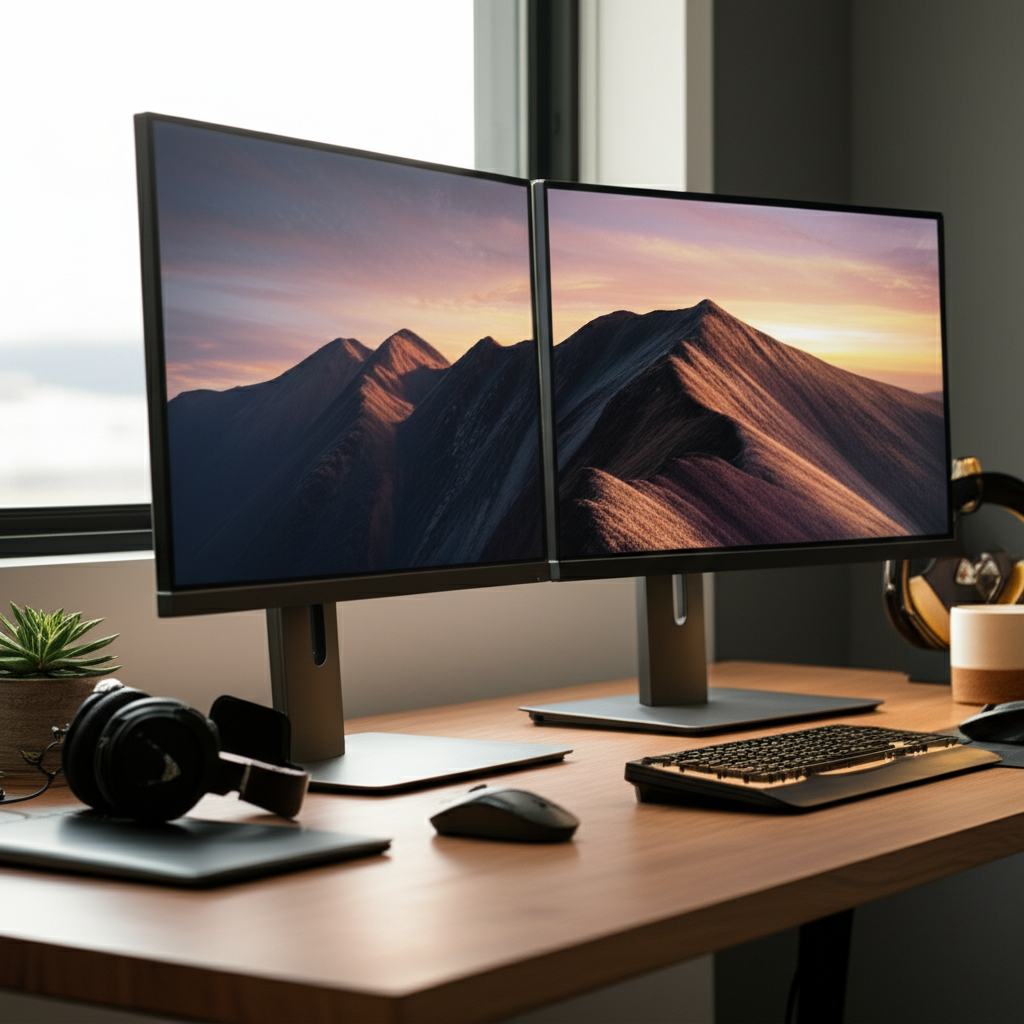
Unlock peak productivity with the best dual monitor setup for your home office. This guide covers everything from choosing the right screens to optimizing your workspace for maximum efficiency.
Setting up a second monitor at home can feel overwhelming. You want more space to work. But where do you start? Picking the right screens and arranging them perfectly is key. This guide will walk you through it. We’ll help you create the ultimate dual monitor setup for your home office. Get ready to boost your work speed and comfort.
Why a Dual Monitor Setup is a Game-Changer for Your Home Office
A dual monitor setup offers a significant boost in productivity. It allows you to view multiple applications simultaneously. This means less clicking back and forth between windows. Imagine having your email open on one screen and your work document on the other. This reduces task-switching costs and improves focus. A well-configured setup can make your workday smoother and more efficient.
Choosing the Right Monitors: Size, Resolution, and Panel Type
Selecting the best monitors for your home office setup is crucial. Size matters for screen real estate. Resolution impacts clarity and detail. The panel type affects color accuracy and viewing angles. Considering these factors ensures you get a setup that fits your needs and budget.
Monitor Size: Finding Your Sweet Spot

Monitor sizes are measured diagonally in inches. For a dual setup, common sizes range from 24 to 27 inches. Smaller monitors might feel cramped for multitasking. Larger ones can be overwhelming or take up too much desk space. Many users find 24-inch or 27-inch monitors offer a good balance. This size range provides ample screen space without dominating your desk.
Resolution: Clarity is Key
Resolution refers to the number of pixels on the screen. Higher resolution means sharper images and more detail. Full HD (1920×1080) is standard. Quad HD (2560×1440) offers more detail and screen real estate. 4K (3840×2160) provides exceptional clarity. For a dual setup, QHD or 4K monitors can be excellent. They allow you to fit more content on each screen.
Panel Types: IPS, VA, and TN Explained
Monitor panels affect how colors look and how quickly the screen refreshes.
- IPS (In-Plane Switching): Offers great color accuracy and wide viewing angles. Ideal for design work or general use.
- VA (Vertical Alignment): Provides excellent contrast ratios, with deep blacks. Good for media consumption and general productivity.
- TN (Twisted Nematic): Known for fast response times, making them good for gaming. However, they often have poorer color reproduction and viewing angles.
For a home office, IPS panels are usually the best choice. They provide vibrant colors and clear visuals from various angles.
A dual monitor setup can dramatically improve your workflow. Choosing monitors with IPS panels ensures consistent and accurate visuals across both screens. This makes for a more comfortable and productive work experience.
Connectivity: Ports and Cables for Your Setup
Connecting your monitors is essential for a functional dual setup. You need to ensure your computer and monitors have compatible ports. The most common video ports are HDMI and DisplayPort. Understanding these connections prevents setup headaches.
HDMI vs. DisplayPort: Which to Use?
Both HDMI and DisplayPort send video and audio signals. DisplayPort is generally more modern and offers higher bandwidth. This means it can support higher resolutions and refresh rates. HDMI is widely available on most devices. For a dual monitor setup, DisplayPort is often preferred if supported by your graphics card.
USB-C: The Versatile Connector
USB-C is becoming increasingly popular. It can transmit video, data, and power over a single cable. Some monitors can even charge your laptop through a USB-C connection. This simplifies cable management significantly. Check if your laptop and chosen monitors support DisplayPort Alternate Mode over USB-C.
Ensuring you have the right cables and ports is vital. A single USB-C cable can connect your laptop to a monitor and charge it. This streamlines your setup and reduces clutter.
Ergonomics and Desk Setup: Comfort is Productivity
Your desk setup impacts comfort and long-term health. Proper ergonomics prevent strain and fatigue. Arranging your monitors correctly is part of this. A comfortable setup helps you stay focused for longer periods.
Monitor Placement for Optimal Viewing
Position your primary monitor directly in front of you. Place your secondary monitor to the side. Angle it slightly towards you. The top of your screens should be at or slightly below eye level. This reduces neck strain. Ensure adequate space between monitors for comfortable head movement.
Monitor Arms and Stands: Declutter and Adjust
Monitor arms offer flexibility and save desk space. They allow easy height, tilt, and swivel adjustments. This is great for finding the perfect ergonomic position. Monitor stands also lift screens to a better viewing height. Some stands even offer extra storage space underneath.
A well-designed ergonomic setup makes a big difference. Investing in a monitor arm can transform your workspace. It allows precise positioning for maximum comfort and efficiency.
Mounting Options: VESA Mounts and Beyond
VESA mounting offers a clean and flexible way to position your monitors. Most modern monitors have VESA mounting holes on the back. This allows you to attach them to arms or wall mounts. It’s a popular choice for organized and adjustable workspaces.
Understanding VESA Standards
VESA is an organization that sets standards for display mounting. Common VESA patterns are 75x75mm and 100x100mm. Your monitor’s manual will specify its VESA compatibility. Monitor arms and mounts are designed to fit these standards. Always check compatibility before purchasing.
Single vs. Dual Monitor Arms
Single monitor arms hold one display. Dual monitor arms hold two screens, often side-by-side or stacked. Dual arms are great for saving desk space and maintaining alignment. They offer excellent adjustability for both screens.
Using VESA mounts with monitor arms provides a sleek look. It frees up desk space and allows precise monitor positioning. This enhances both aesthetics and ergonomics in your home office.
Operating System Configuration: Making the Most of Two Screens
Once your monitors are physically set up, you need to configure them in your operating system. This tells your computer how to use the extra screen space. Proper configuration is key to seamless multitasking.
Windows Display Settings
In Windows, right-click on your desktop and select “Display settings.” You’ll see your monitors represented by numbers. You can drag these numbers to match their physical arrangement. Choose “Extend these displays” to use both screens for more workspace. You can also set your primary display here.
macOS Display Settings
On a Mac, go to System Preferences > Displays. You’ll see representations of your monitors. Click “Arrangement” to drag them into position. Ensure “Mirror Displays” is unchecked to extend your desktop. You can also choose which display is your “Main display.”
Configuring your operating system correctly unlocks the full potential of your dual monitors. This ensures smooth operation and maximizes your productivity.
Software and Tools for Dual Monitor Productivity
Several apps and tools can enhance your dual monitor experience. These help manage windows, organize your workspace, and streamline tasks. They leverage the extra screen space effectively.
Window Management Tools
Apps like DisplayFusion for Windows or Magnet for macOS help manage windows. They allow you to quickly snap applications to specific screen areas or create custom layouts. This keeps your desktop tidy and your workflow efficient.
Virtual Desktops
Both Windows and macOS offer virtual desktops. You can use these to group related applications across your monitors. For example, one monitor could house your virtual desktop for “Project A.” The other could be for “Project B.” This further organizes your work.
Taskbar and Dock Customization
You can often extend your taskbar or dock to both monitors. This gives you quick access to running applications on either screen. Some tools allow for more advanced customization. This includes creating separate taskbars for each monitor.
Leveraging software tools can significantly boost your dual monitor productivity. They help manage the increased screen real estate effectively.
Common Dual Monitor Setups and Use Cases
Different professions and workflows benefit uniquely from dual monitor setups. Understanding common arrangements can inspire your own. Here are a few popular configurations.
The Developer’s Dream
Developers often use one monitor for code and another for the browser or documentation. This allows them to see their code and the live preview simultaneously. Some prefer a vertical monitor for reading long code files.
The Creative Professional’s Canvas
Graphic designers and video editors might use a large, color-accurate monitor for their main work. A second monitor can display tools, timelines, or reference materials. This keeps the primary workspace clean and focused.
The Multi-tasking Manager
Managers can use one screen for emails and communication tools. The other can display project management software, reports, or video conferences. This keeps all essential information visible at once.
The Home Office Power User
For general home office use, one monitor can be for your main application (e.g., a document). The second can host email, a web browser for research, or a calendar. This is a universally effective setup.
The best dual monitor setup depends on your specific needs. Whether you’re coding, designing, or managing projects, there’s an ideal configuration.
Troubleshooting Common Dual Monitor Issues
Even with the best setup, you might encounter minor issues. Knowing how to troubleshoot saves time and frustration. Most problems are relatively easy to fix.
Monitor Not Detected
If a monitor isn’t showing up, first check the cable connections. Ensure they are securely plugged into both the computer and the monitor. Try a different port or cable if possible. Restarting your computer can also resolve detection issues.
Incorrect Resolution or Scaling
If the display looks blurry or too large/small, check your OS display settings. Ensure the correct resolution is selected for each monitor. Adjust scaling if text and icons appear distorted. Windows and macOS offer options to fix these.
Screen Flickering or Artifacts
Flickering can sometimes be caused by a faulty cable or an outdated graphics driver. Ensure your graphics drivers are up to date. Try a different cable to rule out a hardware issue.
Addressing common issues promptly ensures your dual monitor setup remains effective. Keeping drivers updated is a simple step that prevents many problems.
The Future of Dual Monitor Setups: AI and Beyond
The evolution of displays and technology continues. We are seeing advancements that will further enhance dual monitor setups. Future setups might be more integrated and intelligent.
AI-Powered Display Management
Imagine displays that intelligently adjust brightness or color based on ambient light and your task. AI could also help manage window placement automatically. It might learn your habits and optimize screen real estate. This could lead to even greater efficiency.
Ultrawide and Curved Displays
While not strictly dual monitors, ultrawide and curved displays offer vast screen real estate. Some users opt for one ultrawide instead of two separate monitors. However, many still prefer the distinct separation and flexibility of two traditional monitors.
Wireless Display Technology
As wireless technology improves, we might see more seamless wireless connections. This could reduce cable clutter even further. However, for high-resolution or high-refresh-rate applications, wired connections often remain superior.
The best dual monitor setup for home office productivity is constantly improving. New technologies promise even more streamlined and intelligent ways to work.
Frequently Asked Questions About Dual Monitor Setups
What is the best resolution for a dual monitor setup?
For most users, Quad HD (2560×1440) resolution is ideal. It offers a good balance of clarity and screen space. Full HD (1920×1080) is also acceptable, especially on smaller screens. 4K offers the most detail but requires more powerful hardware.
How far apart should my dual monitors be?
Your monitors should be placed close enough so you can easily move your eyes between them. Avoid large gaps that force you to turn your head significantly. Aim for them to be almost touching, forming a slight curve.
Can I use monitors of different sizes or resolutions?
Yes, you can use monitors of different sizes and resolutions. Your operating system will allow you to adjust them. However, it’s often more visually pleasing and seamless to use matching monitors. This ensures a consistent viewing experience.
What is the ideal refresh rate for office work?
For general office work, a refresh rate of 60Hz or 75Hz is perfectly adequate. Higher refresh rates (like 120Hz or 144Hz) are more beneficial for gaming or fast-paced video editing. They can offer a smoother visual experience for everyday tasks too.
How do I connect two monitors to a laptop?
Most laptops have at least one HDMI or DisplayPort output. You may need a dock or adapter if your laptop has limited ports. Connect each monitor to your laptop or dock using appropriate cables. Then, configure the display settings in your operating system.
What is the benefit of a vertical monitor setup?
Placing one monitor vertically is great for tasks involving a lot of scrolling. This includes reading documents, coding, or browsing long web pages. It reduces the need for scrolling and presents more text on screen at once.
Conclusion: Elevate Your Home Office Productivity
Creating the best dual monitor setup for your home office is a powerful investment. It directly impacts your efficiency, comfort, and overall work satisfaction. By carefully selecting your monitors, optimizing your desk ergonomics, and configuring your software, you can transform your workspace. Remember to choose monitors that fit your primary tasks, ensure comfortable viewing angles, and leverage tools to manage your expanded digital real estate. A well-planned dual monitor setup is more than just extra screens; it’s a gateway to a more productive and enjoyable workday. Start building yours today!

Belayet Hossain is a Senior Tech Expert and Certified AI Marketing Strategist. Holding an MSc in CSE (Russia) and over a decade of experience since 2011, he combines traditional systems engineering with modern AI insights. Specializing in Vibe Coding and Intelligent Marketing, Belayet provides forward-thinking analysis on software, digital trends, and SEO, helping readers navigate the rapidly evolving digital landscape. Connect with Belayet Hossain on Facebook, Twitter, Linkedin or read my complete biography.