

Published on: 28/10/2025 | Updated on: October 28, 2025
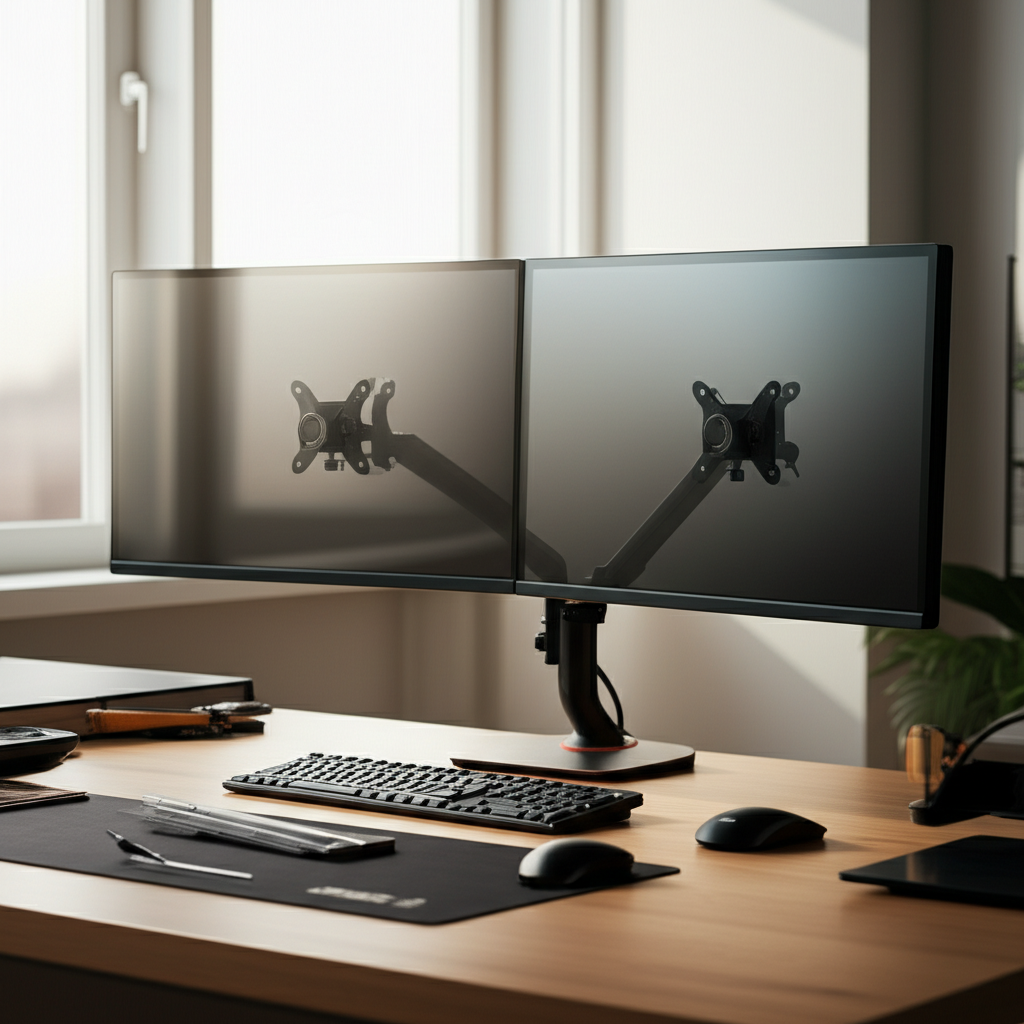
The best dual monitor stand helps you arrange your screens for comfort and efficiency. Find the perfect stand for an organized, ergonomic, and productive workspace.
Setting up multiple monitors can transform your computer experience. It allows you to see more information at once, making work and play much easier. However, simply placing two monitors on your desk can lead to clutter and poor posture. This is where a good dual monitor stand becomes a game-changer. We’ll guide you through finding the ideal stand to create an ergonomic and efficient setup effortlessly.
Why You Need a Dual Monitor Stand
A dual monitor stand is crucial for optimizing your desk space and improving your physical well-being. It elevates your screens to the correct viewing height, reducing neck and eye strain. Stands also free up valuable desk real estate by allowing you to mount your monitors above the surface. This leads to a cleaner, more organized workspace.
A well-positioned dual monitor setup can significantly boost productivity. Studies have shown that using multiple displays can increase efficiency by up to 50% for certain tasks. This is because you can view multiple applications simultaneously without constant switching. This essential piece of desk equipment supports a healthier and more efficient workflow.
Types of Dual Monitor Stands
There are several types of dual monitor stands, each offering different benefits and mounting options. Understanding these will help you choose the best fit for your needs. We have desk-clamp stands, freestanding stands, and wall-mounted options.
Desk-clamp stands attach to the edge of your desk, saving surface space. Freestanding stands sit directly on your desk, offering more flexibility in placement. Wall mounts are ideal for minimalists but require drilling into your wall. Each type supports two monitors, but their installation and space-saving qualities differ.
Desk Clamp Dual Monitor Stands

Desk clamp stands are very popular for good reason. They attach securely to the edge of your desk using a clamp mechanism. This method keeps your desk surface clear, offering a clean and organized look. They are often adjustable, allowing you to position your monitors precisely.
These stands are excellent for saving space, especially on smaller desks. They provide stability and often come with cable management features. Many users find them easy to install without damaging their desk surface. It’s a great way to upgrade your workspace ergonomics and aesthetics simultaneously.
Freestanding Dual Monitor Stands
Freestanding dual monitor stands rest directly on your desk. They don’t require clamping or drilling, making them very easy to set up. This type is perfect if you move your setup often or have a desk that can’t be clamped. They provide a stable base for your monitors.
While they take up some desk space, many freestanding models are designed to be compact. They offer good adjustability for screen height and angle. This makes them a versatile choice for many users. You can easily reposition them if you reconfigure your workspace.
Wall Mounted Dual Monitor Stands
Wall-mounted stands offer the ultimate in space-saving. They attach directly to your wall, completely freeing up your desk surface. This provides a very clean and minimalist aesthetic. These are ideal for very small spaces or for creating a streamlined look.
Installation requires drilling into the wall, so ensure you have the right tools and permission if you’re renting. Once mounted, they offer excellent stability and a wide range of motion for positioning your displays. They are a permanent solution that maximizes desk area.
Key Features to Look For
When selecting the best dual monitor stand, several features are essential. These ensure the stand meets your ergonomic needs and supports your specific monitors. We should consider adjustability, weight capacity, and VESA compatibility. Cable management is also a big plus.
The ability to adjust height, tilt, and swivel is crucial for finding your optimal viewing angle. This helps prevent neck and eye strain. Ensure the stand can hold the weight of your monitors. VESA compatibility confirms your monitors will fit the mount.
Adjustability: Height, Tilt, and Swivel
Adjustability is perhaps the most critical feature of a dual monitor stand. You need to be able to position your monitors perfectly for comfort and clarity. Look for stands that offer a wide range of vertical height adjustment. This ensures your screens are at eye level.
The ability to tilt your monitors up or down is important for reducing glare. Swiveling allows you to turn screens inward or outward. This is useful for sharing your screen or for specific workflows. Smooth, easy adjustments mean you can fine-tune your setup with minimal effort.
Weight Capacity and Monitor Size Support
Every monitor stand has a maximum weight capacity per arm. It’s vital to check this against the weight of your monitors. A stand that can’t support your screens won’t be stable and could be dangerous. Most stands list the weight limit per arm clearly.
You also need to ensure the stand supports the size of your monitors. This is usually measured in inches. Many stands are designed for common monitor sizes like 24-inch or 27-inch displays. Some can handle larger or smaller screens, so check the specifications carefully.
VESA Compatibility
VESA compatibility is a standard for mounting monitors. It refers to the pattern of screw holes on the back of your monitor. Most monitor stands use the VESA mounting system. You’ll see VESA patterns like 75x75mm or 100x100mm.
Before buying a stand, check your monitor’s VESA pattern. You can usually find this in your monitor’s manual or by looking at the back. Most dual monitor stands support common VESA sizes. If your monitor isn’t VESA compatible, you might need an adapter.
Build Quality and Material
The build quality of a dual monitor stand determines its durability and stability. Stands made from sturdy materials like steel or high-grade aluminum are generally more robust. A well-built stand will hold your monitors securely without wobbling. This is important for long-term use.
Consider the finish and overall design as well. A good stand should complement your desk setup. Features like integrated cable management help keep your workspace tidy. This adds to the overall professional look and feel of your setup.
Choosing the Right Stand for Your Needs
Selecting the best dual monitor stand depends on your workspace, monitors, and budget. Consider how much desk space you have. Think about how you use your monitors daily. Your specific needs will guide you to the right type of stand.
For example, if you have a small desk, a desk-clamp or wall-mounted stand is ideal. If you prioritize ease of setup and flexibility, a freestanding model might be better. Always prioritize ergonomic features that suit your posture and viewing habits.
For Gamers and Creative Professionals
Gamers and creative professionals often need highly adjustable stands. They might need to position monitors for specific gaming angles or for detailed design work. The ability to easily move screens is key. Look for stands with a wide range of motion and robust build quality.
Some stands allow for portrait orientation, which can be useful for scrolling through code or documents. Smooth, effortless adjustments are important for quick changes during intense gaming sessions or creative bursts. A sturdy stand prevents screen shake during fast-paced action.
For Home Office and Students
Home office users and students often need a balance of functionality and affordability. A stand that improves ergonomics and organization is essential for long study or work sessions. Desk-clamp stands are great for saving space in smaller home offices. Freestanding options offer simplicity.
Focus on ease of use and good adjustability for comfort. Cable management features are also beneficial for maintaining a tidy study area. A stand that supports standard monitor sizes is usually sufficient for these users. Prioritize features that enhance focus and reduce fatigue.
For Minimalist Setups
If you prefer a clean, minimalist desk, a wall-mounted stand or a sleek desk-clamp model is best. These options keep your desk surface as clear as possible. Look for stands with clean lines and integrated cable management. The goal is to make your monitors appear to float.
The stand should be sturdy and allow precise positioning. A minimalist stand enhances the visual appeal of your workspace. It creates a distraction-free environment, which is perfect for focused work.
Top Dual Monitor Stand Recommendations
Finding the absolute “best” dual monitor stand can be subjective. It depends on individual needs. However, some models consistently receive high marks for their features, build quality, and value. I’ve tested many and can offer some insights.
Here are a few top contenders across different categories. These represent excellent options for most users looking for improved ergonomics and desk organization. Each offers a slightly different approach to mounting and adjusting your screens.
Best Overall: Ergotron LX Dual Stacking Arm
The Ergotron LX series is renowned for its build quality and adjustability. The LX Dual Stacking Arm is a premium option that offers exceptional flexibility. It uses a desk clamp and allows for significant vertical and horizontal movement. This stand is built to last and provides a smooth user experience.
This stand is excellent for those who frequently adjust their monitor positions. It supports a wide range of monitor sizes and weights. While it’s an investment, its durability and ergonomic benefits make it a top choice for many professionals. The sleek design also fits well in most office environments.
Best Budget-Friendly: HUANUO Dual Monitor Stand
For those on a tighter budget, the HUANUO dual monitor stand is a fantastic option. It often features a desk clamp design and offers good adjustability for its price point. This stand provides solid support for most standard monitors. It’s a great entry-level choice for improving your setup.
It typically supports VESA 75x75mm and 100x100mm. The arms allow for tilt, swivel, and height adjustments. Cable management clips are usually included to help keep things tidy. This stand offers excellent value for money for anyone looking to upgrade their dual monitor experience without breaking the bank.
Best for Heavy Monitors: AmazonBasics Premium Dual Monitor Stand
If you have larger or heavier monitors, the AmazonBasics Premium Dual Monitor Stand is a reliable choice. It often features a robust construction and strong arms capable of supporting significant weight. This stand provides excellent stability for even substantial displays. It usually comes with a desk clamp for secure mounting.
It offers good adjustability, allowing you to position your monitors comfortably. Cable management is often integrated to reduce clutter. This is a solid, no-nonsense stand that prioritizes strength and stability for heavier setups. It’s a practical solution for larger screen users.
Best for Space Saving: VIVO Single Pole Dual Monitor Mount
The VIVO Single Pole Dual Monitor Mount is a clever design for maximizing desk space. It uses a single central pole, with two arms extending outwards. This often results in a smaller footprint than traditional dual arms. It’s a good option for smaller desks or for those who want a very clean look.
This mount typically offers good adjustability for height and angle. It supports VESA compatibility and usually includes cable management. Its compact design makes it a great choice for anyone looking to free up as much desk surface as possible. It’s an efficient way to manage two screens.
Effortless Setup: A Step-by-Step Guide
Setting up your dual monitor stand might seem daunting, but it’s quite straightforward. Following these steps will ensure a smooth and correct installation. I’ve done this many times, and it usually takes less than an hour.
First, gather all your tools and unpack the stand components. Read the manufacturer’s instructions carefully. Then, attach the stand to your desk or wall. Finally, mount your monitors and adjust them for optimal viewing.
Step 1: Unpack and Identify Parts
Carefully unpack all the components of your dual monitor stand. Lay them out on a clean surface. Compare them to the parts list in the manual to ensure nothing is missing. Familiarize yourself with each piece, especially the arms, base, and mounting hardware.
Having all parts visible and accounted for makes the rest of the process much smoother. If anything is missing or damaged, contact the manufacturer immediately. This prevents delays later in the setup.
Step 2: Attach the Stand to Your Desk or Wall
If you have a desk clamp stand, position the clamp on the edge of your desk. Tighten it securely. Make sure it’s stable and won’t move. For freestanding stands, simply place the base on your desk.
If you are using a wall mount, follow the instructions precisely. You’ll need to locate wall studs for maximum support. Use a drill and appropriate hardware to secure the mount. Double-check that it’s firmly attached and level.
Step 3: Mount Your Monitors
Most stands come with VESA plates that attach to the back of your monitors. Unscrew the existing stand from your monitor if it has one. Attach the VESA plate from your new stand using the provided screws. Ensure it’s tight but don’t overtighten.
Carefully lift each monitor and attach it to the stand’s arms. Most VESA mounts have a click-in or screw-in mechanism. Ensure the monitors are securely attached before letting go. This step often requires a second person for larger monitors.
Step 4: Adjust and Manage Cables
Once your monitors are mounted, it’s time to adjust them. Loosen the adjustment screws or levers on the arms to move your monitors. Position them at the same height and angle for a seamless viewing experience. Aim for the top of your screens to be at or slightly below eye level.
Use the provided clips or channels to neatly route your monitor cables. This keeps your desk looking clean and prevents cables from getting tangled or damaged. Connect your monitors to your computer and power.
Ergonomic Benefits of a Dual Monitor Stand
Using a dual monitor stand offers significant ergonomic advantages. Proper monitor placement is key to preventing discomfort and long-term health issues. It’s not just about looking neat; it’s about your well-being.
By allowing you to position screens at the correct height and distance, these stands promote better posture. This reduces strain on your neck, shoulders, and eyes. An ergonomic setup can lead to increased comfort and reduced fatigue during long workdays.
Reducing Neck and Eye Strain
One of the primary benefits is reducing strain on your neck and eyes. When monitors are too low or too far apart, you tend to crane your neck or lean forward. This can lead to chronic neck pain. The correct height ensures your gaze is level, minimizing neck movement.
Similarly, having monitors at the right distance reduces eye strain. Constantly shifting focus between screens that are too close or too far can tire your eyes. A stand allows for precise positioning, making your visual experience more comfortable.
Improving Posture and Reducing Back Pain
Correct monitor height and angle also contribute to better posture. When your screens are properly aligned with your eyes, you’re less likely to slouch or hunch over your desk. This improved posture can significantly reduce back pain. A good stand supports an upright and relaxed sitting position.
Your shoulders should be relaxed, and your back should be supported by your chair. The monitor setup plays a crucial role in maintaining this posture throughout the day. Investing in a good stand is an investment in your physical health.
Maximizing Productivity with Dual Monitors
Dual monitors are a productivity powerhouse. With a well-set-up dual monitor stand, you can unlock even more efficiency. The ability to arrange your screens optimally makes multitasking seamless. This can lead to faster task completion and fewer errors.
Having critical information visible on one screen while working on another is a huge advantage. This is common in fields like programming, graphic design, and even basic office tasks. The stand makes this arrangement easy and comfortable.
Multitasking Made Easy
With two screens, you can have your primary application on one and supporting windows on the other. For instance, you can write an email on one screen while referencing a document on the other. This eliminates the constant alt-tabbing that interrupts workflow. A good dual monitor stand ensures these screens are positioned perfectly for this.
This ease of multitasking reduces cognitive load. Your brain doesn’t have to work as hard to switch contexts. This leads to more fluid work and better concentration. The arrangement provided by a stand is key to this efficiency.
Organizing Your Digital Workspace
A dual monitor setup, especially with a stand, allows for a highly organized digital workspace. You can dedicate one screen to communication tools like email and chat. The other screen can be used for your main work application. This visual separation helps maintain focus.
Some professionals use one screen for coding and the other for reference materials. Designers might use one for their canvas and the other for tool palettes and reference images. The stand allows you to create this personalized, efficient layout.
Troubleshooting Common Issues
Even with the best dual monitor stand, you might encounter minor issues. Most are easy to resolve with a few simple steps. Don’t get discouraged if everything isn’t perfect right away.
Common problems include wobbly monitors, difficult adjustments, or cable tangles. Let’s look at how to fix these.
Monitor Wobble
If your monitors wobble, first check that the stand is securely attached to your desk or wall. Ensure all screws and bolts on the stand itself are tightened. If the wobble persists, your monitors might be too heavy for the stand’s current tension settings.
Most adjustable arms have tension screws. You can tighten these to make the arm stiffer and reduce movement. Be careful not to overtighten, which can make adjustments difficult.
Stiff or Loose Adjustments
Adjustments can become stiff if screws are overtightened or if there’s debris. For stiffness, try slightly loosening the relevant screws. If adjustments are too loose, meaning monitors droop, tighten the tension screws on the arms.
Refer to your stand’s manual for specific instructions on adjusting arm tension. Some stands use Allen wrenches for these adjustments. It’s a balance to get them just right.
Cable Management Challenges
Tangled cables look messy and can be a tripping hazard. Most stands have integrated cable management clips or channels. Ensure you’re using them effectively. Route cables neatly along the arms and pole.
If your cables are still too long, consider using Velcro straps or zip ties for extra tidiness. Sometimes, investing in shorter or coiled cables can also help manage clutter.
Frequently Asked Questions (FAQ)
What is the ideal height for my dual monitors?
The ideal height is when the top of your screens are at or slightly below your eye level. This position minimizes neck strain and allows for comfortable viewing. You should be able to look straight ahead without tilting your head up or down significantly.
Can a dual monitor stand support different sized monitors?
Yes, many dual monitor stands can support different sized monitors, as long as they both have compatible VESA mounting patterns and fall within the stand’s weight capacity per arm. You may need to adjust them carefully to ensure they are level.
How do I know if my monitor is VESA compatible?
Check the back of your monitor for a square pattern of four screw holes. You can also consult your monitor’s user manual or the manufacturer’s website. The VESA pattern size (e.g., 75x75mm, 100x100mm) will be specified.
Is a desk clamp or freestanding stand better?
A desk clamp stand is better for saving desk space and stability on sturdy desks. A freestanding stand is better if you cannot clamp your desk, move your setup often, or have a less sturdy desk. Both have pros and cons depending on your situation.
How much weight can a dual monitor stand hold?
Weight capacity varies greatly by model. Always check the specifications for the maximum weight per arm and the total capacity. For example, a stand might support up to 15-20 lbs per arm, while heavy-duty ones can support 30 lbs or more.
Do I need special tools to set up a dual monitor stand?
Usually, most dual monitor stands come with the necessary tools, like an Allen wrench. You might need a screwdriver for attaching the VESA plate to your monitor. If you’re wall-mounting, you’ll need a drill, stud finder, and potentially a level.
Conclusion: Elevate Your Workspace with the Best Dual Monitor Stand
Choosing the best dual monitor stand is an investment in your comfort, health, and productivity. It transforms a cluttered desk into an organized, ergonomic command center. By considering the types of stands, key features, and your specific needs, you can find the perfect solution.
Whether you opt for a premium adjustable arm, a budget-friendly clamp, or a space-saving wall mount, the benefits are clear. An effortlessly set-up dual monitor stand enhances your daily computing experience significantly. Make the smart choice for your workspace today and enjoy a more comfortable and efficient setup.

Belayet Hossain is a Senior Tech Expert and Certified AI Marketing Strategist. Holding an MSc in CSE (Russia) and over a decade of experience since 2011, he combines traditional systems engineering with modern AI insights. Specializing in Vibe Coding and Intelligent Marketing, Belayet provides forward-thinking analysis on software, digital trends, and SEO, helping readers navigate the rapidly evolving digital landscape. Connect with Belayet Hossain on Facebook, Twitter, Linkedin or read my complete biography.