
Published on: 11/09/2025 | Updated on: September 11, 2025
Firestick Will Not Work: Essential Fixes Now
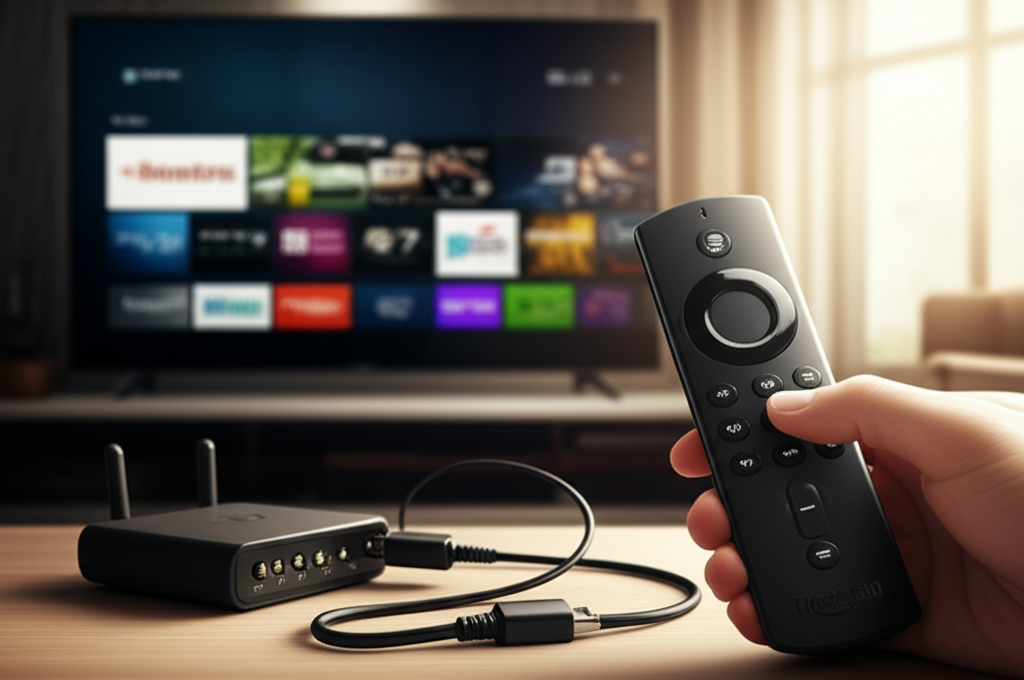
When your Firestick won’t work, it can be incredibly frustrating. This guide provides essential, step-by-step fixes to get your device back online quickly. We’ll cover common issues and offer solutions, ensuring you can enjoy your favorite content again without the technical headache.
Streaming entertainment is a cornerstone of modern living rooms, and the Amazon Fire TV Stick is a popular gateway to a universe of content. But what happens when this trusty device decides to take an unscheduled break? A Firestick that won’t work can feel like a major disruption. Don’t worry; these issues are often minor and resolvable with a few straightforward troubleshooting steps. This guide is designed to be your go-to resource, simplifying the process of diagnosing and fixing common Firestick problems. We’ll walk you through everything from basic restarts to more advanced settings, empowering you to get your Firestick working like new.
Why Is My Firestick Not Working? Common Causes
When your Firestick won’t work, it’s usually due to a handful of common culprits. These can range from simple connectivity issues to software glitches or even hardware problems. Understanding these potential causes is the first step in effectively troubleshooting the situation. Many users encounter problems with Wi-Fi connections, app performance, or the device itself becoming unresponsive.
Often, a Firestick might not work due to a temporary software hiccup or a problem with your home network. Power supply issues and outdated software can also contribute to the device malfunctioning. Identifying the specific symptom you’re experiencing will help narrow down the potential solutions, making the troubleshooting process much more efficient.
The First Step: A Simple Restart Can Save the Day
Many users find that when their Firestick won’t work, a quick restart is all that’s needed. This process is akin to rebooting any other electronic device and can clear out temporary glitches and memory issues that might be causing the problem. It’s the least intrusive solution and should always be your initial troubleshooting step.
To perform a restart, simply unplug the power adapter from your Firestick device or the wall outlet. Wait for at least 30 seconds before plugging it back in. This allows the device to fully power down and reset. Once reconnected, give it a minute or two to boot up completely before checking if it’s working again.
Check Your Power and Connections: The Foundation of Functionality
Before diving into software fixes, it’s crucial to ensure your Firestick is receiving adequate power and all its connections are secure. A loose cable or insufficient power supply is a surprisingly common reason why a Firestick will not work as expected. This basic check can save you a lot of time and frustration.
Ensure the HDMI cable is firmly plugged into both your Firestick and the TV. Verify that the power adapter is securely connected to the Firestick and is plugged into a working electrical outlet, not a power strip that might be faulty. Sometimes, using the original Amazon power adapter and cable can resolve power-related issues, as some third-party accessories may not provide sufficient or stable power.
Troubleshooting Wi-Fi Connectivity Issues for a Responsive Firestick
A stable Wi-Fi connection is vital for your Firestick to function, as it relies on the internet to stream content and access apps. If your Firestick won’t work, a Wi-Fi problem is a very likely cause. Let’s explore how to diagnose and fix these connectivity challenges.
First, ensure your home Wi-Fi network is working correctly with other devices. If other devices are also experiencing internet issues, the problem likely lies with your router or internet service provider. If only the Firestick is affected, proceed with these steps.
Restart Your Router and Modem

A common fix for Wi-Fi issues is to restart your router and modem. This simple action can often resolve temporary network glitches that might be preventing your Firestick from connecting.
1. Unplug your modem and router from their power sources.
2. Wait for at least 60 seconds. This ensures they fully power down.
3. Plug your modem back in first and wait for it to fully boot up (usually indicated by stable lights).
4. Plug your router back in and wait for it to boot up.
5. Restart your Firestick after your network is back online.
This process refreshes your network and can re-establish a stable connection for your Firestick.
Check Your Wi-Fi Password and Network Name (SSID)
Ensure you’re attempting to connect to the correct Wi-Fi network and that the password is entered accurately. Passwords are case-sensitive, so a single typo can prevent a successful connection.
On your Firestick, navigate to `Settings` > `Network`. Select your Wi-Fi network and attempt to reconnect, carefully re-entering the password. If you’ve recently changed your Wi-Fi password, you’ll need to update it on the Firestick.
Move Your Firestick Closer to the Router
Physical distance and obstructions can weaken the Wi-Fi signal. If your Firestick is far from your router or separated by walls, it might struggle to maintain a strong connection.
Try moving your Firestick to a location closer to your Wi-Fi router, even temporarily, to see if the connection improves. If it does, consider relocating your router to a more central position or investing in a Wi-Fi extender for better coverage.
Forget and Reconnect to Your Wi-Fi Network
Sometimes, the Firestick might have stored outdated or corrupted network information. Forgetting the network and reconnecting can clear this out.
Go to `Settings` > `Network` on your Firestick. Select your Wi-Fi network, choose `Forget Network`, and then scan for networks again. Select your network and re-enter the password to establish a fresh connection.
A robust Wi-Fi connection is paramount for your Firestick’s performance; addressing these network issues is often the key to resolving a Firestick that won’t work.
When Apps Won’t Load or Keep Crashing: App-Specific Fixes
If your Firestick is generally working but specific apps are misbehaving, you’re likely facing an app-related issue. Apps that won’t load or continuously crash are frustrating, but there are several ways to fix this. These solutions focus on clearing app data, force stopping, or reinstalling the problematic application.
Many app issues stem from corrupted cache or data files. Similar to how clearing your browser cache can resolve website problems, clearing app data on your Firestick can fix many performance issues. This process won’t delete your app itself, but rather reset its settings to default.
Clear App Cache and Data
Clearing an app’s cache can resolve minor performance issues without affecting your settings. Clearing app data will reset the app to its default state, requiring you to log in again.
1. Navigate to `Settings` > `Applications` > `Manage Installed Applications`.
2. Scroll down and select the app that is causing problems.
3. Choose `Clear Cache`. If the issue persists, repeat the steps and select `Clear Data`.
This action can often resolve issues where an app will not work correctly.
Force Stop the App
If an app is frozen or unresponsive, forcing it to stop can resolve the issue. This is a quick way to close an app that might be stuck in a loop.
From the `Manage Installed Applications` menu, select the problematic app and then choose `Force Stop`. After stopping, try launching the app again.
Uninstall and Reinstall the App
If clearing cache/data and force stopping don’t work, uninstalling and then reinstalling the app is the next logical step. This ensures you have a fresh, uncorrupted version of the application.
In `Manage Installed Applications`, select the app and choose `Uninstall`. Then, go to the Amazon Appstore, search for the app, and reinstall it. You will need to log back into your accounts for that app.
Addressing app-specific problems through these methods ensures your favorite streaming services remain accessible and functional.
Software Updates: Keeping Your Firestick Up-to-Date
Amazon regularly releases software updates for the Fire TV operating system, which often include bug fixes, performance improvements, and new features. If your Firestick won’t work correctly, it might be because it’s running outdated software. Ensuring your device is up-to-date is a critical troubleshooting step.
Updates are usually downloaded and installed automatically when your Firestick is connected to the internet. However, you can manually check for updates to ensure your device is running the latest version of the software. This is a proactive measure that can prevent many potential issues.
How to Manually Check for Firestick Updates
Manually checking for updates is straightforward and can resolve many underlying software problems.
1. Go to `Settings` on your Firestick.
2. Select `My Fire TV` (or `Device & Software` on older models).
3. Choose `About`.
4. Select `Check for Updates`.
If an update is available, your Firestick will download and install it automatically. You may need to restart your device after the update is complete. Keeping your Firestick updated is one of the most effective ways to prevent it from not working.
Factory Reset: The Last Resort for Persistent Issues
When all other troubleshooting steps fail, and your Firestick still won’t work, a factory reset can often resolve deep-seated software issues. This process returns your Firestick to its original factory settings, erasing all downloaded apps, user data, and settings. It’s a more drastic step, but it can effectively fix persistent problems that other methods cannot.
A factory reset essentially wipes the slate clean, resolving any corrupted files or software conflicts that might be causing your Firestick to malfunction. Be aware that you will need to set up your Firestick again from scratch after performing a reset, including reconnecting to Wi-Fi and logging back into all your apps.
Steps to Perform a Factory Reset
You can perform a factory reset through the Firestick’s settings menu or using a physical button combination if the device is unresponsive.
Method 1: Via Settings Menu
1. Navigate to `Settings` on your Firestick.
2. Select `My Fire TV` (or `Device & Software`).
3. Choose `Reset to Factory Defaults`.
4. Confirm your choice. Your Firestick will restart and undergo the reset process.
Method 2: Using the Remote (When Unresponsive)
If your Firestick is completely unresponsive, you can try a physical reset:
1. Unplug your Firestick from the power source.
2. Press and hold the `Right` button on the directional pad and the `Back` button on your remote simultaneously.
3. While holding these buttons, plug the Firestick back into the power source.
4. Continue holding the buttons for about 10-15 seconds until you see a message on screen indicating a reset is in progress.
5. Release the buttons.
After the reset, your Firestick will reboot, and you’ll need to go through the initial setup process. This ultimate fix ensures that if your Firestick will not work due to software corruption, it can be restored.
Troubleshooting Remote Control Issues
Sometimes, the problem isn’t with the Firestick itself, but with the remote control. If your Firestick won’t respond to commands, the remote might be the issue. This can happen due to dead batteries, pairing problems, or physical damage.
A non-responsive remote can make it seem like the entire Firestick is not working, especially if you can’t navigate the menus to troubleshoot other issues. Addressing remote control problems is crucial for seamless Firestick operation.
Check and Replace Batteries
The most common reason for a remote not working is depleted batteries. Always start by replacing the batteries with fresh ones.
Ensure you insert the batteries with the correct polarity (+/-).
Re-pair Your Fire TV Remote
If new batteries don’t help, the remote may have lost its pairing with the Firestick. Re-pairing can resolve this connection issue.
1. Ensure your Firestick is powered on and visible on your TV screen.
2. Bring the remote close to the Firestick.
3. Press and hold the `Home` button on the remote for at least 10 seconds.
4. You should see an on-screen confirmation when the remote successfully pairs.
If re-pairing doesn’t work, you might need to use the Amazon Fire TV app on your smartphone as a temporary remote to navigate to `Settings` > `Remotes & Bluetooth Devices` > `Amazon Fire TV Remotes` and try un-pairing and re-pairing from there.
Consider a Replacement Remote or App
If your remote continues to be problematic after trying these steps, it might be damaged or defective. You can purchase a replacement remote from Amazon or use the Amazon Fire TV app on your smartphone or tablet as a fully functional remote control. This app is available for both iOS and Android devices and can be a lifesaver when your physical remote fails.
Overheating: A Silent Killer of Device Performance
Electronics can be sensitive to temperature, and your Firestick is no exception. If your Firestick won’t work, or if it’s performing erratically, overheating could be the culprit. Excessive heat can lead to performance slowdowns, unexpected shutdowns, and even long-term damage to the device.
Your Firestick generates heat during operation, especially when streaming high-definition content or running demanding apps. Proper ventilation is key to preventing it from overheating. Ensure the device has enough space around it to dissipate heat effectively.
Tips to Prevent Overheating
Ensure proper ventilation: Make sure the Firestick is not placed in a confined space, like inside a closed entertainment cabinet without airflow. Avoid stacking other devices directly on top of it.
Avoid direct sunlight: Position your TV and Firestick away from windows where direct sunlight can increase their operating temperature.
Use the original power adapter: Non-official power adapters might not regulate power correctly, potentially leading to increased heat.
Unplug when not in use for extended periods: While not always necessary, unplugging the device when you’re away for a long time can help it cool down completely.
* Check for software updates: Sometimes, software bugs can cause devices to work harder than necessary, generating excess heat. Keeping your Firestick updated can help.
If you suspect your Firestick is overheating, unplug it and let it cool down completely before attempting to use it again. Addressing heat issues is vital for the longevity and consistent performance of your device, ensuring your Firestick will work reliably.
HDMI-CEC and TV Compatibility Issues
HDMI-CEC (Consumer Electronics Control) is a feature that allows devices connected via HDMI to control each other. For example, it can allow your Firestick remote to control your TV’s power and volume. Sometimes, issues with HDMI-CEC or general TV compatibility can cause unexpected behavior or make it seem like your Firestick will not work properly.
When HDMI-CEC is enabled, it can sometimes create conflicts between devices. If you notice unusual behavior, such as your TV turning on or off unexpectedly, or the Firestick remote controlling the wrong device, disabling HDMI-CEC might resolve the issue.
How to Manage HDMI-CEC on Your TV
The exact steps to manage HDMI-CEC vary depending on your TV manufacturer. Look for settings related to “HDMI-CEC,” “Anynet+” (Samsung), “Bravia Sync” (Sony), “VIERA Link” (Panasonic), or similar terms in your TV’s menu.
1. Access your TV’s settings menu.
2. Navigate to the input or HDMI settings.
3. Locate the HDMI-CEC option and try disabling it.
4. Restart both your TV and Firestick after making the change.
If disabling HDMI-CEC resolves the problem, you can decide whether the convenience of controlling multiple devices with one remote is worth the potential for conflicts. You may also find that enabling specific CEC features on your TV or Firestick (if available) can help. Understanding these settings can be key when your Firestick will not work as expected due to TV interaction.
When All Else Fails: Contacting Amazon Support
If you’ve exhausted all the troubleshooting steps above and your Firestick still won’t work, it’s time to seek professional assistance. Amazon provides customer support for its Fire TV devices, and they can offer further guidance or determine if your device is eligible for a replacement.
Don’t hesitate to reach out to Amazon support if you’re unable to resolve the issue on your own. They have access to advanced diagnostics and can provide tailored solutions based on your specific problem.
How to Contact Amazon Support
1. Visit the Amazon Help & Customer Service website.
2. Navigate to the Fire TV or Kindle section.
3. Look for options like “Contact Us,” “Chat with Us,” or “Call Us.”
4. Be prepared to provide details about your Firestick model, the issues you’re experiencing, and the troubleshooting steps you’ve already taken.
This detailed information will help Amazon support assist you more effectively. If your device is under warranty, they can guide you through the replacement process. Relying on Amazon’s support is the final step when your Firestick will not work after all DIY attempts.
Frequently Asked Questions (FAQ)
Why is my Firestick screen black?
A black screen can be caused by a loose HDMI connection, a faulty HDMI cable, or an issue with your TV’s input source. Ensure the HDMI cable is securely plugged into both the Firestick and the TV. Try a different HDMI port on your TV and, if possible, use a different HDMI cable. Restarting both your Firestick and TV can also resolve this.
My Firestick is stuck on the logo screen. What should I do?
If your Firestick is stuck on the Amazon logo, it typically indicates a software glitch or a problem during the boot process. Try unplugging the power for 60 seconds and plugging it back in. If that doesn’t work, a factory reset might be necessary.
How do I update my Firestick if it won’t connect to Wi-Fi?
If your Firestick cannot connect to Wi-Fi, you won’t be able to download updates directly. In this scenario, you might need to use a mobile hotspot from your smartphone to temporarily connect the Firestick to the internet to perform the update, or consider a wired Ethernet adapter if your Firestick model supports it. Alternatively, if the issue is severe, a factory reset might be required.
Can I use my Firestick without Wi-Fi?
No, a Firestick requires an active internet connection via Wi-Fi to function. It uses the internet to stream content, download apps, and receive software updates. Without Wi-Fi, its core functionalities are unavailable.
My Firestick is very slow. How can I speed it up?
Slowness can be caused by too many apps running in the background, insufficient storage space, or an unstable Wi-Fi connection. Close unused apps, uninstall apps you don’t need, restart your Firestick and router regularly, and ensure your Wi-Fi signal is strong.
How often should I restart my Firestick?
Restarting your Firestick weekly or whenever you notice a slight slowdown or glitch is a good practice. It helps clear temporary files and ensures smoother performance.
Conclusion: Getting Your Firestick Back in Action
Experiencing a Firestick that won’t work can be a real inconvenience, disrupting your entertainment flow. Fortunately, as we’ve explored, most issues are resolvable with a methodical approach. From simple power cycles and checking connections to more involved steps like app management, network troubleshooting, and software updates, you now have a comprehensive toolkit to tackle common Firestick problems. Remember to start with the easiest fixes and gradually move to more complex solutions. If all else fails, a factory reset or contacting Amazon support can bring your device back to life. With these essential fixes, you can ensure your Firestick will work reliably, bringing your favorite content back to your screen without further delay.

Belayet Hossain is a Senior Tech Expert and Certified AI Marketing Strategist. Holding an MSc in CSE (Russia) and over a decade of experience since 2011, he combines traditional systems engineering with modern AI insights. Specializing in Vibe Coding and Intelligent Marketing, Belayet provides forward-thinking analysis on software, digital trends, and SEO, helping readers navigate the rapidly evolving digital landscape. Connect with Belayet Hossain on Facebook, Twitter, Linkedin or read my complete biography.