
Published on: 26/09/2025 | Updated on: September 26, 2025
This guide provides a comprehensive, step-by-step solution for how to reset your Fitbit Charge HR, addressing common issues and ensuring your device is back to optimal performance. Learn the essential breakthrough techniques to troubleshoot and refresh your tracker.
Is your Fitbit Charge HR acting up? You’re not alone. Many users encounter glitches, syncing problems, or simply a frozen screen that leaves them wondering what to do next. A factory reset can often be the magic bullet, clearing out software bugs and giving your tracker a fresh start. This guide is your ultimate resource for understanding precisely how to reset your Charge HR, ensuring you get back to tracking your fitness goals without frustration. We’ll cover everything from understanding why a reset is needed to the exact steps involved, empowering you with the knowledge to fix common issues.
Why Your Fitbit Charge HR Might Need a Reset
Experiencing issues with your Fitbit Charge HR can be frustrating, hindering your ability to track steps, monitor heart rate, or sync with your app. Often, simple software hiccups are the culprit behind a sluggish or unresponsive device. Before considering a more drastic measure, understanding the common symptoms that point towards needing a reset is crucial for effective troubleshooting.
Common signs that indicate your Charge HR might benefit from a reset include a device that won’t sync with the Fitbit app, a frozen or unresponsive screen, inaccurate heart rate readings, or battery drain issues that appear suddenly. Sometimes, after a software update, devices can behave unexpectedly, and a reset helps re-establish a stable connection and proper functioning. These are usually temporary software glitches that a reset can resolve.
Understanding the Fitbit Charge HR Reset Process
Resetting your Fitbit Charge HR involves a simple, built-in function designed to restore the device to its original factory settings. This process effectively wipes all data and settings from the tracker, resolving most software-related problems. It’s important to note that this is a last resort for troubleshooting, as it will remove any unsynced data.
The reset procedure on the Charge HR is straightforward and doesn’t require external tools or complex software. It’s a quick way to clear out temporary files and cache that might be causing performance issues. Think of it as giving your tracker a clean slate to start fresh, often resolving persistent syncing or display problems.
Before You Reset: Important Considerations
Before diving into how to reset your Charge HR, it’s vital to prepare and understand the implications. A factory reset will erase all personalized settings and any data that hasn’t been synced to your Fitbit account. This means any steps, heart rate data, or activity logs not uploaded will be lost.
To safeguard your valuable fitness data, ensure you sync your Charge HR with the Fitbit app or online dashboard one last time before proceeding. This way, all your recent progress will be saved. Also, make sure your tracker is charged to at least 50% to prevent it from shutting down during the reset process, which could potentially cause further issues.
The “Secret” Button Combination: How to Reset Charge HR Directly
The primary method for how to reset your Charge HR involves a specific button combination. This is the most direct way to perform a factory reset when your tracker is experiencing issues. It’s a powerful troubleshooting step that can resolve a wide array of common problems.
To perform this reset, you’ll need to press and hold the side button on your Charge HR for a specific duration. This action tells the device to initiate its reboot sequence. Following these steps carefully ensures a successful reset without any complications.
Step-by-Step: Performing a Hard Reset on Charge HR

Here’s the precise sequence to execute the hard reset on your Fitbit Charge HR:
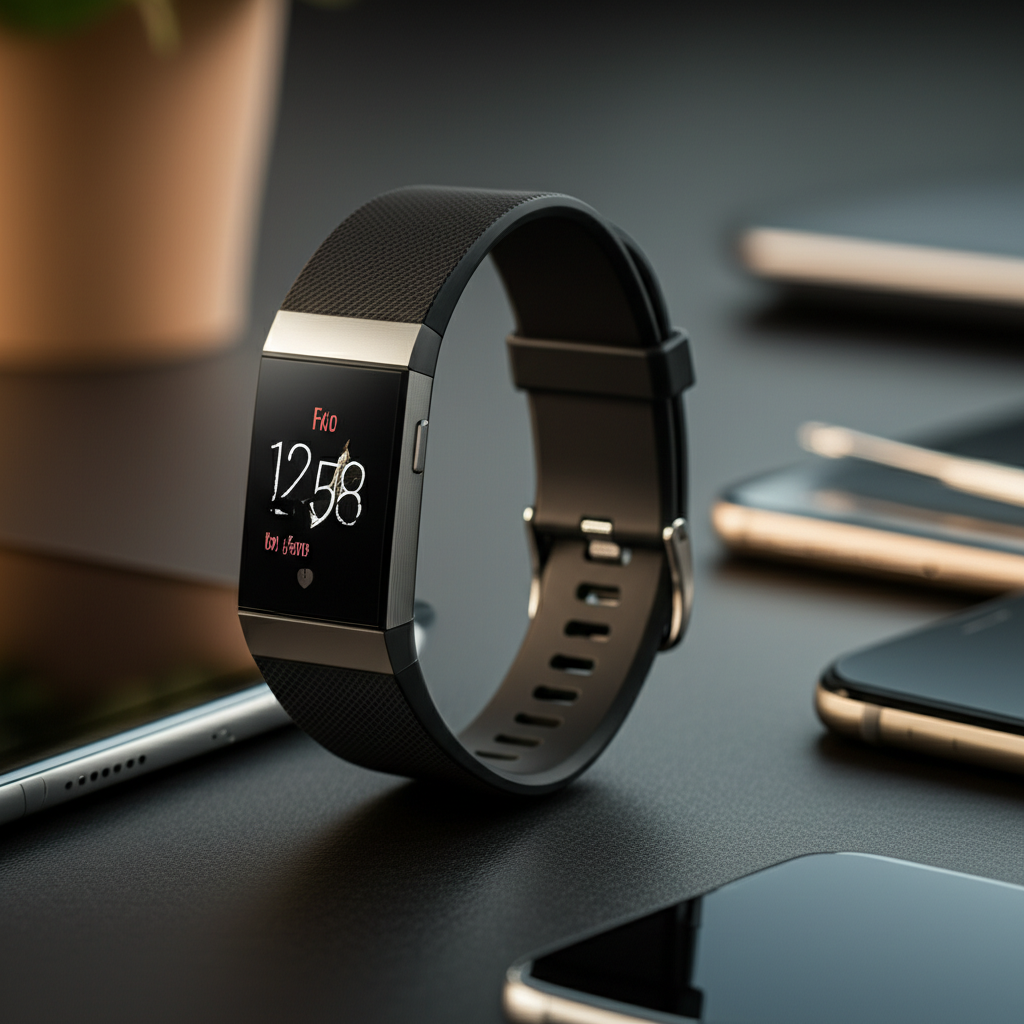
1. Locate the Button: Find the single button on the side of your Charge HR tracker.
2. Press and Hold: Press and hold this side button continuously.
3. Wait for the Fitbit Logo: Keep holding the button until you see the Fitbit logo appear on the screen, and then the tracker vibrates.
4. Release the Button: Once the logo appears and the tracker vibrates, release the button.
5. Device Reboots: Your Charge HR will now reboot, essentially performing a factory reset.
This hard reset is designed to clear temporary memory and restart the device’s operating system. It’s a quick fix for many common software glitches that affect performance.
Troubleshooting Syncing Issues with a Reset
Syncing problems are one of the most frequent complaints among Fitbit users, and a factory reset can often be the key to resolving them. If your Charge HR isn’t communicating with your phone or computer, a reset helps clear any communication errors between the devices. This process essentially refreshes the Bluetooth connection and software on the tracker.
After performing the reset, you will need to re-pair your Charge HR with your Fitbit account via the app. This ensures a clean connection is established, which is often all that’s needed to get syncing working again. This fresh pairing eliminates any corrupted data that might have been preventing successful synchronization.
When the Screen Freezes: Resetting a Non-Responsive Charge HR
A frozen screen is a clear indicator that your Charge HR is unresponsive and requires a reset. In such cases, the button combination method is your best bet for regaining control of your device. This hard reset forces the tracker to restart, even if the display is completely stuck.
The procedure is the same as described above: press and hold the side button until the Fitbit logo appears and the device vibrates. This action bypasses the frozen interface and initiates a system reboot. It’s a critical step for recovering a device that appears completely dead or unresponsive.
Alternative: Restarting Your Charge HR (Soft Reset)
While a factory reset is powerful, sometimes a simpler restart (often referred to as a soft reset) is all that’s needed. This method is less drastic than a factory reset because it doesn’t erase your data, but it can still resolve minor glitches and improve performance. If your tracker is just a bit sluggish or acting odd, try this first.
To perform a soft reset on your Charge HR, you typically need to access the settings menu on the device itself. Navigate through the options to find a “Restart” or “Reboot” option. This is a gentler approach that can clear temporary errors without the need to re-pair or resync.
How to Soft Reset Your Charge HR via Settings
The exact steps for a soft reset can vary slightly depending on firmware, but generally involve these actions:
1. Wake Up Tracker: Tap the screen to wake up your Charge HR.
2. Navigate to Settings: Swipe through the menus until you find the “Settings” icon (often a gear or wrench symbol).
3. Select “Restart Device”: Tap on “Settings” and then look for an option like “Restart Device” or “Reboot Tracker.”
4. Confirm Restart: You may be prompted to confirm your choice. Select “Yes” or “Confirm.”
5. Tracker Reboots: Your Charge HR will then restart.
This soft reset is ideal for minor performance hiccups, such as slightly slow response times or occasional display quirks. It’s a good first step before resorting to a full factory reset.
What Happens After You Reset Your Charge HR?
Once you’ve successfully performed the factory reset on your Charge HR, the device will return to its initial state, as if it were brand new. All your personal settings, custom watch faces, and notification preferences will be gone. You’ll also notice that the tracker is no longer paired with your Fitbit account.
The next crucial step is to set up your Charge HR again as if it were a new device. This involves re-pairing it with your Fitbit account through the app. You’ll need to go through the initial setup process, which includes confirming your personal details and setting your goals.
Re-pairing Your Charge HR to Your Fitbit Account
To reconnect your Charge HR after a reset, follow these steps within the Fitbit app:
1. Open Fitbit App: Launch the Fitbit application on your smartphone or tablet.
2. Go to Account: Tap on your profile icon or the “Account” tab.
3. Set Up Device: Look for an option like “Set Up a Device” or “Add Device.”
4. Select Charge HR: Choose “Charge HR” from the list of available devices.
5. Follow On-Screen Prompts: The app will guide you through the pairing process, which usually involves confirming a code displayed on your tracker.
This re-pairing process is essential for re-establishing the connection and allowing your tracker to sync data again. It ensures that all your future fitness data is correctly logged to your account.
Common Issues and Solutions Post-Reset
While a reset often fixes problems, sometimes new issues can arise, or the original problem might persist. If your Charge HR is still not syncing after a reset and re-pairing, try restarting your phone or tablet, as the issue might be with your mobile device’s Bluetooth. Ensure your Fitbit app is updated to the latest version, as outdated software can cause compatibility problems.
If battery life remains a concern after a reset, check for rogue apps or settings that might be draining power. Sometimes, continuous heart rate monitoring or frequent notifications can contribute to faster battery depletion. Adjusting these settings can help improve battery longevity. For persistent hardware issues, contacting Fitbit support is the next recommended step.
Expert Tips for Maintaining Your Charge HR
To minimize the need for resets in the future, regular maintenance is key. Ensure you sync your Charge HR daily to prevent data overload on the device. Keep the tracker clean by wiping it down with a soft, damp cloth, especially the sensors on the back, to ensure accurate heart rate readings.
Periodically check for firmware updates for your Charge HR via the Fitbit app. These updates often include bug fixes and performance improvements that can prevent issues before they start. By taking these simple steps, you can keep your Charge HR running smoothly for longer.
Frequently Asked Questions About Resetting Charge HR
What data is lost when I reset my Charge HR?
A factory reset will erase all unsynced data from your Charge HR, including steps, heart rate information, and activities logged since your last sync. It also removes all personal settings and preferences from the device.
Will resetting my Charge HR fix battery drain issues?
Yes, a reset can often fix battery drain issues if they are caused by software glitches or corrupted data. However, if the battery drain is due to a hardware problem or excessive usage of features like continuous heart rate monitoring, a reset might not fully resolve it.
Can I reset my Charge HR without the Fitbit app?
Yes, the primary method described in this guide (pressing and holding the side button) allows you to reset your Charge HR directly on the device without needing the Fitbit app. The app is only required for initial setup and re-pairing after the reset.
How often should I reset my Charge HR?
You should only reset your Charge HR if you encounter significant issues like syncing problems, a frozen screen, or unresponsive behavior. It is not a routine maintenance step and should be used as a troubleshooting solution.
What if the reset button combination doesn’t work?
If the button combination doesn’t work, ensure you are pressing and holding the button correctly until the logo appears and the tracker vibrates. If it still fails, try plugging your tracker into its charger for a few minutes before attempting the reset again. If problems persist, contact Fitbit support.
Conclusion: Mastering Your Charge HR Reset for Peak Performance
Navigating how to reset your Fitbit Charge HR can seem daunting, but with this guide, you’re equipped with the essential knowledge to tackle common issues. Whether it’s a frozen screen or persistent syncing troubles, the factory reset is a powerful tool. Remember to always sync your data before performing a reset and to re-pair your device afterward. By understanding and utilizing this breakthrough method, you can ensure your Charge HR continues to be a reliable companion on your fitness journey, providing accurate insights and seamless operation.
This comprehensive approach ensures you can confidently troubleshoot and maintain your Charge HR, keeping it in top condition for all your health and activity tracking needs.

Belayet Hossain is a Senior Tech Expert and Certified AI Marketing Strategist. Holding an MSc in CSE (Russia) and over a decade of experience since 2011, he combines traditional systems engineering with modern AI insights. Specializing in Vibe Coding and Intelligent Marketing, Belayet provides forward-thinking analysis on software, digital trends, and SEO, helping readers navigate the rapidly evolving digital landscape. Connect with Belayet Hossain on Facebook, Twitter, Linkedin or read my complete biography.