
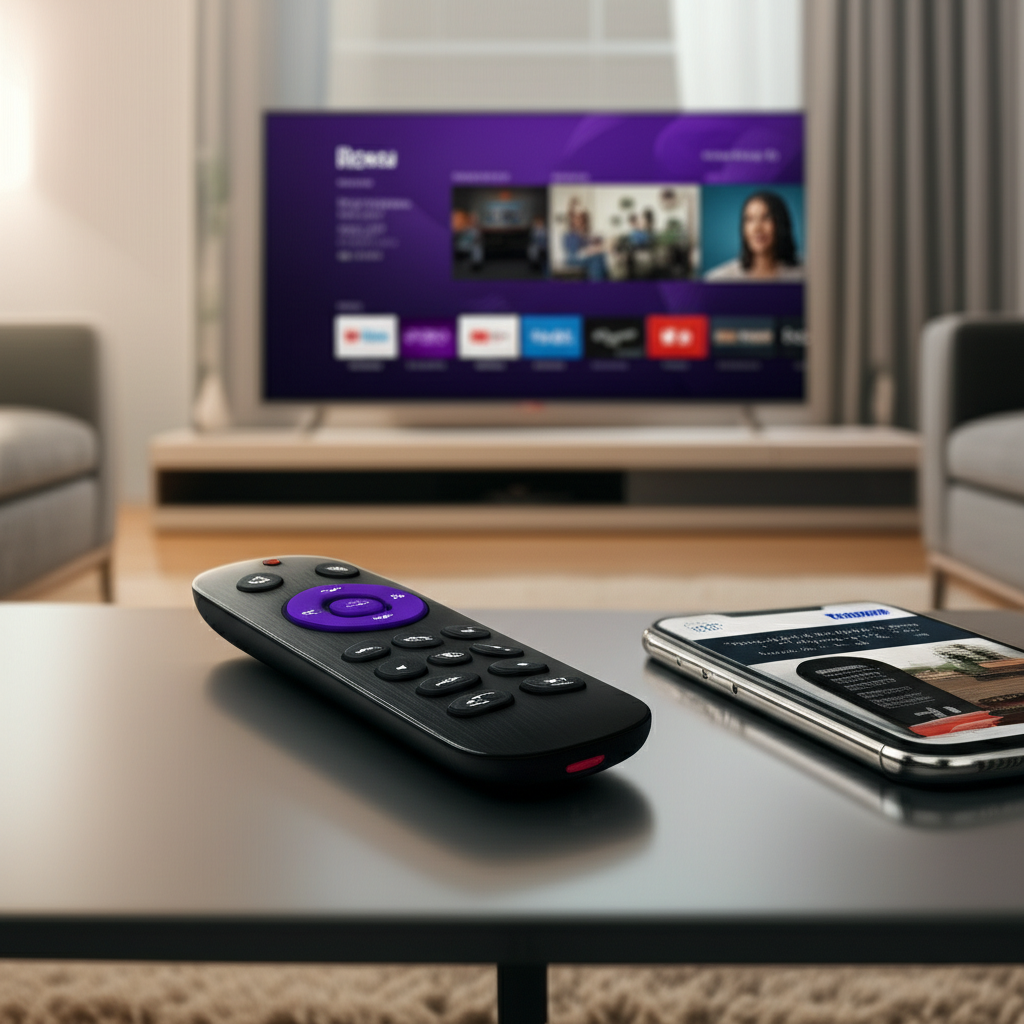
Published on: 13/09/2025 | Updated on: September 13, 2025
How To Sync Roku Remote Control: Ultimate Guide
Syncing your Roku remote is usually a straightforward fix for common connectivity issues, ensuring seamless control of your streaming device. This guide provides simple, step-by-step instructions to get your remote working again quickly, covering various Roku models and troubleshooting scenarios.
Are you tired of your Roku remote not responding, leaving you stuck on a menu or unable to start your favorite show? It’s a frustrating experience we’ve all faced with our tech gadgets. Thankfully, most Roku remote syncing issues are easily resolved with a few simple steps. This comprehensive guide will walk you through exactly how to sync your Roku remote control, no matter your model, ensuring you get back to your streaming in no time.
Why Does My Roku Remote Need Syncing?
Roku remotes, especially the enhanced voice remotes that use Wi-Fi Direct, can sometimes lose their connection to the streaming device. This can happen due to a variety of reasons, ranging from simple battery issues to software glitches or even interference from other wireless devices. Understanding these common culprits helps in tackling the problem effectively.
The primary reason a Roku remote might stop working is a loss of connection with the Roku player itself. Unlike older infrared remotes that require a direct line of sight, newer Roku remotes often use a direct wireless connection. This advanced technology offers convenience but can occasionally lead to syncing hiccups that require a simple re-establishment of the link.
Types of Roku Remotes and Their Syncing Methods
Roku offers a few different types of remotes, and the syncing process can vary slightly between them. Most modern Roku streaming devices come with an enhanced remote that pairs wirelessly. Older models might have used basic infrared (IR) remotes, which don’t require syncing in the same way.
The most common type you’ll encounter today is the enhanced Roku remote. These remotes use a dedicated wireless signal and are designed to pair automatically when you first set up your Roku device. If this pairing is lost, a manual resync is often needed. Basic IR remotes, on the other hand, work by sending signals directly to an IR receiver on the Roku device, much like a traditional TV remote.
Enhanced Roku Remotes (Wi-Fi Direct)

Enhanced Roku remotes are the most prevalent. They connect directly to your Roku device using a Wi-Fi Direct connection, offering features like voice control and headphone jack functionality. These remotes don’t require line of sight and are generally very reliable once paired.
When an enhanced remote stops working, it’s usually because the unique pairing between the remote and your Roku player has been disrupted. This often necessitates a manual re-pairing process to restore communication between the two devices.
Basic Roku Remotes (Infrared)
Basic Roku remotes, often found with older Roku models or Roku TV models, rely on infrared technology. These remotes function similarly to standard TV remotes and require a clear line of sight between the remote and the Roku device’s IR sensor.
Because they use IR, these remotes don’t technically “sync” in the same way enhanced remotes do. If an IR remote isn’t working, the issue is typically with the batteries, a blocked sensor, or the remote itself being faulty.
Troubleshooting Basic Connectivity Issues First
Before diving into syncing procedures, it’s crucial to rule out the simplest problems. Often, a non-responsive remote isn’t a syncing issue at all but rather a matter of power or obstructions. Addressing these common problems can save you time and effort.
Check the batteries first – this is the most common culprit for any remote control failure. Ensure they are inserted correctly and are fresh. Also, make sure there’s nothing physically blocking the path between your remote and the Roku device, especially for IR remotes.
Check and Replace Batteries
This is the absolute first step for any remote control that isn’t working. Low or dead batteries are the most frequent reason for a remote to become unresponsive. Even if your remote has indicator lights, they might not always accurately reflect the battery’s power level for full functionality.
Always use fresh, high-quality alkaline batteries. Avoid mixing old and new batteries or different battery types, as this can sometimes cause performance issues. Ensure they are inserted with the correct polarity (+/-) as indicated inside the battery compartment.
Ensure Clear Line of Sight (for IR Remotes)
If you’re using a basic infrared (IR) Roku remote, a clear line of sight is essential. The IR sensor on the Roku device needs to “see” the signal from the remote. Anything obstructing this path, like furniture or even dust on the IR emitter of the remote or sensor on the device, can prevent it from working.
Gently clean the IR emitter on the remote and ensure the IR receiver on your Roku device isn’t covered. Try operating the remote from different angles to see if that helps establish a connection, which can indicate a line-of-sight issue.
Restart Your Roku Device
Sometimes, a simple restart of your Roku device can resolve temporary software glitches that might be preventing it from communicating with the remote. This is a quick and easy step that can often fix connectivity problems without needing to re-sync.
Unplug the power cord from your Roku device and wait at least 30 seconds before plugging it back in. This allows the device to fully power cycle and clear any temporary errors in its memory. Once it boots up, test your remote again.
How to Sync Roku Remote Control: Step-by-Step Guide
When basic troubleshooting doesn’t work, it’s time to manually sync your Roku remote. The process is designed to be straightforward and typically involves putting both the Roku device and the remote into pairing mode. Follow these steps carefully to re-establish the connection.
The most common method for how to sync Roku remote control involves pressing a specific button combination on the remote and your Roku device. This initiates a discovery process where the two devices can find and pair with each other wirelessly. We’ll cover the general steps applicable to most Roku players.
Method 1: The Pairing Button on the Roku Device
Many Roku streaming players have a small pairing button located discreetly on the device itself. This button is used to initiate the sync process for enhanced remotes. Finding and pressing this button is key to re-establishing the connection.
Locate the pairing button on your Roku device. It’s often found on the back or underside of the player. Press and hold this button for about 5-10 seconds until a light on the device flashes, indicating it’s in pairing mode.
Method 2: Re-pairing the Remote
After initiating pairing mode on the Roku device, you’ll need to tell your remote to search for it. This usually involves pressing and holding a specific button on the remote itself. The exact button can vary, but it’s often the Home button or a dedicated pairing button.
Once the Roku device is in pairing mode, take your remote. Press and hold the Home button on your remote for about 5 seconds. Some remotes may have a dedicated pairing button, often located in the battery compartment.
Method 3: Using the Roku Mobile App
If your physical remote is completely unresponsive, you can often use the official Roku mobile app on your smartphone or tablet to control your device and even initiate the pairing process. This is a lifesaver when your primary remote is giving you trouble.
Download the Roku mobile app from your device’s app store (iOS or Android). Connect your phone to the same Wi-Fi network as your Roku. Open the app, tap the remote icon, and it should automatically detect your Roku device, allowing you to control it and potentially re-sync your physical remote through the app’s settings.
Specific Syncing Steps for Popular Roku Models
While the general process remains similar, there can be slight variations depending on your specific Roku model. Knowing the exact steps for your device can make the syncing process even smoother. Here are instructions for some of the most common Roku players.
For Roku Streaming Stick models, the pairing button is often integrated directly into the stick itself. For Roku Ultra or Premiere models, it’s usually a more accessible button on the exterior of the player. Always refer to your Roku’s user manual if you’re unsure.
Roku Streaming Stick / Stick+
The Roku Streaming Stick is designed for portability, and its pairing button is usually located directly on the stick itself. This makes it easy to access when you need to resync.
1. Plug the Roku Streaming Stick into your TV’s HDMI port.
2. Locate the small pairing button on the side of the stick.
3. Press and hold the pairing button for about 5-10 seconds until the LED indicator on the stick starts to blink.
4. Now, take your Roku remote. Press and hold the Home button for about 5 seconds.
5. The remote should connect. You’ll see a confirmation on your TV screen.
If the remote doesn’t sync, try removing and reinserting the batteries in the remote, then repeat steps 3 and 4. A successful sync usually takes less than a minute.
Roku Express / Express+
Roku Express models typically have the pairing button on the player itself. It’s usually a small, recessed button that might require a paperclip to press.
1. Ensure your Roku Express is powered on and connected to your TV.
2. Locate the pairing button, often found on the back or underside of the Roku Express.
3. Press and hold the pairing button for about 10-15 seconds until the status light on the front of the Roku Express flashes.
4. Take your Roku remote, press and hold the Home button for about 5 seconds.
5. The remote should now be paired.
If you have an older Express model with an IR remote, this sync process isn’t applicable; focus on battery and line-of-sight troubleshooting.
Roku Premiere / Premiere+
Similar to the Express, Roku Premiere models usually house the pairing button on the device. It’s designed for easy access to facilitate quick re-pairing.
1. Power on your Roku Premiere.
2. Find the pairing button, typically located on the back or underside of the player.
3. Press and hold the pairing button for approximately 10-15 seconds. The status LED on the Roku device will begin to blink, signaling it’s ready to pair.
4. With the Roku device in pairing mode, press and hold the Home button on your Roku remote for at least 5 seconds.
5. Watch your TV screen for a confirmation message indicating the remote has successfully synced.
Remember to replace the batteries in your remote if this process doesn’t yield results, as that is a very common issue.
Roku Ultra
The Roku Ultra often has the most accessible pairing button, usually located on the front or side of the device for convenience. This makes re-syncing straightforward.
1. Turn on your Roku Ultra.
2. Locate the pairing button, typically on the front panel.
3. Press and hold the pairing button for about 10-15 seconds until the status light on the Roku Ultra flashes.
4. On your Roku remote, press and hold the Home button for approximately 5 seconds.
5. Your remote should now be synced with the Roku Ultra.
The Roku Ultra also often comes with a premium remote that has a headphone jack, so ensuring the remote is synced is key to using all its features.
Advanced Syncing and Troubleshooting
If the standard syncing methods don’t work, there are a few advanced steps you can take. These might involve resetting the remote or ensuring there are no wireless interferences affecting the connection. Trying these can help resolve stubborn issues.
Sometimes, a full factory reset of the Roku device can clear deeper software conflicts that prevent pairing. This is a more drastic step, so it’s best reserved for when simpler methods have failed. Always ensure you have your streaming service logins handy before performing a factory reset.
Factory Reset the Roku Device
A factory reset will return your Roku device to its original settings, erasing all your downloaded channels and network configurations. This is a powerful troubleshooting step that can resolve deep-seated software issues preventing remote syncing.
On your Roku device, navigate to Settings > System > Advanced system settings > Factory reset. You will need to use the Roku mobile app or a different remote if your current one isn’t working to navigate to this menu. Follow the on-screen prompts to complete the reset. After the reset, you will need to set up your Roku device again and re-sync your remote as if it were new.
Resetting the Roku Remote Itself
In some cases, the remote itself might have a software glitch that a simple re-sync can’t fix. Many Roku remotes have a hidden reset procedure that can help clear internal errors. This is a good step to try before considering the remote faulty.
For many enhanced Roku remotes, you can reset them by removing the batteries, then pressing and holding the Home button for about 15-20 seconds. After releasing the Home button, reinsert the batteries. This action can clear temporary memory within the remote. Once reset, try pairing it again with your Roku device using the standard pairing button method.
Checking for Wireless Interference
Your Roku remote uses wireless signals, and other electronic devices can sometimes interfere with these signals. Common culprits include microwaves, other Wi-Fi networks, Bluetooth devices, and even certain types of lighting. Reducing interference can improve connection stability.
Try moving your Roku device and remote away from potential sources of interference. If you have many wireless devices active in the same area, try temporarily turning some of them off to see if it improves the remote’s responsiveness. Ensure your Wi-Fi router is not too close to the Roku player, as this can sometimes cause issues.
When to Consider a New Remote
If you’ve tried all the troubleshooting and syncing methods and your remote still won’t work, it’s possible that the remote itself is damaged or has reached the end of its lifespan. In such cases, purchasing a replacement remote is the most practical solution.
Replacement remotes are readily available directly from Roku or from authorized retailers. Ensure you purchase a remote that is compatible with your specific Roku model to avoid further frustration. Always check the product description carefully before making a purchase.
Compatibility and Purchasing a Replacement
When buying a new remote, it’s essential to ensure it’s compatible with your Roku device model. Roku remotes are not universally interchangeable across all devices. Check the model number of your Roku player or TV to find the correct replacement remote.
You can find compatible remotes on Roku’s official website, Amazon, Best Buy, and other electronics retailers. Look for phrases like “Roku [Your Model Number] Remote” or “Compatible with Roku [Your Model Number].” Universal remotes that are programmed for Roku devices are also an option.
Frequently Asked Questions (FAQ)
Why did my Roku remote stop working suddenly?
Your Roku remote might stop working due to low batteries, a lost connection that needs re-syncing, physical damage, or wireless interference. Often, a simple battery change or re-syncing procedure resolves the issue.
How long does it take to sync a Roku remote?
The syncing process for a Roku remote typically takes between 30 seconds to a couple of minutes. If it takes longer, there might be an underlying issue like interference or a faulty device.
Can I use my phone as a Roku remote if my physical remote is broken?
Yes, absolutely! The official Roku mobile app allows you to control your Roku device using your smartphone or tablet. It’s a great backup and can even help in the re-syncing process.
Do Roku remotes need to be on the same Wi-Fi as the Roku device?
Enhanced Roku remotes connect directly to the Roku device via Wi-Fi Direct, not through your home Wi-Fi network. So, they don’t need to be on the same network, but the Roku device itself does.
My Roku remote has voice control, but it’s not working. What should I do?
Ensure your remote is properly synced. If it is, check if the microphone mute button on the remote is accidentally activated. Also, verify your Roku device has a stable internet connection, as voice commands are processed online.
How do I know if I have an IR remote or an enhanced remote?
IR remotes require a direct line of sight to the Roku device and typically have a clear plastic window at the top for the IR emitter. Enhanced remotes use a direct wireless connection, don’t need line of sight, and often feature voice control or a headphone jack.
Conclusion: Get Back to Seamless Streaming
Mastering how to sync your Roku remote control is an essential skill for any Roku user. Whether it’s a quick battery change, a simple button press, or a more involved reset, these steps will help you overcome connectivity issues and restore your remote’s functionality. By following this ultimate guide, you can ensure your Roku experience remains uninterrupted and enjoyable.
Don’t let a malfunctioning remote interrupt your binge-watching sessions. With these straightforward instructions on how to sync Roku remote control, you’re equipped to tackle most syncing problems with confidence. Happy streaming!

Belayet Hossain is a Senior Tech Expert and Certified AI Marketing Strategist. Holding an MSc in CSE (Russia) and over a decade of experience since 2011, he combines traditional systems engineering with modern AI insights. Specializing in Vibe Coding and Intelligent Marketing, Belayet provides forward-thinking analysis on software, digital trends, and SEO, helping readers navigate the rapidly evolving digital landscape. Connect with Belayet Hossain on Facebook, Twitter, Linkedin or read my complete biography.