
Published on: 15/09/2025 | Updated on: September 15, 2025
Master your Fire TV Stick with these essential remote control tips, from basic navigation to advanced tricks, ensuring seamless streaming and entertainment. Learn how to troubleshoot common issues and unlock hidden features for a superior viewing experience.
Navigating your Fire TV Stick can sometimes feel like a puzzle, especially when the remote isn’t cooperating. You’ve settled in for a movie night, only to find your remote control Fire TV Stick isn’t responding, or perhaps you’re struggling to find that specific app. It’s a common frustration that can interrupt your entertainment flow. But don’t worry, this guide is here to demystify your Fire TV Stick remote, offering practical, easy-to-follow tips and tricks to get you back to streaming in no time. We’ll cover everything from simple button functions to advanced settings and troubleshooting.
Unlock the Full Potential of Your Remote Control Fire TV Stick
Your Fire TV Stick remote is the gateway to a world of entertainment, offering intuitive control over a vast array of apps and content. Understanding its features can significantly enhance your streaming experience, making it faster, more efficient, and more enjoyable. This section will dive into the core functionalities, ensuring you’re using your device to its fullest.
Mastering the Basic Navigation and Core Buttons

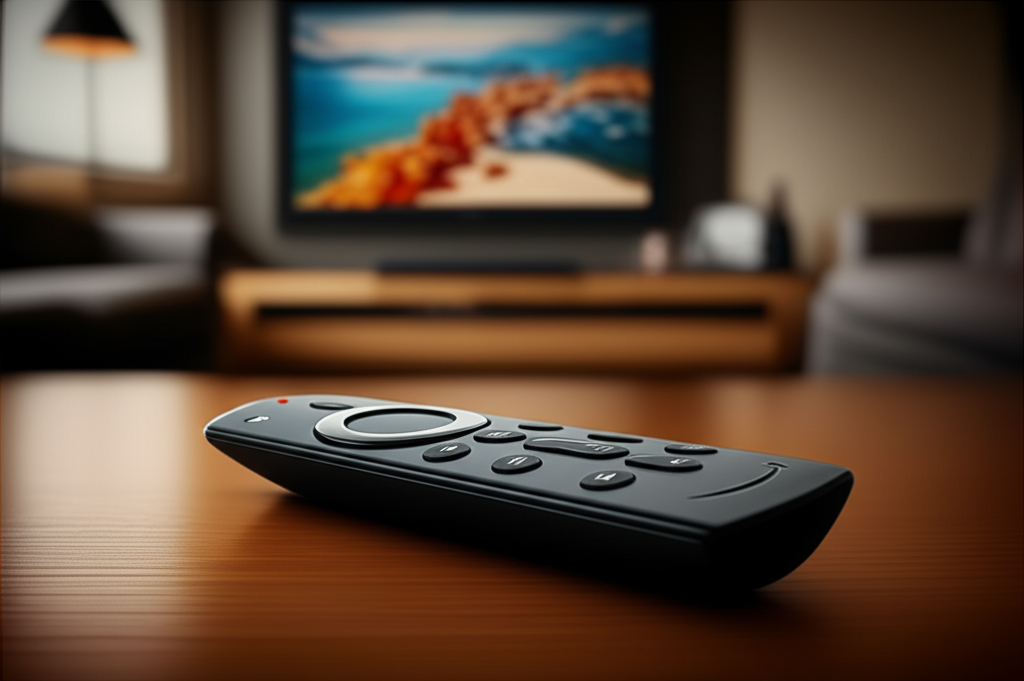
The remote control Fire TV Stick is designed for simplicity, but its buttons offer more than meets the eye. Familiarizing yourself with the primary controls is the first step to effortless navigation. You’ll find buttons for power, volume, playback, and directional navigation, all crucial for interacting with your Fire TV interface.
The central circular pad with a select button is your main navigation tool. Use the directional arrows to move up, down, left, and right through menus and content. The select button in the center confirms your choices. Back, Home, and Menu buttons are your essential navigation aids, allowing you to return to previous screens, access the main Fire TV dashboard, or bring up context-specific options.
The Power of Voice Control: Alexa Integration
One of the most powerful features of your remote control Fire TV Stick is its integrated Alexa voice control. Simply press and hold the microphone button on your remote and speak your command. This hands-free capability can dramatically speed up your searching and browsing experience.
You can ask Alexa to play specific movies or TV shows, search for genres, open apps, or even check the weather. For instance, saying “Alexa, play The Mandalorian on Disney+” is far quicker than navigating through menus. Alexa also allows you to control playback, adjust volume, and even find recommendations based on your viewing history.
Optimizing Your Remote for Performance and Battery Life
Keeping your remote control Fire TV Stick performing optimally ensures a seamless user experience. This includes ensuring good battery life and a strong connection to your device. Fresh batteries are paramount; low battery can lead to sluggish response times or complete unresponsiveness.
For optimal performance, ensure there are no obstructions between your remote and the Fire TV Stick itself. While Bluetooth remotes are less susceptible to line-of-sight issues than infrared, a clear path can still improve signal strength. Regularly checking and replacing batteries will prevent most common performance hiccups.
Troubleshooting Common Remote Control Fire TV Stick Issues
Even the most advanced gadgets can encounter hiccups, and your remote control Fire TV Stick is no exception. When your remote isn’t responding, it can be incredibly frustrating, but most issues have simple, fixable solutions. This section will guide you through diagnosing and resolving the most frequent problems.
Remote Not Responding: The First Steps to Take
When your remote control Fire TV Stick suddenly stops working, the first and easiest step is to check the batteries. Replace them with fresh ones, ensuring they are inserted correctly according to the polarity markings. If replacing batteries doesn’t solve the problem, try moving closer to your Fire TV Stick to rule out range issues.
A simple restart of your Fire TV Stick can also resolve temporary glitches. Unplug the power adapter from your Fire TV Stick, wait for at least 30 seconds, and then plug it back in. This process reboots the device and can often re-establish a stable connection with the remote.
Re-pairing Your Fire TV Remote
If your remote control Fire TV Stick continues to be unresponsive after checking batteries and restarting the device, it might need to be re-paired. This process is straightforward and usually resolves connectivity problems. You’ll typically need to press and hold a specific combination of buttons on the remote to initiate pairing mode.
To re-pair your Fire TV remote, go to Settings on your Fire TV Stick, then select Controllers & Bluetooth Devices. Choose Amazon Fire TV Remotes, and then select your remote from the list. You should see an option to Unpair or Forget Device. After unpairing, press and hold the Home button on the remote for about 10-20 seconds to put it back into pairing mode. Your Fire TV Stick should detect and connect to it automatically.
Fixing Voice Control Issues with Your Remote
Alexa voice control is a game-changer, but sometimes it can misbehave. If your remote control Fire TV Stick’s microphone isn’t picking up your voice or Alexa isn’t responding, first ensure you’re pressing and holding the microphone button correctly. Speak clearly and directly into the microphone.
Check if your Fire TV Stick is connected to the internet, as Alexa requires an active connection to function. You can verify your Wi-Fi connection in the Fire TV Stick’s settings. If the issue persists, try re-pairing the remote as described above, as this can sometimes resolve Bluetooth-related voice command problems.
Advanced Tips and Tricks for Your Remote Control Fire TV Stick
Once you’ve mastered the basics and troubleshooting, there are several advanced tips and tricks that can elevate your experience with the remote control Fire TV Stick. These hidden gems can save you time, unlock new functionalities, and personalize your streaming setup.
Customizing Your Fire TV Experience with Shortcuts
While the remote control Fire TV Stick offers direct access to popular apps via dedicated buttons on some models, you can create custom shortcuts for even quicker access to your most-used applications or content. This involves leveraging third-party apps or specific Fire TV settings to streamline your navigation.
Some users find that rearranging their app layout on the Fire TV home screen helps. You can move frequently used apps to the front rows for easier access. While direct button customization for third-party apps isn’t built-in, optimizing your home screen layout is a powerful way to create personalized shortcuts.
Using Your Fire TV Remote with Other Devices
Did you know your remote control Fire TV Stick can often control other devices in your entertainment setup? Many Fire TV remotes, especially those bundled with newer Fire TV devices, come with IR (infrared) blasters. These allow you to program the remote to control your TV’s power, volume, and input selection.
To set this up, navigate to Settings > Equipment Control on your Fire TV Stick. Follow the on-screen prompts to select your TV brand and model. The Fire TV Stick will then guide you through a series of tests to ensure the remote can properly operate your television, consolidating your remotes into one.
Exploring the Fire TV Remote App
For those moments when you can’t find your physical remote control Fire TV Stick, or if it’s experiencing issues, Amazon offers a convenient solution: the Amazon Fire TV app. This free app, available for iOS and Android devices, effectively turns your smartphone or tablet into a fully functional Fire TV remote.
The app provides all the functionality of your physical remote, including directional navigation, playback controls, and voice search via your device’s microphone. It connects to your Fire TV Stick over your Wi-Fi network, making it a reliable backup. Download it from your device’s app store and follow the simple pairing instructions to link it to your Fire TV Stick.
Expanding Your Entertainment: Apps and Content with Your Remote
The true power of your remote control Fire TV Stick lies in its ability to access a universe of streaming content. With the right apps and a little navigation know-how, you can transform your TV into a smart entertainment hub. This section focuses on how to make the most of the app ecosystem.
Discovering and Installing New Apps
The Amazon Appstore on your Fire TV Stick is a treasure trove of entertainment options. From major streaming services like Netflix, Hulu, and Disney+ to niche apps for news, sports, and gaming, there’s something for everyone. Navigating the Appstore is intuitive with your remote control Fire TV Stick.
Use the search function or browse by category to find apps. When you find an app you want, simply select it and choose “Get” or “Download.” The app will install automatically, and an icon will appear on your Fire TV home screen or in your apps list, ready for you to launch with your remote.
Organizing Your Apps for Easy Access
As you download more apps, your Fire TV home screen can become cluttered. Keeping your apps organized is key to quickly finding what you want with your remote control Fire TV Stick. You can rearrange your apps to prioritize your favorites.
To rearrange apps, navigate to Settings > Applications > Manage Installed Applications. Select the app you wish to move, and you should see options to Move to Front or Move to Back. Alternatively, on the home screen, highlight an app, press the Menu button (with three horizontal lines) on your remote, and select “Move.” This helps ensure your most-used services are just a click away.
Utilizing Picture-in-Picture and Other Smart Features
Some Fire TV devices and associated apps support advanced features like picture-in-picture (PiP), allowing you to watch content in a small window while browsing other apps or menus. This is a fantastic way to keep up with a game or show while managing your Fire TV experience.
While not all apps support PiP, those that do often have an easy activation method. For example, you might be able to press the Menu button on your remote while a video is playing to bring up options, including PiP. Check the specific app’s help section or experiment with your remote’s buttons while content is active to discover these smart features.
Maintaining Your Fire TV Stick and Remote for Longevity
Just like any electronic device, your Fire TV Stick and its remote control Fire TV Stick benefit from regular maintenance. Proactive care ensures optimal performance and extends the lifespan of your hardware, saving you money and hassle in the long run.
Software Updates for Your Fire TV Stick
Amazon regularly releases software updates for the Fire TV operating system, which often include performance improvements, new features, and security patches. Keeping your Fire TV Stick updated is crucial for a smooth experience. Your remote control Fire TV Stick will function best with the latest software.
To check for updates, go to Settings > My Fire TV > About > Check for System Update. If an update is available, follow the on-screen prompts to download and install it. It’s a good idea to do this periodically, especially if you notice any performance issues.
Cleaning Your Remote Control
Over time, the buttons and surfaces of your remote control Fire TV Stick can accumulate dust and grime. A simple cleaning can improve button responsiveness and hygiene. Use a slightly damp, lint-free cloth to wipe down the remote.
For stubborn grime, a small amount of electronic-safe cleaner can be used sparingly on the cloth. Avoid spraying liquids directly onto the remote. For button crevices, a soft-bristled brush or a blast of compressed air can help dislodge debris.
Battery Best Practices for Your Remote
Proper battery management can prevent premature failure and ensure your remote control Fire TV Stick is always ready when you need it. Always use high-quality alkaline batteries. Avoid mixing old and new batteries, or different types of batteries, as this can lead to leakage or reduced performance.
If you plan to store your remote for an extended period, it’s advisable to remove the batteries to prevent potential leakage and damage. This simple practice can significantly prolong the life of your remote.
The Future of Fire TV and Remote Interaction
The world of streaming technology is constantly evolving, and the Fire TV Stick is at the forefront of innovation. Amazon is continually refining its hardware, software, and the way we interact with our entertainment devices, including the remote control Fire TV Stick.
AI-Powered Enhancements on Fire TV
Artificial intelligence is increasingly integrated into streaming platforms, and Fire TV is no exception. AI is used to improve content recommendations, personalize user interfaces, and enhance voice search capabilities. Your remote control Fire TV Stick becomes even more powerful when paired with these AI advancements.
Expect future updates to bring more intelligent content discovery, predictive search, and even more natural language processing for Alexa. This means your Fire TV Stick will better understand your preferences and anticipate your needs, making finding something to watch even easier.
Innovations in Remote Design and Functionality
While the current remote control Fire TV Stick is highly functional, manufacturers are always exploring new ways to interact with smart devices. We might see more advanced gesture controls, haptic feedback, or even integration with smart home ecosystems beyond basic TV control.
The trend is towards more seamless and intuitive interaction, potentially reducing the number of physical buttons while increasing the smart functionality. Voice control is likely to become even more sophisticated, understanding complex commands and context. The goal is to make accessing your entertainment as effortless as possible.
Frequently Asked Questions About Your Remote Control Fire TV Stick
Here are answers to some common questions users have about their remote control Fire TV Stick.
Q1: How do I know if my Fire TV remote needs new batteries?
A1: If your remote control Fire TV Stick starts responding slowly, fails to register button presses, or if voice commands aren’t working consistently, it’s a strong indicator that the batteries are low and need replacing.
Q2: My Fire TV remote is not pairing. What should I do?
A2: First, ensure your remote has fresh batteries and is within range of the Fire TV Stick. Then, try re-pairing it by going to Settings > Controllers & Bluetooth Devices > Amazon Fire TV Remotes, unpairing the device, and then holding the Home button on the remote for 10-20 seconds to re-initiate pairing.
Q3: Can I use my Fire TV remote with any TV?
A3: The basic navigation and playback functions of the remote control Fire TV Stick will work with any TV connected to the Fire TV Stick. However, the ability to control your TV’s power and volume (Equipment Control) depends on your specific remote model and your TV’s compatibility with the Fire TV’s IR blaster setup.
Q4: How do I fix it when Alexa on my remote isn’t working?
A4: Check your Wi-Fi connection and ensure your Fire TV Stick is online. Make sure you are pressing and holding the microphone button while speaking clearly. If problems persist, try re-pairing the remote, as this can resolve Bluetooth communication issues affecting voice commands.
* Q5: What should I do if I lose my Fire TV remote?
A5: You can use the Amazon Fire TV app on your smartphone or tablet as a temporary replacement. Download it from your device’s app store and follow the on-screen instructions to connect it to your Fire TV Stick.
Conclusion: Elevating Your Streaming with a Smart Remote
Your remote control Fire TV Stick is more than just a way to change channels; it’s your primary interface for a world of digital entertainment. By understanding its full capabilities, from basic navigation and voice commands to advanced features and troubleshooting, you can ensure a consistently smooth and enjoyable streaming experience. Remember to keep your remote powered with fresh batteries, your Fire TV Stick updated, and don’t hesitate to utilize the Fire TV app as a backup. With these essential tips, you’re well-equipped to master your Fire TV Stick and unlock its full potential for countless hours of entertainment.

Belayet Hossain is a Senior Tech Expert and Certified AI Marketing Strategist. Holding an MSc in CSE (Russia) and over a decade of experience since 2011, he combines traditional systems engineering with modern AI insights. Specializing in Vibe Coding and Intelligent Marketing, Belayet provides forward-thinking analysis on software, digital trends, and SEO, helping readers navigate the rapidly evolving digital landscape. Connect with Belayet Hossain on Facebook, Twitter, Linkedin or read my complete biography.