
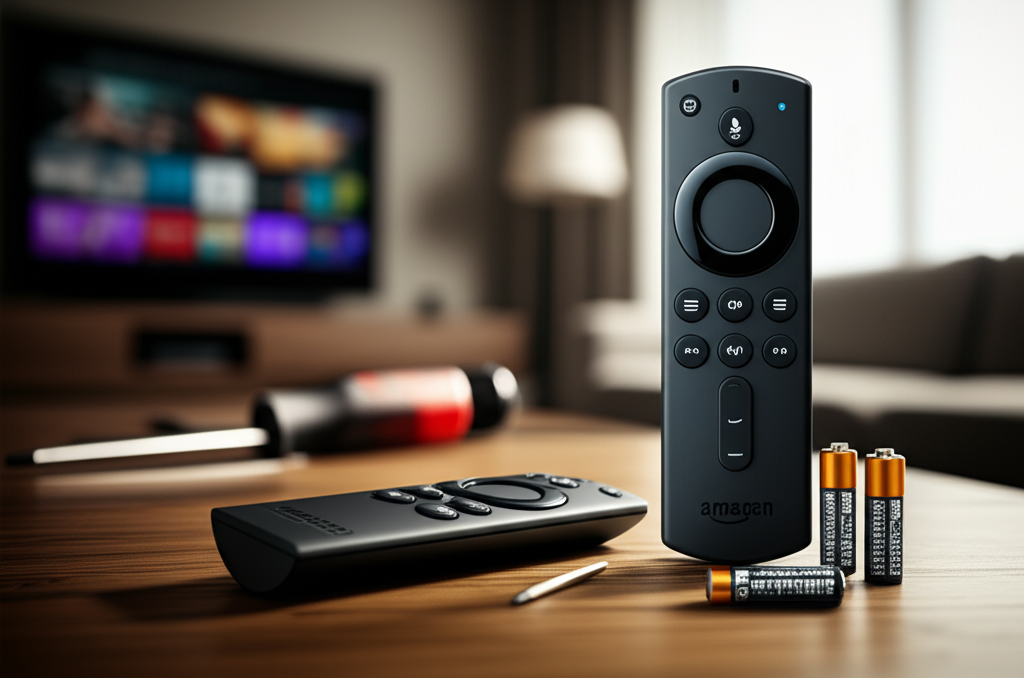
Published on: 15/09/2025 | Updated on: September 15, 2025
Remote for Amazon Fire Stick Not Working: Essential Fixes & Troubleshooting Guide
Experiencing a remote for Amazon Fire Stick not working can be incredibly frustrating, but don’t worry! This comprehensive guide offers simple, step-by-step solutions to get your Fire Stick remote functioning again, from battery checks to advanced troubleshooting. We’ll cover everything you need to know to regain control of your entertainment.
Is your Amazon Fire Stick remote suddenly unresponsive, leaving you staring at a blank screen or stuck on an app? You’re not alone! This is a common hiccup that can interrupt your movie night or binge-watching session. But before you panic or consider buying a new one, take a deep breath. Most of the time, a non-working Fire Stick remote can be fixed with a few straightforward troubleshooting steps. I’ve walked through this myself more times than I can count, and the solutions are usually simpler than you think. In this guide, I’ll break down the most effective fixes, from the obvious to the slightly more technical, so you can get back to enjoying your favorite shows.
Why Your Amazon Fire Stick Remote Might Not Be Working
There are several reasons why your remote for Amazon Fire Stick not working. These can range from simple battery issues to more complex connectivity problems or even software glitches. Understanding these common culprits is the first step toward a swift resolution. Often, it’s just a matter of a loose connection or a quick reset that brings your remote back to life.
The most frequent causes are depleted batteries, physical damage to the remote, or interference with the Fire Stick’s signal. Sometimes, a simple restart of the Fire Stick device itself can resolve the issue. Other times, the remote might need to be re-paired with the device, a process that takes just a few minutes.
Common Causes of Fire Stick Remote Issues

Let’s dive into the most common reasons why your remote for Amazon Fire Stick not working. Recognizing these initial causes will help you pinpoint the problem more quickly. These issues are often easy to fix with a little patience.
Dead or Low Batteries: This is by far the most common culprit. Remote batteries drain over time, and a low charge can lead to erratic behavior or complete unresponsiveness.
Pairing Issues: The remote needs to be paired with your Fire Stick to communicate. If this connection is lost, the remote won’t work.
Interference: Other electronic devices or even physical obstructions can interfere with the Bluetooth or infrared signal between the remote and the Fire Stick.
Software Glitches: Sometimes, the Fire Stick device itself or the remote’s firmware can experience temporary glitches that prevent proper operation.
Physical Damage: Dropping the remote or exposing it to liquids can damage its internal components.
Outdated Fire Stick Software: An outdated operating system on your Fire Stick can sometimes cause compatibility issues with the remote.
The First Step: Check and Replace Batteries
Before diving into more complex solutions, always start with the most basic fix: checking your remote’s batteries. This is the simplest and most frequent reason for a remote for Amazon Fire Stick not working. Fresh batteries can often solve the problem instantly.
Make sure you are using the correct type of batteries, usually AAA. Ensure they are inserted with the correct polarity (+ and -). If you’re unsure, try a brand-new pair of high-quality alkaline batteries.
How to Replace Batteries in Your Fire Stick Remote
Replacing batteries is straightforward. You’ll typically find a battery compartment cover on the back of the remote.
1. Locate the Cover: Look for a seam or a small indentation on the back of your Fire Stick remote.
2. Slide or Pry Open: Gently slide the cover downwards or upwards, or use a fingernail to pry it open if there’s a small notch.
3. Remove Old Batteries: Take out the old batteries.
4. Insert New Batteries: Place the new batteries in the compartment, ensuring the positive (+) and negative (-) ends align with the markings inside.
5. Replace Cover: Slide or snap the cover back into place.
After replacing the batteries, try using your remote again. If it still doesn’t work, it’s time to move on to other troubleshooting steps.
Restart Your Amazon Fire Stick Device
Sometimes, the issue isn’t with the remote itself but with the Fire Stick device. A simple restart can often clear temporary glitches and re-establish a connection. This is a quick and easy step that can resolve many “remote for Amazon Fire Stick not working” scenarios.
A restart can help refresh the device’s operating system and clear any hung processes that might be preventing the remote from communicating. It’s like giving your Fire Stick a quick reboot to start fresh.
How to Restart Your Fire Stick
You can restart your Fire Stick in a couple of ways:
1. Via the Remote (if partially working):
Press and hold the Select button and the Play/Pause button simultaneously for about 5 seconds. Your Fire Stick will then restart.
2. Via the Fire Stick Settings (if you can navigate):
Navigate to Settings on your Fire Stick.
Select My Fire TV.
Choose Restart.
3. By Unplugging the Power:
This is the most reliable method if your remote is completely unresponsive.
Unplug the power adapter from your Fire Stick device or the wall outlet.
Wait for at least 30 seconds.
Plug the power adapter back in.
Allow the Fire Stick to boot up completely (this might take a minute or two).
Once your Fire Stick has restarted, test your remote. If it’s still not working, proceed to the next step.
Re-Pair Your Fire Stick Remote
If new batteries and a restart didn’t solve the problem, your remote may have lost its pairing with the Fire Stick. Re-pairing establishes a fresh connection. This is a crucial step for any remote for Amazon Fire Stick not working.
Pairing is the process where your Fire Stick recognizes and establishes a secure communication channel with your remote, typically using Bluetooth. If this connection is broken, the remote becomes useless.
Steps to Re-Pair Your Fire Stick Remote
The process for re-pairing can vary slightly depending on your Fire Stick model, but the general steps are consistent.
1. Put the Remote in Pairing Mode: For most Fire TV remotes, you need to press and hold the Home button for at least 10-20 seconds. You might see an LED light on the remote flash to indicate it’s in pairing mode.
2. Put the Fire Stick in Pairing Mode: Ensure your Fire Stick is powered on and within close proximity to the remote. If you’re using a Fire TV edition TV, navigate to Settings > Remotes & Bluetooth Devices > Amazon Fire TV Remotes and select Add New Remote. For other Fire Stick devices, the Fire Stick usually automatically detects remotes in pairing mode when it’s first set up or after a restart.
3. Wait for Connection: Keep holding the Home button until a message appears on your TV screen indicating that the remote is connected. If it doesn’t connect automatically, try restarting the Fire Stick again after attempting to pair.
If you have an older Fire TV remote that uses infrared (IR), pairing isn’t necessary. However, most modern Fire Stick remotes use Bluetooth.
Check for Interference and Obstructions
Physical obstructions or electronic interference can disrupt the signal between your remote and the Fire Stick. This is another common reason why your remote for Amazon Fire Stick not working. Bluetooth signals, like Wi-Fi, can be affected by their environment.
Ensure there’s a clear line of sight between your remote and the Fire Stick, especially if your remote uses infrared. For Bluetooth remotes, minimize the distance and reduce potential interference sources.
Common Sources of Interference
Other Electronic Devices: Microwaves, cordless phones, other Bluetooth devices, and even some Wi-Fi routers can interfere. Try moving these devices further away from your Fire Stick and remote.
Physical Obstructions: Large metal objects, thick walls, or even being too far away can weaken the signal. Ensure your Fire Stick is not hidden behind furniture or other electronics.
Distance: Keep the remote within a reasonable range of your Fire Stick, typically within 10-30 feet, depending on your setup.
Try moving your Fire Stick to a more central location or temporarily turning off other nearby wireless devices to see if the remote starts working.
Clean Your Fire Stick Remote
Over time, dust, grime, and spills can accumulate on your remote, affecting button responsiveness. A sticky or dirty remote can feel like it’s not working properly, even if the connection is fine. This is a simple fix for a remote for Amazon Fire Stick not working.
Cleaning your remote can revive sticky buttons and ensure a better tactile response. It’s good practice to keep your gadgets clean for optimal performance and longevity.
How to Clean Your Fire Stick Remote
1. Power Off: Ensure your Fire Stick is unplugged and the remote’s batteries are removed.
2. Wipe Down: Use a slightly damp (not wet) microfiber cloth to wipe down the exterior of the remote. For stubborn grime, you can use a small amount of diluted isopropyl alcohol on the cloth.
3. Clean Buttons: For sticky buttons, use a cotton swab lightly dampened with isopropyl alcohol. Gently work the swab around the edges of the buttons to dislodge any debris. Be careful not to let any liquid seep inside the remote.
4. Dry Thoroughly: Ensure the remote is completely dry before reinserting batteries and powering on your Fire Stick.
This simple cleaning can often restore full functionality to your buttons.
Update Your Fire Stick Software
Outdated software on your Fire Stick can sometimes lead to compatibility issues with its accessories, including the remote. Ensuring your Fire Stick is running the latest software can resolve many bugs and improve performance. This is a proactive step to prevent your remote for Amazon Fire Stick not working.
Amazon regularly releases updates that include bug fixes, performance improvements, and new features. Keeping your device updated is essential for smooth operation.
How to Update Your Fire Stick Software
If your remote is partially working, you can navigate to the settings menu:
1. Go to Settings on your Fire Stick.
2. Select My Fire TV.
3. Choose About.
4. Select Check for Updates.
If an update is available, your Fire Stick will download and install it automatically. Your device will likely restart after the update is complete.
If your remote is completely unresponsive, you might need to unplug the Fire Stick and plug it back in to force a check for updates during its startup sequence, or use the unplugging method described earlier and hope it initiates an update. In some cases, you might need to perform a factory reset if you cannot update the software and the remote is still unresponsive.
Use the Fire TV Remote App
If your physical remote for Amazon Fire Stick not working and you can’t get it fixed immediately, there’s a fantastic built-in workaround: the Amazon Fire TV app. This app turns your smartphone into a fully functional remote control for your Fire Stick. It’s a lifesaver when your physical remote fails.
The Fire TV app uses your Wi-Fi network to connect to your Fire Stick, offering all the same functionalities as your physical remote, plus a keyboard for easier text input. It’s available for both iOS and Android devices.
How to Set Up and Use the Fire TV Remote App
1. Download the App: Search for “Amazon Fire TV” in your smartphone’s app store (Apple App Store or Google Play Store) and download the official app.
2. Connect to the Same Wi-Fi: Ensure your smartphone and your Fire Stick are connected to the exact same Wi-Fi network. This is critical for the app to find your device.
3. Open the App and Select Your Device: Launch the Fire TV app. It should automatically scan for available Fire TV devices on your network. Tap on your Fire Stick device from the list.
4. Pair the App (if necessary): You might be prompted to enter a code displayed on your TV screen into the app to complete the pairing process.
5. Start Using: Once connected, you’ll see a remote interface on your phone screen, allowing you to navigate, select, play, pause, and access other functions.
The keyboard feature in the app is particularly useful for logging into apps or searching for content, which can be tedious with the physical remote.
Factory Reset Your Fire Stick
As a last resort for a stubborn remote for Amazon Fire Stick not working, a factory reset can solve deep-seated software issues. This will revert your Fire Stick to its original settings, essentially wiping all data, apps, and configurations. It’s a drastic step but often effective.
A factory reset can resolve issues that updates or simple restarts can’t fix. Remember, you’ll need to set up your Fire Stick again from scratch, including re-logging into your Amazon account and reinstalling apps.
How to Factory Reset Your Fire Stick
There are two primary ways to perform a factory reset:
1. Via the Settings Menu (if remote/app works):
Go to Settings on your Fire Stick.
Select My Fire TV.
Choose Reset to Factory Defaults.
Confirm your decision.
2. Using Physical Buttons (if remote is completely dead):
Unplug your Fire Stick from the power source.
Press and hold the Right button on your Fire Stick remote (or the navigation ring) and the Back button simultaneously.
While holding these buttons, plug the power adapter back into your Fire Stick.
Continue holding the buttons for at least 10-15 seconds until you see a message on screen indicating the reset process has begun.
Release the buttons. Your Fire Stick will restart and perform the factory reset.
After the reset, your Fire Stick will be like new. You’ll need to go through the initial setup process again. Hopefully, this will resolve the remote issue. If not, the problem might be with the remote itself.
Troubleshooting Specific Remote Models
While most Fire Stick remotes share similar troubleshooting steps, there are slight variations. Understanding your specific remote model can sometimes provide a more targeted solution for a remote for Amazon Fire Stick not working.
For example, some older remotes might rely more on infrared (IR), while newer ones are primarily Bluetooth. Voice remotes have additional features that could potentially malfunction.
Voice Remote vs. Standard Remote
Voice Remotes: These often have a microphone button. If voice commands aren’t working, ensure the microphone isn’t obstructed and that the remote is properly paired. Sometimes, clearing the cache of the Alexa app on your Fire Stick can help.
Standard Remotes: These are simpler and usually rely on basic pairing and battery checks.
Remotes with Keyboards: If your remote has a keyboard, check that the keyboard pairing is also active, as it might be a separate connection.
Consulting the specific user manual for your Fire Stick model or visiting the Amazon support website can provide model-specific troubleshooting tips.
When to Consider a Replacement Remote
If you’ve tried all the troubleshooting steps above and your remote for Amazon Fire Stick not working still isn’t functioning, it’s highly probable that the remote itself is damaged or defective. At this point, it’s time to consider purchasing a replacement.
Don’t let a faulty remote prevent you from enjoying your Fire Stick. Amazon offers official replacement remotes, and there are also compatible third-party options available.
Where to Buy a Replacement Remote
Amazon: The most straightforward place to buy an official Amazon Fire TV remote. Ensure you select the correct model for your Fire Stick.
Electronics Retailers: Stores like Best Buy, Walmart, or Target often carry official and third-party Fire Stick remotes.
* Third-Party Manufacturers: Websites like eBay or Amazon also list remotes from various third-party brands. Ensure they are compatible with your specific Fire Stick model.
When buying a replacement, double-check the product description to confirm it’s compatible with your Fire Stick generation. This will save you time and potential hassle.
Frequently Asked Questions (FAQ)
Here are answers to some common questions people have when their remote for Amazon Fire Stick not working.
Q1: My Fire Stick remote is not responding at all. What should I do first?
A1: Start by replacing the batteries with a fresh pair. Ensure they are inserted correctly. If that doesn’t work, try restarting your Fire Stick by unplugging its power for 30 seconds.
Q2: How do I know if my Fire Stick remote needs to be re-paired?
A2: If your remote suddenly stops working after a software update, or if you’ve recently moved your Fire Stick or introduced new electronic devices, it might need re-pairing. The inability to control your Fire Stick is the primary indicator.
Q3: Can I use a universal remote with my Amazon Fire Stick?
A3: Some universal remotes can control basic functions like power and volume, especially if your Fire Stick is connected to a TV that supports HDMI-CEC. However, for full Fire Stick navigation and app control, an official or specifically compatible remote is recommended.
Q4: My Fire TV remote app works, but the physical remote doesn’t. What does this mean?
A4: This strongly suggests the issue lies with your physical remote itself, not the Fire Stick device or your Wi-Fi connection. It’s likely time to replace the physical remote.
Q5: How long should Fire Stick remote batteries last?
A5: Battery life varies significantly based on usage and battery quality. With moderate use, you can expect batteries to last anywhere from a few months to over a year. Using rechargeable batteries can be a cost-effective and environmentally friendly option.
Q6: My Fire Stick remote is very slow to respond. What could be the problem?
A6: Sluggish response times can be due to low batteries, interference, or a need to re-pair the remote. Try replacing the batteries and re-pairing it. Also, ensure there are no physical obstructions or sources of electronic interference nearby.
Conclusion
Dealing with a remote for Amazon Fire Stick not working can be a temporary setback in your streaming experience, but as we’ve explored, it’s usually a fixable problem. From the simplest battery swap to re-pairing, software updates, or even a factory reset, most issues can be resolved without needing a replacement. Remember to try the basic steps first, like checking batteries and restarting your device, before moving on to more involved solutions. If all else fails, the Amazon Fire TV app serves as an excellent backup, and a replacement remote is always an option. With these troubleshooting tips, you should be back to navigating your favorite content in no time!

Belayet Hossain is a Senior Tech Expert and Certified AI Marketing Strategist. Holding an MSc in CSE (Russia) and over a decade of experience since 2011, he combines traditional systems engineering with modern AI insights. Specializing in Vibe Coding and Intelligent Marketing, Belayet provides forward-thinking analysis on software, digital trends, and SEO, helping readers navigate the rapidly evolving digital landscape. Connect with Belayet Hossain on Facebook, Twitter, Linkedin or read my complete biography.