


Published on: 25/10/2017 | Updated on: October 25, 2024
Most of the smartphone users don’t know how to perform a soft reset operation to their phone. Even a large number of users among them don’t know what actually a soft reset iPhone 6. And that’s why today I am going to share all about a soft reset for your convenience. And after the discussion, I’ll show you all about the soft reset iPhone 6. Which means reading this article will help you to know what soft reset is, what is its difference to than other types of resetting and finally, how to perform a soft reset to your iPhone / iPhone 6.
What is a Soft Reset?
Have you ever experienced a hung situation on your phone?
I guess, yes. And you’ll find no one who never faces such situation. But most of the time only pressing power button give the solution. But sometimes pressing power button doesn’t work. And in those cases, soft reset comes. And to do so, depending on your phone you need to use one or two more buttons at a time with the power button to power it off and then on again. You’ll find no change in software or hardware before and after soft resetting your phone.
Difference Between Soft Reset & Hard Reset
Hard reset is the ultimate option of resetting your phone where no other options don’t work. And you’ll lose your data and sometimes the memory of your phone during a hard reset. For example, factory reset is the hard reset. And after factory resetting, you’ll find your phone like a new one and all your updates and saved memories will vanish.
But in case of a soft reset, your data and settings will be completely safe and you’ll only get a restarted and fully operational phone.
Furthermore, you should also know than soft reset uses ram, motherboard etc. for its operation. Battery always remains outside to soft reset. But for hard reset, your phone needs the battery to complete the operation. The process is little complicated. So, I’ll not elaborate it. But for your kind information, I mentioned this one.
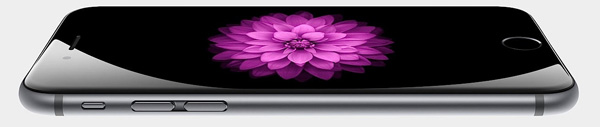
Procedure of Soft Reset iPhone 6
Resetting procedure of iPhone 6 is not very tough. But considering your data, battery backup and other factors its better for you to follow the practical steps I’ve given below. These ways will show you how to do a soft reset of iPhone 6 using your hardware keys.
Step 1: Though you’ll not lose any data during soft reset iPhone 6, it’s better to make a backup.
Step 2: ‘Press’ & ‘Hold’ the ‘Power Button’ until the dialogue ‘Slide of Power Off’ appears.
Step 3: If step 2 doesn’t work, then ‘Press’ & ‘Hold’ the ‘Home’ and ‘Power’ button together for approximately 10 seconds. And then the apple logo will appear on your screen.
Step 4: Instantly, after the appearance of apple logo release these two buttons and slide the ‘Power’ switch right.
Step 5: Now give your phone a few seconds to shut down completely.
Step 6: Now ‘Hold’ your power button again until the apple logo appears.
Now your phone will be automatically on.
How to Do Master Reset of iPhone 6
As a bonus, I am also sharing the masters resetting steps for your iPhone 6 here. Hope it’ll help.
Step 1: As I said before, data backup should be the first step every time.
Step 2: For Apple FMiP Activation locked phone the whole process has to be done by internet.
Step 3: For others go to ‘Settings’
Step 4: Tap on General > Rest
Step 5: You’ll see the following options:
- Reset All Settings
- Erase All Contents and Settings
- Reset Network Settings
- Reset Keyboard Dictionaries
- Reset Home Screen Layout
- Reset Location & Privacy
For master reset, use the option ‘Erase All Contents & Settings’
Step 6: You need to enter the password now and then confirm your device to do this operation.
Now, wait and see because the device will automatically complete the reset.
How to Reset Your iPhone Using iTunes on Your PC
Beside Hard Reset & Soft Reset iPhone 6, I also delighted to share How to reset iPhone using iTunes on your PC. Different users have different choices. And in terms of their choices, they want to try different ways for every operation. And that’s why for notebook & iTune lovers here are the steps to reset your phone by iTune installed on your laptop of the notebook.
Step 1: Connect your iPhone 6 to your notebook via connecting cable.
Step 2: Now launch iTunes. It’ll now start detecting your phone.
Step 3: After the detection, you need to press the ‘iPhone’ button on your notebook screen.
Step 4: Now you’ll get an option to back up your data. And yeah, don’t forget to backup your data because they are the most important asset of your phone.
Step 5: Now click ‘Restore’ under the ‘Summary’ tab and your iPhone will start restoring all your settings to factory status. And you need not do anything.
Now after few moments iPhone will do everything by itself and then restarted to its factory state.
Conclusion
So, after reading this article I hope you’ve become a mobile geek on the hard and soft reset iPhone 6. Even if you were a newbie, this article should make you a semi-professional on resetting iPhone. The real fact is, these devices are made consumer friendly and completing these operations are very easy.
Only knowing the steps are more than enough to do a reset of iPhone 6 even for a non-tech person. So, keep reading our tricks and tips and be a master troubleshooter without any prior techy knowledge. Thanks a lot.
You also may like:
How to fix your iPhone wont connect to WiFi? [Solved]
iPhone Emoji Keyboard – Wonderful unlocking Guide you must need
Apple iWatch – Outstanding Tips & Tricks
Best iPhone Ringtone Remix Free Download and Setup Guide
Sony Xperia Z5 vs iPhone 6 – Extensive Review & Specifications
Ultimate Smartphone Stabilizer Guide: Best Smartphone Gimbal Revealed

Belayet Hossain is a Senior Tech Expert and Certified AI Marketing Strategist. Holding an MSc in CSE (Russia) and over a decade of experience since 2011, he combines traditional systems engineering with modern AI insights. Specializing in Vibe Coding and Intelligent Marketing, Belayet provides forward-thinking analysis on software, digital trends, and SEO, helping readers navigate the rapidly evolving digital landscape. Connect with Belayet Hossain on Facebook, Twitter, Linkedin or read my complete biography.