
Published on: 22/10/2025 | Updated on: October 22, 2025
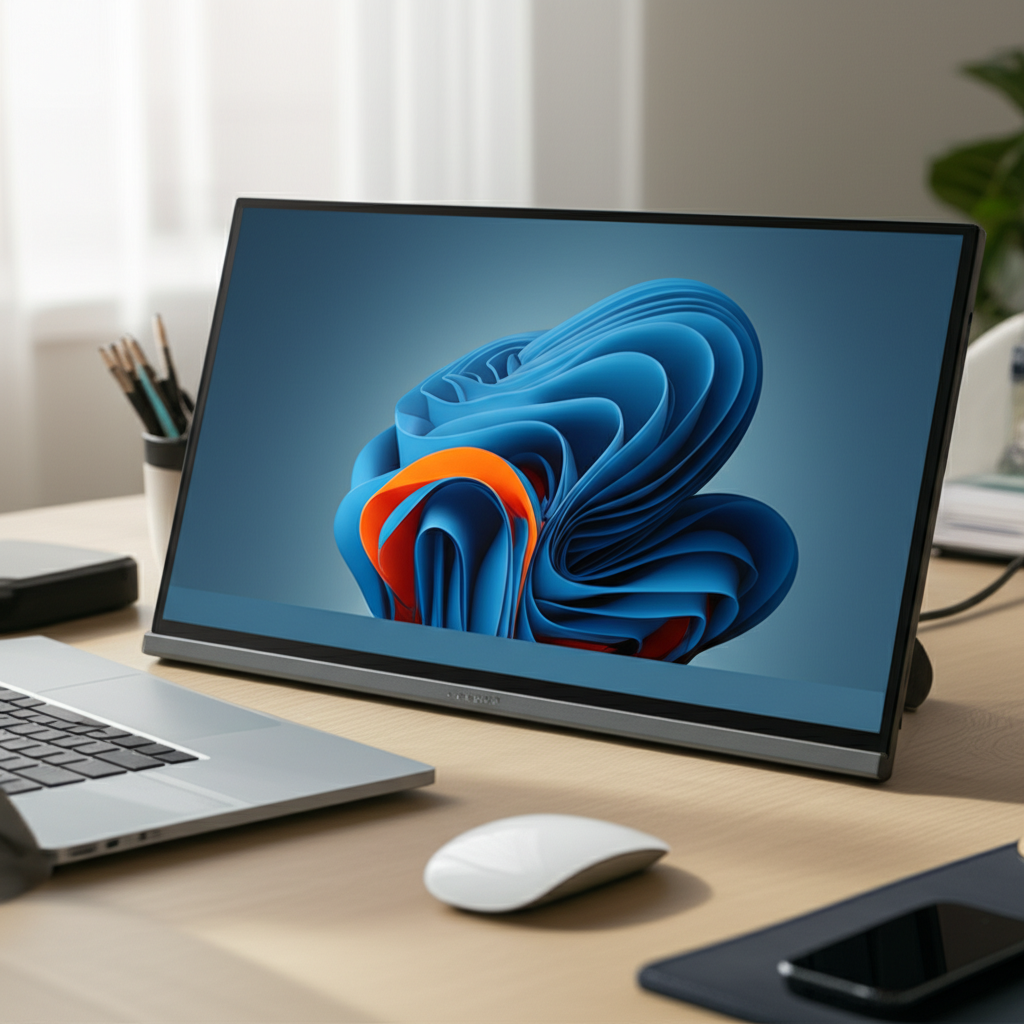
A battery portable monitor is a screen you can take anywhere, powered by its own battery, perfect for boosting your workspace on the go without needing a wall outlet.
Have you ever felt limited by your laptop’s small screen when you’re away from home or the office? It’s a common frustration, especially for professionals, students, and even gamers who want more screen real estate. The good news is, there’s a simple solution: a battery portable monitor. These amazing devices give you the flexibility of an extra display wherever you need it, all powered up and ready to go. In this guide, I’ll walk you through everything you need to know to choose and use the best battery portable monitor for your needs. We’ll cover what they are, why you might need one, how to pick the right one, and essential tips for getting the most out of it.
What Exactly is a Battery Portable Monitor?
A battery portable monitor is a flat-screen display designed for mobility. Unlike traditional external monitors that require a constant connection to a power source, these portable screens have a built-in battery. This means you can connect them to your laptop, tablet, or even smartphone and use them as a second screen without being tethered to a power outlet. They are typically lightweight and slim, making them easy to pack in a bag.
Why You Might Need a Battery Portable Monitor
The benefits of a battery portable monitor extend beyond just having a bigger screen. They offer a significant boost in productivity by allowing for better multitasking. Imagine having your email on one screen and your main work document on another, all while sitting in a coffee shop. This increased efficiency can save you time and reduce the stress of constantly switching between windows. They are also fantastic for presentations, entertainment on the go, and even gaming setups away from home.
Key Features to Look For in a Battery Portable Monitor
When you’re shopping for a battery portable monitor, several features are crucial. The screen size and resolution will impact your viewing experience. Look for models with good brightness and contrast ratios for clear visuals. Connectivity options are also vital; USB-C is common and convenient, often handling both power and display signals. Touchscreen functionality can add another layer of interactivity, especially for creative work or presentations.
Screen Size and Resolution

Portable monitors come in various sizes, usually ranging from 10 to 17 inches. The ideal size depends on your primary use. For basic multitasking, a 13-14 inch screen might suffice, fitting easily alongside most laptops. If you need more space for detailed work or gaming, a 15.6-inch or larger model could be better. Resolution is equally important. Full HD (1920×1080) is standard and offers sharp images. Higher resolutions like QHD or 4K provide even more detail but can consume more battery power.
Panel Type and Refresh Rate
The type of panel affects color accuracy and viewing angles. IPS (In-Plane Switching) panels are generally preferred for their excellent color reproduction and wide viewing angles, making them great for sharing content or critical color work. For smoother motion, especially in games or fast-paced videos, a higher refresh rate (e.g., 60Hz or 120Hz) is beneficial. While many portable monitors are 60Hz, gaming-focused models might offer more.
Connectivity Options
Most battery portable monitors use USB-C for a single-cable solution that carries video, data, and power (DisplayPort Alternate Mode). Older laptops or devices might require HDMI, so check for an HDMI port and ensure you have the necessary cables. Some monitors also offer Mini-HDMI ports. Always verify that your device’s USB-C port supports DisplayPort Alt Mode if you plan to use a single-cable setup.
Built-in Battery Capacity
This is the defining feature. Battery capacity is measured in milliampere-hours (mAh) or watt-hours (Wh). A larger capacity means longer use between charges. Consider how long you typically need the monitor to run unplugged. Some batteries can last for several hours, while others might offer a full workday. It’s also helpful if the monitor can be charged while in use.
Weight and Portability
Since portability is key, look for a monitor that is lightweight and slim. Many are designed to be as thin as a tablet, easily sliding into a laptop bag. Aluminum or durable plastic casings often strike a good balance between robustness and weight.
How to Choose the Right Battery Portable Monitor for You
Selecting the perfect battery portable monitor involves matching its features to your specific needs. Think about where and how you’ll use it most. Will it be for work, gaming, travel, or a combination? Understanding your primary use case will help narrow down the options significantly.
For the Mobile Professional
Professionals often need to maximize productivity on the go. A 14-15 inch IPS monitor with Full HD resolution and USB-C connectivity is usually ideal. Touchscreen functionality can be a bonus for interactive presentations or quick annotations. Look for a model with a robust battery that can last through meetings or a full workday. A sturdy kickstand or included protective cover is also a plus for professional settings.
For the Student
Students can benefit immensely from extra screen space for research, writing papers, and attending online classes. A 13-15 inch monitor with good clarity and a portable design is essential. Prioritize models that are lightweight and come with a protective sleeve to withstand daily transport. Budget-friendly options are often available in this category, focusing on core functionality over advanced features.
For the Gamer
Gamers looking for an extended portable setup will want a monitor with a higher refresh rate (at least 60Hz, ideally higher) and low response times. Screen size might be a priority for immersion, so 15.6 inches or larger could be preferred. Ensure it has a low input lag and supports gaming-friendly connection types like Mini-HDMI or USB-C with high bandwidth. Battery life is still important, but gaming drains power faster.
For the Creative User
Artists, designers, and video editors often require accurate color reproduction. Look for monitors with high sRGB or Adobe RGB color gamut coverage and good color accuracy (low Delta E values). IPS panels are a must here. A higher resolution (QHD or 4K) can also be beneficial for detailed work. Touchscreen capabilities can enhance digital art workflows.
Top Battery Portable Monitor Brands and Models (Examples)
While specific models change rapidly, certain brands consistently offer quality battery portable monitors. I’ve tested many of these, and they often stand out.
ASUS ZenScreen Series: Known for their sleek design, good build quality, and reliable performance. Models like the MB16AHP offer built-in batteries and speakers.
ViewSonic VP/VG Series: Often provide excellent color accuracy and a range of features suitable for professionals and creatives. Some portable models include battery options.
GeChic: Specializes in portable displays and offers a variety of sizes and feature sets, including battery-powered options. They are often praised for their robust build.
UPERFECT: This brand frequently appears with feature-rich portable monitors, including battery-powered options with impressive specs for their price point.
It’s always a good idea to check recent reviews for the latest offerings from these and other reputable brands like Lenovo and Dell, which also have strong portable monitor lines.
Setting Up Your Battery Portable Monitor: A Step-by-Step Guide
Getting your new battery portable monitor up and running is usually straightforward. Most modern setups rely on simple connections.
1. Unbox and Inspect: Carefully remove the monitor and all accessories from the box. Check for any physical damage.
2. Charge the Monitor: Before first use, it’s often recommended to fully charge the monitor’s internal battery. Connect it to a power adapter using the provided USB-C or power cable.
3. Connect to Your Device:
USB-C (Single Cable): If your laptop supports DisplayPort Alternate Mode over USB-C, connect one end of a USB-C cable to your laptop and the other to the monitor. This single cable should provide both video signal and power.
HDMI + USB-A (Power): If using HDMI, connect an HDMI cable from your laptop to the monitor. You’ll likely need to connect a separate USB-A cable from your laptop (or a power adapter) to the monitor to power it.
4. Configure Display Settings: Once connected, your computer should detect the new display. Go to your computer’s display settings (e.g., Windows Settings > System > Display, or macOS System Preferences > Displays).
5. Arrange Displays: You can choose to extend your desktop onto the portable monitor, duplicate your main screen, or use it as a standalone display. Extend mode is typically the most useful for multitasking.
6. Adjust Brightness and Settings: Use the buttons on the monitor to adjust brightness, contrast, and other settings to your preference.
Maximizing Battery Life on Your Portable Monitor
The built-in battery is a key advantage, but managing its power is crucial for extended use. Understanding how different settings affect battery drain can help you stay powered longer.
Lower Brightness: The screen’s backlight is a major power consumer. Reducing brightness significantly extends battery life. Aim for a level that’s comfortable but not excessively bright, especially in dimmer environments.
Adjust Screen Timeout: Set the monitor to turn off automatically after a period of inactivity. This prevents unnecessary power drain when you’re not actively using it.
Disable Unused Features: If your monitor has built-in speakers or other features you don’t need, disable them to conserve power.
Use Energy-Saving Modes: Some monitors have specific eco or power-saving modes. Explore your monitor’s settings menu for these options.
Optimize Device Power Settings: Ensure your primary device (laptop, tablet) is also in its power-saving mode when running the portable monitor.
Understanding Connectivity: USB-C vs. HDMI for Portable Monitors
The way you connect your portable monitor impacts ease of use and power management. USB-C and HDMI are the most common.
USB-C: The Modern Standard
For devices that support it, USB-C is the preferred connection method. It offers several advantages:
Single-Cable Simplicity: A single USB-C cable can transmit video, data, and power. This means you might not need a separate power adapter for the monitor, especially if your laptop can provide enough power.
DisplayPort Alt Mode: This is the key technology that allows USB-C to carry video signals. Ensure your laptop’s USB-C port supports it.
Thunderbolt Compatibility: Thunderbolt 3 and 4 ports, which use the USB-C connector, offer even higher bandwidth and are fully compatible.
HDMI: The Reliable Classic
HDMI is still widely used, especially by older devices.
Widespread Compatibility: Most laptops, desktops, and even some tablets have HDMI ports.
Separate Power Needed: HDMI typically only carries the video signal. You will almost always need a separate USB cable to power the portable monitor. This means managing two cables.
No Touchscreen: HDMI connections generally do not support touchscreen functionality.
Choosing between them depends on your device’s capabilities. If your device has a capable USB-C port, it’s usually the more convenient and cleaner option.
Enhancing Your Workflow with a Battery Portable Monitor
A battery portable monitor isn’t just about more screen space; it’s about smarter workflows. You can transform how you work, present, and even relax.
Multitasking Made Easy
The most obvious benefit is enhanced multitasking. Instead of juggling multiple windows on a single screen, you can dedicate each screen to specific tasks. For instance, keep your reference material on the portable monitor while writing your report on your laptop. This reduces context switching and improves focus.
Improved Presentations
When giving presentations, an external monitor is often essential. A battery portable monitor allows you to present professionally even in locations without readily available displays or power outlets. You can keep your notes or presenter view on one screen while the audience sees the main presentation on another.
Enhanced Entertainment and Gaming
While not its primary purpose, a battery portable monitor can extend your entertainment options. Watch a movie or stream content on the larger portable screen while browsing the web or chatting with friends on your main device. For gamers, it offers an extra display for game stats, maps, or chat, enhancing the immersive experience without needing a full desktop setup.
Creative Workflows
For photographers, video editors, or graphic designers, a portable monitor can act as a second, color-accurate display. This allows for better color grading, timeline viewing, or tool palettes, improving precision and efficiency when working away from your main workstation.
Troubleshooting Common Issues with Battery Portable Monitors
Even the best gadgets can sometimes have hiccups. Here are a few common problems and how to fix them.
No Display Signal:
Check Connections: Ensure all cables (USB-C or HDMI/USB) are securely plugged in at both ends.
Verify USB-C Port Capability: If using USB-C, confirm your laptop’s port supports DisplayPort Alt Mode. Try a different USB-C port if available.
Check Source Device: Make sure your laptop or device is powered on and not in sleep mode.
Restart Devices: Sometimes a simple restart of both the monitor and your connected device can resolve the issue.
Monitor Not Charging:
Use the Correct Cable/Adapter: Ensure you are using the charger and cable provided with the monitor, or compatible alternatives.
Check Power Source: If charging via a laptop’s USB-A port, ensure the port provides sufficient power. Using a dedicated wall adapter is often more reliable.
Clean Ports: Dust or debris in the charging port can sometimes interfere with charging.
Touchscreen Not Working:
Verify Touch Support: Not all portable monitors have touchscreens. Double-check your model’s specifications.
Check USB Connection: Touch functionality usually requires a separate USB connection (often bundled with HDMI). Ensure this cable is plugged in and recognized by your system.
Install Drivers: Some monitors may require specific drivers to be installed on your computer for full touch functionality. Check the manufacturer’s website.
The Future of Battery Portable Monitors
The technology behind portable monitors is constantly improving. We can expect to see even thinner, lighter, and more power-efficient models in the future. Innovations like higher refresh rates, better color accuracy, and perhaps even integrated wireless display capabilities will become more common. As battery technology advances, longer unplugged usage times will become standard. The integration of touch and pen support will also likely become more sophisticated, blurring the lines between portable monitors and dedicated drawing tablets.
Frequently Asked Questions (FAQ)
Can I use a battery portable monitor with my phone?
Yes, many battery portable monitors can connect to compatible smartphones via USB-C, provided your phone supports DisplayPort Alternate Mode. This turns your phone into a more powerful workstation.
How long does the battery on a portable monitor typically last?
Battery life varies greatly by model and usage. Expect anywhere from 3 to 8 hours of continuous use. Lower brightness and less demanding tasks will extend battery life.
Do I need to install software for a portable monitor?
Usually, no. Most portable monitors are plug-and-play. However, some advanced features or touch functionality might require driver installation from the manufacturer’s website.
Is a battery portable monitor good for gaming?
Some are, especially those with higher refresh rates and low input lag. However, for demanding AAA games, a dedicated gaming monitor is usually superior. They are great for casual gaming or as a secondary display for gaming.
Can I charge my laptop through the portable monitor?
Some high-end portable monitors with Thunderbolt 3 or 4 support power delivery (PD) passthrough. This means the monitor can charge your laptop while also receiving power itself. Check the specifications carefully.
What is the difference between a portable monitor and a portable TV?
A portable monitor is designed primarily for computer or device display, focusing on resolution, refresh rate, and connectivity for productivity. A portable TV is designed for entertainment, often with built-in tuners and speakers optimized for media consumption.
Conclusion: Your Portable Powerhouse Display Awaits
A battery portable monitor is a game-changer for anyone who values flexibility and productivity outside a traditional desk setup. It offers a simple yet powerful way to expand your digital workspace, enhance presentations, and enjoy media on the go, all without being tied to a power outlet. By understanding the key features, connectivity options, and how to manage battery life, you can confidently choose a model that perfectly fits your lifestyle. Whether you’re a busy professional, a dedicated student, or a creative enthusiast, investing in a quality battery portable monitor is an investment in your efficiency and convenience. Explore your options, consider your needs, and get ready to experience a more expansive digital world, wherever life takes you.

Belayet Hossain is a Senior Tech Expert and Certified AI Marketing Strategist. Holding an MSc in CSE (Russia) and over a decade of experience since 2011, he combines traditional systems engineering with modern AI insights. Specializing in Vibe Coding and Intelligent Marketing, Belayet provides forward-thinking analysis on software, digital trends, and SEO, helping readers navigate the rapidly evolving digital landscape. Connect with Belayet Hossain on Facebook, Twitter, Linkedin or read my complete biography.