
Published on: 28/10/2025 | Updated on: October 28, 2025
The Best Dual Monitor Setup for Productivity: Your Ultimate Guide
Unlock peak efficiency with the best dual monitor setup for productivity. This guide helps you choose the right screens, mounts, and accessories to transform your workspace and boost your output, making multitasking a breeze and complex tasks manageable.
Are you tired of constantly switching between windows? Do you feel like your current screen setup is holding you back? Many of us do. Juggling multiple applications, documents, and web pages on a single screen can be a real productivity killer. It leads to frustration and wasted time. But there’s a simple, powerful solution: a dual monitor setup. This guide will walk you through everything you need to know to create the best dual monitor setup for your specific needs. We’ll cover choosing the right monitors, the best ways to mount them, and the essential accessories that make it all work seamlessly. Get ready to supercharge your workflow!
Why a Dual Monitor Setup is a Productivity Game-Changer
A dual monitor setup offers a significant boost in productivity by expanding your digital workspace. You can view multiple applications simultaneously without minimizing or switching windows. This reduces cognitive load and speeds up task completion. Studies consistently show that using dual monitors can increase productivity by up to 50%. This means more work done in less time.
Simultaneous Information Access: Keep reference materials on one screen while working on another.
Enhanced Multitasking: Easily drag and drop content between displays.
Reduced Eye Strain: Position screens at optimal angles for comfort.
Improved Workflow: Streamline complex tasks like coding, design, or data analysis.
This expanded screen real estate allows for a more fluid and efficient work process. It’s like having a bigger desk for your digital life.
Choosing the Right Monitors: Size, Resolution, and Panel Type
Selecting the correct monitors is the foundation of your best dual monitor setup for productivity. Size and resolution play a huge role in how much information you can see. Panel type affects color accuracy and viewing angles. I’ve tested many monitors, and here’s what I’ve learned.
Monitor Size Matters

For productivity, I usually recommend monitors between 24 and 27 inches. Smaller screens can feel cramped for multitasking. Larger screens might require too much head movement. A 24-inch monitor is a great starting point for most users. A 27-inch monitor offers more space, which is excellent for detailed work.
Resolution: Seeing More Detail
Resolution determines how sharp and detailed your display looks. For dual setups, Full HD (1920×1080) is a good baseline. However, for a truly enhanced productivity experience, I strongly suggest QHD (2560×1440). QHD monitors provide significantly more screen real estate. You can fit more content without scaling issues. This is crucial for tasks involving lots of data or code.
Panel Types Explained
There are three main panel types to consider: TN, VA, and IPS.
TN (Twisted Nematic): These are the fastest but have the worst color reproduction and viewing angles. They are usually the cheapest.
VA (Vertical Alignment): These offer good contrast ratios, making blacks deeper. They are slower than TN panels and have decent colors.
IPS (In-Plane Switching): These provide the best color accuracy and wide viewing angles. They are ideal for tasks where color is important, like graphic design. For general productivity, IPS panels offer the best all-around experience.
My personal preference for a productivity setup leans heavily towards IPS panels for their color accuracy and viewing angles. This ensures that content looks good from various positions.
Understanding Connectivity: Ports and Cables
Connecting your monitors correctly is vital for a smooth dual monitor setup. You need to ensure your computer has the right ports. The most common ports are HDMI and DisplayPort. USB-C is also becoming increasingly popular.
HDMI vs. DisplayPort
HDMI is common on most devices. It’s great for general use and video playback. DisplayPort often offers higher refresh rates and resolutions. It’s usually the preferred choice for gaming and professional work. For a dual monitor setup, ensure your graphics card or laptop has enough output ports. You might need an adapter if your computer doesn’t have the ports you need.
USB-C: The All-in-One Solution
Some modern laptops use USB-C for video output. This single port can handle video, data, and even power delivery. If your laptop supports it, a USB-C connection can simplify your setup significantly. It means fewer cables cluttering your desk. I find USB-C setups to be the cleanest and most convenient.
Always check the specifications of your computer and monitors. This ensures compatibility before you buy anything. You want to avoid any surprises when setting up your new workspace.
Ergonomics and Mounting: Comfort for Long Hours
Working for extended periods requires a comfortable setup. Proper ergonomics can prevent strain and improve your overall well-being. This is where monitor mounts come into play. They allow you to position your screens perfectly.
Single Monitor Arms
A single monitor arm can hold one screen. You can often adjust its height, tilt, and swivel. This lets you position the screen at eye level. This is a crucial step for preventing neck strain.
Dual Monitor Mounts
Dual monitor mounts are designed to hold two screens. They can be freestanding or clamp onto your desk. These mounts offer great flexibility. You can align them side-by-side or stack them vertically. I find side-by-side mounting to be the most common and effective for productivity.
Desk Clamps vs. Freestanding Mounts
Desk clamps are great if you have a sturdy desk. They save space on your desk surface. Freestanding mounts are good if you can’t clamp to your desk. They offer stability but take up more desk space.
Investing in a good mount is as important as choosing the monitors themselves. It directly impacts your comfort and health. A well-adjusted setup makes a huge difference in your daily work.
Operating System Settings: Optimizing Your Dual Display
Once your monitors are physically set up, you need to configure your operating system. Windows and macOS offer robust settings for dual displays. Getting these settings right unlocks the full potential of your setup.
Extending Your Display
The most common setting is “Extend these displays.” This treats both monitors as one large desktop. You can drag windows between them freely. This is the primary way to enhance multitasking.
Duplicate vs. Extend
Avoid “Duplicate these displays” for productivity. This mirrors your primary screen onto the second one. It doesn’t give you more space. “Extend” is the setting you want for maximum efficiency.
Arranging Your Monitors
In your display settings, you can arrange the monitors virtually. Drag the monitor icons to match their physical placement. This ensures your mouse moves correctly between screens. Setting this up accurately prevents confusion.
You can also adjust the resolution and scaling for each monitor. This is especially useful if you have monitors with different resolutions. Fine-tuning these settings makes your dual monitor experience seamless.
Essential Accessories for the Ultimate Setup
Beyond the monitors and mounts, a few accessories can elevate your dual monitor setup. These items enhance usability and comfort. They help complete the ultimate productivity workspace.
Wireless Keyboard and Mouse
A wireless keyboard and mouse reduce cable clutter. This creates a cleaner and more organized desk. It contributes to a more focused work environment.
Monitor Light Bar
A monitor light bar illuminates your desk without screen glare. This reduces eye strain during long work sessions. It’s a subtle but highly effective addition.
Docking Station or Hub
If you have a laptop, a docking station is a lifesaver. It allows you to connect both monitors and other peripherals with a single cable. This makes switching between work and home incredibly easy. I use a docking station myself and highly recommend them.
These small additions can make a big difference. They contribute to a more comfortable, efficient, and aesthetically pleasing workspace.
Best Dual Monitor Setup Configurations for Different Needs
The best dual monitor setup isn’t one-size-fits-all. Your profession and daily tasks dictate the ideal configuration. Here are a few popular setups and who they’re best for.
The Standard Side-by-Side (2x 24-inch Monitors)
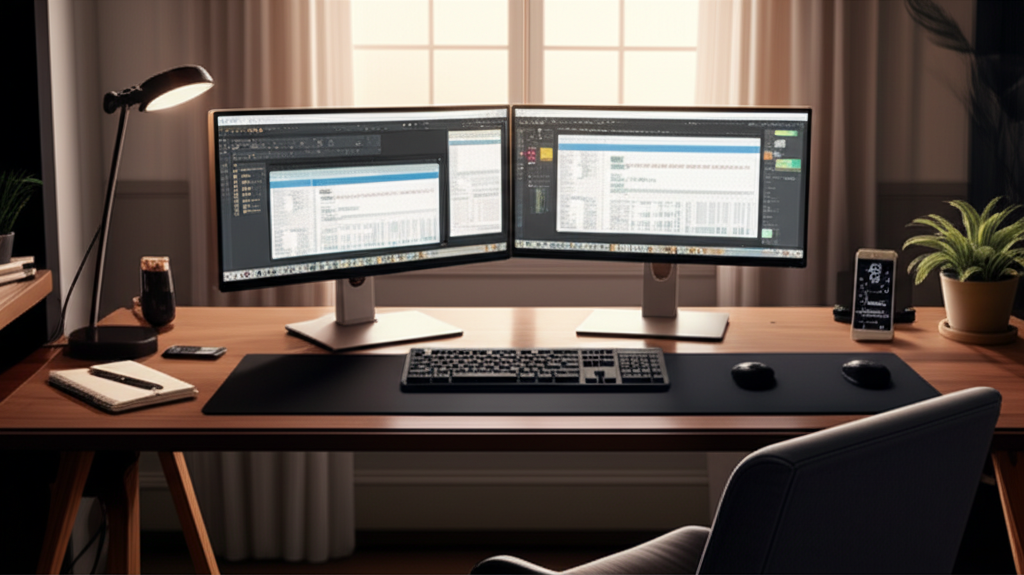
This is the most common and versatile setup. Two identical 24-inch monitors placed horizontally offer ample space. It’s perfect for general office work, web browsing, and coding.
Pros: Easy to set up, affordable, good balance of screen real estate.
Cons: May not be enough for highly specialized tasks.
This setup is a fantastic starting point for anyone new to dual monitors. It’s a solid investment for most professionals.
The Ultrawide + Standard (32-inch Ultrawide + 24-inch Standard)
This configuration combines the immersive experience of an ultrawide monitor with the utility of a standard monitor. The ultrawide is great for timelines, code editors, or video editing. The standard monitor can be used for reference materials or communication apps.
Pros: Excellent for creative professionals, immersive viewing.
Cons: Can be expensive, requires more desk space.
This setup is ideal for those who work with video, audio, or complex timelines. It offers a unique and powerful workflow.
The Stacked Setup (Two Monitors Vertically)
This configuration places one monitor above the other. It’s great for programmers who need to view a lot of code. It can also work for anyone who needs to keep an eye on a lot of information simultaneously.
Pros: Saves horizontal desk space, good for specific workflows.
Cons: Can cause neck strain if not set up properly, requires a specific mount.
Proper height adjustment is critical for this setup to remain ergonomic. It’s a niche but effective solution for some.
Choosing Between Horizontal and Vertical Alignment
How you arrange your monitors significantly impacts your workflow. Horizontal alignment is the most popular. Vertical alignment offers specific advantages.
Horizontal Alignment
Placing monitors side-by-side is intuitive. It mimics a wider single screen. This is ideal for tasks that benefit from a broad view. Think spreadsheets, design software, or browsing multiple websites. It’s the standard choice for most users.
Vertical Alignment (Stacking)
Stacking monitors vertically is less common but highly effective for certain tasks. Developers often use this to view code on one screen and the resulting output on the other. It can also be used for reading long documents or code without scrolling. This setup requires careful ergonomic consideration.
The best alignment depends on your primary use case. Experimentation might be necessary to find what feels most natural. I find horizontal alignment works best for my general productivity needs.
Budgeting for Your Dual Monitor Setup
Setting up dual monitors doesn’t have to break the bank. You can build an effective setup across various price points. Consider your budget and prioritize.
Entry-Level ($300-$600)
Two 24-inch Full HD monitors (e.g., Dell, HP).
A basic dual monitor stand or individual arms.
Standard cables.
This setup provides a significant productivity boost at an affordable price. It’s perfect for students or those on a tight budget.
Mid-Range ($700-$1200)
Two 27-inch QHD monitors (e.g., LG, BenQ).
A sturdy dual monitor arm.
Possibly a USB-C hub or docking station.
This offers a much sharper and more expansive visual experience. It’s ideal for most professionals.
High-End ($1200+)
Two 27-inch or larger 4K monitors or one ultrawide.
Premium monitor arms.
High-quality docking station and accessories.
This is for users who need the best possible visual fidelity and performance. It caters to creative professionals and power users.
Remember to factor in the cost of mounts and cables. These are often overlooked but essential components. You can find great deals during sales events.
Troubleshooting Common Dual Monitor Issues
Even the best setups can sometimes encounter problems. Here are a few common issues and how to fix them.
Monitor Not Detected: Ensure cables are securely plugged in. Try a different port or cable. Update your graphics drivers.
Incorrect Resolution: Check your display settings. Make sure the correct resolution is selected for each monitor. Ensure your graphics card supports the desired resolution.
Flickering Screen: This can be a cable issue or a refresh rate mismatch. Try a different cable or adjust the refresh rate in display settings.
Mouse Cursor Issues:** Verify your monitor arrangement in display settings. Ensure the virtual layout matches the physical placement.
If you encounter persistent problems, consult your graphics card manufacturer’s support or the monitor manufacturer’s documentation. Most issues are solvable with a few simple adjustments.
Frequently Asked Questions (FAQ)
What is the best monitor size for a dual setup?
For most users, 24-inch to 27-inch monitors offer a good balance. Larger sizes can be overwhelming, requiring more desk space and head movement. Smaller sizes might not provide enough screen real estate.
Do I need a powerful graphics card for dual monitors?
It depends on what you’re doing. For basic productivity and web browsing, most integrated graphics will suffice. For gaming, video editing, or graphic design, a dedicated, more powerful graphics card is recommended.
Can I use monitors with different resolutions?
Yes, you can use monitors with different resolutions. Your operating system allows you to set individual resolutions and scaling for each display. However, it’s often best for workflow to have matching resolutions.
How do I connect two monitors to a laptop?
You’ll need to check your laptop’s ports. Most laptops have HDMI or USB-C ports that support external displays. You may need a docking station or adapter if your laptop has limited ports or needs to support multiple displays.
Is a dual monitor setup good for gaming?
While dual monitors can enhance immersion, they are not typically ideal for gaming itself. Most games are designed to run on a single, primary display. However, a dual setup is great for having gaming streams, guides, or chat open on a second screen while you play.
How much desk space do I need for a dual monitor setup?
You’ll need enough space for two monitors side-by-side. For 24-inch monitors, allow about 48 inches of width. For 27-inch monitors, aim for 54 inches or more. Consider the depth needed for stands or mounts as well.
Conclusion: Elevate Your Productivity with the Right Dual Monitor Setup
Creating the best dual monitor setup for productivity is an investment that pays dividends in efficiency and comfort. By carefully considering monitor size, resolution, connectivity, and ergonomics, you can build a workspace tailored to your needs. Whether you opt for a simple side-by-side configuration or a more specialized setup, the benefits of expanded screen real estate are undeniable. Remember to optimize your operating system settings and consider essential accessories. With the right approach, you can transform your daily workflow and achieve more with less effort. Start planning your ultimate dual monitor setup today and experience the difference!
If you found this guide helpful, consider following us for more tech tips and reviews.

Belayet Hossain is a Senior Tech Expert and Certified AI Marketing Strategist. Holding an MSc in CSE (Russia) and over a decade of experience since 2011, he combines traditional systems engineering with modern AI insights. Specializing in Vibe Coding and Intelligent Marketing, Belayet provides forward-thinking analysis on software, digital trends, and SEO, helping readers navigate the rapidly evolving digital landscape. Connect with Belayet Hossain on Facebook, Twitter, Linkedin or read my complete biography.