
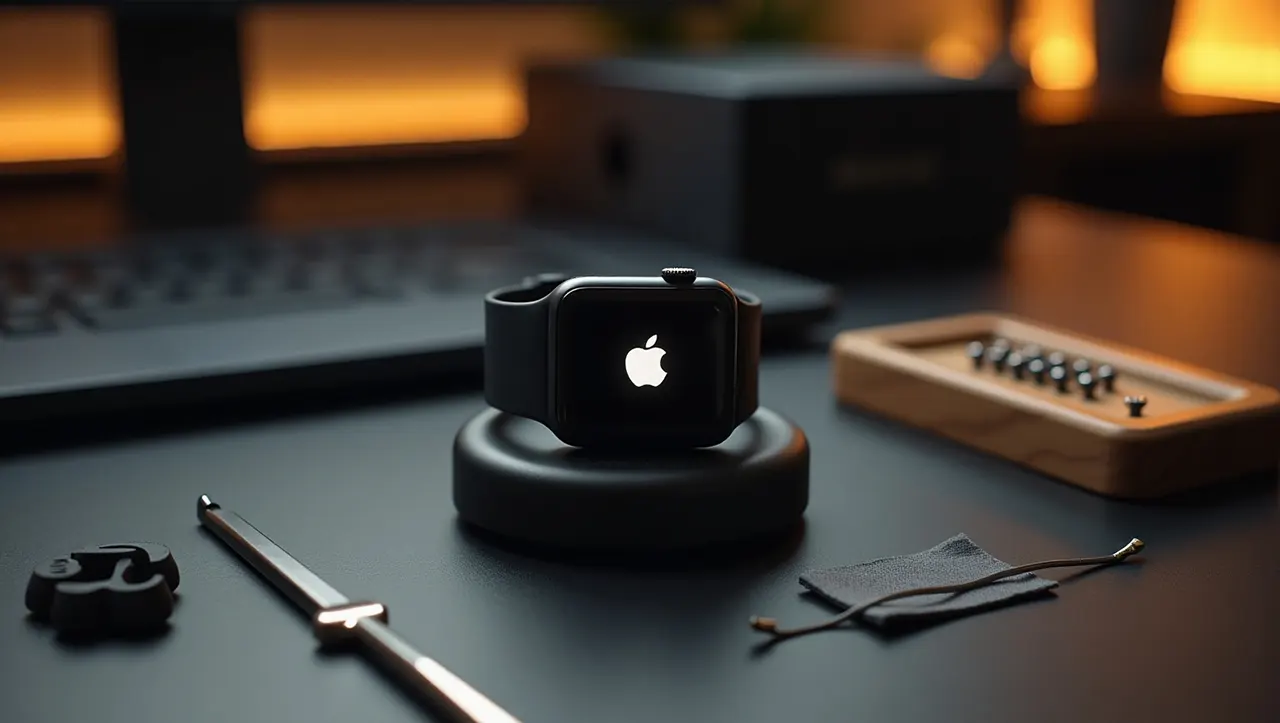
Don’t panic if your Apple Watch is stuck on the logo. This guide provides essential breakthrough fixes to get your device working again, covering simple restarts to advanced recovery options. We’ll help you troubleshoot this common issue efficiently.
It’s a moment that can cause a ripple of panic for any Apple Watch user: you glance at your wrist, expecting to see the time or a notification, but instead, you’re met with the persistent Apple logo. Your Apple Watch is stuck on the logo screen, refusing to boot up or respond. This frustrating scenario, often referred to as being stuck in a boot loop, can happen for various reasons, from software glitches to failed updates. Fortunately, most of these issues are resolvable with the right approach.
This comprehensive guide is designed to be your go-to resource, offering a clear, step-by-step path to overcoming the “Apple Watch stuck on logo” problem. We’ll explore the most effective solutions, starting with the simplest and progressing to more advanced troubleshooting methods. You’ll gain the knowledge and confidence to tackle this issue head-on, getting your smartwatch back to its full functionality in no time.
Understanding Why Your Apple Watch Might Be Stuck on the Logo
The Apple logo appearing indefinitely on your watch screen is a clear sign that the device is encountering an issue during its startup sequence. This can be triggered by a variety of factors, often related to the software that powers your Apple Watch. Understanding these common culprits can help you better diagnose and resolve the problem.
Several underlying reasons can cause your Apple Watch to freeze on the Apple logo. These often stem from software conflicts, incomplete or corrupted updates, or sometimes even minor hardware issues that interfere with the boot process. Identifying the root cause, even if it’s just a guess, can sometimes guide you towards the most effective fix.
Software Glitches and Corrupted Data
Software glitches are arguably the most frequent cause of an Apple Watch getting stuck on the logo. These can occur after a recent software update, when a new app is installed, or even spontaneously due to a minor system error. Corrupted data within the watch’s operating system can prevent it from completing the boot sequence.
When the operating system encounters unexpected errors or corrupted files during startup, it may halt the process to prevent further damage. This often results in the device endlessly displaying the Apple logo as it tries, and fails, to load correctly. This is a common issue across many smart devices.
Failed or Interrupted Software Updates
A critical point where many Apple Watches encounter the logo freeze is during a software update. If the update process is interrupted—perhaps due to a loss of Wi-Fi connection, low battery, or an accidental cancellation—the watch’s operating system can become corrupted. This leaves it in an unstable state, unable to boot properly.
An incomplete update means that essential system files may be missing or damaged. The watch’s firmware needs a complete and stable installation to function. When this is compromised, the device can get caught in a loop, repeatedly attempting to load the broken update.
App Conflicts and Compatibility Issues
Occasionally, a newly installed or updated app can cause a conflict with the watch’s operating system. This is especially true if the app has not been optimized for the current watchOS version or if it contains a bug that interferes with the boot process. Such conflicts can lead to the “Apple Watch stuck on logo” issue.
When an app’s code clashes with the system’s core functions during startup, it can halt the entire process. This is similar to how a faulty driver can crash a computer. The watch’s software tries to load everything it needs, and if a rogue app prevents this, the logo screen becomes a persistent roadblock.
Low Battery or Power Issues
While less common for being stuck on the logo indefinitely, severe low battery situations or power issues during critical startup phases can sometimes contribute. If the watch’s battery is critically low and it attempts to boot or update, it might not have enough power to complete the process, leading to an incomplete startup.
A device needs a stable power supply to perform complex operations like booting up its operating system. If the power fluctuates or is insufficient, especially during an update or reset, it can leave the system in a compromised state, manifesting as the dreaded Apple logo screen.
Your First Line of Defense: The Force Restart
The force restart is the most common and often the most effective first step to resolve an Apple Watch stuck on the logo. It’s a hard reset that doesn’t erase any data but can clear temporary software glitches that are preventing your watch from booting up correctly. This simple procedure is designed to force the device to shut down and restart.
This method is akin to pulling the plug on a computer that has frozen. By cutting power abruptly and then allowing it to power back on, you give the system a clean slate to begin its boot sequence. It’s a non-destructive way to clear out minor software hiccups.
How to Perform a Force Restart on Your Apple Watch
Performing a force restart is straightforward and requires no special tools. It involves pressing and holding two physical buttons on your Apple Watch simultaneously for a specific duration. This action overrides the standard shutdown process and forces the device to reboot.
1. Press and hold both the Side Button and the Digital Crown. These are the two physical buttons located on the side of your Apple Watch.
2. Continue holding both buttons. You need to keep them pressed down without releasing them.
3. Wait for the Apple logo to appear, then release both buttons. This usually takes about 10-15 seconds. Don’t hold them for too long after the logo appears, as this might trigger recovery mode instead.
After releasing the buttons, your Apple Watch should begin its normal startup sequence. If it boots up successfully, the “Apple Watch stuck on logo” issue is likely resolved.
When a Force Restart Works Wonders
A force restart is particularly effective for transient software errors or minor system hangs. If your watch froze during a routine operation or after installing a new app, this quick reboot can often clear the temporary glitch. It’s the digital equivalent of shaking a stubborn device to get it working again.
Think of it as clearing the watch’s short-term memory. Sometimes, temporary data gets stuck, preventing normal operations. A force restart wipes this temporary data, allowing the system to load fresh and correctly.
Checking Your iPhone for Clues and Potential Solutions
Your iPhone is intrinsically linked to your Apple Watch, especially for setup, updates, and troubleshooting. If your Apple Watch is stuck on the logo, your iPhone might hold clues or offer direct solutions. The Watch app on your iPhone is the central hub for managing your device and can provide insights into its status.
The Watch app on your paired iPhone acts as a diagnostic tool and control center. By examining its status or attempting certain actions through it, you might be able to nudge your unresponsive Apple Watch back to life. It’s an essential companion for any Apple Watch user.
Using the Watch App to Diagnose the Issue
Open the Watch app on your iPhone and check the status of your Apple Watch. If it’s connected, you might see options to update or manage settings. If it’s not connecting, this can indicate a more severe problem, but sometimes, simply trying to reconnect can prompt a restart on the watch.
Look for any error messages or prompts within the Watch app. Sometimes, it will indicate that your watch needs attention or is attempting to sync. Even if the watch appears stuck, the app might offer a pathway to initiate a fix or provide more information about what’s going wrong.
Attempting an Update or Sync via the Watch App
If your Apple Watch is minimally responsive, sometimes initiating an update or sync from the iPhone can help. Navigate to General > Software Update within the Watch app. If an update is available, the iPhone might be able to push it to the watch, potentially overwriting corrupt data.
While the watch is stuck on the logo, it might still be intermittently communicating with the iPhone. Attempting a software update through the Watch app can sometimes force the watch to engage with the update process, thereby fixing the boot loop. This relies on the watch being somewhat functional in the background.

The Power of Pairing and Unpairing (with Caution)
If a simple force restart doesn’t resolve the “Apple Watch stuck on logo” issue, the next logical step is to consider unpairing and re-pairing your Apple Watch. This process essentially resets the watch to its factory settings and establishes a fresh connection with your iPhone. However, it requires careful consideration regarding data backup.
Unpairing your Apple Watch will erase all its settings and data. This is why it’s crucial to ensure you have a recent backup of your Apple Watch data, which is usually managed automatically through your iPhone. Re-pairing then sets up the watch as if it were new, or restores from a backup.
How to Unpair Your Apple Watch from Your iPhone
To unpair, you’ll need both your iPhone and your Apple Watch to be relatively accessible, though the watch won’t be fully functional.
1. Open the Watch app on your iPhone.
2. Tap on the ‘My Watch’ tab.
3. Tap ‘All Watches’ at the top.
4. Tap the ‘i’ icon next to the watch you want to unpair.
5. Tap ‘Unpair Apple Watch’. You may need to confirm by tapping again. If you have an Apple Watch with cellular, you might need to choose to keep or remove your cellular plan.
This action will erase all content and settings on your Apple Watch and remove it from your Apple ID. Your iPhone will then prompt you to pair your Apple Watch again.
Re-pairing Your Apple Watch to Restore Functionality
Once unpaired, you can begin the re-pairing process. This involves holding your Apple Watch near your iPhone and following the on-screen setup instructions. You’ll have the option to set it up as a new watch or restore from a recent backup.
If you choose to restore from a backup, your watch will attempt to load your previous settings and data. If the issue was a software glitch that got saved in the backup, you might encounter the problem again. Setting it up as new can sometimes be a cleaner solution if the problem persists after restoring.
Entering Recovery Mode for Advanced Troubleshooting
If your Apple Watch remains stubbornly stuck on the Apple logo after trying the above steps, it might be time to attempt entering Recovery Mode. This mode allows you to restore your Apple Watch’s software using your paired iPhone. It’s a more advanced step that can often resolve persistent boot loop issues.
Recovery Mode provides a deeper level of access to the watch’s software. It essentially allows your iPhone to reinstall the watch operating system, much like restoring an iPhone or iPad via iTunes or Finder. This can fix issues that simpler methods cannot.
Steps to Access Apple Watch Recovery Mode
Accessing Recovery Mode requires a specific button combination and timing, and it’s best performed when the watch is connected to its charger.
1. Ensure your Apple Watch is connected to its charger. This is crucial for the process.
2. Press and hold both the Side Button and the Digital Crown. Keep them pressed down.
3. Continue holding until the Apple logo disappears.
4. Immediately after the logo disappears, release the Side Button but continue holding the Digital Crown.
5. Keep holding the Digital Crown. You should eventually see a screen with text indicating Recovery Mode.
If successful, your iPhone’s Watch app will detect the watch in Recovery Mode and prompt you to update or restore.
Restoring Your Apple Watch in Recovery Mode
Once your Apple Watch is in Recovery Mode and detected by your iPhone’s Watch app, you’ll be presented with two options: Update or Restore.
Update: This option attempts to reinstall the latest version of watchOS without erasing your data. If the issue was a minor corruption that an update can fix, this might be sufficient.
Restore: This option completely erases your Apple Watch and reinstalls watchOS. You will then need to re-pair your watch and can choose to set it up as new or restore from a backup. This is the more thorough option and is often necessary for persistent boot loops.
Choosing ‘Restore’ is generally more effective for resolving the “Apple Watch stuck on logo” problem when other methods fail.
Checking for Physical Damage and Water Exposure
While software issues are the most common cause of an Apple Watch getting stuck on the logo, it’s important not to overlook potential hardware problems. Physical damage or significant water exposure can also interfere with the device’s ability to boot up correctly, leading to unexpected behavior like being stuck on the logo.
Your Apple Watch, despite its water resistance, can still be susceptible to damage from extreme conditions or impacts. These physical issues can disrupt internal components, leading to startup failures. It’s wise to rule out these possibilities.
Assessing for Visible Signs of Damage
Carefully inspect your Apple Watch for any cracks, dents, or signs of impact. Pay close attention to the screen, casing, and the Digital Crown. Any visible physical trauma could be a clue that a component inside has been dislodged or damaged.
Also, check the charging contacts on the back of the watch and on the charging cable. Corrosion or debris can prevent proper charging, which is essential for startup and recovery processes. Clean these gently if you notice any buildup.
Considering Recent Water Exposure or Extreme Temperatures
If your Apple Watch has recently been submerged in water beyond its rated depth, exposed to high-pressure water jets, or subjected to extreme temperatures (very hot or very cold), it could have sustained internal damage. Even if it appears to be working afterward, subtle damage can manifest later.
Water damage can cause short circuits or corrosion on internal components. Extreme temperatures can affect battery performance and the integrity of electronic parts. If you suspect recent exposure, this is a significant factor to consider in your troubleshooting.
When to Seek Professional Help from Apple Support
If you’ve exhausted all the troubleshooting steps outlined above—force restart, checking the iPhone app, unpairing/re-pairing, and attempting Recovery Mode—and your Apple Watch is still stuck on the logo, it’s likely time to contact Apple Support. This indicates a more complex issue that may require professional diagnosis and repair.
Apple’s certified technicians have specialized tools and knowledge to diagnose and fix hardware-related problems or deeper software issues that are beyond the scope of typical user troubleshooting. Don’t hesitate to reach out to them if your efforts haven’t yielded results.
How to Contact Apple Support
Apple provides several convenient ways to get support for your device. You can choose the method that best suits your needs and location.
Apple Support Website: Visit the official Apple Support website (support.apple.com) and navigate through the options for Apple Watch issues. You can often find guided troubleshooting articles or initiate a support request online.
Apple Support App: Download the Apple Support app from the App Store on your iPhone. It offers personalized troubleshooting steps, appointment scheduling, and direct contact options.
Phone Support: You can call Apple Support directly. The phone number varies by region, but it’s usually available on Apple’s website.
Apple Store or Authorized Service Provider: You can schedule an appointment at an Apple Store or an Apple Authorized Service Provider to have your watch physically inspected and serviced.
Be prepared to explain the steps you’ve already taken to resolve the “Apple Watch stuck on logo” issue. This will help the support representative understand the situation and guide you more effectively.
What to Expect When Seeking Professional Repair
When you contact Apple Support or visit an Apple Store, they will first attempt to replicate the issue. If the problem is confirmed, they will assess whether it can be resolved through software restoration or if a hardware repair or replacement is necessary. Depending on your Apple Watch’s warranty status and the nature of the problem, you may be offered a repair or replacement service.
Understand the terms of service and any potential costs involved before proceeding with a repair. Apple’s service often involves replacing the device with a new or refurbished unit that meets Apple’s quality standards.
Preventing the “Apple Watch Stuck on Logo” Issue in the Future
Once you’ve successfully resolved the “Apple Watch stuck on logo” problem, it’s wise to implement some preventative measures. By adopting good practices, you can significantly reduce the chances of encountering this frustrating issue again. Proactive care is key to maintaining a healthy digital device.
Keeping your Apple Watch in good working order involves a combination of software maintenance and careful usage. These habits can ensure smoother operation and fewer unexpected glitches.
Best Practices for Software and Updates
Always ensure your Apple Watch and paired iPhone are running the latest compatible software versions. Apple frequently releases updates that include bug fixes and performance improvements, which can prevent issues like boot loops.
Enable Automatic Updates: In the Watch app on your iPhone, go to General > Software Update and enable Automatic Updates. This ensures your watch installs updates when connected to Wi-Fi and charging.
Avoid Interrupting Updates: Never force restart or turn off your Apple Watch during a software update. Ensure it’s connected to Wi-Fi and has sufficient battery or is charging.
Manage Apps Wisely: Uninstall apps you no longer use, and be cautious when installing new apps, especially from lesser-known developers. Read reviews before installing.
Regularly backing up your Apple Watch data to your iPhone is also a good habit, ensuring that if a restore is needed, you won’t lose much important information.
Maintaining Battery Health and Physical Care
Proper battery management and physical care are also crucial for the longevity and stability of your Apple Watch. Avoid letting the battery drain completely too often, as this can stress the battery and potentially cause issues during critical operations.
Charge Regularly: Keep your Apple Watch charged, ideally above 20%, to avoid power-related startup problems.
Protect from Physical Damage: Use a screen protector and a protective case if you engage in activities that put your watch at risk of bumps or scratches.
Be Mindful of Water Exposure: While water-resistant, avoid exposing your watch to extreme water pressures or depths beyond its specifications. Dry it thoroughly after exposure to liquids.
By following these preventative tips, you can help ensure your Apple Watch remains a reliable companion for a long time, free from the frustration of being stuck on the logo.
Frequently Asked Questions (FAQ)
What is the quickest way to fix an Apple Watch stuck on the logo?
The quickest fix is usually a force restart. Press and hold both the Side Button and Digital Crown until the Apple logo appears, then release both buttons. This simple reboot often clears temporary software glitches.
Will force restarting my Apple Watch erase my data?
No, a force restart does not erase any data from your Apple Watch. It’s a hard reboot that clears temporary system errors, much like restarting a computer.
How long should I hold the buttons for a force restart?
You should hold both the Side Button and Digital Crown for approximately 10-15 seconds, or until the Apple logo appears on the screen. Release the buttons as soon as you see the logo.
What if my Apple Watch is still stuck on the logo after a force restart?
If a force restart doesn’t work, you may need to try unpairing and re-pairing your Apple Watch via the Watch app on your iPhone, or attempt to enter Recovery Mode for a software restore.
Is it possible for my Apple Watch to be stuck on the logo due to a hardware problem?
Yes, while less common than software issues, hardware problems like a damaged battery, screen, or internal component can also cause an Apple Watch to get stuck on the logo. In such cases, professional repair might be needed.
How do I know if my Apple Watch needs to be restored from a backup?
You’ll be prompted to restore from a backup after unpairing or when using Recovery Mode if you have one available. Restoring from a backup brings back your settings, apps, and data from a previous point in time.
Conclusion: Getting Your Apple Watch Back on Track
Encountering the “Apple Watch stuck on logo” issue can be a worrying experience, but as we’ve explored, it’s often a solvable problem. From the simple yet effective force restart to more advanced solutions like Recovery Mode, you now have a comprehensive set of tools to tackle this common smartwatch predicament. Remember, patience and a systematic approach are key.
By following the steps outlined in this guide, you can likely revive your Apple Watch and get it functioning normally again. Should the problem persist after all troubleshooting attempts, don’t hesitate to reach out to Apple Support for professional assistance. With the right care and knowledge, your Apple Watch can be back on your wrist, keeping you connected and informed.

Belayet Hossain is a Senior Tech Expert and Certified AI Marketing Strategist. Holding an MSc in CSE (Russia) and over a decade of experience since 2011, he combines traditional systems engineering with modern AI insights. Specializing in Vibe Coding and Intelligent Marketing, Belayet provides forward-thinking analysis on software, digital trends, and SEO, helping readers navigate the rapidly evolving digital landscape. Connect with Belayet Hossain on Facebook, Twitter, Linkedin or read my complete biography.